Here's the bottom line: the surest way to capture a Marvel Rivals ultimate combo is to keep an auto-clip tool turned on. The in-game highlight feature is usable too, but given the nature of a hero shooter where combos end in an instant, it's hard to nail the timing of pressing a hotkey by hand every time. In this article we lay it all out step by step, from the game's own feature to auto clips.
Why Marvel Rivals highlights are tricky
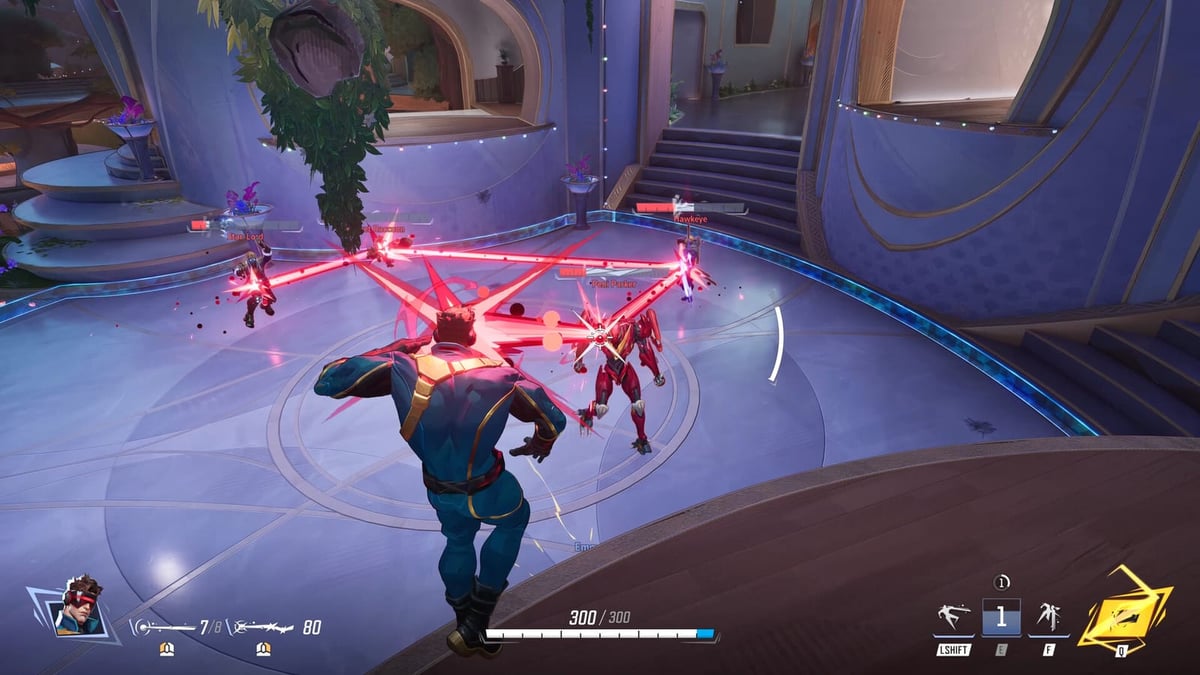
Marvel Rivals is a game where several ultimates overlap within 1 to 2 seconds to end a teamfight. When Invisible Woman's burst, Iron Man's area attack, and a support's ultimate go off at once, the screen gets flashy, but by the time you try to rewatch that moment, you've usually already moved on to the next teamfight.
This flow will feel familiar to anyone who's played Overwatch. The decisive moment lasts a few seconds at most, and whether you capture that brief moment as a clip determines the quality of your content and your review.
Method 1. Use the in-game highlight feature
Marvel Rivals offers its own highlight feature. When an impressive play happens during a match, it automatically captures the recent moment, and you can rewatch it from the menu. Check it in this order.
- Click the profile icon in the top-right of the main menu.
- Go into the Career menu and open the Favorites or Highlights tab.
- Check the auto-saved recent highlights (usually around 5).
- On PC, you can find the video file path under the saved highlights tab.
The save location is usually the Marvel Rivals / Highlights path inside the Videos folder. For example, it's created in the form C:\Users\YourUsername\Videos\Marvel Rivals\Highlights. Find the file here, open it in an editor, and cut out just the segment you need.
Method 2. Record manually with a hotkey
Using the instant-clip hotkey of an external recording tool, you can go back and save a moment that just happened. It usually rewinds and cuts anywhere from the last 15 seconds up to several minutes, so even just one key press right after a combo pops keeps that moment.
That said, this method requires a hands-on action every time. When you're locked in on a teamfight, it's easy to forget to press the hotkey right when a good moment happens. That's why we recommend using it together with auto-detection.
Method 3. Auto-clip ultimate combos with DOR
Marvel Rivals ultimate combos end in an instant, but DOR automatically detects kills and highlights and saves that moment as a clip. Without a person needing to press a hotkey, DOR catches the decisive segment on its own while the teamfight pops and turns it into a short clip.
It's simple to use. Install DOR and launch Marvel Rivals, and DOR auto-recognizes the game and records the whole match in the background. When the game ends, clips with just the kills and highlight moments picked out are automatically organized, so there's no need to separately find and cut a single combo cut.
- Install DOR and leave it running.
- Boot up and play Marvel Rivals as usual. DOR auto-detects the game.
- Teamfights and ultimate combos are automatically detected and flagged as clip candidates.
- After the match, save or share your favorite moments right away from the organized clips.
Which method should you choose?
If you only need to keep a moment or two occasionally, the in-game highlight feature is plenty. If you want to keep every ultimate combo without fail each match, or steadily collect clips for video content or review, DOR's auto clips save you a lot of time. Good moments gather on their own, without the burden of pressing a hotkey by hand.
To sum up, just leave DOR on and play as usual. Even if you don't consciously notice the moment a combo pops, your highlight clips will be ready when the match ends.