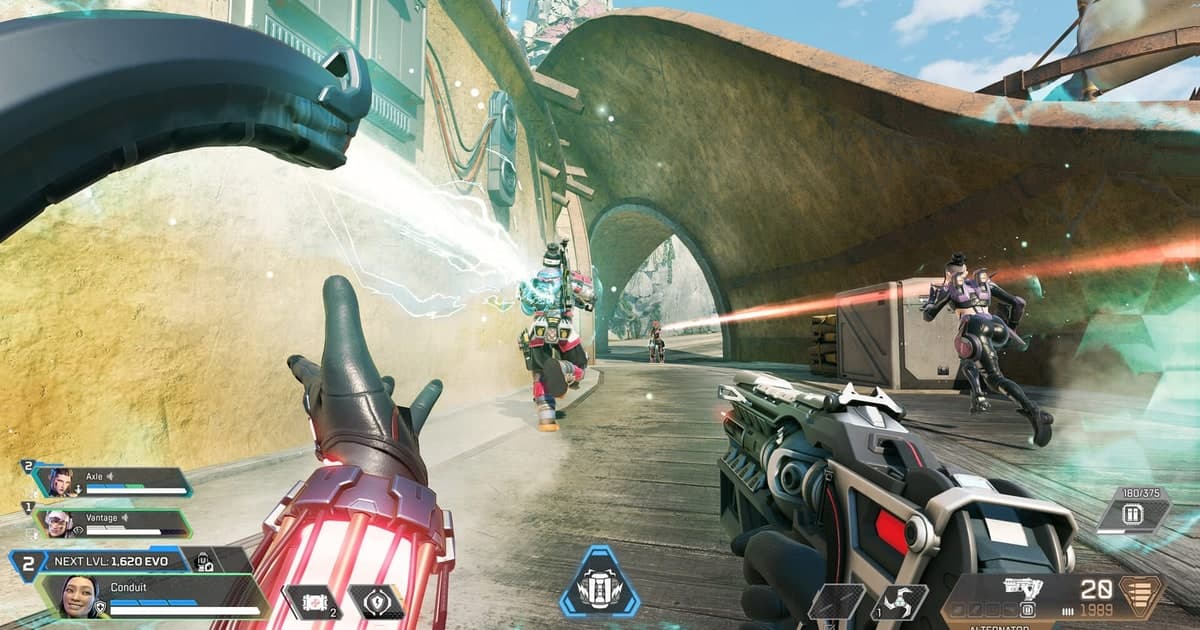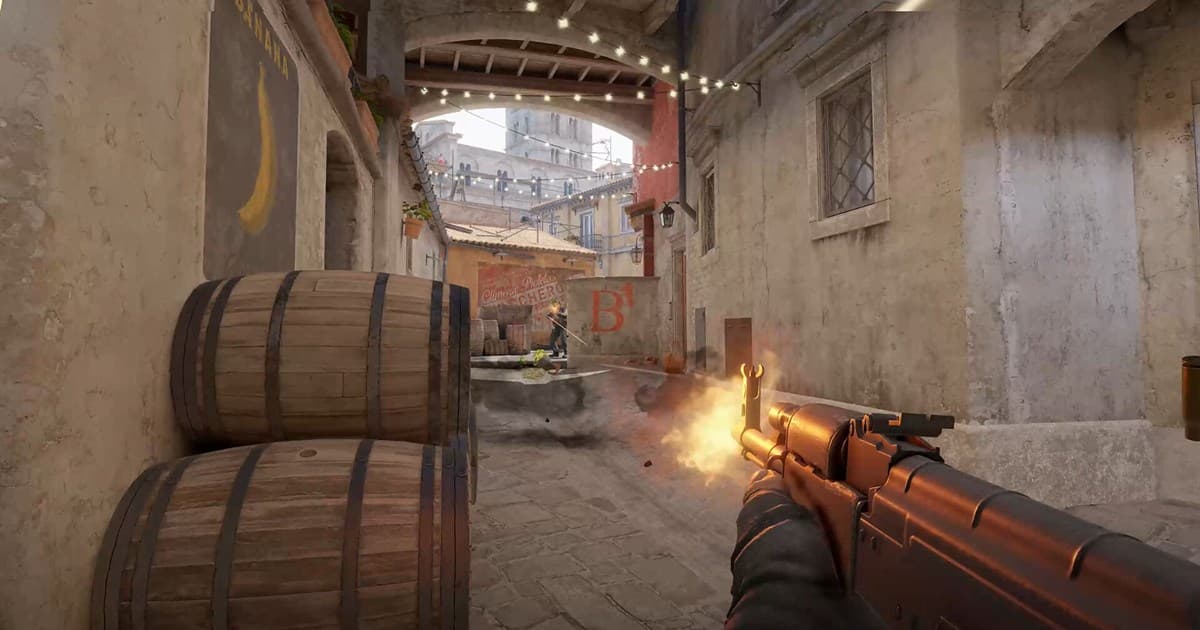
Nothing you stream on Twitch stays forever. Past broadcasts are deleted automatically after a set period, and any highlight you never edited goes with them. The same applies to other people's streams — put off watching something and it is often gone for good. This guide covers how to keep Twitch content, method by method.
First: VODs delete themselves
How long a past broadcast survives depends on your account. Regular accounts keep VODs for about 7 days, while Partner, Turbo and Prime users get around 60. Once the window passes there is no recovery, so anything you want to keep needs action before then.
Method 1. Keep and download your own VOD
- 1Turn on past broadcast storage — Creator Dashboard → Settings → Stream → enable "Store past broadcasts". VODs are created from your next stream onward.
- 2Convert to a highlight — Turning a VOD into a highlight in the Video Producer keeps it with no expiry.
- 3Download the original — The download menu in the Video Producer saves your own broadcast to your PC.
For your own streams this is the simplest route. The catch is that the whole broadcast is one long file, so finding a specific moment later means scrubbing again, and the files are large.
Method 2. Keep moments from other streams as clips
You cannot download someone else's broadcast. What you can do is cut a recent stretch into a clip. Pressing the clip button or shortcut on a stream saves the preceding segment, and that clip survives even after the broadcast is deleted.
The detailed process for downloading clips as files is covered separately in How to download and permanently keep Twitch clips.
| Method | Works on | Length limit | What you get |
|---|---|---|---|
| Store past broadcasts | Your streams only | Whole broadcast | Deleted after the retention window |
| Convert to highlight | Your streams only | Freely edited | Kept permanently |
| Clips | Any stream | About 60 seconds | Kept permanently |
| Local recording | Any screen | No limit | Original file on your disk |
Method 3. Record the original on your own PC
The surest approach is keeping a copy on your machine, independent of Twitch retention policy. If you stream games yourself, holding a local original alongside the compressed broadcast makes a visible quality difference when you edit later.
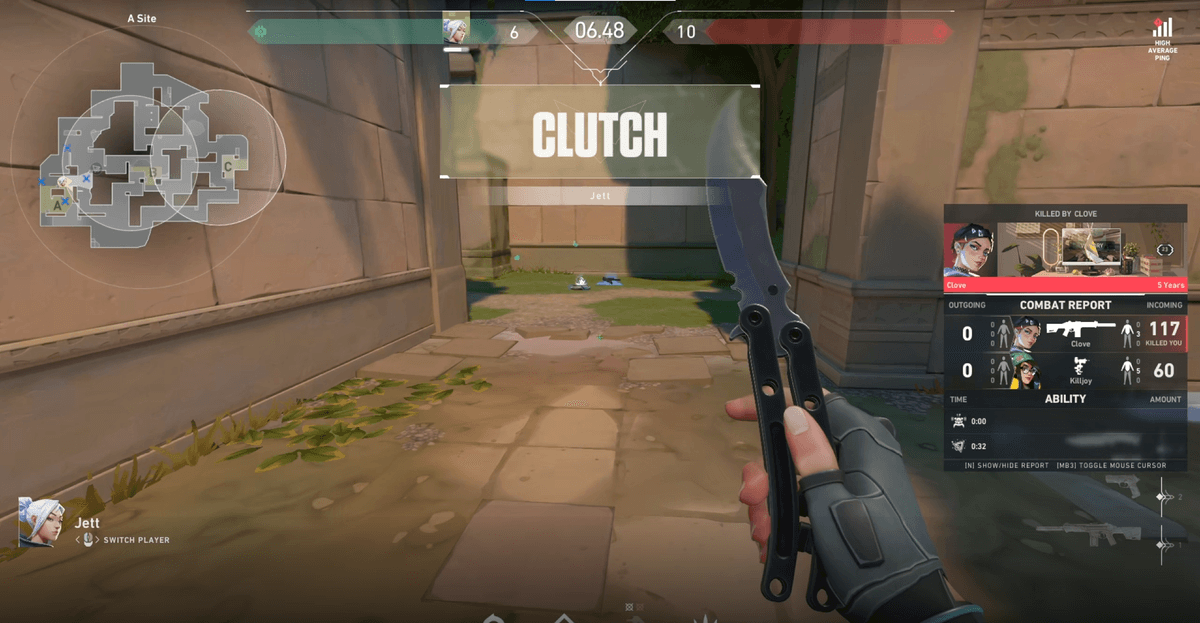
DOR detects your game automatically, records it, and cuts kills and highlights into separate clips as they happen. Because the original lives on your PC whether or not you were streaming, an expiring VOD does not affect you. Unlike one long broadcast file, everything is already split by moment, so finding a scene later is easy.
- 1Launch DOR and start your game — It recognises the game automatically, so there is no capture source to configure.
- 2Stream as usual — The local original is saved alongside your Twitch output.
- 3Edit from the clips afterwards — Highlights are already cut, so there is no long VOD to scrub through.
Which one should you pick
If the goal is keeping your whole broadcast, turn on past broadcast storage and convert to highlights. If the goal is capturing a moment from someone else's stream, clips are the only option. If you care about lossless originals and future editing, recording locally is the safest. These are not mutually exclusive — use them together.