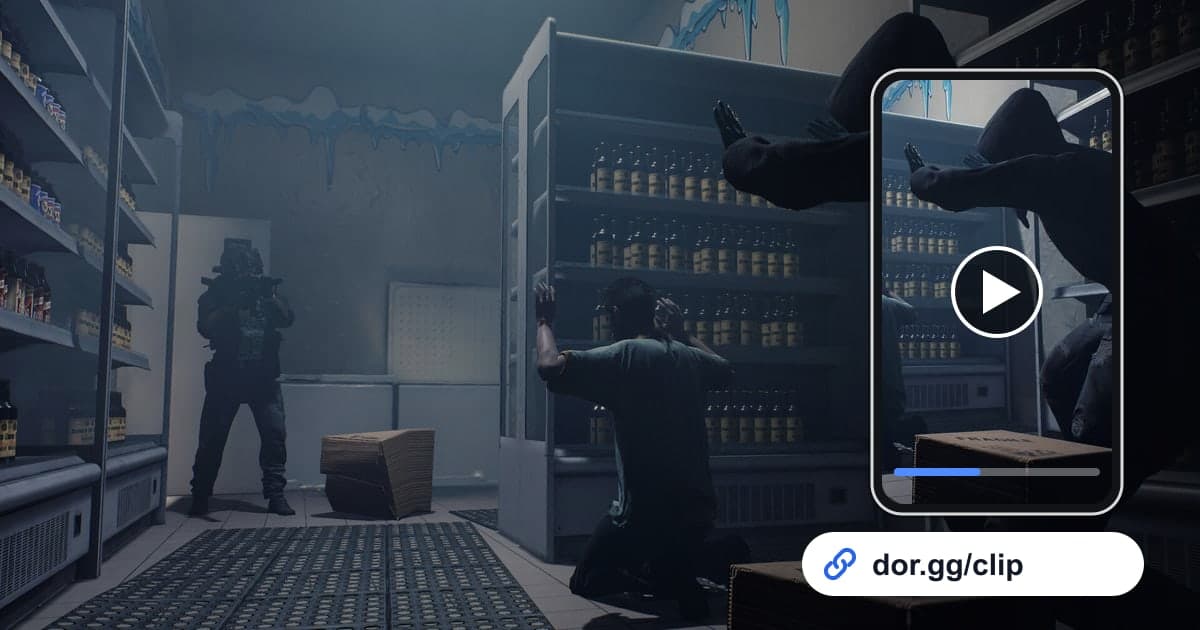
Ready or Not is a tactical first-person shooter where you play a SWAT commander leading a squad into high-risk scenes to arrest suspects and rescue civilians. Stacking up at a door, syncing on the call, and going in together, or getting a suspect to give up without firing a shot, are moments that feel wasted if only you saw them. On the flip side, a run that went sideways because a round went through a wall makes great review material with your squad. Starting with the October 2026 app update, DOR detects Ready or Not automatically and records the whole session, so this guide shows how to split that recording by mission phase, trim it, and send it.
Recording follows the session, not the mission
Ready or Not isn't split into one video per mission. Everything from launch to exit is a single mp4. The loadout screen, the retry after a failed mission, and the next mission all run together in one file, so deciding up front what to keep from each phase cuts the search time a lot. For lining up the start and end of a scene precisely, see How to Trim Game Clips.
From a Ready or Not mission recording to a shareable clip
- 1Install DOR and launch Ready or NotInstall the free DOR app on your Windows PC and launch Ready or Not. DOR detects the game and starts recording automatically. Just confirm the game is on in the full-play recording group in settings, and there's nothing else to do during missions.
- 2Write down the mission name and entry timeRunning several missions in a night, or retrying the same one a few times, makes the recording long. Leave the mission name, which attempt it was, and the rough time of a standout entry in your squad chat or a note, and you can jump straight to it in the library.
- 3Find the breach by flash and shoutingEntries usually sit where the door noise, a flash or bang, and your squad's shouting all pile up at once. Scrub until the audio suddenly gets loud, then start about 10 seconds earlier so the tension of waiting at the door comes along too.
- 4Cut a review version and a show-off versionFor the review you'll watch with your squad, keep the long stretch from entry to the end of the room clear so it's clear who took which corner. For the show-off clip for friends, cut it down to under 20 seconds from the door opening to the suspect giving up. Just trim the same recording twice.
- 5Pick a ratio in the library and make the linkIn the app library's trim tool, set the start and end and pick a ratio. A review showing narrow hallways and room layouts suits 16:9, while a short entry for a phone suits 9:16 or 1:1. When the trim is done, a dor.gg link is created.
- 6Send one to the squad and one to friendsPaste the review link in squad chat before the next mission to line up your entry order, and send the show-off link to friends in a message. Whoever gets it plays it straight away in a phone or PC browser without installing the app.
What to keep at each mission phase and who gets it
| Mission phase | Scene to keep | Who gets it and how long |
|---|---|---|
| Loadout | The screen where you pick the squad, weapons, and gear | Squadmates heading in with you, 10 to 20 seconds for planning |
| Stack and breach | Lining up on both sides of a door, syncing, and entering together | Squad review at 30 to 40 seconds; friends get the 10-second entry |
| Room clear | Checking corners one by one as you clear the room | Your squad, about a minute including the mistake |
| Clean arrest | A suspect putting their hands up without a shot fired | A 20-second clip that works even for friends who don't play |
| Hostage rescue | Securing a civilian and walking them out safely | Friends, 30 seconds through the ending |
| Results | The score screen after the mission ends | Your squad, 10 seconds to share the record |
Before you deploy
- Ready or Not is on under full-play recording in settings.
- If you plan to run several missions in a row, the recording drive has more than 20GB free.
- Your mic is connected if you want your callouts in the video.
- You know where you'll write the mission name and entry time.
- You've decided which version, review or show-off, goes to whom.
Recording Ready or Not with DOR
DOR is a free Windows desktop app. When you launch Ready or Not, it detects the game and records it as full play. There are no automatic clips that pick out arrests or shots, but because everything from launch to exit stays in one continuous video, even your retries are all there. Long play fills the disk quickly, and recording stops automatically if free space drops below 20GB. On NVIDIA graphics cards, NVENC hardware encoding is the default, and game audio and your mic are recorded together, so the callouts you shout end up in the same video. To turn a short entry into a vertical clip, see How to Make a Vertical Game Video. In the DOR Studio you can adjust length, merge several videos, apply effect templates, and add text, background music, and volume, then download an mp4 or share a link.