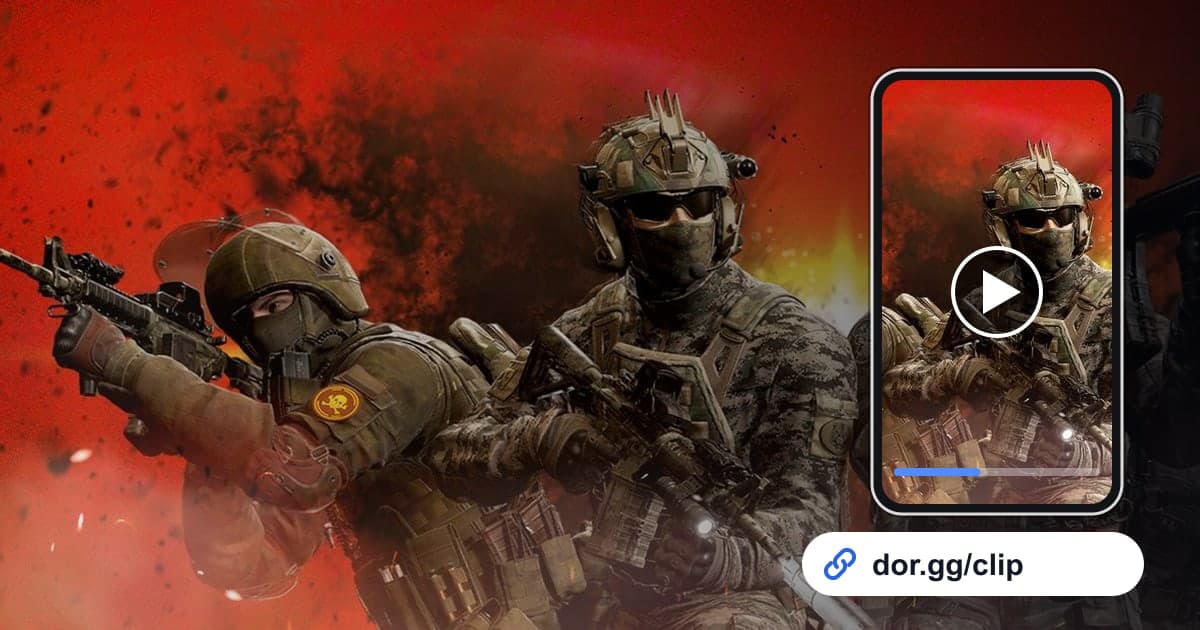
Special Force Remastered is a free-to-play team-based FPS that Dragonfly released on Steam on September 16, 2026. It keeps the fast combat pace of the original while adding tactical gear such as drones, the RPG-7, recon support, and healing injectors, along with weapon part combinations and a tier system. If you broke through an enemy defense with the new gear or chained kills with a weapon you built yourself, you will want to show the squad you played with. Special Force Remastered became a DOR full-play recording game in the October 2026 app update. When you launch it, DOR detects it automatically and keeps everything until you quit as one video, so this guide focuses on picking out the moments that only Remastered can produce from a recording full of mixed modes and matches.
Start with the scenes Remastered added
A Remastered recording is not split by match or round. It runs as one video until you quit the game, so deciding what you are looking for up front cuts down a lot of scrubbing. Prioritize scenes you only get in Remastered, such as tactical gear plays, weapons you fitted with parts, and matches with your tier on the line. If the video is for a friend you played the original with years ago, these scenes work especially well because they show how the combat has changed at a glance. For the original game, see the Special Force hub.
Picking standout plays from a Remastered recording and sending them to your squad
- 1Launching Remastered starts the recording on its ownWith DOR running, launch Special Force Remastered and it is detected automatically and recording begins. Even if you switch modes or play several matches, it continues as one video until you quit the game.
- 2Use the tactical gear pick as a round boundaryIn Team Mission you choose tactical gear every round, so when you scrub the timeline in the library and see the gear selection, treat it as the start of a new round. Split the recording into matches by the result screens first, then into rounds by the gear selection, and you will reach the round you want quickly.
- 3Start drone and RPG-7 scenes from when the gear comes outA play where you spotted enemies with a drone and a teammate finished them only makes sense when the recon and the kills are one continuous flow. Trim from a few seconds before you launched the drone or pulled out the RPG-7 to the point where the enemies are cleared, so it is clear how the gear turned the round.
- 4Join the parts screen with real kills for weapon buildsTo show off a weapon you fitted with a new scope, muzzle, and stock, trim a few seconds of the parts screen and the kills you got with that weapon separately, then merge them in DOR Studio in your browser. Add the parts setup as text so friends who use the same weapon can copy it.
- 5Keep the result screen for matches with your tier on the lineWith a tier system in Remastered, the final round of a match that really counts becomes the scene you most want to show. Do not stop at the deciding fight. Include a few seconds after the match result screen appears so the viewer understands what that match meant.
- 6Pick a ratio for the viewer and send the linkGive the squad that played with you a 16:9 video that shows the whole situation, and give friends watching on a phone a 9:16 one. If you want to talk a friend who only played the original into trying Remastered, sending a collection of tactical gear scenes works well. Trimmed videos are shared as dor.gg links, and the other person watches in a browser without any app.
Scenes to keep from each Special Force Remastered mode
| Mode | Scene to keep | Length, ratio, and who gets it |
|---|---|---|
| Team Mission: Demolition | The end of a round where you held the plant to the last second or decided it right before a defuse | 30 to 40 seconds, 16:9, the squad that played that match |
| Team Mission: Capture | Pushing in on the objective at the same moment as your teammates | About 20 seconds, 16:9, the teammate who timed the entry with you |
| Team Mission: Escape | Escaping successfully or stopping the last enemy from getting out | About 30 seconds, 16:9, friends who were on your team |
| Team Deathmatch | A run of fights with kills coming in quick succession | About 15 seconds, 9:16, friends who watch Shorts |
| Free for All | Fights you kept winning while surviving a melee where everyone is an enemy | 15 to 20 seconds, 1:1, the friend you were competing against |
| Sniper | The scope shot where one bullet decided it | 5 to 8 seconds, 9:16, friends you snipe with |
Checklist before sending to your squad
- You found the match with the scene you want by its result screen.
- Drone and RPG-7 scenes start a few seconds before the gear comes out.
- The weapon build video lists the parts setup as text.
- Matches with your tier on the line are trimmed through the result screen.
- You picked 16:9, 9:16, or 1:1 to suit the viewer.
- You have comfortably more than 20GB of free disk space.
How DOR records Special Force Remastered
DOR is a free Windows desktop app. When you launch Special Force Remastered, it detects it automatically and saves everything until you quit as one mp4 video, but it does not cut out kills or round wins as automatic highlights. Find the scenes yourself in the app library, set the start and end with the trim tool, and choose 16:9, 9:16, or 1:1 to get a dor.gg link. Game audio and your mic are recorded together, so your voice calling out enemy positions from the drone stays in the video, and how to balance the two is explained in how to record game sound and mic together. When turning team deathmatch or sniper scenes into Shorts, see how to make a vertical game video. When you do not want Remastered recorded, turn it off under full-play recording in settings, and a confirmation window will appear when you do.