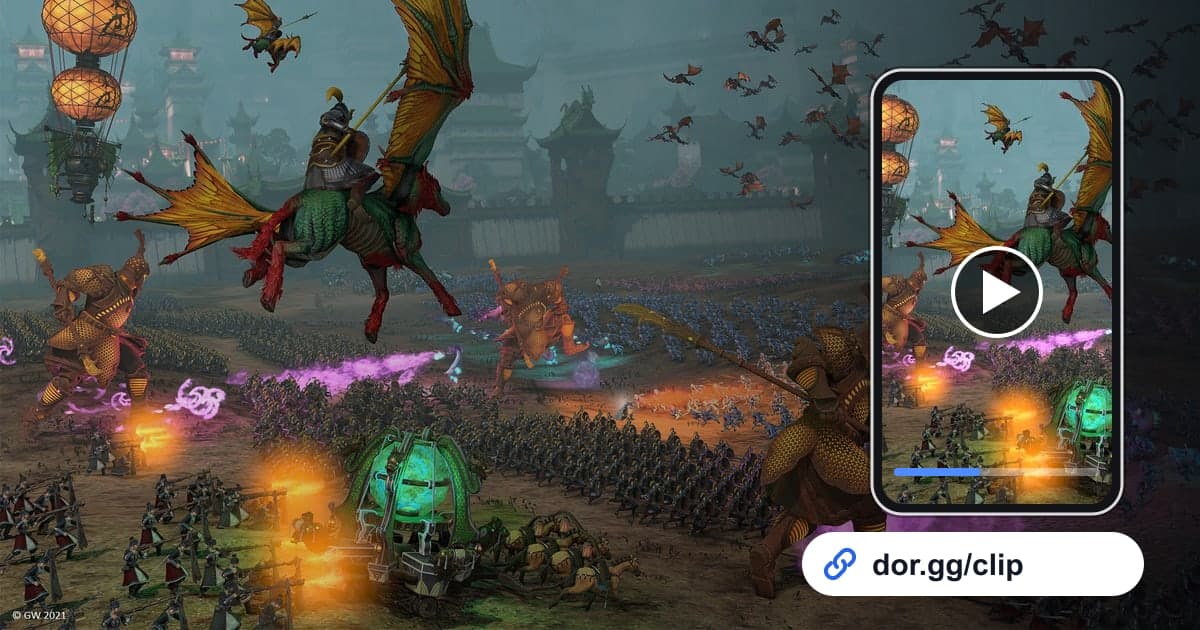
Total War: WARHAMMER III is a strategy game where you grow your faction on the campaign map and drop into real-time battles whenever armies meet. Hundreds of soldiers colliding at once, or a gate finally giving way, is hard to describe in words and much faster to show on video. This guide covers recording Total War: WARHAMMER III with DOR, finding just the battles inside hours of footage, trimming them, and sending them to friends as a dor.gg link. It works for catching up a friend in your multiplayer campaign on how the last war went, or for showing someone who has never played just how big these fights get.
Start with the fact that recordings get long
DOR captures Total War: WARHAMMER III with full-play recording. It does not split battles into separate files; the time you spend ending turns on the campaign map and the time spent fighting are saved together as a single video. DOR does not detect victories or spells to build clips for you, so you pick the scene from the recording yourself and cut it with the trim tool. Because a single sitting in this game often lasts hours, the recording runs just as long, and our guide to recording long gameplay sessions has tips for keeping those long captures steady.
Sending a battle from a long campaign recording
- 1Clear space on your recording drive firstTotal War: WARHAMMER III already takes a lot of install space, and a campaign session that runs for hours produces a large recording too. DOR stops recording automatically when free space drops below 20GB, so free up plenty of room on the drive where recordings are saved before starting a long campaign.
- 2Install DOR and load your campaign as usualDOR is a free Windows desktop app that detects the game automatically when you launch it and starts recording. There is no record button to press; just load your save and play your turns. On days you would rather not record this game, you can switch it off per game under the full-play recording group in settings, and a confirmation prompt appears when you do.
- 3Note the time right before a big battleAfter a long run of turns, it gets hard to tell where a given battle sits in the recording. Glance at the clock just before an important fight and jot down the rough time. Later, compare it with when you launched the game and you can work out the hour and minute mark in the recording right away.
- 4Use loading and results screens to bracket the battleOpen the recording in the library and treat the loading screen that takes you from the campaign map into battle as the start marker, and the results screen after the fight as the end marker. Everything in between is one battle, and the clash or breakthrough worth showing usually sits a little before the results screen.
- 5Decide on length and aspect ratioFor a field battle, a minute or so starting a few seconds before the lines meet is plenty; for a siege, one to two minutes from the gate falling to troops flooding in. Pick 16:9 to show a wide battlefield, and 9:16 or 1:1 when you send a close shot of a single hero or a giant monster to a friend watching on a phone.
- 6Send the dor.gg link to your campaign friendsOnce trimming is done, DOR creates a dor.gg link. Paste it for campaign partners as a recap of the last war before the next session, or for friends who do not know the game as a way to show the scale. The person receiving it can play it in a browser without the game or the app.
Battle situations, where to find them, and who to send them to
| Battle situation | Cue in the recording | Good person to send it to |
|---|---|---|
| Big field battle | The point where both lines first touch, after the loading screen and deployment | A friend running a campaign with the same race |
| Siege breakthrough | The stretch where a wall or gate falls and troops pour inside | The friend who keeps saying sieges are hard |
| Spell barrage | The few seconds when a powerful spell lands and a whole line scatters | A friend who builds magic-heavy armies |
| Campaign comeback | Right before the results screen of the battle that turned a losing war | A friend who has been following your campaign |
| 1v1 Domination match | The opening clash just after the match begins | The friend who was your opponent |
| 8-player campaign battle | The collision in a battle fought alongside an allied army | Everyone in that same campaign |
Checks before you send a battle video
- The clip includes enough of the fight to guess who won.
- The campaign map turns are trimmed out and only the battle remains.
- Scenes that need a wide battlefield are exported in 16:9.
- You checked that it is fine for your multiplayer opponent's name to appear.
- You rechecked free space on the recording drive before the next campaign session.
- You picked the single most impressive battle first instead of sending several at once.
How DOR records Total War: WARHAMMER III
Total War: WARHAMMER III was added as a DOR-supported game in the October 2026 app update. DOR is a free Windows desktop app: when you launch the game, it detects it automatically and saves everything from launch to exit as one mp4 file, which you view in the app's library. On PCs with an NVIDIA graphics card, NVENC hardware encoding is the default, and game audio and your mic are recorded together, so the battle plans you talk through with friends are kept too. In the library's trim tool, set a start and end, choose 16:9, 9:16, or 1:1, and you get a dor.gg link that also opens in a phone browser. To combine several battles from one campaign into a single video, DOR Studio runs in the browser with no install and lets you merge videos and add text and background music. For more on choosing start and end points, see how to trim game clips.