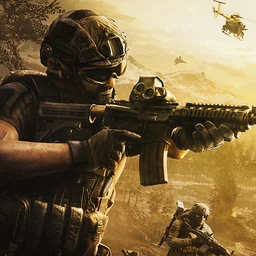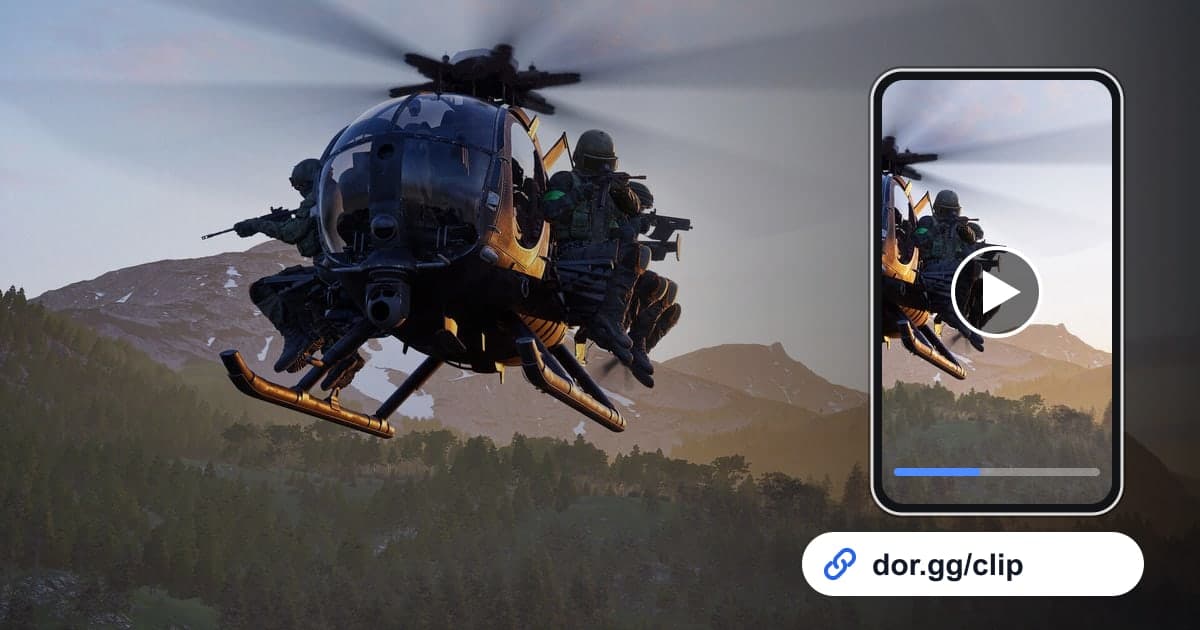
To show a friend how your squad held a zone in WARDOGS, or how you broke an enemy position with a tank, record with DOR, trim that part, and send a link. WARDOGS became a DOR 'full-play recording' game in the October 2026 app update. When you launch the game, DOR detects it and keeps everything from launch to exit as one video, without splitting it per match. With up to 100 players split across three teams fighting over a Control Zone, a single match has a lot going on. This guide covers how to find the right moment inside that long recording.
Cut a whole life, or a single moment?
In WARDOGS you spend cash on weapons, gear and vehicles every life, so the recording repeats a pattern of purchase screen, deploy, fight, then death or survival. If you want to review tactics with your squad, cut from the purchase screen to the end of that life; if it is something to brag about, cut just the tank shot or the building coming down. Tips for setting clean start and end points are in how to trim game clips.
Finding the moment and sending it to your squad
- 1Check the recording setting and launch WARDOGSIf WARDOGS is on under 'Full-play recording' in DOR settings, recording starts through automatic detection the moment you launch the game on your Windows PC. When you quit, recording ends, and every match in between is in one video.
- 2Split matches using the result screenA match ends when one team reaches 100 points, so scrubbing quickly for result screens lets you divide the recording by match. If you played three in an evening, you will see three result screens.
- 3Find individual lives using the purchase screenWithin a match, a loadout purchase screen appears every life, and it makes a natural start point for the next scene. Memorable deploys, like the life you bought a tank or a helicopter, are easy to spot right on the purchase screen.
- 4Set length and ratio to suit the sceneA collapsing building or a tank pushing into a position needs the surroundings in frame, so choose 16:9. A single sniper shot that plays out in the center of the screen keeps its point even in 9:16.
- 5Trim in the library and paste the link in squad chatOpen the recording in the app library, set start and end with the trim tool, and pick a ratio to get a dor.gg link. Paste it into squad chat and your teammates watch right away in a phone or PC browser without the app.
Finding and cutting WARDOGS moments by playstyle
| Playstyle | Clue in the recording | How to cut it |
|---|---|---|
| Taking the Control Zone on foot | The stretch after you enter the zone where your team's score climbs | 40-60 s from entering to holding, 16:9 |
| Ferrying the squad by helicopter | The deploy right after you pick a helicopter on the purchase screen | 30-45 s from takeoff to landing, 16:9 |
| Breaking a position with a tank | The whole life where you bought a tank | 20-30 s of shelling and the push, 16:9 |
| Building and holding a FOB | A long stretch in one place as structures go up | Skip the build, keep 30-60 s of the defense, 16:9 |
| Ghillie suit sniping | A stretch where the view stays fixed from distant high ground | 10-15 s from aim to hit, 9:16 |
| Bringing down a building with rockets | Right after the blast when dust fills the screen | 10-20 s from 3 s before firing to the collapse, 16:9 |
Before you send
- WARDOGS is on under 'Full-play recording' in settings.
- I used result screens to tell which match is which.
- The trimmed segment starts at a purchase screen or just before the fight.
- Building collapses and tank scenes are cut in 16:9 so the surroundings show.
- My drive has comfortably more than 20GB free.
- I separated a long version for tactics review from a short version for bragging.
How DOR records WARDOGS
DOR is a free Windows desktop app. Launch WARDOGS and it detects the game and records until you quit, as one mp4 video. Matches are not split and kills are not turned into automatic clips, so you find the moment in the app library and cut it with the trim tool. The trim tool supports 16:9, 9:16 and 1:1 and gives you a dor.gg link when it finishes, which the recipient plays in a browser with no install. Game sound and microphone are recorded together, so your own callout of 'tank coming, north side of the zone' stays in the video. For balancing game audio against your voice, see how to record game sound and mic together. When you do not want WARDOGS recorded, switch it off per game under 'Full-play recording' in settings; a confirmation prompt appears when you do.