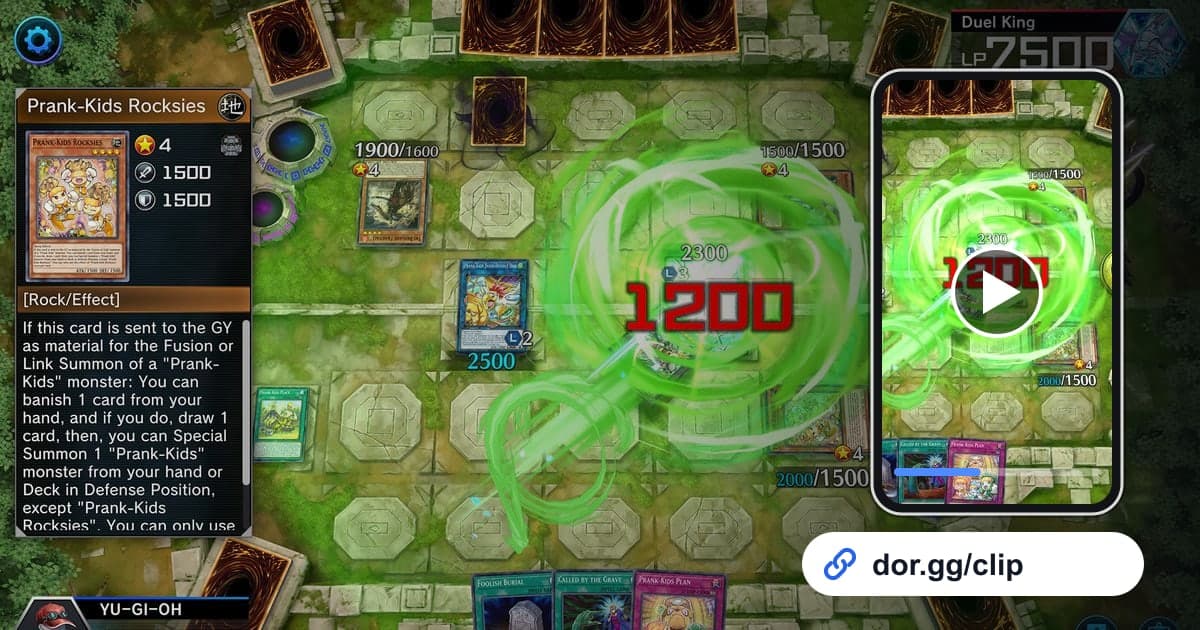
Yu-Gi-Oh! Master Duel is a free digital version of the Yu-Gi-Oh! card game on PC, so friends who study decks together often want to show each other a combo. A one-turn kill that wiped out the opponent's life points, a turn where three or four chains stacked as both players answered each other, or a duel turned around by the last draw takes ages to explain in words but clicks instantly on video. This guide covers recording Yu-Gi-Oh! Master Duel with DOR, trimming just the turn worth showing from a run of back-to-back duels, and sending it to deck friends as a dor.gg link.
However many duels you play, it is one recording
DOR captures Yu-Gi-Oh! Master Duel with full-play recording. The file does not split when a duel ends; ranked duels, Solo Mode, and even the deck editor all run together as one video from the moment you launch to the moment you quit. There is no feature that detects OTKs or comeback wins to make clips, so you find the turn in the recording and cut it with the trim tool. Combo turns often run longer than expected, so where you start and stop matters, and the basics of choosing start and end points are covered in how to trim game clips.
Sending a combo turn from back-to-back duels
- 1Install DOR and duel as usualDOR is a free Windows desktop app that detects the game automatically and starts recording when you launch it. There is no record button to press; just jump into ranked duels or events as usual. Game audio and your mic are recorded together, so you can keep your own voice explaining the combo too.
- 2Remember which duel it wasPlaying several duels in a row piles similar matches into the recording. When a combo worth showing happens, just remember which duel of the day it was and the rough time, and you can go straight to that duel in the recording later.
- 3Split duels with the start and result screensOpen the recording in the library and use the screen that appears when a duel starts and the win or loss screen at the end as boundaries. OTKs and comebacks sit right before the win screen, so it is faster to rewind from the win screen to find the turn where the combo began.
- 4Cut twice: the full combo turn and a short versionFor deck friends, include the whole turn from the first activation to the finish so they can follow what you did. For friends who do not know the combo, a separate 10 to 20 second cut of just the final attack and win screen is easy to watch.
- 5Pick a ratio that keeps card effects readableCombo turns where the whole field and card effect text need to be visible read best in 16:9. Switching to 9:16 narrows the frame, so save the vertical ratio for short clips that only need to show one moment large, such as the finishing attack.
- 6Send the dor.gg link to deck friendsOnce trimming is done, you get a dor.gg link. Paste it in the group chat or Discord channel of friends who study the same deck, and anyone who receives it can rewatch the combo in a browser, even on a phone, without launching the game.
Duel scenes: what to look for and what to keep
| Duel scene | What to look for in the recording | Range to keep |
|---|---|---|
| OTK finish | The point where the opponent's life points hit 0 and the win screen appears | From the first card of the combo to the win screen |
| Chain battle | A turn where cards activate one after another and chains stack up | From the first activation until every chain resolves |
| Topdeck comeback | The last draw from a losing position | From the life point situation just before the draw to the win |
| Rank promotion duel | The results screen after winning the duel that decided the promotion | The final turn and the results screen |
| Solo Mode story duel | The first time you clear a story duel | The finishing attack and the moment right after the clear |
| Event rules duel | A turn where your deck's identity shows under event-only rules | That turn from start to finish |
Checks before sending a combo video
- The field before the first activation is included so it is clear where the combo started.
- The clip runs through the win screen or the moment life points hit 0.
- Turns that require reading card effects are exported in 16:9.
- Parts unrelated to the duel, such as deck editing or waiting screens, are trimmed out.
- You checked that it is fine for your opponent's name to appear in the video.
- Before a long day of back-to-back duels, you made sure the recording drive has well over 20GB free.
How DOR records Yu-Gi-Oh! Master Duel
Yu-Gi-Oh! Master Duel was added as a DOR-supported game in the October 2026 app update. DOR is a free Windows desktop app: launch the game and it detects it automatically, recording everything from launch to exit as one mp4 that you rewatch in the app's library. On PCs with an NVIDIA graphics card, NVENC hardware encoding is used by default. Playing many duels in one sitting makes for a long recording, and recording stops automatically once free space drops below 20GB. In the library's trim tool, set a start and end and choose 16:9, 9:16, or 1:1 to create a dor.gg link that plays right away for whoever opens it, no app needed. To combine combos from several duels into a deck showcase and add the deck name or notes as text, DOR Studio runs in the browser with no install and lets you merge videos and add text and background music. See the DOR browser clip editor for a closer look at the editor. If you would rather not record this game, you can switch it off per game under the full-play recording group in settings.