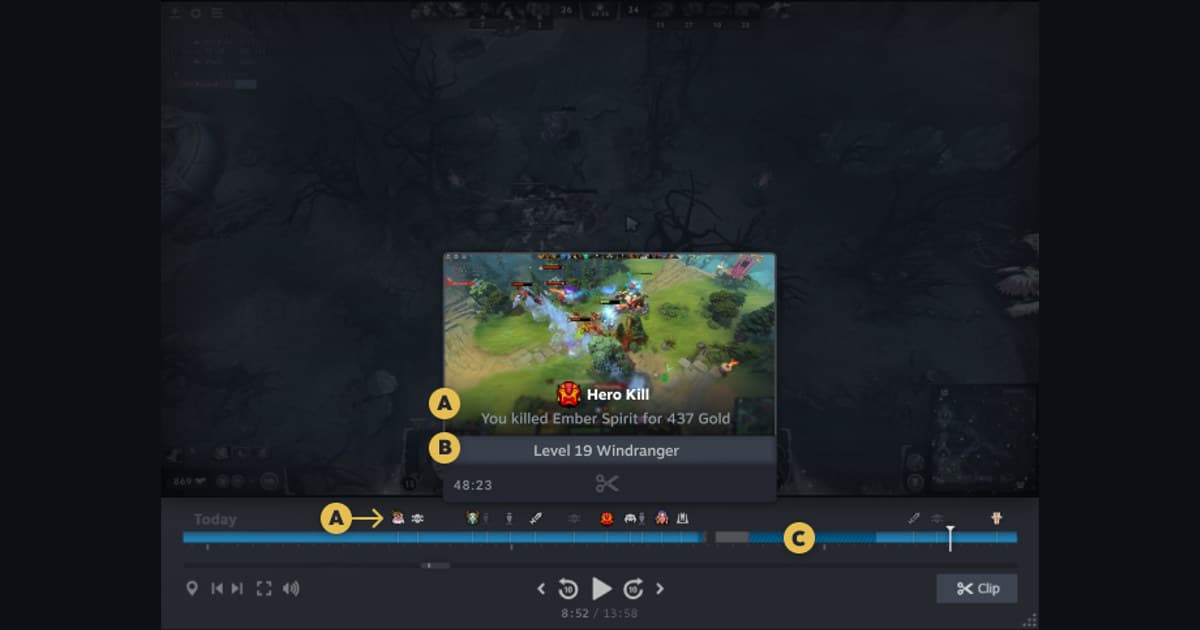
Steam Game Recording is not working: the timeline says "No Recording Available", a notification says "Recording has been stopped after encountering an error", or a saved clip shows "An error occurred playing this saved recording". Match the message before you change anything. A "No Recording Available" gap is not automatically a broken installation: Steam begins capture only after the game reports it is ready, may leave gaps while the resolution changes, and overwrites old background footage according to the disk budget, so test a stable minute after the main playable scene, press Ctrl+F12 to drop a marker, save the clip immediately, and confirm the yellow saved range in View > Recordings & Screenshots. "Recording has been stopped after encountering an error" is not in the Steam FAQ, but players who hit it a few minutes into a session usually trace it to the recording folder, and the official "Low disk space" advice applies: free space, move the folder in Steam > Settings > Game Recording to a fast local drive, lower background recording length and quality, and close other recorders and overlays before touching drivers. "An error occurred playing this saved recording" often affects only the Steam player, so use Export Video File and play the mp4 in a normal player before assuming the recording is lost. Steam records with NVIDIA and AMD graphics cards and falls back to the CPU elsewhere, so a driver update is a later step, not the first. If the video is fine but sound is missing, go to the Steam recording no game sound guide or the Steam recording not picking up mic guide. Diagnose No Recording Available errors in Steam Game Recording by separating detection, permissions, hotkeys, storage, capture, and audio playback.
Map each symptom to a small verification test
| Observed symptom | Likely stage | Smallest useful test |
|---|---|---|
| Steam Game Recording is not working: the timeline says "No Recording Available", a notification says "Recording has been stopped after encountering an error", or a saved clip shows "An error occurred playing this saved recording". | Each message points to a different stage: "No Recording Available" is usually launch, a resolution change, or overwritten background footage; "Recording has been stopped after encountering an error" usually traces to the recording folder drive, free space, or a competing recorder or overlay; "An error occurred playing this saved recording" is often the Steam player itself rather than a lost file. | Set Record in Background or Record on Demand explicitly, point the recording folder at a local drive with free space, close other recorders and overlays, then save a thirty-second clip after the game reaches its main scene. |
| Hotkey reacts but no save confirmation appears | Another overlay owns the shortcut or the replay buffer is inactive | Assign a conflict-free key and create a thirty-second sample |
| Confirmation appears but the file seems missing | Save path changed, storage is low, or retention removed it | Open the configured media folder and check free space |
| A file exists but video or sound is wrong | Capture mode, device route, codec, or playback track | Play the short original in a second normal media player |
Separate the failed stage from the result you want
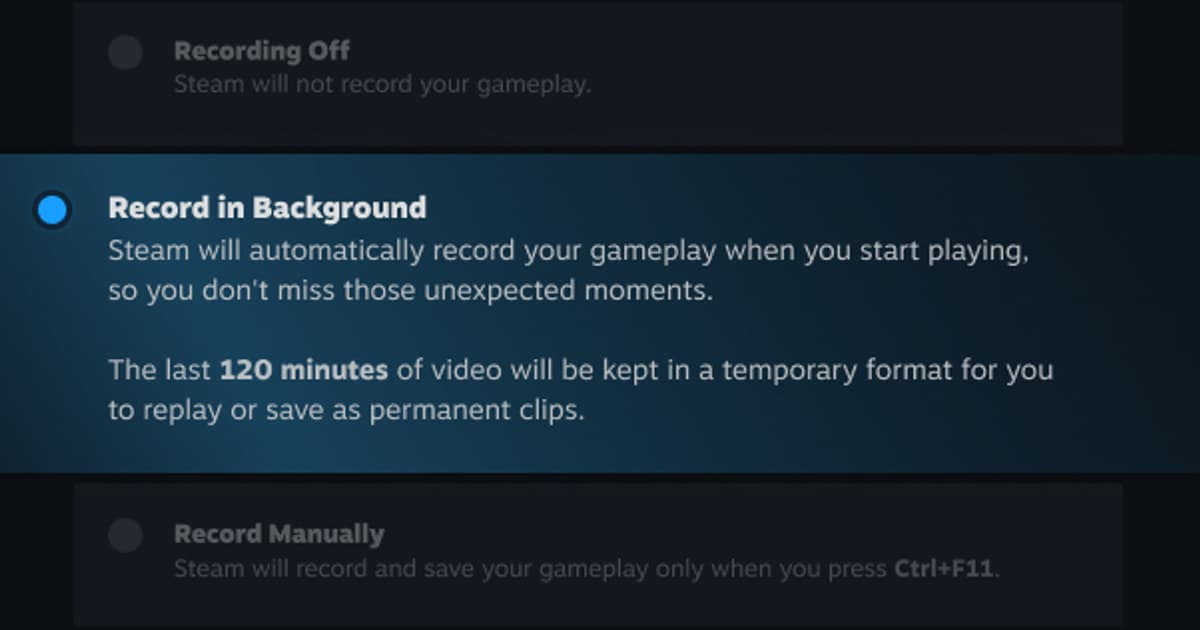
Each message points to a different stage: "No Recording Available" is usually launch, a resolution change, or overwritten background footage; "Recording has been stopped after encountering an error" usually traces to the recording folder drive, free space, or a competing recorder or overlay; "An error occurred playing this saved recording" is often the Steam player itself rather than a lost file. The first controlled check is therefore: Set Record in Background or Record on Demand explicitly, point the recording folder at a local drive with free space, close other recorders and overlays, then save a thirty-second clip after the game reaches its main scene. The relevant path is Steam > Settings > Game Recording (recording mode, recording folder, background recording length and quality) plus View > Recordings & Screenshots; if that menu is absent, confirm the installed version and eligibility before copying older instructions. Set Record in Background or Record on Demand explicitly, point the recording folder at a local drive with free space, close other recorders and overlays, then save a thirty-second clip after the game reaches its main scene.
A controlled troubleshooting sequence
- 1Confirm eligibility and mode — Open Steam > Settings > Game Recording (recording mode, recording folder, background recording length and quality) plus View > Recordings & Screenshots, verify the feature is enabled, and confirm the current game and display mode are supported.
- 2Restart at one permission level — Exit both the game and recorder, close competing capture tools, then relaunch them with matching privilege levels.
- 3Create a thirty-second control sample — Set Record in Background or Record on Demand explicitly, point the recording folder at a local drive with free space, close other recorders and overlays, then save a thirty-second clip after the game reaches its main scene.
- 4Separate saving from playback — Confirm the notification and actual file first, then inspect video, game audio, voice chat, and microphone independently.
- 5Escalate with evidence — If it still fails, record versions, GPU, settings screenshots, a short reproduction sequence, and the sample file details.
Final checklist before a real match
- The game and recorder are not running at mismatched administrator levels
- The required recording or replay buffer is active in this session
- The hotkey does not overlap the game, chat, or another overlay
- The media folder is writable and has sufficient free space
- A thirty-second file with separately verified game and microphone audio plays normally
Use DOR for a future supported-game session
Fix No Recording Available errors in Steam Game Recording: a safe troubleshooting order: For a separate DOR test in a future supported-game session, use the free game recorder comparison, game-audio troubleshooting guide, and VALORANT game hub. DOR takes a different route for supported games: it detects the game, records the full match automatically with NVENC encoding by default, and keeps the recordings in its own library, so there is no recording mode to pick or buffer to keep alive; among Steam games, automatic PUBG highlights is a representative supported example.
Recheck the current official documentation
Steam documents the Off, Record in Background, and Record on Demand modes, says "No Recording Available" can appear at launch or shutdown, while the resolution changes, or when old background footage has been overwritten, and for a "Low disk space" stop tells you to free space, move the recording folder to another drive, or reduce background recording length and quality; the other two messages are not covered by the FAQ, so those fixes are user-reported. Steam Game Recording support.