When OBS desktop audio is missing, find where the signal stops instead of deleting every device. Confirm the game makes sound, the OBS mixer reacts, the source reaches the selected recording track, and the player can play that track—in that order.
Split the diagnosis at the level meter
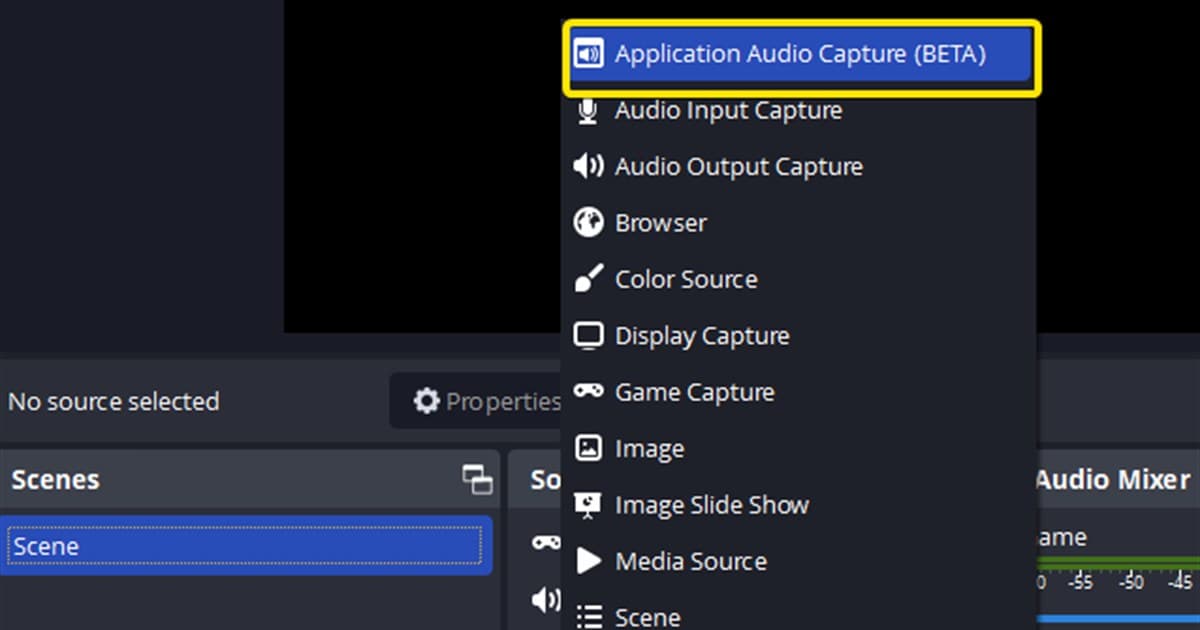
A motionless OBS meter points to the capture device or source. A moving meter with a silent file points to Advanced Audio Properties, output-track selection, or the media player. On supported Windows versions, Application Audio Capture can isolate the game; disable global Desktop Audio for the test to prevent a duplicate signal.
Choose the next check from the symptom
| Symptom | Likely area | Next check |
|---|---|---|
| Mixer meter is still | Output device or source mismatch | Settings > Audio and app source |
| Meter moves; file is silent | Recording track not selected | Advanced Audio Properties |
| Audio echoes | Global and app capture overlap | Keep one capture method |
| Only one game is silent | Wrong process or permission level | Target executable and privileges |
Diagnose without losing a working setting
- 1Watch the OBS mixer — Play game audio and see whether Desktop Audio or the application source produces a green meter.
- 2Name one device explicitly — Choose the output you actually hear in Settings > Audio, or add Application Audio Capture for the game.
- 3Remove duplicate capture — When using per-app capture, disable global Desktop Audio for the test to prevent doubled sound.
- 4Match recording tracks — Select a track in Advanced Audio Properties and the same track number under Recording output.
- 5Play a ten-second file — Try a second media player and enable game, voice, and mic sources one at a time.
A successful test means
- The intended mixer meter moves during game audio
- One deliberate global or per-app capture method is active
- Source track boxes match the recording track number
- The ten-second file contains game sound
- The same device remains selected after restart
What switching to DOR changes—and does not change
DOR does not repair OBS sources or track routing. It is an alternative way to test a future session in a supported game. Compare the no-audio guide, separate audio tracks guide, OBS recording baseline, and DOR automatic recording. For a real game use case, continue to the VALORANT game hub. For a long-match example, see PUBG auto recording.
Official OBS Studio audio guidance
The OBS Application Audio Capture guide documents per-app capture on Windows and warns against duplicating it with global Desktop Audio. Verify supported Windows and current OBS behavior, and match privilege levels when the game runs with elevated access.