
The short answer is that AION 2 needs two sets of settings. For everyday play, use Borderless Windowed, turn V-Sync off, set your upscaler to Quality and keep the other quality options near Normal.
If your frame rate only collapses where many players gather, such as sieges and Abyss fights, lower Mass Combat Quality and Player Particle Effect Display before touching anything else.
This guide, current as of November 24, 2026, keeps only the values that several guides and player discussions agree on. In-game names can differ slightly between client versions, so the English option names are used throughout.
If you first want to know whether your PC meets the minimum and recommended specs, check the AION 2 system requirements and install size guide. When the specs are fine but the game still stutters, settings are usually the cause, and the table below is where to start.
The answer: Normal by default, lower only for large fights
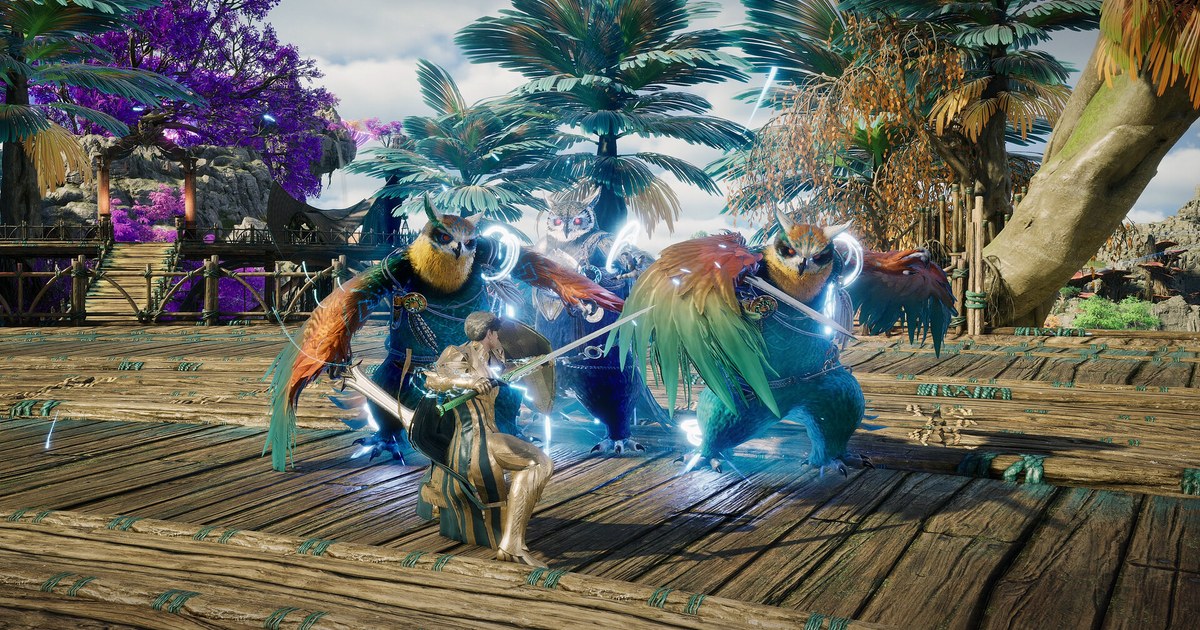
The biggest FPS cost in AION 2 is not textures or resolution but scenes where many players are drawn at once. That is why it helps to keep one profile for daily play and one for mass combat. In everyday play, protect image quality.
Before a siege or an Abyss fight, drop Mass Combat Quality to Low or lower and set Player Particle Effect Display to Self Only or Self and Party.
The order that guides agree on is Mass Combat Quality, Global Illumination, Shadow Quality, Reflection Quality, player particle effects, the upscaler step (Quality to Balanced), Effect and Model Quality, and Texture Quality last. Only lower textures when your video memory (VRAM) is full.
Do not push View Distance to the minimum, because distant enemies then appear late, which hurts in a fight; Normal or High is safer. Start with frame generation off. It increases displayed frames without improving input response, so it can feel worse in PvP.
How to set up AION 2 step by step
- 1Pick the display mode and V-Sync firstUse Borderless Windowed and turn V-Sync off. It makes switching between the game, a recording app and Discord painless and trims input delay. Also check in Windows display settings that your monitor is running at its highest refresh rate.
- 2Turn on an upscaler and keep Resolution Scale at 100%Choose DLSS on a GeForce RTX card or FSR on Radeon, and start at Quality. When an upscaler is on, leave Resolution Scale at 100% (native), because shrinking the image twice makes it look muddy. The in-game list also includes TAA and TSR, so pick whichever your graphics card supports.
- 3Set the remaining quality options near NormalUse High or Normal for Texture, Model, View Distance and Anti-Aliasing, and Normal for Shadow, Global Illumination, Reflection, Cloud and Vegetation. Effects, shadows and vegetation give back more frames than texture cuts, so reach for those first when you need more FPS.
- 4Switch to your large fight valuesFor sieges and the Abyss, set Mass Combat Quality to Low or lower and Player Particle Effect Display to Self Only or Self and Party. If your client offers options to show other players with an identical appearance or to show tier icons instead of nameplates, turn those on too. On many PCs this alone changes how the fight feels.
- 5Record the same scene before and afterFrame rate is easier to judge by eye than by memory. Record a fight in the same place with DOR before and after each change, then watch the clips side by side to see which option helped. If the recording itself stutters, follow the checks in how to record long gameplay without stutter.
AION 2 PC settings at a glance (as of November 24, 2026)
| Setting | Everyday value (mid-range PC) | In large fights |
|---|---|---|
| Display Mode and V-Sync | Borderless Windowed, V-Sync off | Keep as is |
| Upscaler | DLSS Quality on RTX, FSR Quality on Radeon, TSR or TAA otherwise | Drop one step to Balanced if you need more |
| Mass Combat Quality | Normal | Low or lower. The biggest single gain |
| Player Particle Effect Display | Self and Party | Self Only |
| Shadow Quality, Global Illumination, Reflection Quality | Normal | Low |
| Volumetric Fog, Water Reflection Method, Ambient Occlusion, NVIDIA Reflex | Fog off, water reflection on Performance, NCAO, Reflex on Boost | Keep as is |
Check before you finish
- Display Mode is Borderless Windowed and V-Sync is off
- An upscaler is on at Quality and Resolution Scale is 100%
- Mass Combat Quality and particle effects have their own values for sieges and the Abyss
- Frame generation is off for PvP
- You recorded the same scene before and after the change to compare
Record before and after with DOR
DOR is a free Windows game recorder. When you launch a supported game it detects it automatically and records from launch to exit, and the recordings collect in My Clips in the app.
That means a siege or dungeon scene from before your settings change and one from after are both there to compare, with nothing extra to prepare. Trim the part you need in the app, then combine clips in DOR Studio and export an mp4 or share a dor.gg link. There is no watermark on the results.
Free recording supports 720p and 1080p at 30 or 60 fps, with 1080p at 30 fps as the default. If your PC is short on frames, start recording at 720p or 30 fps while you tune the game, then raise it. On supported NVIDIA graphics cards such as the RTX series, recording uses NVENC hardware encoding. Game specific guidance lives on the AION 2 hub.