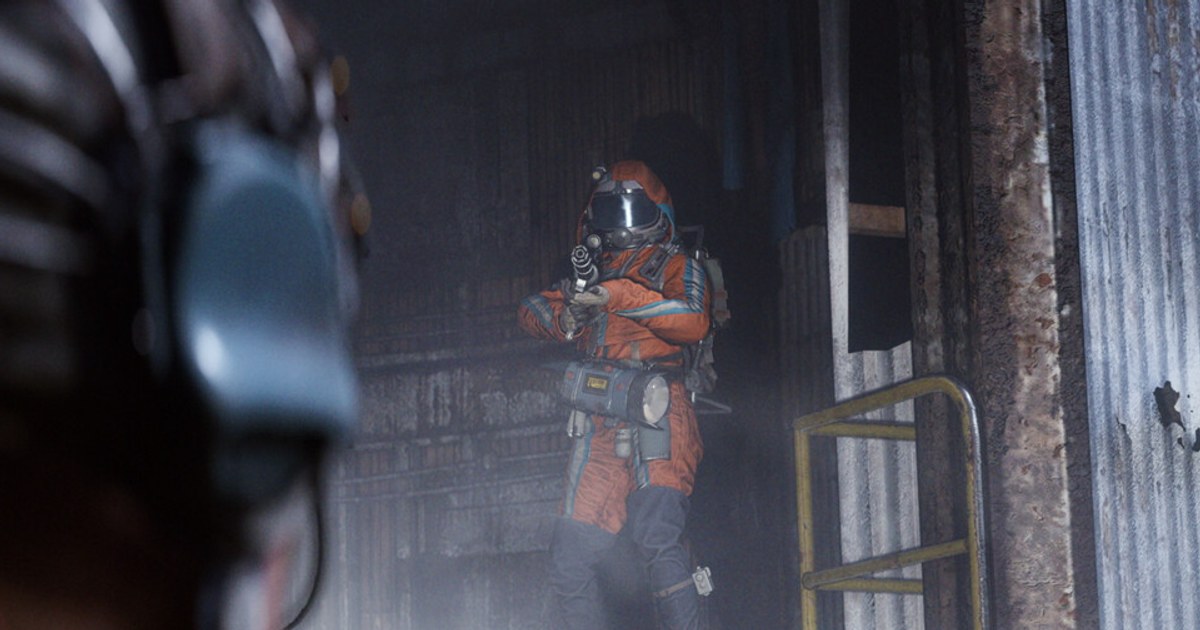
The short answer: when ARC Raiders crashes or will not launch, check one thing at a time in this order. First turn off overlays and background tools, then update your graphics driver, DirectX and Windows, then run Steam's file verification, then reinstall.
That is the same flow as the official ARC Raiders FAQ, and contacting Embark support is the last step if nothing helps. Different symptoms point to different starting places, so find yours in the table below.
Change only one thing per round and launch the game after each change, otherwise you will not know what worked. This guide is based on the official advice and on fixes that several community answers agree on as of November 24, 2026, and patches can change both the causes and the fixes. If the crash only appears while you are recording, see what to do when your game crashes while recording as well.
Where to start for each symptom
| Symptom | What to check first | What to do |
|---|---|---|
| Closes right after launch with no window | Overlays and background tools | Turn off Steam, Discord and GPU overlays plus tools like Afterburner, restart the PC and try again |
| Maximum simultaneous instances error | Leftover game processes | End every ARC Raiders process in Task Manager, then relaunch or restart the PC |
| Easy Anti-Cheat error such as 30005 | Restart and antivirus exceptions | Restart the PC first; if it repeats, check that your antivirus is not blocking the game folder |
| Sudden crash in a match, DXGI error | GPU driver and overclocks | Return any overclock to stock and install the latest driver; the community also tests the -dx11 launch option |
| File error or install code shown | Game file integrity | Verify files in Steam, reinstall if it repeats, and give the code to support |
| Only happens on a laptop | Which GPU is used | Set the game executable to High performance in Windows graphics settings |
Bottom line: overlays off, update, verify, reinstall
Start by turning off the Steam overlay, Discord overlay, your GPU maker's overlay and tools like MSI Afterburner, then launch again. The official FAQ also tells players to disable third party software.
Next, bring your graphics driver, DirectX and Windows up to date, since the official FAQ names outdated versions of these three as the main cause of crashes. If nothing changes, verify the game files in Steam, and reinstall if that does not help.
When an error code appears on screen, write it down exactly, because it is the fastest clue for Embark support later. On a laptop, also check that the game runs on the dedicated graphics card instead of integrated graphics. If the problem is low frame rate rather than a crash, the settings in our low end PC recording guide can help.
Crash and not launching checklist in order
- 1Turn off overlays and background toolsDisable the Steam overlay, Discord overlay, GPU maker overlay, MSI Afterburner, RivaTuner and RGB control software, then restart the PC. The official FAQ tells players to disable third party software, and it is the easiest step, so it goes first.
- 2Update driver, DirectX and WindowsUse dxdiag to confirm your graphics card, then update the driver with the maker's tool. Install DirectX and Windows updates and restart. The official FAQ names outdated versions of these as the main cause of crashes.
- 3Verify game files in SteamRight click ARC Raiders in your Steam library, open Properties, go to Installed Files and run the file integrity check. If you added mods or ReShade files, remove them before verifying.
- 4For graphics errors, reset overclocks and try -dx11If you see DXGI_ERROR_DEVICE_HUNG or DEVICE_REMOVED, return GPU overclocks and undervolts to default. If it still happens, add -dx11 to the launch options in Steam Properties. It is not an official fix, but many players report it helped, and you can simply remove it if it does not.
- 5Reinstall and send the code to supportIf nothing worked, uninstall ARC Raiders and install it again. If the problem still repeats, contact Embark support with the exact error code and what you were doing. The official FAQ lists this as the final step.
Check before you contact support
- Overlays and monitoring or overclocking tools are off and the PC was restarted
- Graphics driver, DirectX and Windows are up to date
- You ran Steam file verification once
- You wrote down the exact error code from the screen
- You changed one thing at a time and tested after each
Record with DOR while keeping your frame rate
DOR is a free Windows game recording app. When you launch a supported game it is detected automatically and the whole session is recorded from launch to exit, and your recordings gather in My Clips.
Once your crashes and stutter are under control, start with a light recording load: the free settings offer 720p and 1080p at 30 or 60fps, with 1080p at 30fps as the default. On supported NVIDIA graphics cards such as the RTX series, DOR records with NVENC hardware encoding.
Try a few matches at 1080p and 30fps first, then move up to 60fps when you have headroom, which makes it easier to protect your frame rate. Recordings have no watermark, and afterwards you can cut the scenes you want in the app, combine them in DOR Studio, export an mp4 or share a dor.gg link.
If you ever need to show support what happened, a full session recording makes the situation easier to explain.