The fastest way to auto-edit Valorant clips is to stop scrubbing full-match recordings for kills and instead leave DOR, a free Windows recorder, running so kills and rounds are saved as clips on their own, then tidy them up with its Trim Section tool or the browser-based DOR Studio and share a link.
You do not need to install Premiere Pro or CapCut, and you do not need to learn a timeline. One thing to clear up first: the game's own Replays are not an editing source.
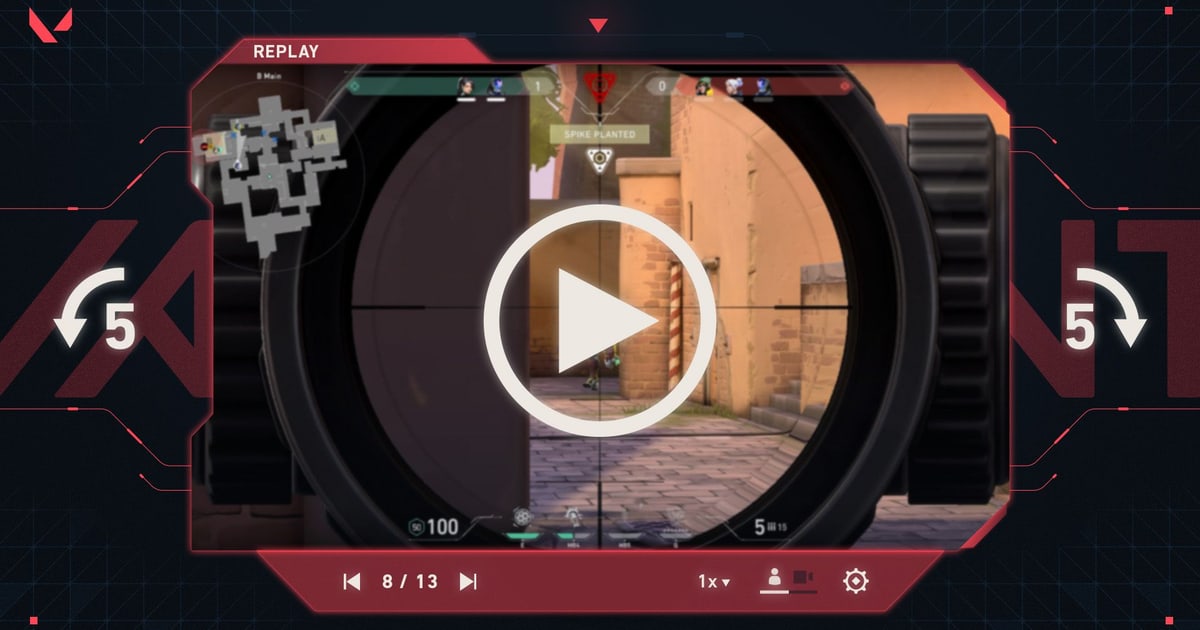
As of September 16, 2026, Riot's developer article states that "there are currently no clipping/sharing functions for Replays" (patch 12.10 later let friends watch your Replays inside the client, but that is not a video export), and Replays only play back games from the current live patch.
So if you want a kill as an mp4, something has to record the match while you play. The capture side, how to actually grab a clip, is covered in how to clip Valorant; this article is about automating the next step, picking out and editing only the kills and rounds from that recording.
The short answer: automatic kills and rounds, a browser for ratio, text and music, an editor only beyond that
The minimum procedure has three parts. First, launch the auto-recording app before you start the game: Valorant is a supported title, so it is detected, the full match is saved as an mp4, and kills and rounds are stored as automatic clips in the library.
Second, pick the clip you want to post, set only the start and end points and the ratio (16:9, 9:16 or 1:1), and share it straight away as a dor.gg link; if you want several kills in one video, merge them in the browser studio, add text or background music, and download the mp4.
Third, open Premiere Pro or CapCut only when you need auto captions, precise color grading, keyframe animation or audio filters. The full manual routine from scratch is laid out in the game highlight editing workflow; what this article does is replace its source-gathering and kill-finding steps with automation.
In short, the path that needs none of that setup is leaving DOR running, and its range is auto recording, auto clips, trimming, merging, ratio, effect and filter templates, text, background music, volume, mp4 download and link sharing.
Automatic clips, trim, merge, share in five steps
- 1Have the auto recorder running before the gameWith DOR (a free Windows app) open, supported games such as Valorant are detected automatically and the full match is saved as an mp4. DOR picks the encoder itself (NVENC hardware encoding on supported NVIDIA graphics cards such as the RTX series) and records game audio and your microphone together, so there is nothing you have to press to start or stop and no encoder you have to pick. For automated editing, remembering to have it running is practically the only preparation.
- 2Pick kill and round clips from the libraryWhen the match ends, the app library holds the full-match file alongside kills and other highlights and rounds saved as automatic clips. There is no need to scrub the whole match; just pick the clip that contains the moment you want to post. The exact conditions for which moments become clips are not published as numbers, so check inside the app rather than guessing.
- 3Trim the ends and share right awayIf you are posting a single clip, use Trim Section in the library to set the start and end and choose an output ratio of 16:9, 9:16 or 1:1. When it finishes you get a dor.gg link that plays in a mobile browser, so you can skip downloading a file and uploading it to a messenger.
- 4Merge several clips in the studioTo turn one match's kills into a single video, upload the clips to the browser editor DOR Studio (dor.gg/studio, free, nothing to install) and merge them. Adjusting length and cut points, YouTube (16:9), TikTok/Shorts/Reels (9:16) and square ratios, effect and filter templates, text with font styles, background music and volume are all done in the browser. When done, download the mp4 or share a link to Discord and elsewhere. Each video must be at least 3 seconds and 500MB or less, and there is a limit on how many videos one project can hold.
- 5Open an external editor only for what is beyond thatAuto captions (generated subtitles), precise color grading, keyframe animation and audio filters such as noise suppression belong to editing software like Premiere Pro or CapCut, and plugins to a desktop editor like Premiere Pro. Even then, if you bring DOR's automatic clips in as the source, you still save all the time you would spend hunting for kills in a full match.
Manual editing vs DOR automatic: steps, skills and output limits
| Step | Manual editing (Premiere Pro, CapCut) | DOR automatic |
|---|---|---|
| Getting the source | Start and stop a recorder yourself and keep the full match | Supported games are detected and the full match is recorded as mp4 automatically |
| Finding the kill | Scrub the full-match timeline from the beginning by eye | Kills and other highlights plus rounds are saved as automatic clips in the library |
| Trimming the ends | Set in and out points frame by frame yourself | Set only a start and end in Trim Section |
| Merging and ratio | Build a sequence, lay clips on tracks, convert vertical separately | Merge in the studio and pick 16:9, 9:16 or 1:1 |
| Text and music | Edit title layers and audio tracks by hand | Text (font styles), background music and volume control |
| Export and share | Choose codec and bitrate, render, then upload the file | Download the mp4 or share a dor.gg link |
| Skills required | Understanding timelines, sequences and export presets | None, just have it running before the game |
| Output limits | Goes as far as auto captions, precise color, keyframes and audio filters | Trim, merge, ratio, effect and filter templates, text, music, volume, mp4 download and link sharing; anything beyond that needs an external editor |
Checklist before you post
- Confirm DOR is running before you launch the game
- If you want your mic in the clip, play it back in the library and confirm the microphone was recorded
- For TikTok, Shorts or Reels, choose 9:16 in Trim Section or the studio
- Before uploading to the studio, make sure each video is at least 3 seconds and 500MB or less
- When merging several clips, check the per-project video limit in the studio UI
- Separate out only the cuts that need auto captions, precise color or keyframes for an external editor
How far DOR takes it automatically
Valorant is one of the games where DOR goes beyond full-match auto recording and also saves kills and other highlights and rounds as automatic clips (League of Legends and PUBG work the same way, while supported games such as TFT get full-match auto recording only).
So if your goal is simply to pick out and edit the kills, there is nothing to configure. Leave the app running, pick a clip from the library after the match, and either make a dor.gg link with Trim Section (16:9, 9:16 or 1:1) or merge, add text and background music in the studio and download an mp4.
The browser editor's flow is covered separately in the DOR browser clip editor guide.
The boundary is just as clear: auto recording and auto clips work only for supported games, and jobs like auto captions, precise color, keyframes and audio filters call for an editing tool such as Premiere Pro or CapCut, and plugins for a desktop editor such as Premiere Pro.