The first thing to try for recording gameplay on Windows 11 is Xbox Game Bar: turn it on, open your game, and press Windows key+Alt+R to start and stop. If you only need a screen region, use Snipping Tool; if you want more control over quality and audio, use your graphics vendor's app or OBS Studio. This page puts the shortcuts and requirements from each official page into one table (checked on September 30, 2026) and leaves blank whatever the documentation does not say. If you go the OBS route, OBS game recording settings covers the options in detail. Everything here is about Windows PCs, not consoles or phones.
The short answer: pick by graphics card and target
If you only capture a game window now and then, start with Game Bar and see whether it covers you. If you have a GeForce RTX 20 series or newer card, the NVIDIA app adds Record and Instant Replay, and its quality and audio options are covered in NVIDIA game recording settings. On a Radeon card, look at Record in AMD Software: Adrenalin Edition. If you want to build scenes or choose the encoder yourself, OBS Studio is the candidate. In every case, two things decide it: the graphics card in your PC, and whether you want a game window or a screen region.
Recording steps from Game Bar to OBS
- 1Try Xbox Game Bar first for a game window — Press Windows+I, search for xbox and turn on Enable Xbox Game Bar. Start your game, press Windows key+G to show the controls, and press Windows key+Alt+R to start and stop recording. To include system audio, open Settings > Capturing in Game Bar and choose All; to switch the microphone during a recording, use Windows key+Alt+M. Microsoft says the MP4 lands in the Captures folder under Videos, with the game or app name and the time in the file name.
- 2Use Snipping Tool when you need a screen region — Press Windows key+Shift+R, or open Snipping Tool, select Record and then New. Drag over the area you want, select Start, and select Stop when you finish. You can save the clip directly or open it with Edit in Clipchamp to change the volume or detach the audio. Because Microsoft's pages say nothing about audio capture or full-screen games, do a short test before relying on it for a match that matters.
- 3Find your graphics card's own recorder — First confirm whether your card is NVIDIA, AMD or Intel. For GeForce RTX 20 series or newer, open the NVIDIA app overlay with Alt+Z and look at Record and Instant Replay. On Radeon, type Record into the AMD Software search box and walk through the setup wizard. For Intel, the official notice only says gaming features moved to Intel Arc Control and the current product page does not mention capture, so check for a capture feature yourself and, if you cannot find one, use Game Bar or OBS. Read the hotkeys inside each app rather than memorizing a list, because they can be changed.
- 4Move to OBS Studio if you need scenes and encoder choice — In OBS, open Tools > Auto-Configuration Wizard to optimize for recording, add a Game Capture source in Sources, and click Start Recording under Controls. Game Capture hooks DirectX or OpenGL games directly, and the Use anti-cheat compatibility hook option is on by default. Pick the container in Settings > Output > Recording Format, and choose a hardware encoder such as Hardware (NVENC, H.264) if your card offers one.
- 5Test for thirty seconds before the match that matters — Record a short clip in the game you actually play, then play it back and check three things: the game picture is there, the game sound and (if you need it) your voice are audible, and the file appears where the tool said it would. Repeat the same test after you switch tools or update your graphics driver, so you do not find a problem in the middle of a real match.
Windows 11 recording options compared (checked on September 30, 2026)
| Tool | What the official page confirms | What it does not say (check yourself) |
|---|---|---|
| Xbox Game Bar | Turn it on in Settings (Windows+I) by searching for xbox, and open it with Windows key+G. Start/stop recording is Windows key+Alt+R; microphone on/off during recording is Windows key+Alt+M. The result is an MP4 in the Videos > Captures folder, with the game or app name and the date and time in the file name. Choosing All under Settings > Capturing adds system audio. | Maximum recording length, video quality options and hardware requirements are not given as numbers here; look in Game Bar's own settings. |
| Snipping Tool | Open it, select Record, then New (or press Windows key+Shift+R), choose the area, select Start, then Stop. You can save as is or use Edit in Clipchamp, where volume runs from 0 to 200% and audio can be detached. | The pages do not state whether microphone or system audio is recorded, the maximum length, the default save location, or whether full-screen games are captured. |
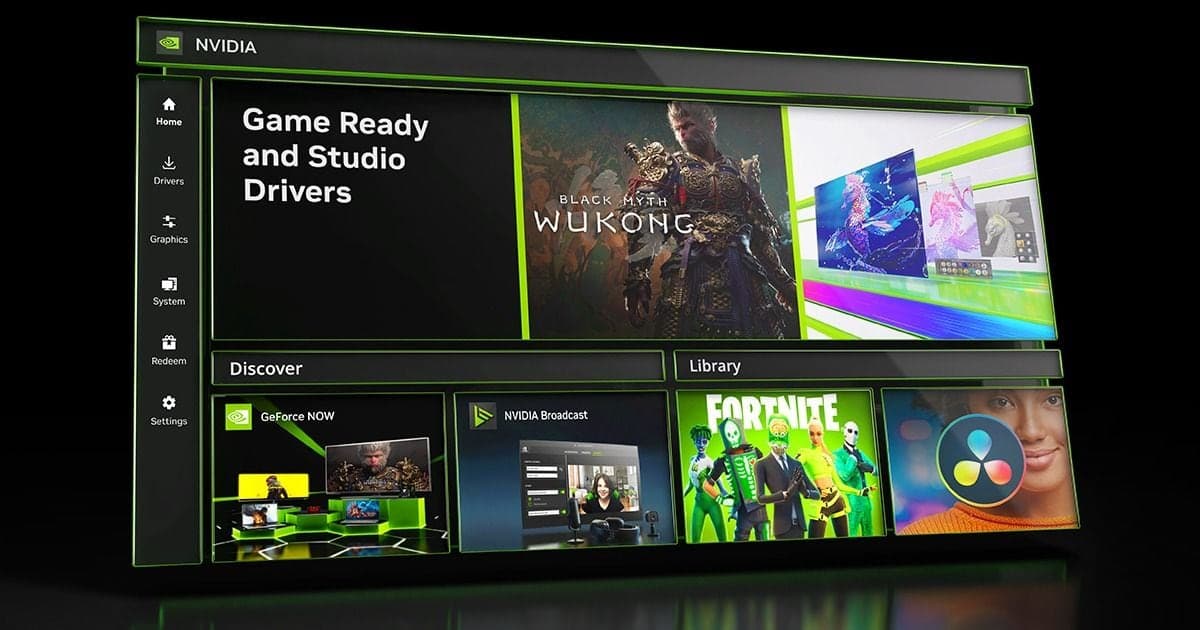
| NVIDIA app | Alt+Z opens the overlay. Defaults per NVIDIA's June 2, 2024 news post: Record is Alt+F9, Instant Replay is turned on with Alt+Shift+F10 and saved with Alt+F10. Codec, hotkeys and audio source are under Settings > Video Capture. The system requirements page lists Windows 10 or 11, GeForce driver 551.52 or newer, 2 GB memory, 600 MB disk, and GeForce RTX 20, 30, 40 and 50 series. | Hotkeys can be changed in the app, so confirm yours. Whether GTX cards are supported was not confirmed on the pages checked, so it is not stated here. |
| AMD Software: Adrenalin Edition | Search for Record to reach Record & Stream Settings. Recording Profile: Low (720p, 60 fps, 5 Mb/s), Medium (in-game resolution, 60 fps, 10 Mb/s), High (in-game resolution, 60 fps, 30 Mb/s) or Custom. Video Encoding Type: AV1, HEVC or AVC. Separate Microphone Track and Instant Replay (up to 20 minutes) are options. AMD's page was updated November 11, 2024. | Default hotkeys are not listed; the page points to Hotkey Settings. Some options are unavailable on some GPUs, and no list of supported Radeon models was confirmed. |
| Intel graphics tools | Intel states that gaming-related features moved from Intel Graphics Command Center to Intel Arc Control. Arc Control needs an 11th-gen Intel Core or newer processor, or an Intel Arc dedicated graphics card; Windows 11 21H2 or later (or 64-bit Windows 10 version 2004 or later); and Intel graphics driver 30.0.101.1325 or newer. | Intel's current product page is titled Intel Graphics Software and does not mention capture, so the capture menu name and shortcuts are not given here. |
| OBS Studio | Open source; supports Windows 10 and 11 and needs a DirectX 10.1 compatible GPU; the download page lists 32.2.2 as the latest version. Use Tools > Auto-Configuration Wizard, add a Game Capture source, then click Start Recording. Hardware encoders include NVENC, AMD AMF and Intel Quick Sync. | CPU needs vary a lot with encoder, resolution, fps and scene complexity, so OBS gives no single figure. OBS notes that a very small number of games do not work with Game Capture. |
Pre-recording checklist
- I know whether my graphics card is NVIDIA, AMD or Intel, and my driver is up to date.
- I decided whether I need a game window or a screen region.
- I know whether I need system audio, the microphone, or both, and where each is switched on.
- I checked the recording hotkey inside the app so it does not clash with an in-game key.
- I recorded a short test clip and played it back with picture and sound.
If pressing hotkeys is the part you would rather skip
Most of the tools above ask you to switch something on and check a shortcut before the match starts. If you want to skip that, DOR is a free Windows desktop app that detects supported games automatically and records the full match to an mp4 file on its own. On NVIDIA graphics cards it uses NVENC hardware encoding by default, and it records game sound and your microphone at the same time; the mic side is explained in recording game audio and mic together. Automatic highlight clips such as kills work only in some supported games, so check in the app whether yours is one of them. To weigh other programs side by side, read the recording program comparison.
Official sources (checked September 30, 2026)
Xbox Game Bar shortcuts and the save folder follow Microsoft Support: record your screen with Xbox Game Bar, the Snipping Tool steps follow Microsoft Support: Snipping Tool, and NVIDIA app requirements follow NVIDIA app system requirements. AMD values come from AMD's Record support article (updated November 11, 2024), Intel values from Intel's Arc Control notices, and OBS values from OBS's system requirements, quick start and hardware encoding pages, all checked on the same date. NVIDIA app hotkey defaults come from NVIDIA's June 2, 2024 GeForce news post.