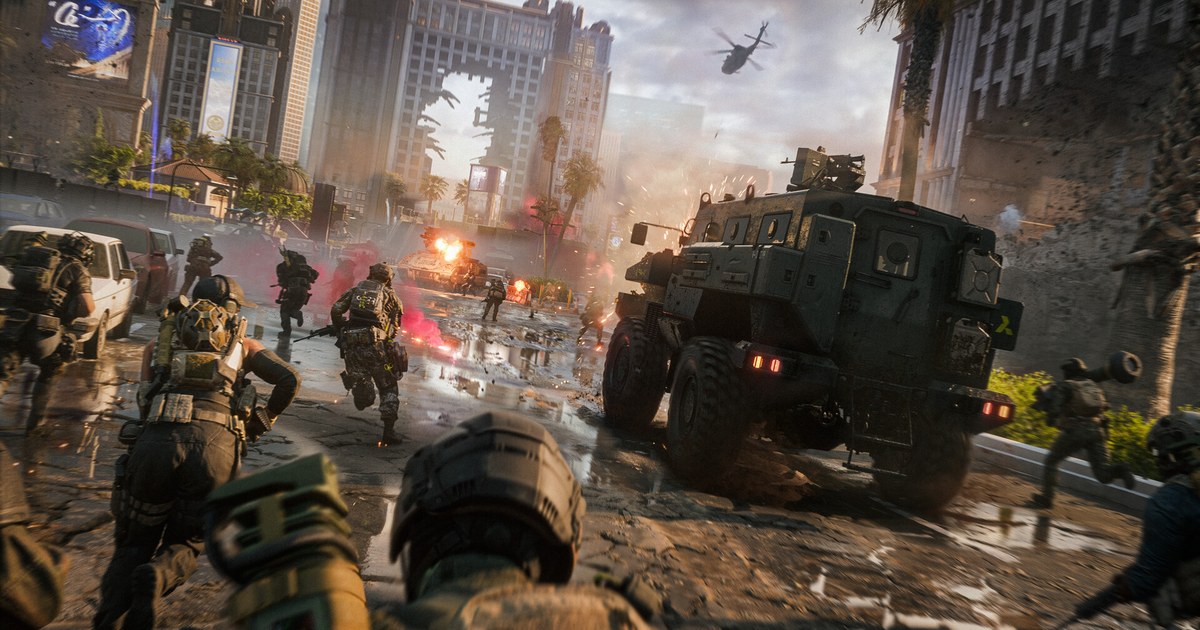
Field of view is the one Battlefield 6 setting that changes what you physically see on every frame, yet it is easy to copy someone else's number from a screenshot without checking whether it suits you.
This guide covers only FOV: the three sliders the game gives you, what EA's own help page recommends, the range other settings guides settle on, and how to find your own number with a short Firing Range test. Everything here was checked on November 3, 2026.
EA's help page was last updated in April 2026, and season updates can rename or move menu items, so treat the labels below as a map rather than a promise.
If you also want the rest of the graphics menu sorted (quality options, motion blur, Vertical Sync), start with our Battlefield 6 best settings guide and come back here for the FOV part.
What FOV should you use in Battlefield 6?
Start at 110. That is the number EA's help page gives for Field Of View, and it also appears in the same page's table of suggested starting values for controller players.
Dexerto's PC settings guide (February 2026) lands slightly lower at 105, and its console guide describes 100 to 110 as a good balance, so the realistic window is narrow. Inside it, the choice comes down to where you usually fight.
If you play Recon and hold long sightlines, the lower end keeps distant heads a little bigger on screen. If you play objectives up close inside buildings, 110 or slightly above shows more of the flank you are about to be shot from.
PCGamingWiki's settings table lists the first-person slider as 85 to 120, so 120 is simply the ceiling, not a hidden pro setting. Two things EA's page does not tell you: what the default value is, and whether the number is measured horizontally or vertically.
That is the main reason not to paste a value from Call of Duty, Apex or an older Battlefield into this slider and expect the same view.
How to find your FOV in the Firing Range
- 1Write down your current valuesOpen the Settings cog, choose Graphics and scroll down to Camera Settings. Note the numbers for Field Of View, Vehicle 3rd Person Field Of View and Weapon Field of View, or take a screenshot. Reset Category at the bottom right returns every edit in the Graphics menu to its default, which also undoes your other graphics changes, so your own notes are the safer way back.
- 2Set Field Of View to 110 and Weapon Field of View to WideThese are EA's suggested starting points. Change nothing else in this pass, motion blur included, so that anything you notice while testing comes from the FOV change alone.
- 3Look at near and far targets in the Firing RangeIn the Firing Range, switch between the closest and the farthest targets, strafe past a wall edge and turn quickly. If distant targets feel too small to track, drop 5 points; if you keep checking your sides, raise 5. Stop when a further change no longer makes a noticeable difference.
- 4Recheck your zoomed aimGo to Mouse & Keyboard, then Infantry, and select Modify next to Control Settings. Uniform Infantry Aiming and Zoom Sensitivity Coefficient sit in the aim settings there; EA's suggested starting coefficient is 178, and Dexerto keeps Uniform Infantry Aiming on. Aim down sights at the same targets and adjust only if scoped aim now feels clearly faster or slower than your hipfire.
- 5Play real matches and compare footageFiring Range targets do not shoot back, so play a few matches in your usual mode before you decide. Watching a fight at the old FOV next to one at the new FOV tells you more than memory does, and our guide to reviewing your own gameplay has a simple routine for it.
Each FOV setting and what it trades
| Setting and range | What you gain | What you give up |
|---|---|---|
| Field Of View at 85 to 100 | Distant enemies and vehicles look bigger, which helps in long-range fights | You see less of your sides, so flankers and grenades at the screen edge show up later |
| Field Of View at 100 to 110 (EA starts at 110, Dexerto uses 105) | The balance most guides agree on for fights at mixed ranges | Still a compromise; fine tune it in steps of 5 in the Firing Range |
| Field Of View at 110 to 120 | The widest view of corners, doorways and teammates around you | Far-off targets shrink and the edges of the screen look more stretched |
| Weapon Field of View on Wide | EA's suggested start, so you can see as much around you as possible | After that it is preference; try another option only if Wide feels off |
| Vehicle 3rd Person Field Of View at 75 to 83 | A wider third-person camera shows more around your tank or transport | It is separate from infantry FOV; Dexerto uses 79 on PC and 83 on console |
| Uniform Infantry Aiming and Zoom Sensitivity Coefficient | Keeps zoomed aim consistent; EA's starting coefficient is 178 | After a big FOV change, scoped aim can feel different, so recheck it |
Before you lock in a new FOV
- Field Of View sits between 100 and 110 unless you have a clear reason to go outside that band.
- Weapon Field of View is on Wide, which is EA's suggested first setting.
- Vehicle 3rd Person Field Of View was set on its own, ideally after a few vehicle spawns.
- Scoped aim was rechecked after the FOV change, and Zoom Sensitivity Coefficient is still where you want it.
- Your values are written down outside the game, because a season update can move or rename menu items.
Record a before and after so the choice is not a guess
DOR is a free Windows game recorder. When you launch Battlefield 6, it detects each match and records it from start to finish automatically, and every recording lands in My Clips in the app.
That makes an FOV test easy: play a couple of matches at your old value and a couple at the new one, then trim the two fights you want to compare in 16:9, 9:16 or 1:1.
In DOR Studio in your browser you can join the before and after clips into one video, add text labels such as FOV 105 and FOV 110, and export an mp4, or create a dor.gg link that plays right in a phone browser when you want a squadmate's opinion. Our guide to sharing Battlefield 6 gameplay videos walks through that last step.
The free plan records at 720p or 1080p and 30 or 60 fps (1080p at 30 fps by default), and switching to 60 fps makes fast turns easier to judge frame by frame.