To VOD review yourself, you first need your match saved as a video, because no VOD review tool or software can help with a game you cannot replay. In-game replays can expire when a patch lands or keep only your latest matches, so recording the games you want to study is how you keep them on your own PC. This guide covers the PC versions of competitive games such as VALORANT, League of Legends and Overwatch, and walks through recording, picking a match, checking it and saving the moment. How VALORANT replays are saved and downloaded has its own page, the VALORANT replay guide, so this article stays on the parts that work the same in every game.
The Short Answer: One or Two Moments at a Time, Not the Whole Match
As of October 2, 2026, there are two ways to get a match to review: use the game's own replay feature, or save a video of your match on your PC. Replays are convenient, but each game sets its own retention window and match count, and some leave out chat or voice, so a video file is what you need if you want to compare matches over time. The League of Legends rules are covered in the League of Legends replay guide. For how much to watch at once, pick one or two moments rather than a whole match. No official source defines a review length, so that is a general principle in this article, and nothing here claims that reviewing raises your win rate or skill.
Five Steps to Review Your Own Match
- 1Pick a recording method and free up space — Decide on one way to get each match onto video instead of relying on replays alone. You can record manually with OBS, Xbox Game Bar or, on an NVIDIA graphics card, the NVIDIA app, or use an auto-recording app such as DOR. Videos pile up quickly, so on Windows 11 open Start > Settings > System > Storage and check Storage Sense and the cleanup recommendations before you start. Disk needs differ from setup to setup, so no size figure is given here.
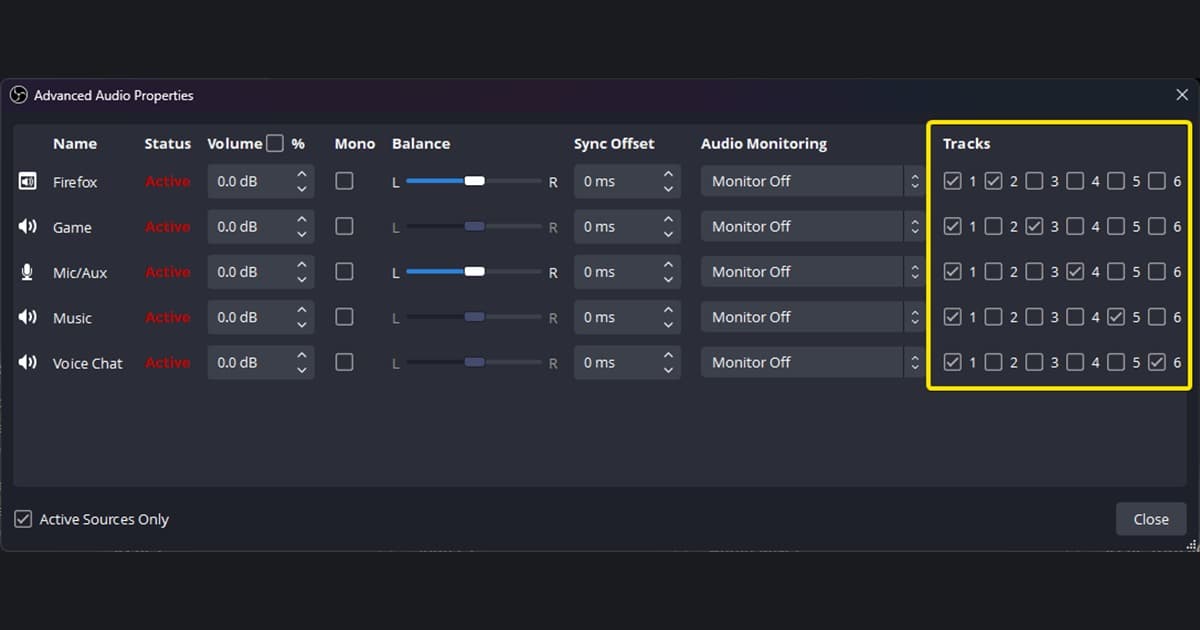
- 2Confirm the audio is really recorded — If you want to review your communication too, the microphone has to be recorded. On Windows 11, go to Settings > Privacy & security > Microphone, turn on Microphone access, and check that Let apps access your microphone and Let desktop apps access your microphone are on. In OBS, watch the volume meters in the Audio Mixer at the bottom; in Xbox Game Bar, toggle the microphone with Windows key+Alt+M. Before relying on it, make a short test recording and play it back. Support for Windows 10 ended on October 14, 2025, so this guide assumes Windows 11.
- 3Pick the match to review — Do not try to watch everything. Choose from matches you lost, matches where the momentum shifted sharply, or matches where you cannot explain why it went the way it did. Inside that match, narrow the candidates to a handful, such as an important fight or the moment you took a big loss. This is a general review principle rather than something an official document defines, and there is no evidence-based number for how many matches to watch.
- 4Check one or two moments at a time — Watch the chosen moment while pausing and rewinding. Do not judge the result first; write down, in order, what you knew at that point and what you actually chose to do. If you also use a VALORANT replay, keep in mind the official FAQ note that it uses the server's point of view and can differ slightly from your own recording.
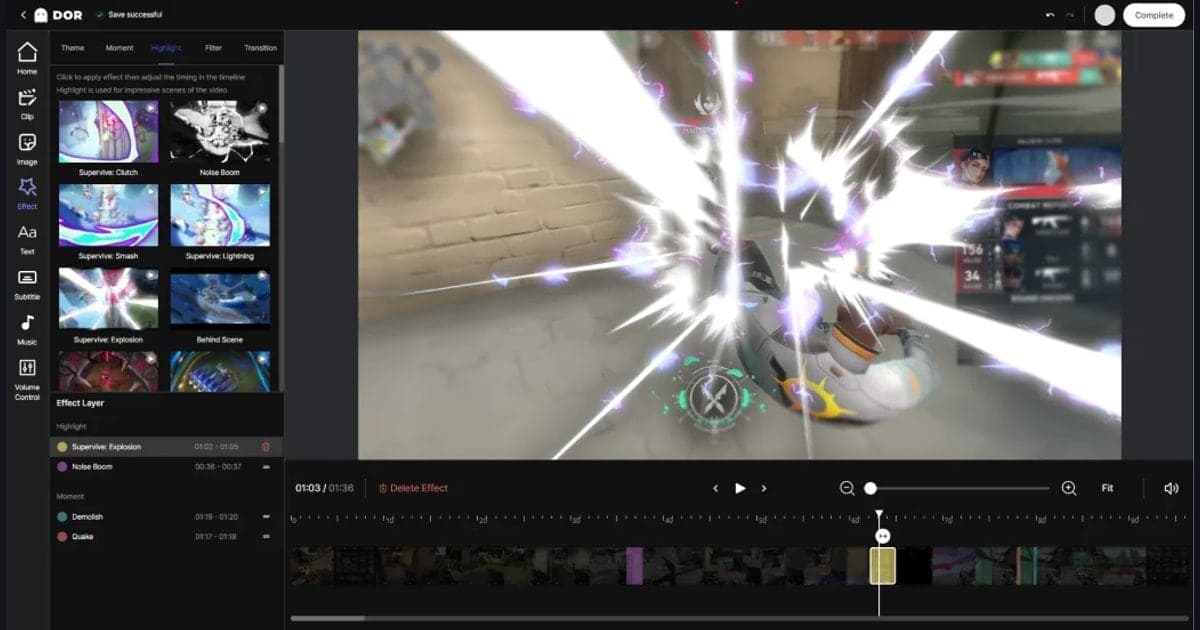
- 5Cut the moment and save it separately — Once you have checked a moment, keep it apart from the full match file so it is easy to find later. In DOR, use the trim function in the app library to set the start and end and pick an output ratio of 16:9, 9:16 or 1:1. The saved range can be shared as a dor.gg link and plays in a mobile browser. Putting the date and game in the file name is enough organization to find it again.
Replay Features vs. Your Own Recording (Checked October 2, 2026)
| Method | What the official docs confirm | Strengths and limits |
|---|---|---|
| League of Legends in-game replay | Riot's support page (version published March 27, 2026) says replays last for the length of a patch cycle and only the last 20 games are available in the client. You open the .rofl file with Watch Replay, and in-game chat is not included. | It is handy because it opens inside the client. It expires when the patch changes and cannot be sent as report evidence, so save anything you want to keep long term. |
| VALORANT replays | Per the September 16, 2025 developer post, replays cover Unrated, Competitive, Swiftplay and Premier, and only for matches played on the current live patch. Voice and text chat are not recorded and there was no clipping or sharing. Patches 12.00 and 12.10 later changed some rules, so check the latest patch notes. | The timeline shows kill and death icons and you can change playback speed. The official FAQ notes that replays use the server's point of view, so they can differ slightly from a screen you recorded yourself. |
| Overwatch replays | The official introduction post says the Replays tab on your profile loads your last 10 matches (tutorial and practice range excluded) and resets when a new patch launches. The post carries no date, and the May 26, 2026 patch notes state that replay codes were wiped. | Easy to open from inside the game. Because it resets with patches, it does not suit long-term storage. |
| Recording it yourself (OBS, Xbox Game Bar, NVIDIA app) | OBS captures desktop audio and microphone by default, recommends MKV in case of unforeseen issues, and converts to MP4 through File → Remux Recordings. Xbox Game Bar records with Windows key+Alt+R and saves MP4 files in the Captures folder inside Videos. The NVIDIA app records with Alt+F9 and works only with NVIDIA graphics cards. | The file stays regardless of patches or match counts, and game sound and microphone can be captured together. You do have to start recording yourself and manage disk space and audio settings. |
| DOR full-match auto recording | Detects supported games automatically, records the full match to mp4 and collects it in the app library, where you can trim a range. | Matches are saved without you starting a recording. It is a Windows desktop app that works only with supported games, and choosing which moment to study is still up to you. |
VOD Review Checklist
- Before this fight started, where was I, and can I explain why I chose that position?
- Of the information the screen and sound gave me at that moment, what did I miss?
- Did the decision I made match the action I actually took?
- If the same situation came back, what is the single thing I would change?
- If there was team communication, were my requests and responses clear?
- Have I written the one action to check in my next match as a single sentence?
Keeping Your Matches on Video With DOR
A review begins after the match is over, and if there is no video by then there is nothing to look back at. DOR, a free Windows app, detects supported games automatically, records the full match to mp4 and collects it in the app library. When you replay a ranked match, having game sound and microphone recorded together lets you hear the communication too, and on an NVIDIA graphics card NVENC hardware encoding is the default. VALORANT, League of Legends and Overwatch are supported games where highlight clips such as kills are created automatically, but for a review it is natural to treat the full-match video as your base. TFT and Apex Legends get full-match auto recording only, so do not expect automatic clips there. Once you know which moment to study, trim and save it from the library, and the steps are laid out in how to trim game clips. DOR handles recording and saving the range; which moment to watch and which questions to ask remain up to you.
Official Sources and Check Date
These are the official documents checked on October 2, 2026. League of Legends replay rules come from Riot's Replays FAQ & Pro-Tips, VALORANT replays from Replays: Everything You Need to Know, and recording formats and Remux from the OBS Standard Recording Output Guide. Overwatch relies on the official replay introduction post and the May 2026 patch notes, microphone permission and storage guidance on Microsoft support pages, and the NVIDIA app description on NVIDIA's official page. Game rules can change with each patch, so it is safest to check the latest patch notes as well.