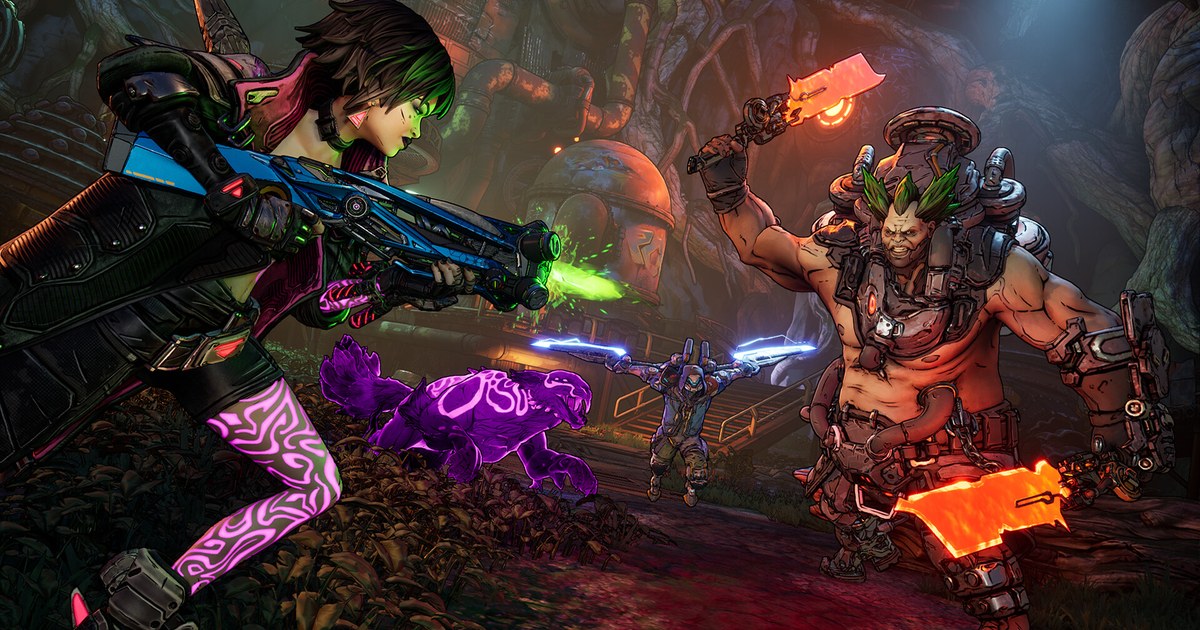
The short answer: you do not need to lower everything in Borderlands 4. Put Global Illumination and Shadow Quality on Medium, Volumetric Fog on Low, and turn on your upscaler in Quality mode, and on most PCs you lose little image quality and gain a lot of frame rate.
As of November 24, 2026, the Steam minimum is an Intel Core i7-9700 or Ryzen 7 2700X, 16 GB of RAM, an RTX 2070 class GPU and 100 GB on an SSD, and the recommended spec is an i7-12700 or Ryzen 7 5800X, 32 GB of RAM and an RTX 3080 class GPU.
Below that, settings can only do so much, but if your PC is within spec, changing one or two options in the order below makes a clear difference. First measure where you are now: how to show FPS in games explains the easiest ways. Every value here is a starting point, so check each change on your own screen.
Borderlands 4 settings, recommended values and why
| Setting | Recommended | Why |
|---|---|---|
| Global Illumination | Medium | The biggest frame rate gain, with a small change in mood |
| Shadow Quality | Medium | High and above is costly and hard to notice during combat |
| Volumetric Fog | Low | Distant fog is heavy to compute, and visibility often improves |
| Reflection Quality | Low | Only visible on water and metal, with a medium cost |
| Texture Quality | High with 8 GB or more VRAM, Medium with 6 GB or less | Running out of VRAM shows up as stutter, not lower FPS |
| Upscaler | DLSS, FSR or XeSS on Quality | Renders at a lower resolution and scales up, so FPS rises a lot |
| Frame Generation | Only with a base of 60 FPS or more | Smoother motion but added latency, a poor fit for low base FPS |
The answer: Medium lighting and shadows, Quality upscaling, conditional frame generation
The options that cost the most frame rate in Borderlands 4 are lighting, shadows and volumetric fog, and dropping each by one step barely changes how the game looks. The top presets such as Badass are hard to tell apart from the preset below them, yet they add a heavy load.
So skip the presets and set each option yourself in Custom. For upscaling, use DLSS on NVIDIA, FSR on AMD and XeSS on Intel Arc, all on Quality, which keeps the resolution loss hard to notice.
Frame generation adds input latency, so use it only if your base frame rate is already 60 or higher and you can turn on NVIDIA Reflex. Once your frame rate is up, make sure recording does not pull it back down: recording on a low end PC covers the settings to use.
Steps to raise your Borderlands 4 frame rate
- 1Measure your frame rate and VRAM firstNote FPS and VRAM use in the same place during the same fight. Without numbers you cannot tell what helped, and this record is the baseline for every change.
- 2Drop the preset and use CustomHigh presets like Badass give little visual gain for a big cost. Switch to Custom and start with lighting and shadows on Medium, and volumetric fog and reflections on Low.
- 3Turn on your upscaler in Quality modeUse DLSS on NVIDIA, FSR on AMD and XeSS on Intel Arc, set to Quality. If you still need more, go one step down to Balanced. If the image looks soft, go back up one step.
- 4Match textures to your VRAMUse High with 8 GB or more and Medium with 6 GB or less. If textures pop in late while moving, that is a sign you are short on VRAM, so lower one step. If you also record, read reducing GPU load while recording.
- 5Play until shaders settle, then judgeA stutter right after changing settings can be shader recompiling. Play for 15 to 20 minutes before measuring again, and make sure the game is installed on an SSD. Memory use is reported to grow over long sessions, so restart the game between them.
- 6Add frame generation last, with conditionsOnly turn it on with a base of 60 FPS or more and Reflex available, on an RTX 40 or 50 series card. If aiming feels heavy, turn it off.
Check before you finish
- You switched from a preset to Custom
- Lighting and shadows are on Medium
- The upscaler is on in Quality mode
- Textures fit your VRAM
- You played over 15 minutes after changing settings and measured again
Compare before and after with DOR
DOR is a free Windows game recorder. When a supported game launches it detects it automatically and records the whole match, and other screens can be captured with screen recording. Recordings gather in My Clips in the app, so record the same section twice with only the settings changed and compare.
Recording quality is free at 720p or 1080p and 30 or 60 fps, with 1080p at 30 fps as the default. On supported NVIDIA graphics cards such as the RTX series, DOR records with NVENC hardware encoding.
Files are saved without a watermark, and you can trim just the part you want and export an mp4, or combine clips in DOR Studio and share them with a dor.gg link.