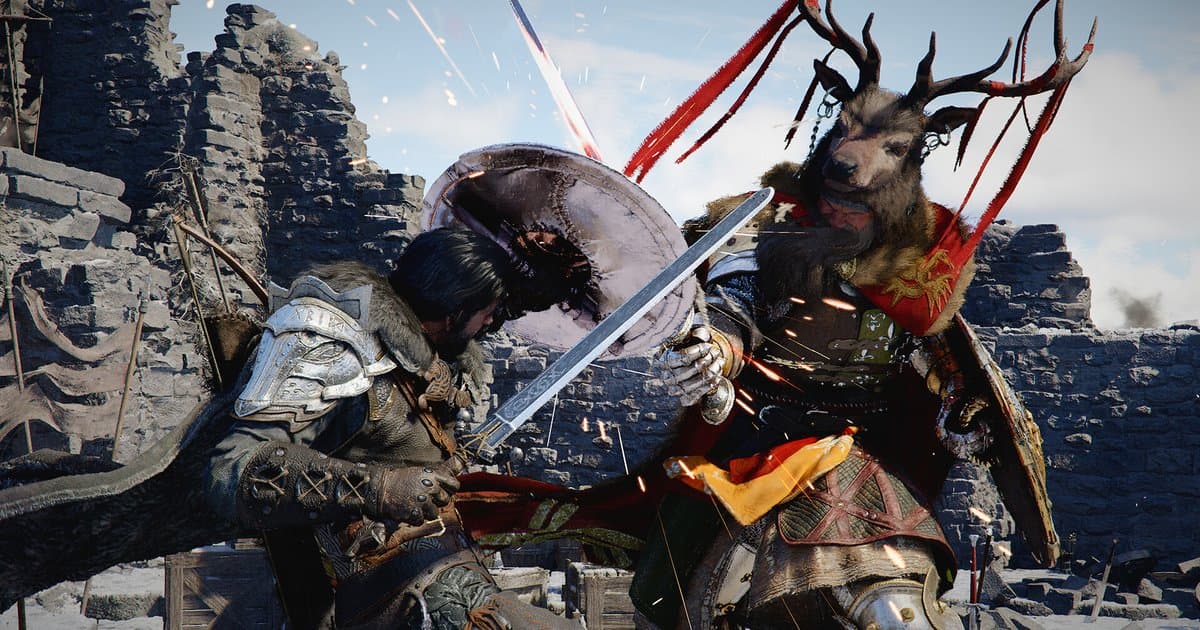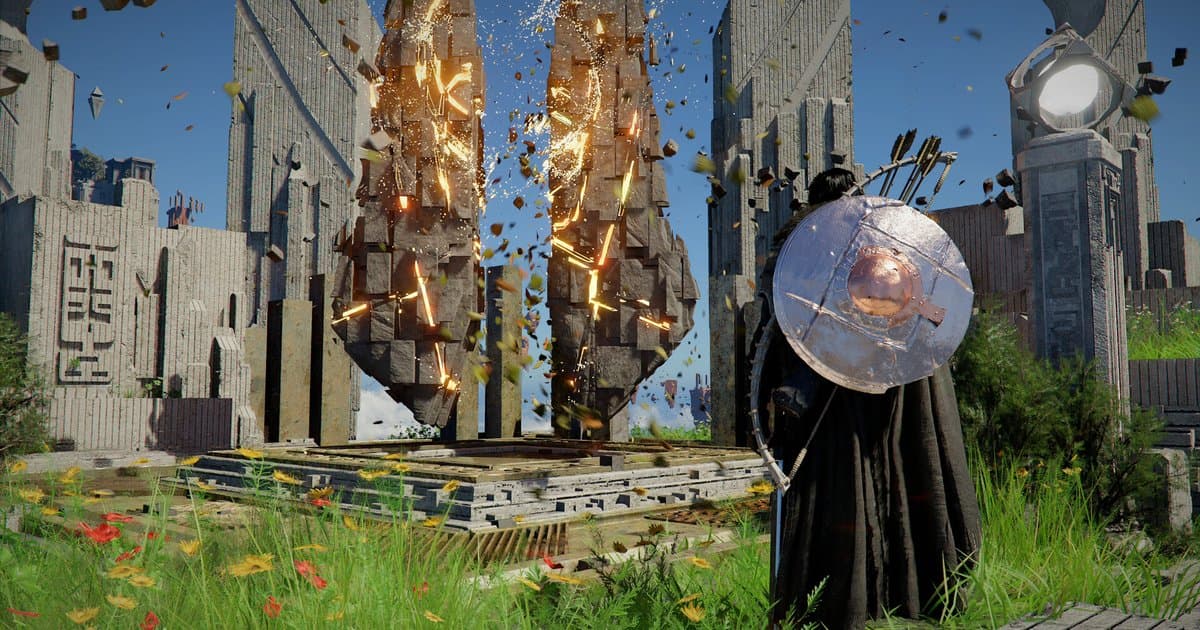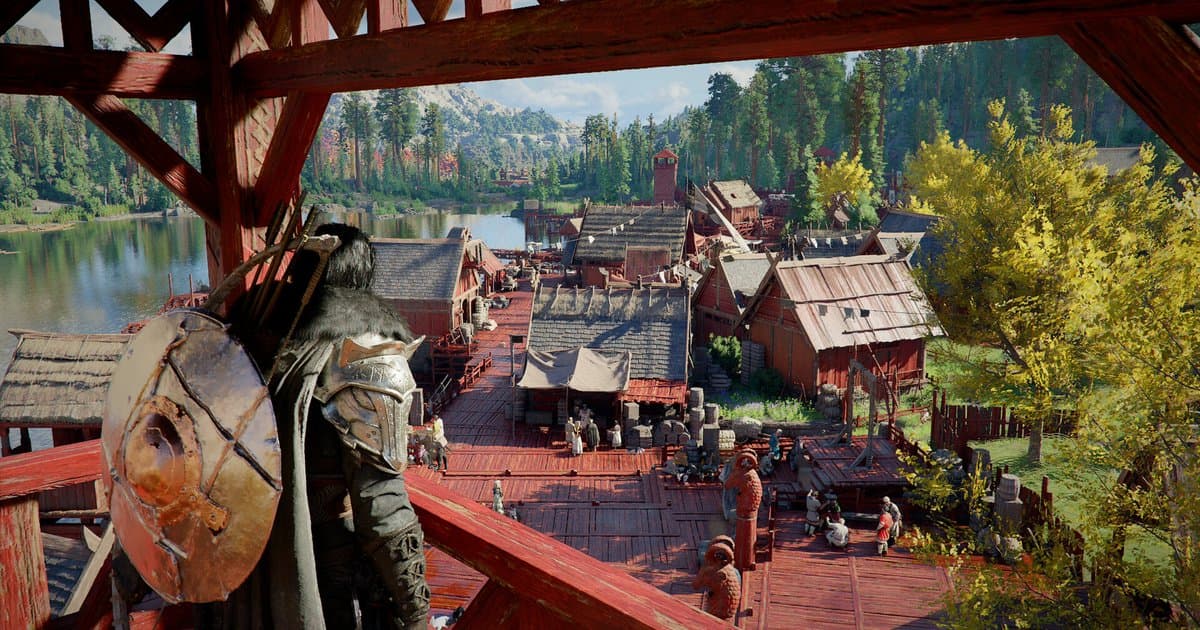
Crimson Desert has a long list of PC graphics options, and the list has kept growing through patches since launch. Version 1.03.00 in April 2026 added Intel XeSS 3.0 to Settings > Video > Upscale Mode, AMD Radeon Anti-Lag 2 under Settings > Video, and Displacement Scale and Detail Decorative Mesh under Settings > Graphics. In May, 1.05.00 added Dynamic Multi-Frame Generation for GeForce RTX 50 Series cards and 1.08.00 added Raytraced Sun/Moon Light Shadows. In August, 1.16.00 brought FSR Upscaling 4.1 to Radeon RX 7000 Series (RDNA 3) cards, and in September 2.03.00 applied NVIDIA's latest transformer model to DLSS Ray Reconstruction. That is why many launch-week settings guides no longer match the menu you see today. This guide was checked on October 16, 2026 against Pearl Abyss's official performance chart, patch notes (latest: 2.03.02), FAQ and Known Issues notice. Official sources do not say how many frames each individual option costs, so instead of quoting numbers that cannot be verified, this guide gives you an order for testing settings on your own PC under the same conditions. Game info and DOR recording support are collected on our Crimson Desert game page. If you plan to record while you play, read the last section, Recording while you play with DOR, before you launch the game: DOR records Crimson Desert from the moment it starts, so recording settings have to be chosen first.
The short answer: start from the official preset for your GPU, then tune upscaling, frame generation and ray tracing in that order
The quickest route is to pick the preset from the official chart that matches your graphics card and only change things one step at a time when you fall short of your target frame rate. Work in this order: Upscale Mode, then frame generation, then ray tracing options. Upscaling lowers the internal render resolution to raise your real frame rate, while frame generation inserts extra frames on top of that, so it only works well when the base frame rate is already decent. Pearl Abyss's FAQ says DLSS Multi Frame Generation can be enabled even at a low base rendering FPS, but input responsiveness and image stability may suffer if the base FPS is too low, and it recommends turning off vertical sync settings such as V-Sync and G-Sync when using Multi Frame Generation. Treat frame generation as the last step that fills the remaining gap. Your GPU generation matters too. NVIDIA says DLSS 4.5 Model M is optimized for Performance mode and Model L for 4K Ultra Performance mode, and that RTX 20 and 30 Series cards lack native FP8 support, so both models carry a heavier performance cost on them. NVIDIA adds that those users may prefer to stay on Model K (DLSS 4), so on an RTX 20 or 30 card, starting from DLSS 4 and comparing against 4.5 is a sensible default. AMD players should know one current known issue: the official Known Issues notice (last updated September 21, 2026) lists rain disappearing, or the screen becoming blurry or distorted, in rainy areas when FSR4 upscaling is used. If the game closes or will not start after you change an option, crashes are a faster place to look than settings, so jump to our Crimson Desert crash fix guide. Patch 2.02.00 fixed a crash when starting a new game with DLSS Frame Generation enabled, which is a good reminder that making sure the game is up to date is always step one.
Crimson Desert best PC settings, step by step
- 1Update your graphics driver and the game firstPearl Abyss's FAQ recommends NVIDIA driver 581.29 or later and AMD driver 25.9.2 or later for optimal performance and stability, and NVIDIA released Game Ready driver 595.79 for the game's launch. Update through the NVIDIA app or AMD Software: Adrenalin Edition. Steam updates the game automatically, but if you turned automatic updates off, update it from your library. As of October 16, 2026 the latest patch is 2.03.02. Many problems that look like settings issues have already been fixed in a patch.
- 2Pick a starting preset from the official chartFind the row in the table below that matches or is closest to your graphics card and start with that preset. For example, an RTX 4070 maps to High (1440p at 60 fps) and an RTX 2080-class card maps to Medium (1080p at 60 fps). Every tier assumes 16 GB of RAM. The chart comes from Pearl Abyss's March 2026 performance specs notice and is based on internal testing; the notice says performance varies with your hardware and software configuration and with individual graphics settings. If your card is not listed, compare it with the chart's reference cards in public benchmarks, start from the nearest row, and move one step up or down in the same spot. Write down each option you change so you can roll it back.
- 3Choose an upscaler: DLSS 4, 4.5 or 4.5 L, FSR or XeSSGo to Settings > Video > Upscale Mode and pick the technology that matches your GPU. According to Pearl Abyss's FAQ, the PC version supports FSR 3/4, DLSS 4/4.5 and Intel XeSS 3. NVIDIA describes two DLSS 4.5 models: M for Performance mode and L for 4K Ultra Performance mode. Pearl Abyss has not published an explanation of the 4.5 L entry in the game's list, so switch between 4, 4.5 and 4.5 L in the same spot and compare image quality and frame rate yourself. On RTX 40 and 50 cards, start testing from DLSS 4.5; on RTX 20 and 30 cards, start from DLSS 4. Radeon RX 7000 Series cards can use FSR Upscaling 4.1 since 1.16.00, but because FSR4 has a known rain issue, compare with another upscaler if the image looks wrong in the rain. Intel Arc owners pick XeSS 3.0; the A-series display issue with XeSS was fixed in 1.08.00.
- 4Turn on frame generation, and what to check if it is greyed outFrame generation options are under Settings > Video. NVIDIA's official DLSS page lists DLSS Frame Generation for RTX 40 and 50 Series and Multi Frame Generation for RTX 50 Series only, and the game's Dynamic Multi-Frame Generation option is also RTX 50 Series exclusive. Other GPUs use the FSR or Intel XeSS frame generation options instead. If DLSS Frame Generation is greyed out on an RTX 40 or 50 card, open Windows Settings > System > Display > Graphics (on Windows 11 the switch sits under the default or advanced graphics settings on that page), turn on Hardware-accelerated GPU scheduling and restart the PC. NVIDIA's Streamline developer documentation states that DLSS Frame Generation requires this setting and Windows 10 20H1 or later. Then update your graphics driver, set Upscale Mode to DLSS and check again. Settle frame generation and HDR early in a session: patch 1.06.00 fixed the game closing when those two options were changed while external overlay programs were running.
- 5Change ray tracing options one at a timeThe ray tracing items Pearl Abyss names in its notices are ray tracing itself, DLSS Ray Reconstruction (NVIDIA), FSR Ray Regeneration (AMD) and Raytraced Sun/Moon Light Shadows, which 1.08.00 added under Settings > Graphics. In its BlackSpace Engine dev archive, Pearl Abyss says the engine's real-time lighting looks realistic with ray tracing off and even better with it on, and 1.08.00 fixed smudged lighting when lighting quality was set to medium or lower or ray tracing was turned off. So if you are still short of frames after tuning everything else, add a run with ray tracing off to your comparison. Ray Reconstruction moved to NVIDIA's latest transformer model in 2.03.00, so older comparisons may no longer apply. Displacement Scale and Detail Decorative Mesh, added in 1.03.00, are worth testing the same way. Change only one of these at a time and compare frame rate and image in the same spot at the same time of day. A heavy reference spot, such as a busy town, a forest or rainy weather, makes the comparison meaningful. Patch 1.04.00 says higher graphics settings now bring more detail and clarity to distant objects and textures, so if you still have frame-rate headroom, try one preset step higher and look at the distant scenery.
- 6If settings are not saving or keep resettingRight after launch, settings sometimes failed to save after using the Default option in the Settings menu, and settings such as resolution and upscaling were not retained after restarting the game; both were fixed in 1.00.03. The official Known Issues notice, last updated September 21, 2026, does not list a settings-saving problem. If it still happens, first confirm you are on the latest version, then in your Steam library right-click Crimson Desert and choose Properties > Installed Files > Verify integrity of game files. If that does not help, follow the clean install steps in the official Report an Issue notice, but back up your saves first (C:\Users\[USER NAME]\AppData\Local\Pearl Abyss\CD\save) to another drive or a USB stick. If it keeps happening, report it with the form in that notice or with the Pearl Abyss Error Reporting System (PERS) in the game's bin64 folder.
Starting preset by GPU: Pearl Abyss's official performance chart (March 2026 notice, checked October 16)
| Graphics preset | Official performance target | GPU and CPU in the official chart |
|---|---|---|
| Minimum | 1080p upscaled from 900p, 30 fps | GTX 1060 / RX 5500 XT, i5-8500 / Ryzen 5 2600X |
| Low | 1080p, 30 fps | GTX 1660 / RX 6500 XT, i5-8500 / Ryzen 5 2600X |
| Medium (the chart's Recommended tier) | 1080p at 60 fps or 4K at 30 fps | RTX 2080 / RX 6700 XT, i5-11600K / Ryzen 5 5600 |
| High | 1440p, 60 fps | RTX 4070 / RX 7700 XT, i5-12600K / Ryzen 5 7600X |
| Ultra | 4K, 60 fps | RTX 5070 Ti / RX 9070 XT, i5-13600K / Ryzen 7 7700X |
| Cinematic | No target in the official chart | Pearl Abyss only says its developer-update comparison shots were captured on a high-end PC in Cinematic mode at 4K with upscaling off. Treat it as outside the chart and test it last. |
Checklist after changing settings
- My graphics driver is at or above the FAQ's recommended version (NVIDIA 581.29, AMD 25.9.2) and the game is on the latest patch (2.03.02).
- I started from the preset in the official chart row closest to my graphics card.
- Upscale Mode matches my GPU vendor, and on an RTX 20 or 30 card I compared DLSS 4 and 4.5 in the same spot.
- I turned on frame generation only after upscaling was set, and turned off V-Sync and G-Sync when using Multi Frame Generation.
- I changed ray tracing options one at a time and compared them in a town, a forest and rainy weather.
- With frame generation on, I judged the base frame rate and how the controls feel, not just the FPS number on screen.
Recording while you play with DOR: set it up before you launch Crimson Desert
DOR is a free Windows PC app. From app version 1.6.0, when you launch Crimson Desert (CrimsonDesert.exe), DOR detects it and records everything from launch to exit as one video. This Full gameplay recording is on by default on personal PCs and off in PC cafes. Because the game is being recorded the whole time it runs, recording resolution and frame rate cannot be changed mid-recording, so set Video Resolution and Video Frame under Settings > Video before you launch the game. 720p and 1080p, and 30 fps and 60 fps, are free, and the default is 1080p at 30 fps; 1440p and above and 120 fps and above are Pro features. The recording is saved at the values you pick there regardless of the game's own resolution or frame rate, so you can play at 1440p with frame generation on and still keep the recording light at 1080p and 30 fps. You do not need to start a separate test recording to check for stutter either. After you close the game, open that session's video in My Clips and scrub to the stretch where you walked through town; you can see whether the hitches you noticed on screen show up at the same places. To find out whether recording itself affects stutter, turn off Full gameplay recording for Crimson Desert under Settings > Game, also switch off Blackbox Record under Settings > Recording for the test, and walk the same route again. Blackbox Record keeps capturing the screen even when DOR is not recording so that F8 can save the last moment, so both need to be off to compare against a run with no capture. Turn both back on when you are done. If you want a separate clip of a before-and-after moment, press F8 on the spot and the last 30 seconds are saved; clip length (15, 30, 45 or 60 seconds) is also set before launch. Crimson Desert is not an event-detection game for DOR, so no automatic highlights are made. Check drive space as well: DOR warns when free space drops below 30 GB and will not start, or will stop, recording below 20 GB. If Steam's own Game Recording is also running in the background, it uses drive space too, so check its maximum space and destination drive with the Steam Game Recording low disk space fix. With Automatic File Management on (30 GB by default), full gameplay videos are cleared oldest session first within their 5 GB share, so Like the videos you want to keep for comparison. If you find something worth reporting, such as settings that keep resetting, carry on with how to report a Crimson Desert bug with video.