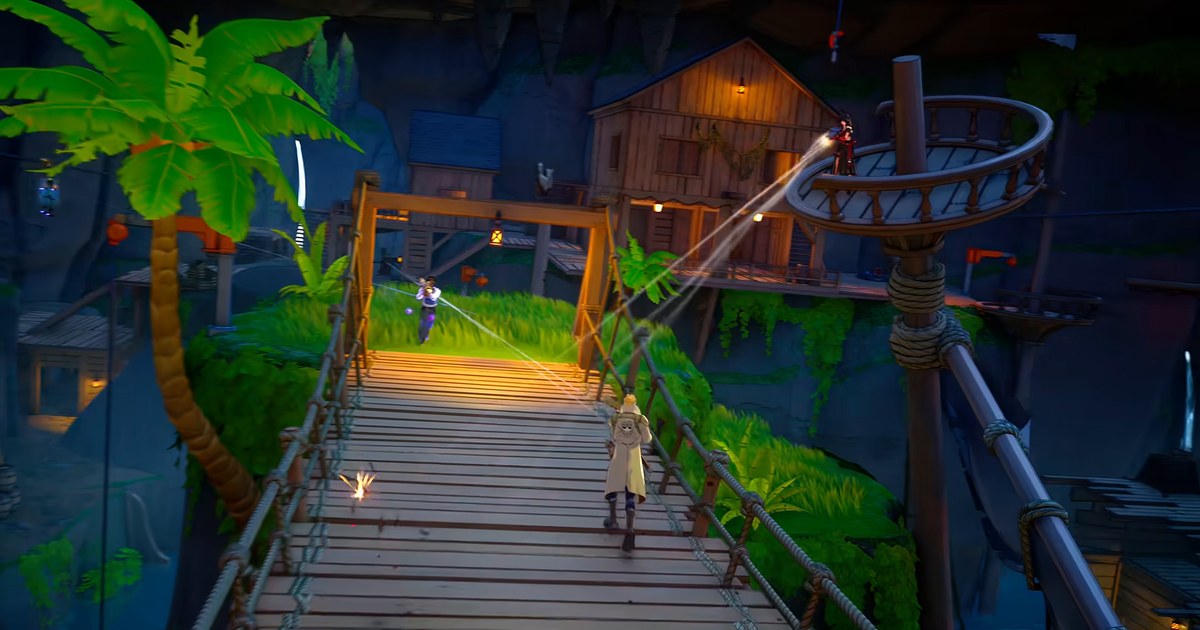
Here is the fastest way to VOD review Fortnite. Keep DOR running while you play and the whole match is recorded automatically, with kill and death moments collected as separate clips.
Turn on DOR Match Notes (AI Voice Notes) and the callouts and Discord chat from your duo or squad are saved line by line with timestamps; tap a line and the video jumps to that moment.
Fortnite's own Replay Mode is the second tool, for moving the camera freely to see where an enemy came from or what you missed in a high ground fight. If you want to keep a replay as an MP4, see how to turn a Fortnite replay into video. This guide covers Battle Royale on PC (Windows) as of November 23, 2026.
Bottom line: recordings show the flow, replays show positions
You do not have to pick one review tool. A recording is exactly what was on your screen, so you can see what you noticed and what you decided in that moment, and hearing it with team comms shows where communication broke down. A replay shows what was outside your view.
With third person and drone cameras you can check the angle an enemy pushed from and the side your walls failed to cover. The catch is that a replay is game data, not a video file, so it only plays on the Fortnite version that recorded it.
The efficient order is to find the problem moments with your recording and notes first, then open replays only for the matches that need a different camera. For a review framework that works in any game, see the general VOD review workflow.
How to review a Fortnite match
- 1Set up DOR to record the whole matchInstall DOR and launch Fortnite; the app detects the game automatically, records the whole match and puts the recording in My Clips. Kill and death moments also pile up as automatic highlight clips, so fights are easy to find. You can choose 720p or 1080p and 30 or 60fps for free, with 1080p at 30fps as the default. Switch to 60fps if you want to study your build inputs in detail.
- 2Turn on Match Notes and choose your audioTurn on Match Notes in Settings > Lab, or straight from the Notes tab in the match drawer. The first time, you agree once and download the transcription model once (about 900MB; it pauses while you play and resumes afterward). You can capture three sources, each switchable: your voice (the mic chosen in app settings), Discord team voice and game audio. Discord and game audio need Windows 10 version 2004 or later.
- 3Find the problem moments in the notes after the matchAfter a match, transcription runs on your PC while you are not playing, and a note is created for any match that lasts at least one minute. If the next match starts, it pauses and picks up later. Filter the note by speaker to Discord to see only team callouts, or search words like high ground, zone or heal to find the right line. Tap a line and you jump to that moment in the clip if it is in one, otherwise in the full video.
- 4Pick two or three fights and switch cameras in Replay ModeOpen only the fights you picked from the notes and video in Fortnite Replay Mode. Go to the Career tab, press Replays, choose the match and play it. Use a drone camera to see where the enemy came from, and slow down the playback speed to check whether you built a wall, ramp or box first. Scrub with the progress bar, and hide the controls for a clean view.
- 5Set one fix and share the clipFor each fight, write one line on build choice, camera view, rotation timing and callouts, then choose a single thing to fix next game. If you review with a duo, combine scenes in DOR Studio (dor.gg/studio), add text labels, then export an mp4 or send a dor.gg link. Recording, editing and sharing are watermark free.
What each Fortnite review tool shows best (as of November 23, 2026)
| Review tool | Best for | How to use it |
|---|---|---|
| DOR full match recording | Your own decisions, aim and build order as you saw them | Records automatically when you launch Fortnite; play it back in My Clips |
| DOR kill and death auto clips | The moments right before and after a fight ends | A clip is collected automatically for every kill and death |
| DOR Match Notes | Time stamped record of callouts, Discord chat and game audio | Turn on in Settings > Lab or from the Notes tab in the match drawer |
| Replay third person camera | The default view that follows a selected player | Career > Replays, pick a match and play it |
| Replay drone cameras | Enemy positions, height and routes outside your view | Choose Drone Follow, Drone Attach or Drone Free |
| Replay gameplay camera | What that player actually saw on screen | Follows the player's original camera with no manual control |
| Renamed and saved replay | A match you want to keep for another look | Select the replay and rename it to save it |
Check before you review
- Record Replays is on in the Replays group at the bottom of the Game tab in Fortnite settings
- You chose which audio Match Notes captures: your voice, Discord and game audio
- For each fight you noted the build choice (wall, ramp, box) and the height you were at
- You used the note timestamps to check whether your rotation start matched the callout
- You set only one thing to fix next game
Build a Fortnite review loop with DOR
DOR is a free Windows app. When you launch Fortnite it detects the game automatically, records the whole match and gathers kill and death moments as automatic clips in My Clips.
With Match Notes on, each match gets a note, and every line shows who spoke (you, Discord or in game) and when, so you can find the moment a callout came late straight from the video.
Match cards on the home screen show a badge with the number of note lines, and the recorded audio is deleted once the note is finished so only the text remains. Match Notes is a free experimental feature, and transcription runs on your graphics card. To keep the habit going, read how to get better at Fortnite, and to send your reviewed scenes to the team, see how to share Fortnite clips with friends.