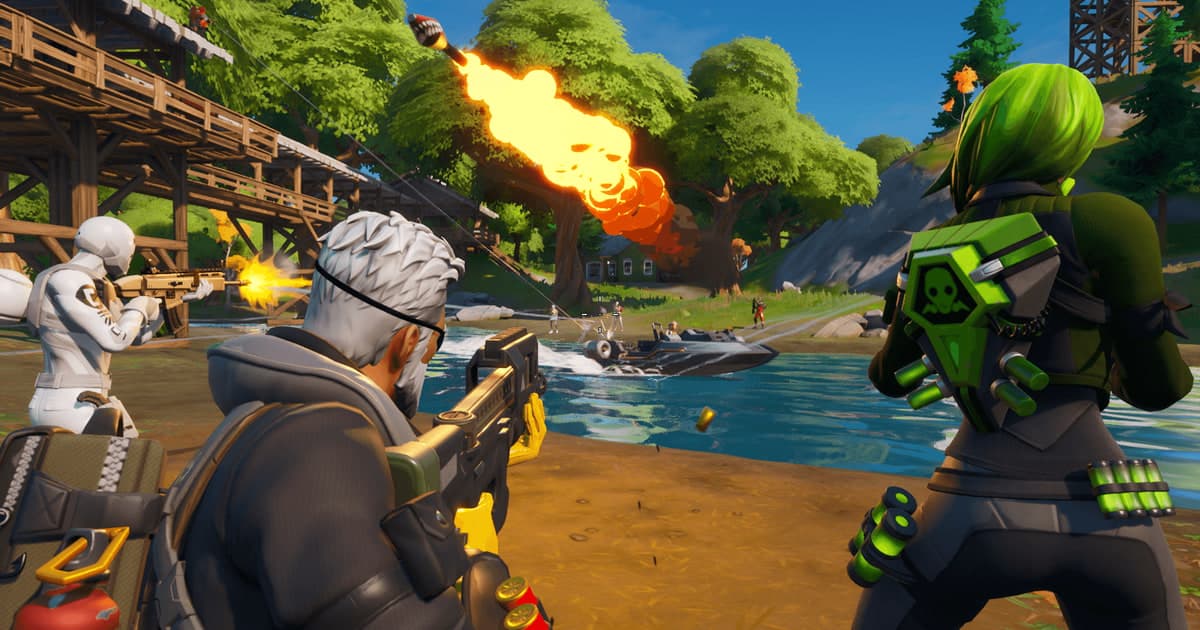
The moment you take out the last player and the Victory Royale pops up, or a build fight you won by stacking walls and ramps, is quicker to show than to explain. This guide covers playing Fortnite on PC while DOR records it, then picking the moment to send from the automatically saved kill clips and the full-match recording and passing it to friends as a single link. It sticks to one method: choosing, trimming and sending inside DOR.
Finish with the auto clip, or re-cut from the full match
When you want to send a Fortnite moment, the first place to look is the automatic clips. DOR detects the moment you eliminate someone or get eliminated and keeps it as a separate clip, so for one short fight you can open that clip, tidy the edges and send it right away. For longer stories, such as a final circle that runs into the win screen or a drawn-out build fight with lots of back and forth, it is better to go to the same match's full recording and re-cut with an earlier start point. Turning kill and build scenes into Shorts is covered in more detail in how to clip Fortnite.
Sending a Fortnite moment to friends as a link, in order
- 1Play a Fortnite match on a PC with DOR installedDOR is a free Windows desktop app; once it is installed, it detects Fortnite launching and records automatically. There is no button to press before recording, so just jump from the Battle Bus as usual. If you are talking on squad voice, your microphone is captured along with the game sound.
- 2Skim the kill and death clips in the library firstWith both full recording and highlight recording turned on, the DOR app library holds the full-match recording when the match ends, plus automatic clips of your eliminations and the moment you were eliminated, all as mp4. Skimming the clip list from the top tells you right away how many fights from that match are worth sending. Short moments like box fights or landing fights are usually settled here.
- 3Cut the Victory Royale from the end of the full matchAutomatic clips are made around kills and deaths, so to make sure you include the win screen, open the end of the full-match recording. Start where the final circle closes in and you spot the remaining opponent, end just after the win screen appears, and your friend will see why you won, not just that you did.
- 4Pull the start of a build fight well forwardThe fun of a build fight is less the elimination than the walls and ramps traded before it. If the kill clip does not hold enough of that, re-cut from the same match's full recording with the start moved back to your first wall. Set the start and end in the library trim tool and choose 16:9, 9:16 or 1:1.
- 5Keep box fights short and verticalBox fights often end in a few seconds inside a tight box, so a short 9:16 vertical cut fills the screen when a friend watches on a phone. Line up the start and end so the edit that opens the wall and the shot land in the middle.
- 6Bundle a squad streak in the studioIf you got several eliminations in one match, trim each clip short and merge them in DOR Studio, which opens in a browser with no install. Mark the order of eliminations with text or lay down background music, balance the original gunfire against the music, then choose link sharing or an mp4 download.
- 7Paste the dor.gg link into your squad chatCopy the finished video's dor.gg link and paste it into the messenger or Discord chat where your squad hangs out. Instead of passing a big video file around, only a link travels, so your friends tap it and play it in the browser as soon as it arrives. It also makes it easy to agree on running the same plan next match.
Where to find each Fortnite moment in DOR, and how much to cut
| Moment to send | Where to find it in DOR | What to keep when sending |
|---|---|---|
| Victory Royale | The end of the full-match recording | From spotting the last opponent in the final circle to the win screen |
| Winning a build fight | The kill clip, or the full match if it falls short | From your first wall to the elimination |
| Box fight | The kill clip | A few seconds around the edit that opens the wall |
| Fight right after landing | Early-match kill clips | Short, from grabbing a weapon to the first elimination |
| A close elimination | The death clip | Start a few seconds early so it shows where the damage came from |
| Squad elimination streak | Several kill clips from the same match | Trim each short and join them in the studio |
Before you send a Fortnite video
- I checked both the kill and death clips and the full-match recording for that match in the library.
- The Victory Royale video runs all the way through the win screen.
- The build fight video starts at my first wall, not just at the elimination.
- Short moments like box fights are cut in 9:16 so they look good on a phone.
- I listened for friends' names or private talk in the squad voice audio.
- The chat I am sending to is the one with the squad who played that match.
What DOR does for you in Fortnite
DOR is a free Windows app: when you launch Fortnite it detects the game, records the whole match, and saves eliminations and deaths as separate highlight clips. How it picks and saves those moments is explained in DOR auto highlight clips. Recordings stay in the library as mp4, and with an NVIDIA graphics card, NVENC hardware encoding is the default. Videos trimmed in the library or polished in the studio can go out as a dor.gg link, and whoever opens it can play it in a mobile browser too, with no app to install. If you need more friends to fill a squad, see the Fortnite duo and squad finder.