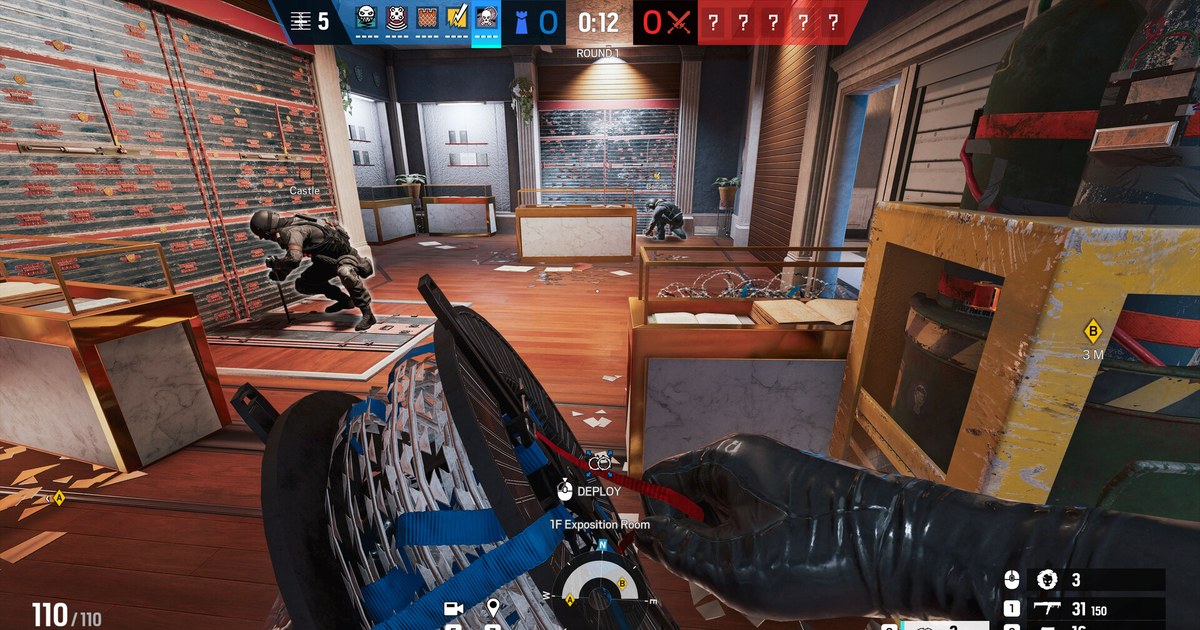
The fastest Rainbow Six Siege VOD review lines up three things for each round: what your drones saw, what was called to the team and how you actually entered, then finds the single point where they diverged.
Watching video alone means relying on memory for who called what and when, so the key is to keep the calls as text with timestamps alongside a full match recording.
DOR records the entire match automatically when you launch Rainbow Six Siege, and Match Notes (shown on the site as AI Voice Notes), released on November 23, 2026, transcribes your mic, Discord team voice and game audio per match and stamps every line with a time.
Clicking a line jumps the video to that moment, so a call like two on upstairs drone can be checked against the real entry right away. The full improvement loop is covered in how to get better at Rainbow Six Siege; this guide goes deep on the VOD review step.
Bottom line: compare drone info and one entry per round
Reviewing a whole match takes a long time and blurs the takeaway. Pick only 2 or 3 lost rounds and compare three things in each: what the prep phase drone saw, who called that information and how, and which door or wall the team actually went through.
Lost rounds usually fall into one of three cases: there was no information, the information was there but the call was late or missing, or the call was right but the entry went a different way. That classification alone tells you the one thing to fix next match.
Siege itself has Match Replay on PC, which lets you view other players' perspectives, but it only keeps your most recent matches and overwrites the oldest first, so it is safer to save matches you want to keep as video. For how Discord calls end up in the recording, see recording Discord call audio.
How to VOD review Siege with Match Notes
- 1Turn on Match NotesTurn on Match Notes in DOR under Settings > Lab, or straight from the Notes tab in the match screen drawer. The first time, you give consent once and download the transcription model once (roughly 900MB); during a game the download pauses and then resumes. It is off by default, so turn it on before scrims or ranked.
- 2Choose which audio to captureYou can turn your own voice (the mic chosen in app settings), Discord team voice and game audio on or off individually. If reviewing calls is the goal, keep the mic and Discord on. Discord and game audio require Windows 10 version 2004 or later.
- 3Play a match as usualWhen you launch Rainbow Six Siege, DOR records the whole match automatically, and Match Notes records audio per match too. After the match, while you are not playing, it transcribes on your PC to build the note; when the next match starts it pauses and then continues. Notes are created for matches of one minute or longer.
- 4Find the calls in lost roundsOpen the match from the note line count badge on its card on the home screen. Search the note for words you use in calls, such as drone, upstairs or operator names, or filter the speaker to Discord, to gather only the calls around your lost rounds.
- 5Click a line to match it to the sceneClicking a call line jumps to that moment in the video (the clip if it is in one, otherwise the full video). Check whether the call matched what the drone feed actually showed and how many seconds later the team entered through which door, then note where it diverged.
- 6Cut review scenes and share with the teamTrim the scenes that went wrong in the app, combine several rounds into one video in DOR Studio (dor.gg/studio) and add text labels like no info or late call. Export as mp4 or send your team a dor.gg link. Tips for saving clips are in saving Siege clips.
Review points by type of lost round
| Where it went wrong | What to find in the notes | What to check in the video |
|---|---|---|
| No drone info | Prep phase lines with no drone calls, or only nobody here | How far the drone got and whether it was lost early |
| Info existed but no call | Call lines around the time an enemy appeared on the drone feed | Defender positions on the drone feed and when they appeared |
| Late call | Time gap between the enemy position call and the first fight | Whether the team was already entering when the call came |
| Entry differed from the call | Entry call lines such as let's go through this door | Which door or wall was actually opened and the entry order |
| Entry path was read | Camera related call lines right before the entry | Whether defender cameras were destroyed before entering |
| Scrim round recap | Team calls filtered by the Discord speaker | The round plan versus the actual result |
Check before you review
- Match Notes is an experimental feature, so the transcript may differ from what was actually said. Click important call lines and confirm them with the video audio.
- The recorded audio is deleted once the note is complete and only the text remains. The video recording keeps game audio and mic on one track.
- Transcription runs on your graphics card, so you need a GPU that supports Vulkan.
- Team voice is captured from the Discord app audio, so make scrim calls in a Discord voice channel.
- Pick 2 or 3 rounds at a time and decide on one thing to fix. For a solo routine, see how to VOD review yourself.
How to prepare Siege reviews with DOR
DOR is a free Windows game recording app. When you launch Rainbow Six Siege, it detects the game automatically and records the whole match, and recordings collect in My Clips in the app.
Trim the scenes you want in the app at 16:9, 9:16 or 1:1, then combine rounds or add text and BGM in DOR Studio and export as mp4 without a watermark or share a dor.gg link.
Turn on Match Notes as well and every match keeps its calls as text with timestamps; click a line to go straight to that scene, which cuts down VOD review prep time. Match Notes is free to use and works with the app language set to Korean, English, Japanese, Vietnamese or Chinese. How to send the finished review video to your team is covered in sharing Siege gameplay videos.