You can get better at TFT by fixing one thing at a time and re-watching your own games to check whether it actually changed. As of October 2, 2026, Riot's official documents do not confirm an in-game replay feature for TFT, so if you want to watch a game again you need to keep a video of it yourself. This guide first lists what the official documents do confirm and where those tools stop, then walks through a review routine using video made with how to record a TFT game on Windows PC. None of this guarantees a higher rank or win rate; it only covers a routine that makes reviewing a habit. TFT can be played on several platforms, but this guide assumes Windows PC.
Bottom line: review one game for one fix
In short, pick only one game to review at a time and decide on only one thing to fix from it. If you change several things at once, you cannot tell what made the difference in the next game. The center of a review is not the result, such as your placement, but why you made each choice in that round. If the moment you want to study is a short stretch of a long game, how to trim a game clip shows how to save just that part so it is easy to watch repeatedly. The table lays out what each confirmed tool tells you and where it stops.
Six steps to record and review a TFT game
- 1Record the whole match — Keep DOR running on Windows PC while you play TFT and the entire game is saved as a video. A review cannot start without footage, so record wins and losses alike. Recording setup is covered in a separate guide.
- 2Pick just one game to review — From your saved videos, choose the one game that felt the most disappointing. Watching several games at once blurs your point of comparison, so start with one. Systems and balance change with each patch, so compare games played on the same patch. As of October 2, 2026 the latest patch is 18.3 (Set 18 Enchanted Wilds), and 18.4 is scheduled for October 7, though dates can change.
- 3Three questions to ask while watching — Build three questions from the elements Riot's own game description names: managing gold income, equipping items and positioning your champions. First, check whether the rounds where you saved gold and the rounds where you spent it on shop rerolling or XP matched your plan. Second, check whether you had your own criteria when you picked item combinations and Augments. Third, check whether your board positioning fought the way you intended in the combat scenes. Look at choices, not placement.
- 4Write the one thing to fix in one sentence — Choose the single most disappointing point from the three questions and write it as one sentence: next game I will focus only on this. Any notes app you already use is fine. Keeping it to one sentence lets you check just that criterion in the next game.
- 5Repeat only that one thing in Normal — A dedicated TFT practice mode is not confirmed in the official documents. So play Normal games while paying attention only to the one thing you chose. The same situation will not come up every game, so do not draw conclusions from one or two results.
- 6Check with the same questions in the next video — Record the new game too, and go through the same three questions in the same order. Compare whether the fix showed up and whether a new problem appeared; if it is solved, move on to the next single point. Results differ from person to person and are not guaranteed.
Officially confirmed tools vs. a full-match recording of your own game (checked October 2, 2026)
| Tool | What the official documents confirm | Limits, and what a full-match recording adds |
|---|---|---|
| Normal and Ranked queues | TFT is accessible from account level 1, and the Ranked FAQ says you can play Ranked from level 1, with 5 placement matches in total. | These are real games, not a practice mode. To face a similar situation again you must play another game, and a past game can only be watched again if you kept a video of it. |
| Post-game records (End of Game screen and Match History) | The official patch 14.23 notes (November 19, 2024) mention both screens and say that, as of that patch, Augments are not shown on either. | What they show today and how long entries are kept are not confirmed in the official documents, so this guide states no specifics. Choices round by round and combat scenes are covered by the full-match video. |
| New-player onboarding (Tutorial and early bots) | The patch 13.22 announcement (November 2023) says accounts with 3 or fewer non-Tutorial games can queue only for Normals, and get bots scaled to their skill for the first 3 games. | Whether patch 18.x still works this way is not confirmed. It is an intro for new accounts, not a review tool for players already in Ranked, so your own game video replaces it. |
| In-game replay | Not confirmed in the official TFT support documents. | Do not assume it exists; record the games you want to rewatch with DOR. |
Checklist before you review
- Confirm the whole game was saved as a video on Windows PC
- Choose only one game to review
- Set three questions: gold income, items and Augments, board positioning
- Write the one thing to fix as a single sentence
- Compare games only within the same patch
- Recheck menu locations and names in the official guidance
Keeping your TFT games on video with DOR
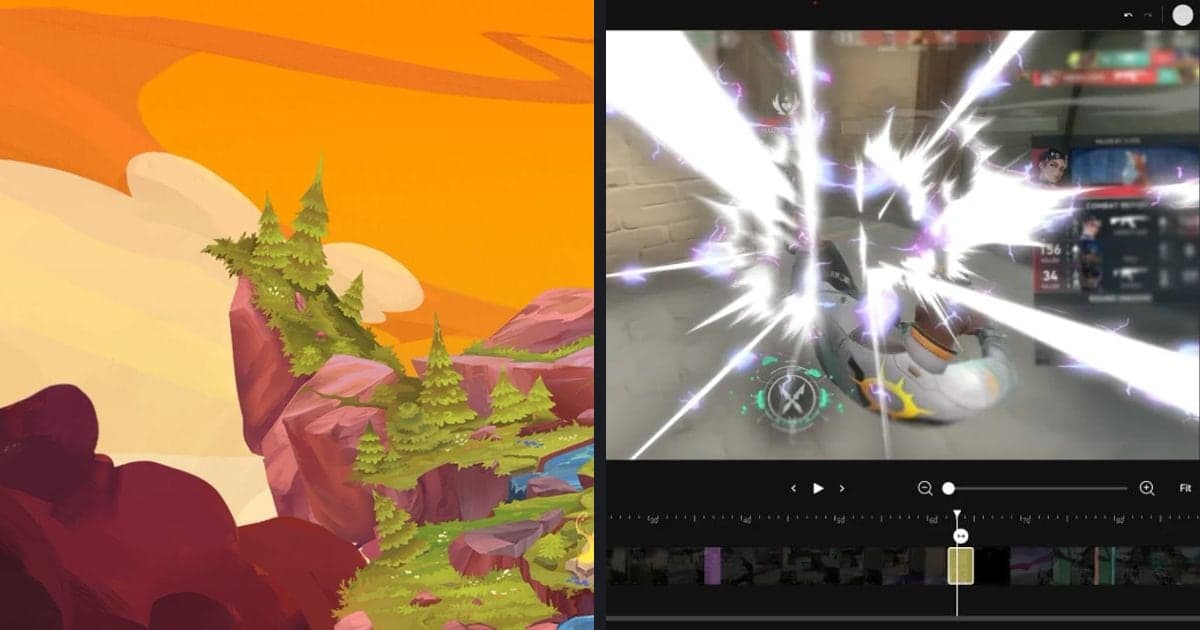
DOR is a free Windows desktop app that detects supported games automatically and saves the entire match as an mp4. For TFT it provides full-match automatic recording only; it does not create automatic highlight clips, so you choose the moments to review yourself while watching. On an NVIDIA graphics card, NVENC hardware encoding is used by default, and if you say your thoughts out loud while playing, the microphone and the game sound are recorded together into the video. In the app library you can set a start and end point to trim a section and save it. To combine several videos or add text without installing anything, you can use the browser editor DOR Studio. DOR's role ends at saving and trimming the footage; it does not analyze your games or coach you.
Official sources
These are the official documents checked on October 2, 2026. Ranked rules are in the Teamfight Tactics Ranked FAQ, the End of Game screen and Match History are mentioned in the TFT patch 14.23 notes, and the dedicated client schedule is in the FAQ: TFT Unreal Migration. Riot Support's Unlocking Game Modes page, the patch 13.22 notes and What is Teamfight Tactics? were also used. Schedules and screen layouts can change.