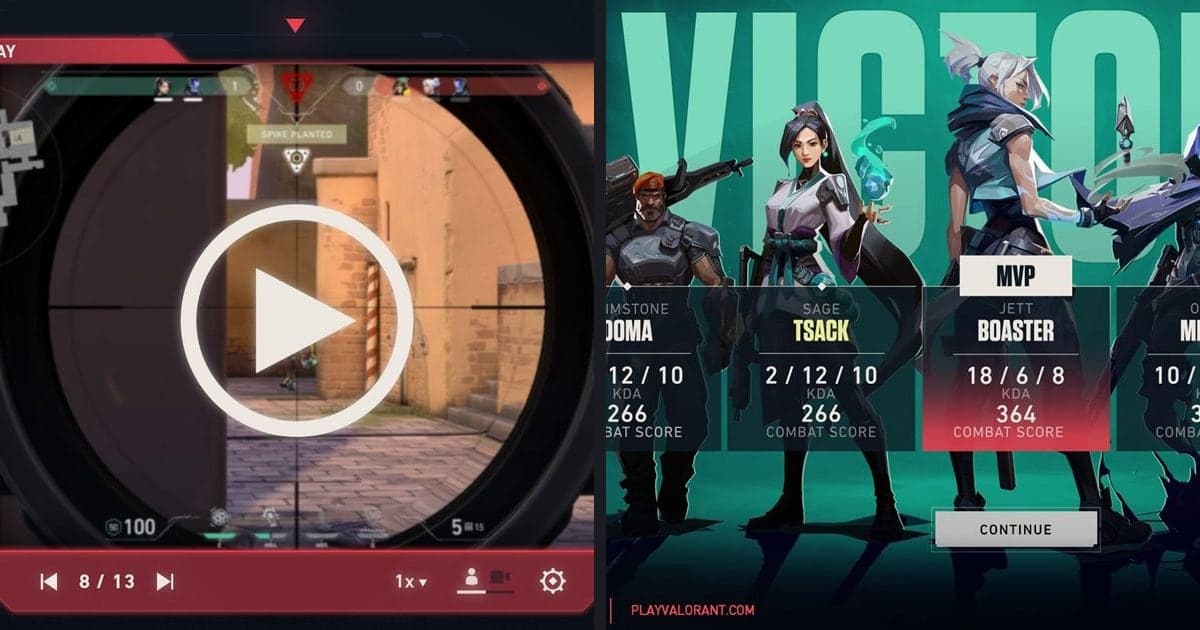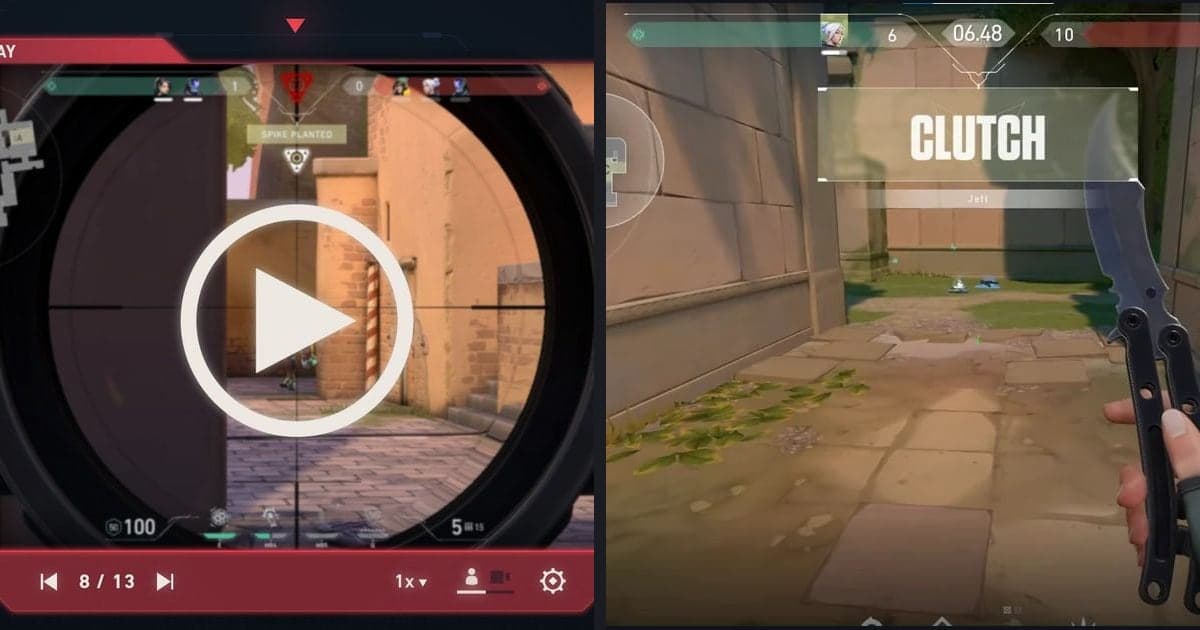
One way to get better at VALORANT is to pick one thing to fix, then run a VOD review of your own matches to see whether it really changed. Riot's official tools for that are Replays, the Performance Score, the Career page and the Range, and as checked on October 2, 2026 the current patch is 13.06. This guide is PC only. Replays can't be clipped or shared, and they stop opening once the patch changes or 21 days pass, so a loop you want to repeat over several weeks needs match footage you keep yourself. For how to download and operate the viewer, see the VALORANT Replay guide; this post is about what to look at and in what order. It does not promise a higher rank or win rate, and every tool below comes from Riot's own documentation.
Bottom line: repetition matters more than the tool
The official tools tell you where to look, but what changes your play is repeating the same check. Reviewing a match will turn up many problems, so carry only one of them into the next game; if you change several things at once, you cannot tell which one made the difference. Treat the Performance Score as a mirror rather than a verdict: Riot says it does not affect RR gain or loss, so a high number is no proof that your choices were sound. If you want to keep just the one fight you are working on, how to clip VALORANT covers the options.
The review loop, from recording to the next match
- 1Keep the match as video — Leave DOR running and play normally. It detects VALORANT and saves the full match as an mp4, so you do not have to decide mid-game whether it is worth keeping. You can also download the Replay after the match from the post-game screen or your match history, but it will not open once the patch changes or 21 days pass, so treat your own recording as the reference.
- 2Pick one match and a few moments — Choose the single match that bothered you most, such as a loss or a fight you feel decided a round. Limit yourself to a handful of moments instead of rewatching the whole game. If you also use a Replay, its timeline icons for kills, deaths and ultimates help you find them.
- 3Ask the same three questions — For each moment ask: what utility did my team and I have when the fight began; was a teammate placed to trade me, and was I placed to trade them; and how did my choice connect to the round's goal, such as a Spike plant or defuse? Judge the decision by the information you had then, not by whether the round was won. A Replay lets you check what a teammate or opponent could see, with the server-view caveat in mind.
- 4Write the action to carry into the next match — Take the answer that repeats most clearly and write it as an action, for example 'before I commit to a fight I check where my teammates are'. Leave sensitivity and crosshair numbers out of this loop. The Performance Score components (damage, trades, utility and so on) can hint at where to look, but raising the score is not the goal.
- 5Repeat it in an official practice tool — If the fix is something you can rehearse against bots, use the Range, where you can set 10, 5 or 1 bot and, from Patch 13.06, enter while you wait in queue. The official sources used here describe the Range only that far. Positioning and decision problems go back to your next match and the same three questions.
- 6Check it in the next match — Record the next match the same way and look only for the one fix. If it changed, move to the next item; if not, keep the same one. Treat the Performance Score and Career page as context, not proof. Trimming the relevant fight in the library lets you switch between it and the earlier one to compare.
Official practice and feedback tools versus your own match video (checked October 2, 2026)
| Tool | What the official docs say it shows | Limits and what to check |
|---|---|---|
| Replays | Available on PC since Patch 11.06. Riot's support article lists Unrated, Competitive and Premier; Swiftplay appears only under Custom, so check your client. After a match you download the file with the Download button at the upper left of the post-game screen or from your match history, then play it. Inside you can watch all 10 players' first-person views, use a free third-person camera, play at 0.1x to 8x, skip to any round, see timeline icons for kills, deaths and ultimates, and open the Combat Report. | Opens only on the live patch and is deleted after 21 days. It is stored on your PC only, has no clip or share function, and does not include text or voice chat. It shows the server's view, so it can differ slightly from a screen recording, and high ping can make movement look jerky, which is not evidence of cheating. Custom games need the lobby owner to switch recording on first (Patch 12.10 notes); confirm in your client. |
| Friends' Replays | Patch 12.10 lets you watch a friend's Replay for eligible modes straight from their Career page. | Which modes and matches qualify, and whether the retention window matches your own Replays, was not confirmed here. Check it in the client. |
| Performance Score | A 0-500 number on the End of Game and MVP screens in Competitive, Unrated, Swiftplay and Premier. It replaced ACS and determines the MVP. It is built from per-round Damage, Adjusted Kills, Adjusted Deaths, Trades, Assists, Utility use, Spike plants and Spike defuses, listed in order of impact. | It does not change RR. One number cannot tell you whether a choice was right, so use it to decide which component to look at, not to rank yourself. |
| Career and Competitive Hub | Patch 13.06 put your top Agents, Match History and Rank on a single Career page. The Competitive Hub, opened from Career, has Accolades and other pages that only you can see. | Accolades come from Competitive and Premier only, and tracking began with 13.06, so there is no earlier data. It is a summary, not footage, so it cannot show what you chose in a given moment. The sources checked give no number for how many past matches stay listed, so none is stated here. |
| The Range | Patch 13.05 lets you choose 10, 5 or 1 bot in Range practice, with 5 as the default, in the Range settings. Patch 13.06 lets you enter the Range while you are queued for a match. | It may not open at once if the queue is expected to be short, and Premier, Deathmatch and other modes without Agent Select cannot queue from the Range. The 13.06 notes also list a known issue where you may briefly be unable to enter the Range. Anything beyond bot count and queue entry was not confirmed in the sources used here. |
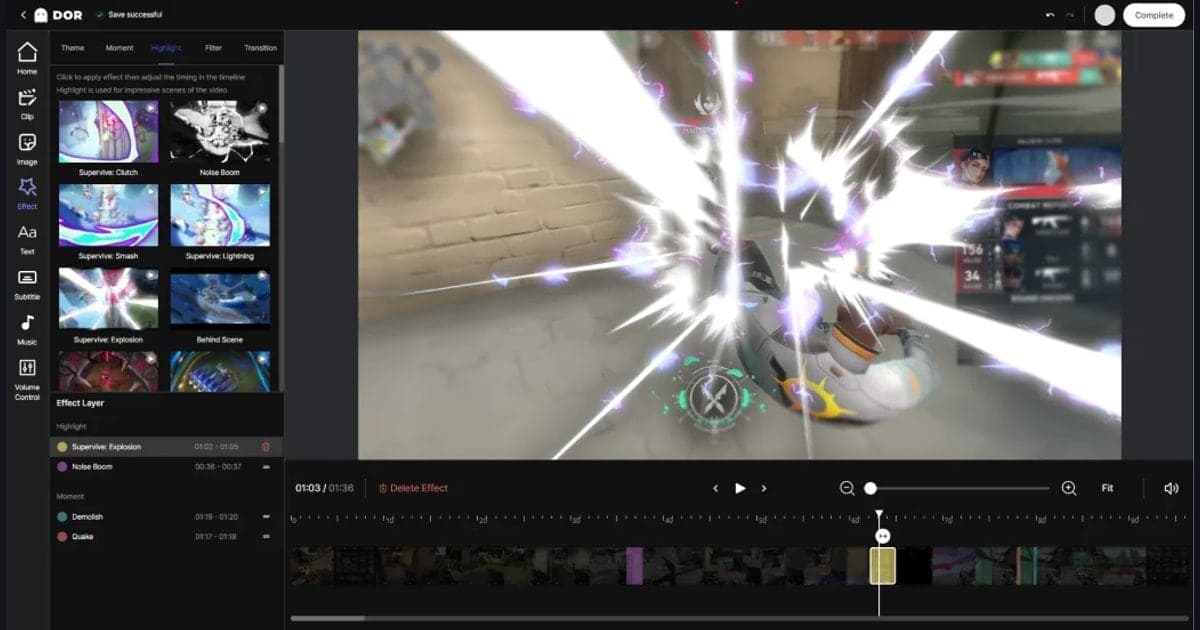
| Your match as video (DOR full-match recording) | DOR detects supported games and saves the full match as an mp4. In the app library you can trim a section and save it as 16:9, 9:16 or 1:1. For VALORANT it also makes automatic highlight clips, rounds included. | It is only a video: no 10 viewpoints, speed controls or Combat Report like Replays, and you choose what to review. Because it is a separate mp4 file, Riot's patch and 21-day Replay rules do not apply to it, so you can line it up next to a match from weeks ago. |
Before-and-after review checklist
- I saved the match as video, and if I use a Replay I checked it is on the current patch and within 21 days.
- I limited myself to one match and a few moments.
- I asked about the choice in that moment (utility, trades, Spike plant or defuse), not the result.
- I wrote the fix as one action sentence.
- I treated the Performance Score only as a reference that does not affect RR.
- In the next match I checked whether the one thing I chose actually changed.
Keeping the footage you review
A review loop breaks down when the moment you wanted to study was never saved, and few people press a clip key after every round. DOR is a free Windows desktop app that detects VALORANT, saves the full match as an mp4 and automatically makes highlight clips for kills and similar moments, rounds included for VALORANT. NVENC hardware encoding is the default on NVIDIA graphics cards, and since game sound and your microphone are captured together, a reason you say aloud mid-round lands in the same mp4 as the footage. Its role ends at saving the match and letting you trim sections in the library; what to fix is your call. See DOR for VALORANT for what is supported and how to trim game clips for the library steps.
Official sources and how to re-check
Checked on October 2, 2026. The latest patch on Riot's Game Updates page was 13.06, published September 22, 2026. Supported modes, expiry rules and Range behavior can change with any patch, so re-check them. Replay features and limits come from Riot's Replays dev note. The patch-cycle expiry, 21-day deletion and hotkeys come from the Replays support article (its path uses the zh-cn language code, and the display language may vary by region). Performance Score components come from the Performance Score support article. The Range, Career page and friend Replay changes are in the Patch 13.05, 13.06 and 12.10 notes on the Game Updates page of playvalorant.com.