To VOD review yourself in VALORANT, you need your own match saved as a video, because the in-game Replay will not keep it for long. As of October 2, 2026, Replays on PC only work for matches from the current patch and, according to Riot's support FAQ, are deleted after 21 days, so a separate recording is the condition for reviewing a match later. This guide is PC-only. It covers what Replays can and cannot do, how to pick the match to review, which questions to ask while watching, and how to trim the key moments. For the download and playback steps of Replays themselves, see our VALORANT Replay guide; this article stays on the review routine.
The short version: one saved match is enough
You do not need a complicated setup to review. You need one match that still exists in the form you saw it. A realistic amount for one sitting is a single match, and inside it only the few rounds you feel decided the result, because watching everything at once blurs the question you are trying to answer. That is general review practice, and no method here is guaranteed to raise your win rate or rank. Keeping the full match and trimming only the moments you want to revisit is covered in how to trim game clips.
The review routine
- 1Get recording ready before the match starts — A review happens after the match, so recording has to be running before it begins. With the DOR app open, launching VALORANT is detected as a supported game and the full match is recorded automatically. If the match you just finished was in Unrated, Competitive, Swiftplay or Premier, the in-game Replay can also be downloaded for a limited time, which gives you a second view of the same match.
- 2Pick the match worth reviewing — You do not have to review every game. Choose one match that raises a question: a loss, a round where the momentum flipped, or a game that felt different from how it ended. Inside that match, decide in advance which rounds to look at first, such as your first duel, a round that hinged on a buy decision, or the final round.
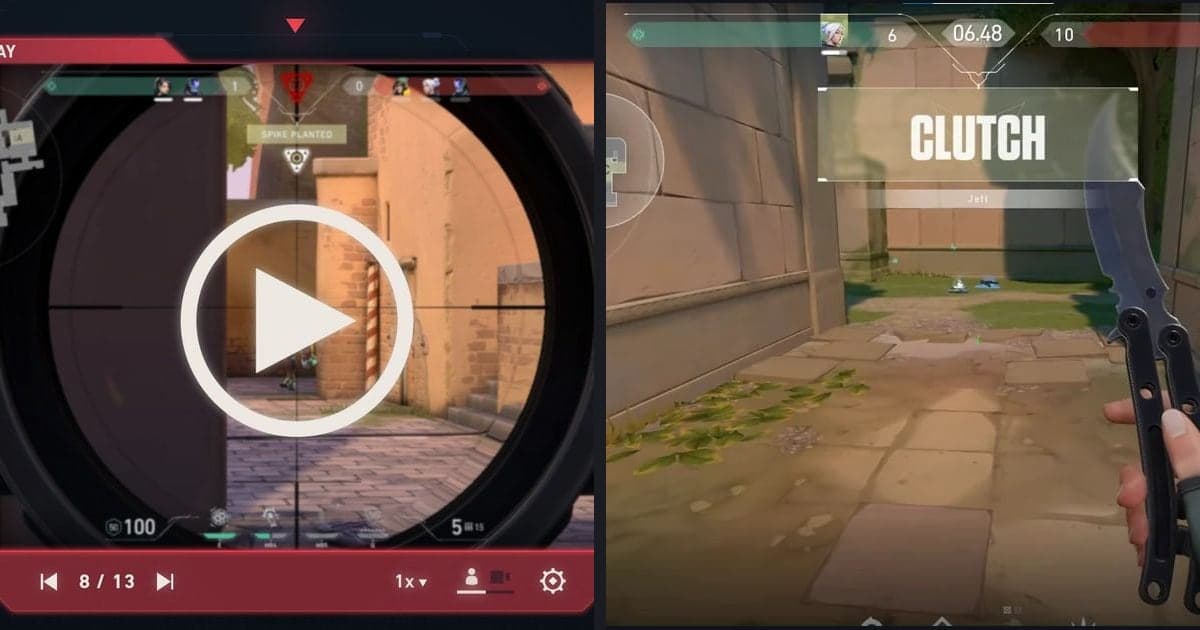
- 3Skim once, then pause round by round — Watch once at a higher speed just to see the shape of the match, then return and pause inside the rounds you chose, going through the checklist below. If you also use the in-game Replay, its timeline shows icons for kills, deaths and ultimate usage, which makes finding a moment easier, but it is the server's view and can differ slightly from your screen. Use your own recording to check what information you really had when you made the call.
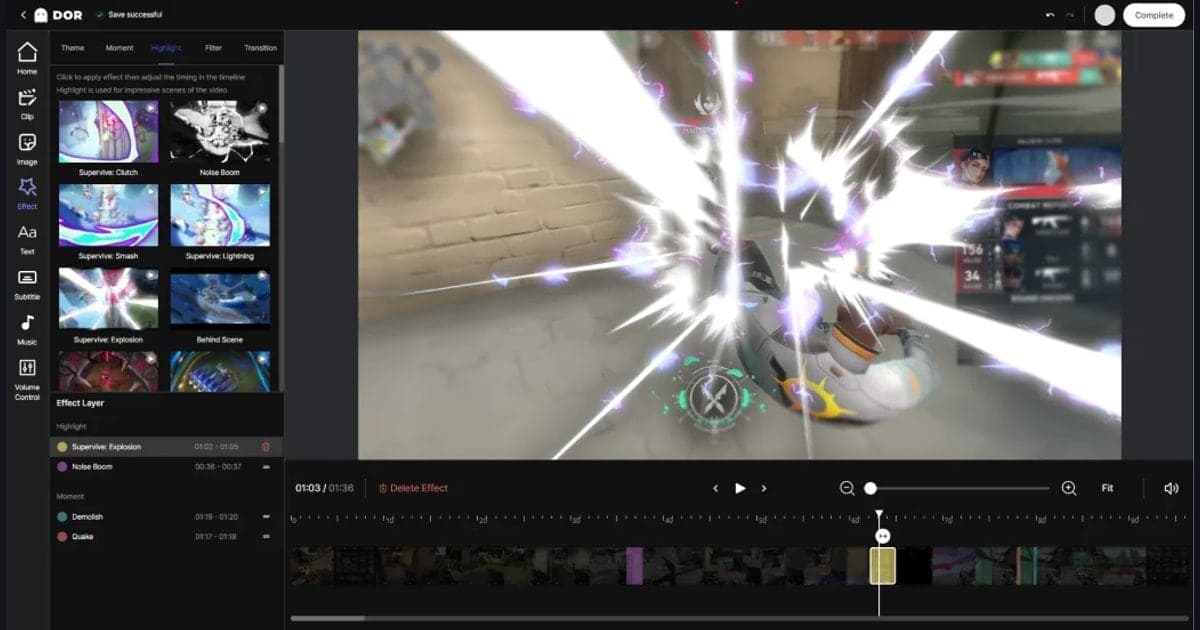
- 4Trim the key moments and save them — Open the full match in the DOR app library and use the trim function: set a start and an end, and that scene is kept on its own. The output ratio can be 16:9, 9:16 or 1:1, and sharing a dor.gg link lets the other person watch in a mobile browser. For private review, leaving it at 16:9 is fine.
- 5Boil it down to one or two things for the next match — Do not try to fix everything you noticed at once. Write down one or two things to be aware of in the next match, in whatever way you prefer, and just note which match it came from so you can see later whether the same situation comes back.
Ways to keep a match for review
| Method | What it keeps | Limits to know |
|---|---|---|
| VALORANT in-game Replay (PC) | Switching between all 10 players' first-person views, a free observer camera, a timeline with icons for kills, deaths and ultimates, and playback speeds from 0.1x to 8x. Unrated, Competitive, Swiftplay and Premier matches are covered (per Patch 11.06). | Only the current patch is watchable, it expires when the game updates, and Riot's support FAQ says it is deleted after 21 days. It is the server's view, so it can differ slightly from your screen. It has no voice or text chat, no clip or share function, and plays only inside the Riot client. Friends' matches can be opened from their Career page (Patch 12.10). |
| A screen recording you start yourself | What you actually saw at that moment is saved as a video file, with sound too depending on your setup. | You have to start it for every match, and a match you forgot to record is gone. Save location and settings are yours to manage. |
| DOR full-match auto recording | The whole VALORANT match is saved automatically as mp4, with game sound and microphone recorded together, and you can reopen it from the app library. | Applies to a Windows PC with the DOR app installed. The video is your own view only, so you cannot switch to another player's perspective the way a Replay allows. |
| DOR kill highlight clips + trim | Kills are turned into automatic clips, and from the full-match video you can set a start and end to keep only the section you need. | Automatic clips are based on kills and other highlights, so a regrettable death or an ability timing has to be found in the full match and trimmed by you. |
Questions to ask while reviewing
- At the first duel, was your position good for gaining information, or were you standing at a bad angle?
- Did your abilities and ultimate go off at the right time around the fight, or did you die holding something unused?
- In the few seconds before you died, what information did you have, and was there another option?
- Were your distance and position relative to teammates right during the fight, or were you fighting alone?
- Did your buy fit the team's situation, and how did you handle the economy-defining round?
- If your microphone was recorded, did your call come at the right time, and was it short and clear?
A recording tool for VOD review: DOR
VALORANT is a game where DOR supports both full-match auto recording and automatic highlight clips for kills and similar moments. For review, the full-match video matters most: it saves the entire match as mp4, so you can see what happened before and after a lost round, and because game sound and microphone are recorded together you can hear when your own call came out. On a PC with an NVIDIA graphics card, NVENC hardware encoding is used by default. Deciding what to watch and what to change is still your job; DOR is a free Windows app that keeps the match as video and trims the part you want. For the kill-focused clip workflow, continue with how to clip VALORANT.
Official sources and check date
The Replay details in this guide are as of October 2, 2026 and apply to PC. The supported modes, design intent, absence of chat recording and absence of clip or share functions come from Riot's Replays developer FAQ. Friend replays and the Custom game recording condition are in the Patch 12.10 notes, and the patch-cycle expiry and 21-day deletion are in the Riot support Replays FAQ (the page text is in English). Supported modes and expiry rules can change, so recheck the official pages before you rely on a Replay.