Here is the short version: the best LoL highlight program is the one that does the work while you play. If your current routine is recording a full match, scrubbing the timeline, and cutting kills by hand, you will quit within a week — almost everyone does. This guide compares three approaches for League of Legends: automatic highlight generation, OBS with manual editing, and the built-in client replay system. By the end of the table below, you will know exactly which one fits the amount of time you actually have.
Which approach should you pick?
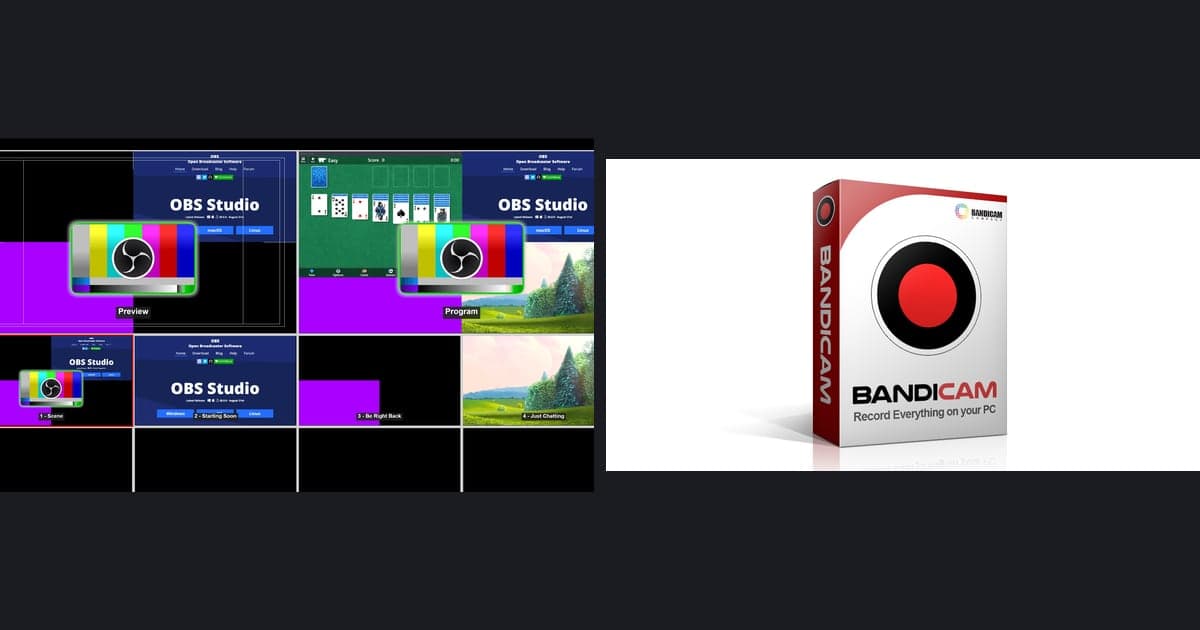
Ask yourself one question: how many minutes do you want to spend after each match? If editing is a hobby in itself, OBS plus a video editor gives you full creative control, and our recording guide covers that setup. If you need frame-by-frame analysis of a single teamfight, the client replay is the precise tool. But if what you really want is that pentakill sitting in a folder the moment the game ends, automatic generation wins outright — kills and highlights are saved as individual clips without you ever pressing a record button.
Automatic vs OBS vs client replay
| What matters | DOR (automatic) | OBS / client replay (manual) |
|---|---|---|
| How highlights appear | Kills are saved as individual clips the moment the match ends | OBS: record everything, then cut by hand; replay: rewatch and extract |
| Work after each match | Glance at the clip list | Scrubbing and editing adds tens of minutes per game |
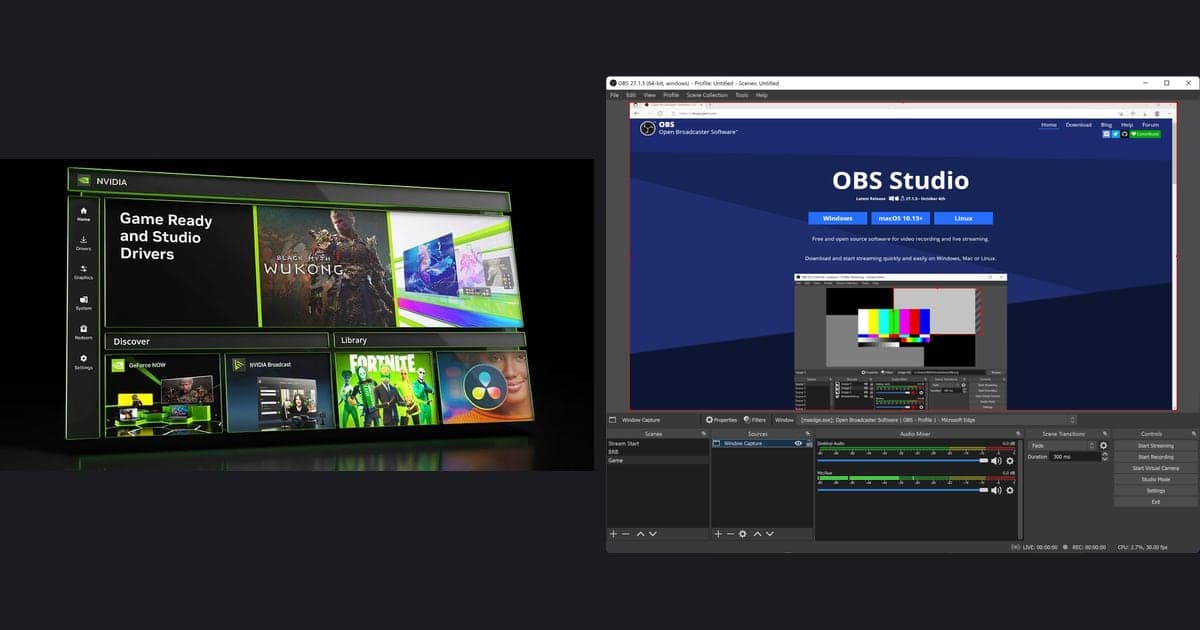
| Setup before recording | Automatic game detection, no capture sources | OBS needs scenes and sources; replays must be downloaded and played back |
| Load on your PC | NVENC hardware encoding by default, light overhead | OBS supports NVENC too, but you configure it yourself |
| Path to sharing | View and share directly on dor.gg | Export the file, then upload it somewhere else |
Pre-install checklist
- Make sure you are on Windows — the installer is Windows-only.
- Keep some disk space free for clips to accumulate.
- Coming from OBS? The one thing to remember: no scenes or sources to configure.
- Keep the client replay around for moments that need frame-by-frame review.
Switch to automatic in four steps
- 1Install DOR — Grab the Windows installer and run it. The program is free, and there is almost nothing to configure after setup.
- 2Launch LoL and just play — The game is detected automatically, so there are no capture sources to set up and no record button to remember. A full-match recording is kept alongside your clips.
- 3Check the clip list after the match — Kills and highlight moments are waiting as individual clips. Trim the edges in the browser editor and you are done.
- 4Review and share on dor.gg — Finished clips can be viewed and shared straight from the dor.gg website, with no separate upload step required.
Getting started with DOR
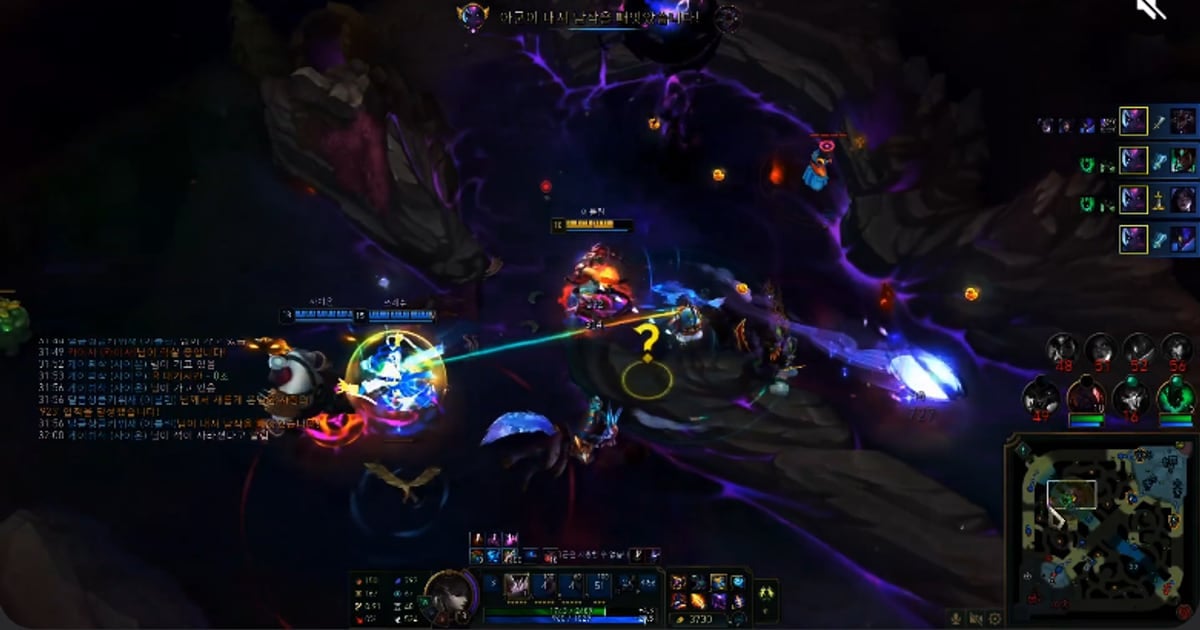
DOR is free, detects League of Legends automatically, and saves kills and highlights as individual clips. NVENC hardware encoding is on by default, so the load while you play stays light, and full-match recording, browser-based trimming, and sharing on dor.gg flow together as one pipeline. For the moments you absolutely cannot lose, see our pentakill clip guide.
Official sources
For official details on the client replay system — where files live and which patches can play them — check Riot Games' Replays FAQ. Since replays from older patches can stop working after an update, anything you want to keep long-term is safer stored as a clip.