
A League of Legends scrim review needs only three things: a full recording of the game, a record of the calls, and a 30 to 45 minute meeting.
The short answer is that at least one of your five players (ideally all of them) records every game with DOR, turns on Match Notes so the Discord conversation is saved as timestamped text, and then the team clicks note lines in the meeting to watch each moment together.
This guide is for teams without a dedicated coach, such as college leagues, amateur tournaments and clan customs, and walks through a feedback meeting in draft, laning, objective call and teamfight order. For solo review, see how to VOD review in League, and for champion clips and game info, visit the League of Legends game page. Replay details were checked against Riot Support as of November 23, 2026.
The key point: review the calls, not the result
The first thing to look at in a scrim review is not who made the mistake but what call the team heard at that moment and how it moved.
The same lost teamfight needs a completely different fix depending on whether there was no call, the call came late, or the call was right but two players heard it differently.
That is why a screen recording alone is only half the picture: the video keeps the movement but not what was said on Discord.
Keep the meeting to roughly 30 to 45 minutes per game and narrow the moments to about one draft decision, one or two laning moments, one or two objectives and one deciding teamfight, so something actually changes in the next scrim.
If your tournament uses Fearless Draft, champions used in earlier games cannot be picked again, so the draft review has to include that. Share the League Fearless Draft explainer with your team in advance.
Against your scrim partner, running picks and bans with Tournament Draft in a custom game lets you review in the same order as a real match.
How to review a League scrim with Match Notes
- 1Turn on recording and Match Notes before the scrimBefore the scrim, everyone opens DOR. It detects League automatically and records the whole game, so there is nothing to press. Whoever is in charge of the call log turns on Match Notes in Settings > Lab, or directly from the Notes tab in the match drawer. The first time, there is a one time consent and a transcription model download (around 900MB), so do it the day before. It is a good idea to tell your teammates that Discord conversation will be recorded and get their agreement first.
- 2Play the draft and games as usualDo not take notes during the game; just focus on the calls. Match Notes records your mic, Discord team voice and game sound per game, then transcribes on your PC after the game while you are not playing. A note is created for games of one minute or longer, and if the next game starts, processing pauses and picks up again later.
- 3Find the key calls in the notesBefore the meeting, the person running it opens the notes and searches for words like dragon, Baron, go or back. Every line shows who spoke (you, Discord or in game) and the time, so you can see right away when a call came and from whom. Filter by speaker to keep only Discord lines and follow your teammates' calls more easily.
- 4Click lines and watch the moments togetherIn the meeting, clicking a note line jumps the video to that moment (the clip if it is in one, otherwise the full video). Watch the call and the movement side by side and ask one by one: was the call late, did nobody hear it, or did someone hear it and move differently? If you need another player's view, check the League replay, but replays cannot be opened after the next patch, so review within the same week. See League replay restrictions.
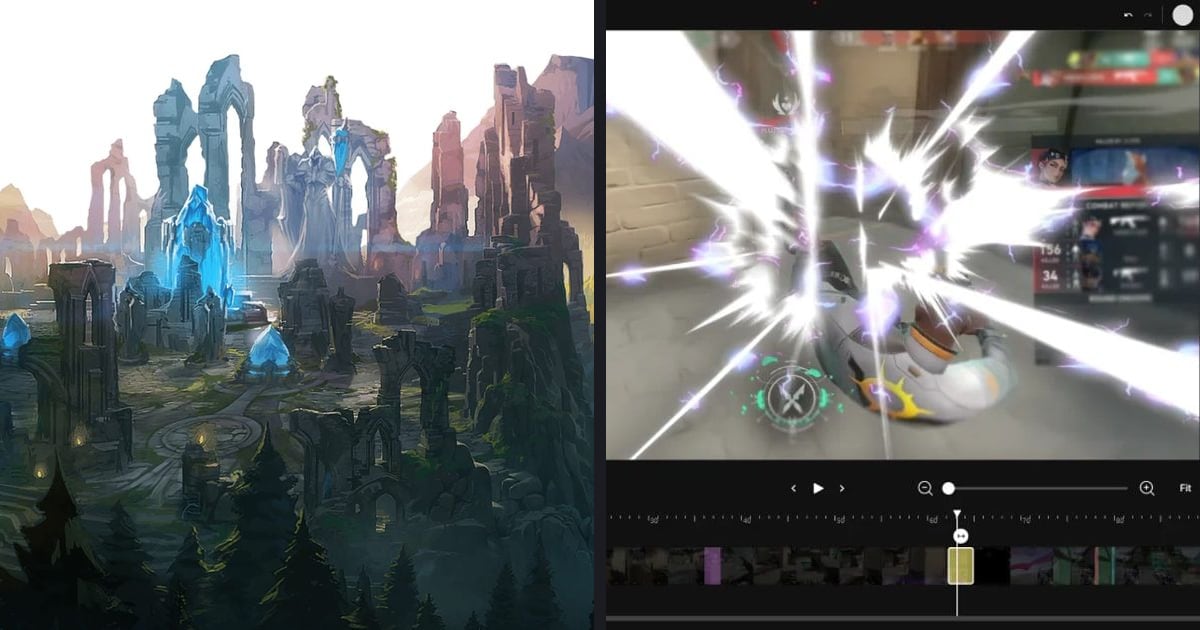
- 5Pick three fixes and keep them as clipsAt the end of the meeting, agree on no more than three actions to fix in the next scrim. Merge the supporting moments into one video in DOR Studio and share a dor.gg link in your team channel so you can pull it up again next meeting. The method is in how to merge game clips.
What to look at and what to keep, by review topic
| Review topic | What to look at | What to keep |
|---|---|---|
| Draft | Whether you had an answer to their comp and the last pick order was right | Recording of the draft screen, pick order notes |
| Laning | Whether jungle pathing and lane priority lined up | Early section of the full game recording |
| First objective | Vision control before dragon and when the move call came | Match Notes call lines and the scene at that time |
| Mid game | Side lane assignments and vision priorities | Clips where the minimap is visible |
| Deciding teamfight | Whether the engage call came from a single voice | Objective and multikill auto clips plus notes |
| Baron and closing | The decision to start Baron and the defensive calls | Replay playback recording, note search results |
What to check before and after the scrim
- Everyone has DOR running and has checked the recording quality (default 1080p 30fps)
- The Match Notes transcription model finished downloading before the scrim
- Teammates know Discord conversation is recorded and agreed to it
- You picked around five moments per game for the meeting
- No more than three actions to fix next scrim are written down and shared
From scrim recording to call review with DOR
DOR is a free Windows game recording app. When you launch League, it detects the game automatically and records the whole match, and kills, multikills and objectives are collected in My Clips as automatic highlight clips.
Replay and spectator recording is on by default for League, so playing a .rofl replay records that screen too, which makes it easy to build review material from a teammate's view.
Turn on Match Notes (AI Voice Notes), released on November 23, 2026, and each game's audio from your voice, Discord team voice and game sound is saved as timestamped text, and clicking a line takes you straight to that moment.
The recorded audio is deleted once the note is finished, leaving only the text. Transcription is an experimental feature and may not be accurate, so double check important calls in the video. Review clips can be merged in DOR Studio, given text, and exported as MP4 or shared as a link. For sharing tips, see how to share League gameplay videos.