To VOD review a League of Legends game, that game has to exist as a video you can still open, and because the in-game replay only lasts for a patch cycle, anything you want to study for longer needs your own recording. This guide covers the PC client only, and it walks through choosing which game to watch, the questions to ask while you watch, and saving just the moments you want to keep. If you only need to know how to download and play a replay file, the League of Legends replay guide covers that part, so this page sticks to the review workflow. A review is simply rewatching a finished game to see where a decision turned out the way it did, which is why having the footage on hand is the starting point.
Bottom line: the retention limit sets your review scope
A review can only start while the game is still watchable. As of the check on October 2, 2026, Riot's official support page says replays last for the length of a patch cycle and that only the last 20 games are available on the client. If you want to rewatch a game after the next patch, recording must be running before the match ends, and the setup is covered in how to record League of Legends. Nothing official sets how much to review in one sitting, so a low-pressure start is one game, one moment and one question. Narrowing each session to a single question also makes it easier to choose which moment to open.
Review workflow from recording to saved clips
- 1Start recording before the game begins — A review rewatches a finished game, so decide how it will be kept before you queue. A replay stops being playable after the next patch, so for games you want to study later, keep a video file as well. This guide assumes the PC client and does not cover mobile.
- 2Pick the games worth reviewing — You do not need to watch every game. Start with losses, games that went badly early, and games decided by one fight or one objective. Riot's page does not say which queues count toward the last 20 games, so inside the client treat whatever appears in Match History as the range you can open.
- 3Choose one moment per game — Watching start to finish makes it easy to lose focus, so choose a scene first, such as a death, the start of a fight, or a contest over an objective. In the in-game replay, Riot's page says that locking the camera on a champion brightens that champion's kill marks on the timeline, which helps you locate scenes. With a recording, use the seek bar to find the same scene.
- 4Pause and ask the same checks — Asking the same questions each time makes games easy to compare. Check where you stood before the death, what the minimap and vision showed, and when you started the fight. If your microphone was recorded too, you can also listen to whether your call matched what was happening. Use the answers to find the reason behind a decision, not to pass a verdict on the whole game.
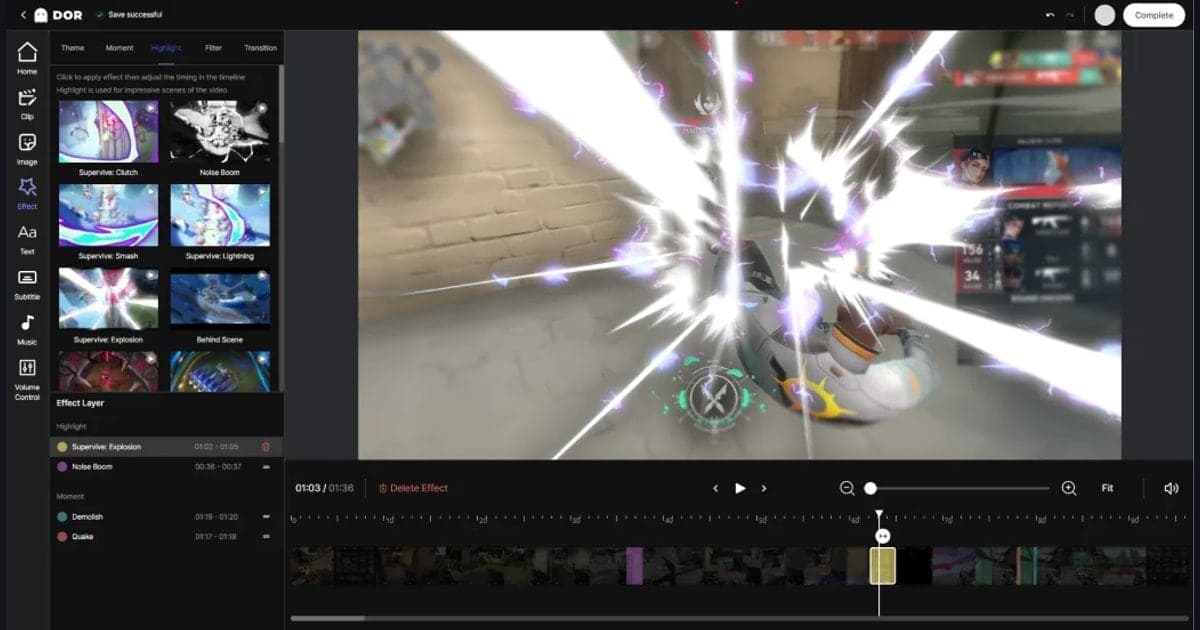
- 5Trim and save only the moments you need — Use the trim tool in the DOR library to set a start and an end and keep the scene short. You can output it as 16:9, 9:16 or 1:1, and a dor.gg link plays in a mobile browser. Pick a single question to check in your next game, so it is easy to compare with the same kind of scene.
Ways to review a game compared
| Method | What you keep and for how long | Limits |
|---|---|---|
| In-game replay (.rofl) | The last 20 games on the client, playable only during the current patch cycle. | Old-patch replays cannot be played after an update, and in-game chat is not included. |
| A friend's replay | Ranked games from a friend's Match History can be downloaded and played. | Ranked games only. |
| Built-in highlight recording (.webm) | Highlights you save become .webm files, 720p by default and adjustable in the in-game settings. | Only the highlights you saved remain, not the whole game. |
| DOR full-match recording | The whole game is saved as an mp4 with game sound and microphone recorded together. LoL also gets automatic highlight clips. | Windows PC app only, and only games that were recorded are kept. |
Review checklist
- Where were you standing just before the death, and was there a reason to be there?
- Did you check the minimap and vision before committing to the fight?
- Did the timing of the engage fit your cooldowns and summoner spells?
- Were your team's numbers and positions ready before the objective fight?
- Does the same mistake show up in other games as well?
- Have you picked one question to check in your next game?
Keeping games to review with DOR
DOR is a free Windows app for automatic game recording and clips, and for League of Legends it supports both full-match auto recording and automatic highlight clips such as kills. Because the whole game is saved as an mp4, you can open the same footage for every review regardless of the replay's patch cycle. On an NVIDIA graphics card, NVENC hardware encoding is used by default, and game sound and microphone are recorded together so your own calls are in the footage too. The review itself is still work you do by watching, and DOR handles keeping the game and trimming the scene. To keep only a moment you want to revisit, follow how to trim game clips.
Official source and check date
Checked on October 2, 2026. The patch-cycle limit, the last 20 games on the client, the ranked-only rule for a friend's profile, the absence of in-game chat and the highlight format all come from Riot's official Replays FAQ & Pro-Tips. These values can change with patches or client updates, so reread the page before you plan your reviews.