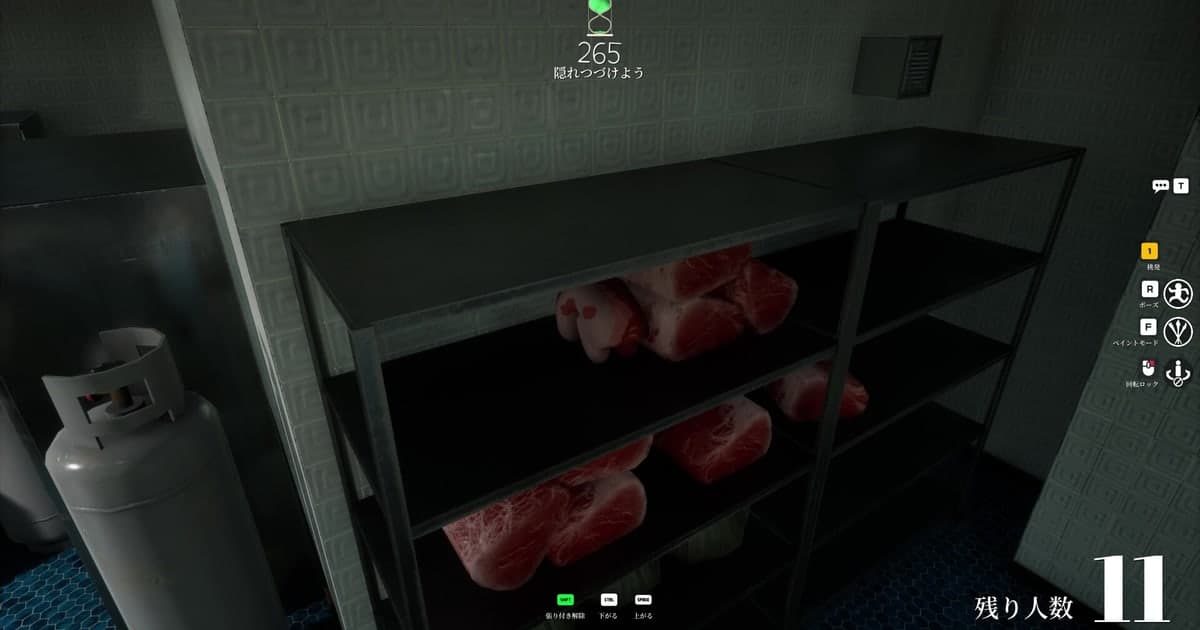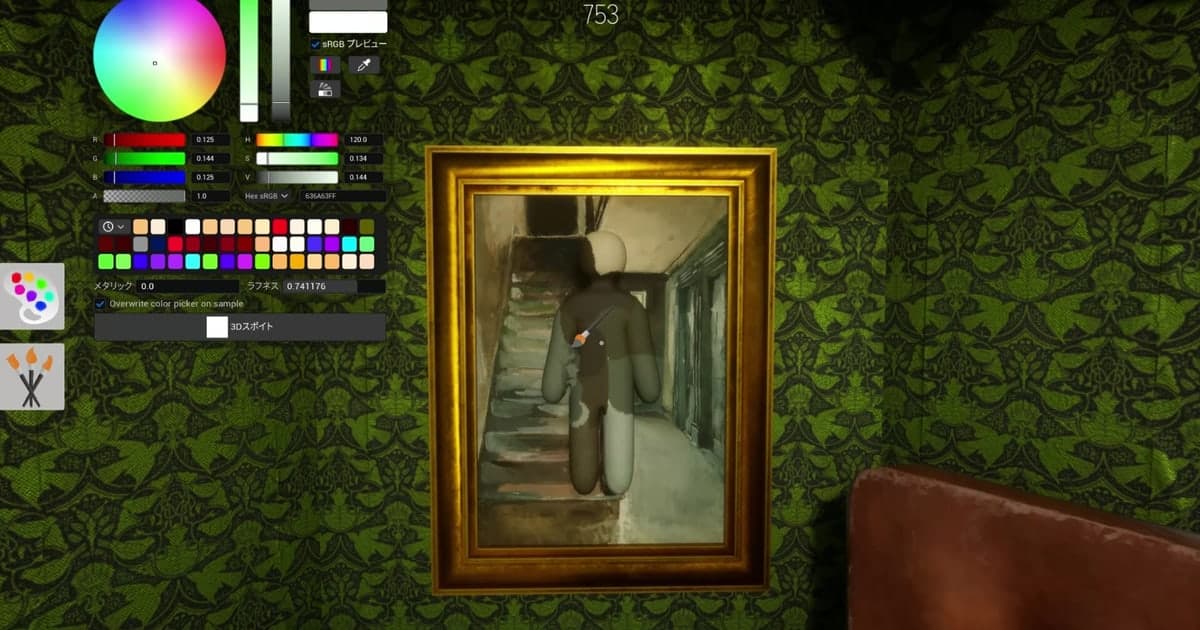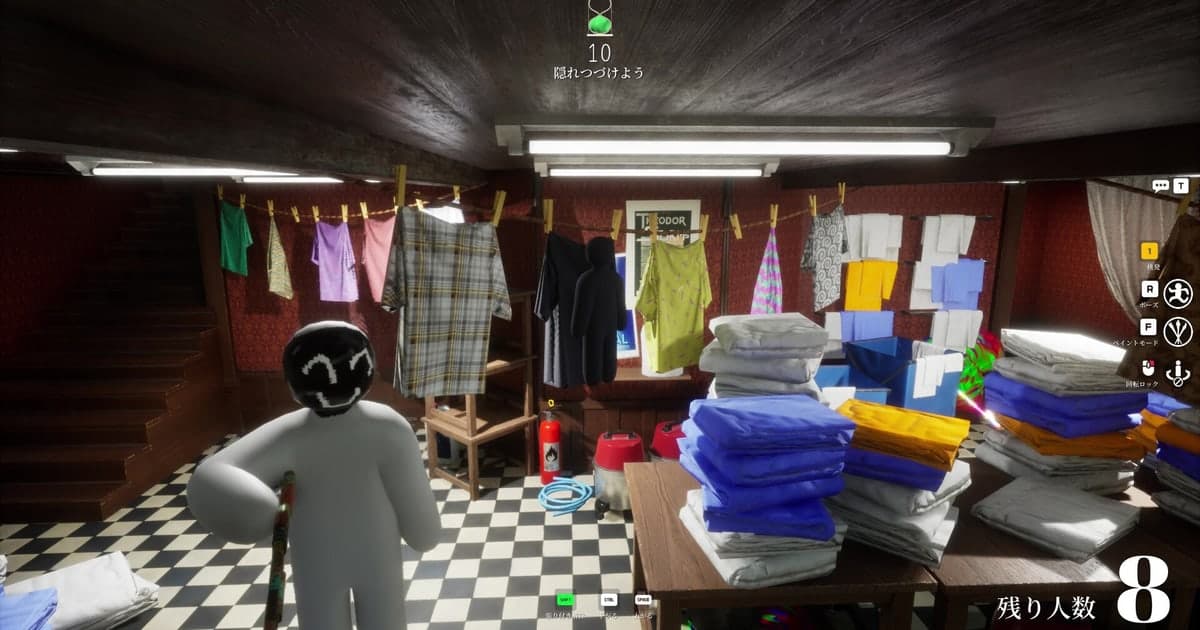
You join a room and hear nothing at all. Your friend says your mic is dead, and from your side you cannot even tell whether anyone is talking. The first instinct is to go digging through your microphone device, your Steam audio settings or your Windows permissions. The developer's own patch notes point somewhere much simpler. Between July and September 2026 this game changed its voice chat defaults twice, and right now both directions start muted: your microphone and the audio coming in from everyone else. Two people who install the game and jump into a room hearing nothing is the current build working as intended. This guide walks through what changed and when, which symptom points to which patch, how to turn voice chat off properly if you never wanted it, and how to set up your recording so your friends' voices still land in the video once the call moves to Discord. If you are picking a server for that call, how to find a game Discord server covers what to look for. Device and operating-system fixes do circulate for this game, but there is no official guidance behind them. Start with the two settings inside the game instead.
The short answer: nothing is broken, two defaults changed
Two entries in the official patch notes carry almost all of this. First, update 3.5.0 on 1 August 2026 changed the microphone to be muted by default. That is the number one reason your voice never reaches anyone. Second, Update 4.1.1 on 16 September 2026 changed the default voice chat setting to mute incoming audio. That is the number one reason you hear silence. The same 4.1.1 patch added an option to disable voice chat and a microphone icon that appears at the top of the screen when audio input is detected. As of 16 October 2026, Update 4.1.1 is the most recent patch note, and nothing published since has reverted either default. So the order to work in is clear: before you touch a device or a system setting, unmute incoming audio in the game's settings, unmute your own microphone, then speak and watch for that icon. If the icon reacts and people still cannot hear you, the person on the other end is probably sitting on the same untouched defaults, so ask them to check the same two values. Lining that up is harder in a public room full of strangers, which is why a regular group is easier to play with than a random lobby; finding game friends and a party covers how to put one together. Moving the call to Discord instead is a perfectly reasonable answer. Just remember that your friends' voices then arrive as desktop audio rather than game audio, so whether they end up in your video becomes a recording setting rather than a game setting.
How to fix MECCHA CHAMELEON voice chat and mic, in order
- 1Update the game firstNearly every voice chat change landed between July and September 2026. update3.4.0 on 31 July 2026 fixed an issue where the Voice Input ON and OFF labels were reversed, which means an older build can show you a state that is not the real one. If you turned off automatic updates in Steam, update before anything else, then open the game's settings and find where the voice chat and voice input entries live.
- 2Unmute incoming audio in the game's voice chat settingsUpdate 4.1.1 on 16 September 2026 changed the default voice chat setting to mute incoming audio. Nothing is wrong with your headset; the game is holding back the audio coming in. Unmute it in the voice chat section of the game's settings. If everyone in the room installed recently, everyone is probably in the same state, so unmute one person at a time and confirm who can hear whom. That narrows the cause in a couple of minutes.
- 3Unmute your microphone and confirm it with the iconupdate 3.5.0 on 1 August 2026 changed the microphone to be muted by default as well. Unmute it and say anything. Since update 3.8.0 on 14 August 2026 the mic icon lights up green while you speak in voice chat, and since Update 4.1.1 a microphone icon appears at the top of the screen when audio input is detected. When that icon reacts, your voice is reaching the game, and the remaining work is on the listener's side rather than yours.
- 4Check whether you were counting on proximity voicefix 1.1.0 on 11 June 2026 added proximity voice chat, and then fix3.3.2 on 29 July 2026 stated that proximity voice chat is temporarily disabled while voice chat is undergoing a rework. No announcement up to 16 October 2026 says it was switched back on. Testing as though you must stand close to be heard will only confuse you. Take turns talking from across a room to see how your build actually behaves, and read the newest patch notes alongside it.
- 5Decide where the call happens, then set recording audio before you launchBecause both directions start muted, regular groups often move the call to Discord. That makes your recording settings, not the game, decide whether your friends end up in the video. DOR records audio on a single track. With Record All Sounds on in Settings > Audio, which is the default, everything your PC plays is captured, Discord included. With it off, you get the game window plus your own microphone through Mic Recording. Recording starts the moment the game launches, so choose before you start playing; changing it mid-session does nothing for the part already recorded.
- 6Save the moment you get caught with F8, then check the audio before publishingMECCHA CHAMELEON is a full-session recording game in DOR, so the whole round is already on disk. Press F8 right after a moment worth keeping, such as the second a seeker spots you flattened against a painted wall, and the previous 30 seconds are saved as their own clip; you can set that window to 15, 30, 45 or 60 seconds. Before you publish, listen back and make sure no voice or nickname from someone who was not playing with you made it in. Public rooms mix in strangers.
Voice chat symptoms and the patch behind each one (checked 16 October 2026)
| Symptom | What the official patch notes changed | What to check now |
|---|---|---|
| You cannot hear anyone at all | Update 4.1.1 (16 September 2026): changed the default voice chat setting to mute incoming audio | Unmute incoming audio in the game's voice chat settings. If you installed recently, this is almost always the cause. |
| Nobody can hear your voice | update 3.5.0 (1 August 2026): changed the microphone to be muted by default | Unmute your microphone, then speak and watch the microphone icon at the top of the screen. |
| You cannot tell whether you are transmitting | update 3.8.0 (14 August 2026): the mic icon now lights up green when speaking in voice chat; Update 4.1.1: a microphone icon appears at the top of the screen when audio input is detected | If the icon reacts, your input is reaching the game and the problem is on the listener's side. |
| The on and off labels look reversed | update3.4.0 (31 July 2026): fixed an issue where the Voice Input ON and OFF labels were reversed | Update the game. On older builds the label and the real state disagree, so you cannot trust what it says. |
| Proximity voice chat does not work | fix 1.1.0 (11 June 2026): added proximity voice chat; fix3.3.2 (29 July 2026): proximity voice chat temporarily disabled while voice chat is reworked | No announcement up to 16 October 2026 says it is back. Test in a room at different distances and read the newest patch notes rather than assuming distance matters. |
| You never wanted voice chat on | Update 4.1.1 (16 September 2026): added an option to disable voice chat | Turn that option on in the game's settings. You do not need to unplug a headset or change anything outside the game. |
| Voices are choppy or cutting out | Update 4.0.2 (25 August 2026): reduced network usage by approximately 50 percent; fix3.6.1 (8 August 2026): reduced the performance drop caused by large player counts; store page: the maximum number of players depends on the host's network environment, with 2 to 10 players recommended | Update the game, run a smaller room, or let the person with the steadiest connection host. No official setting is published as a fix for this. |
Check this before you join a room
- Your build is Update 4.1.1 (16 September 2026) or newer. On older builds the on and off labels can disagree with the real state.
- Incoming audio is unmuted in the game's settings. Since 4.1.1 this value starts muted.
- Your microphone is unmuted and the icon at the top of the screen reacts when you speak.
- The disable voice chat option is not on by accident. It was added in Update 4.1.1.
- The people you play with checked the same two values. If they installed recently, their defaults are untouched too.
- You decided whether friends' voices belong in the recording, and you will listen back for voices and nicknames of people who were not playing with you. When you upload, include the game's name in the title, which the official guidance asks for.
Keeping your friends' voices: DOR records audio on one track
DOR is a free recording app for Windows PCs. When you launch the Steam version of MECCHA CHAMELEON it detects the process and starts recording, and when you quit it saves that session as a single video. On a personal PC it is on by default, in an internet cafe it is off by default, and you can toggle it per game under Settings > Game with the full-session recording switch. Audio is recorded on one track. With Record All Sounds on under Settings > Audio, which is the default, whatever your PC plays is captured, so a Discord call or background music lands in the video; with it off, you keep the game window plus your own voice through Mic Recording, which is also on by default. Since in-game voice starts muted and many groups move the call to Discord, leaving that option on is what keeps your friends audible in the recording. The same screen has a microphone test so you can confirm DOR is picking up your input device, while the game's own voice chat settings are handled on the game's settings screen. Press F8 for the moments you want. Watch your disk too: below 30GB free you get a warning, below 20GB recording will not start or will stop, and the full-session share of storage defaults to 5GB, so once that share fills up the oldest session folder is cleaned up along with the F8 clips inside it, while favourited videos stay. Favourite what you want to keep the same day, or trim it right away. If space is the problem, see what to do when recording runs out of disk space. If your friends run DOR as well, the same round ends up recorded from as many points of view as there are players. One last pass before publishing: capturing call audio can pull in voices and nicknames from people who were not in your group, so listen back and keep only the parts you need.