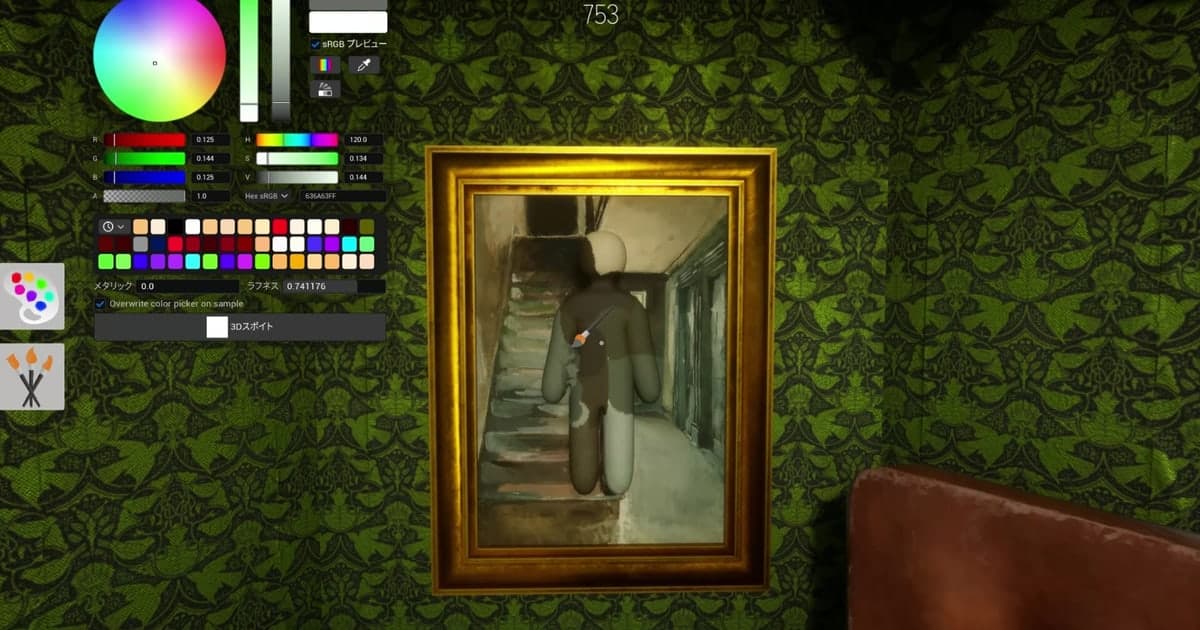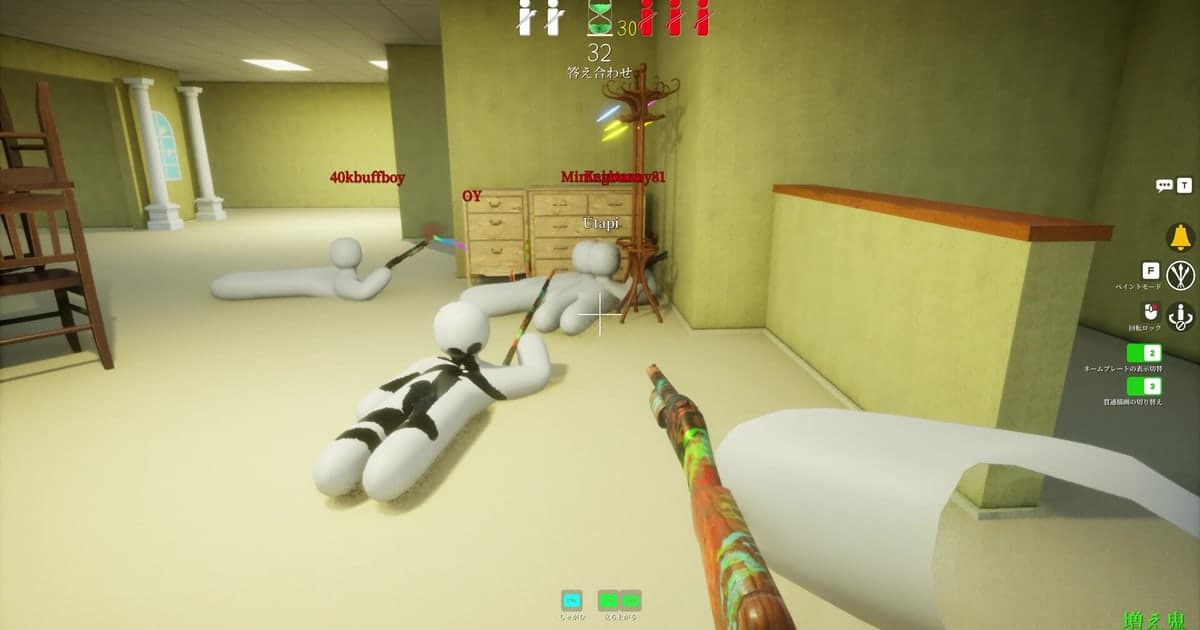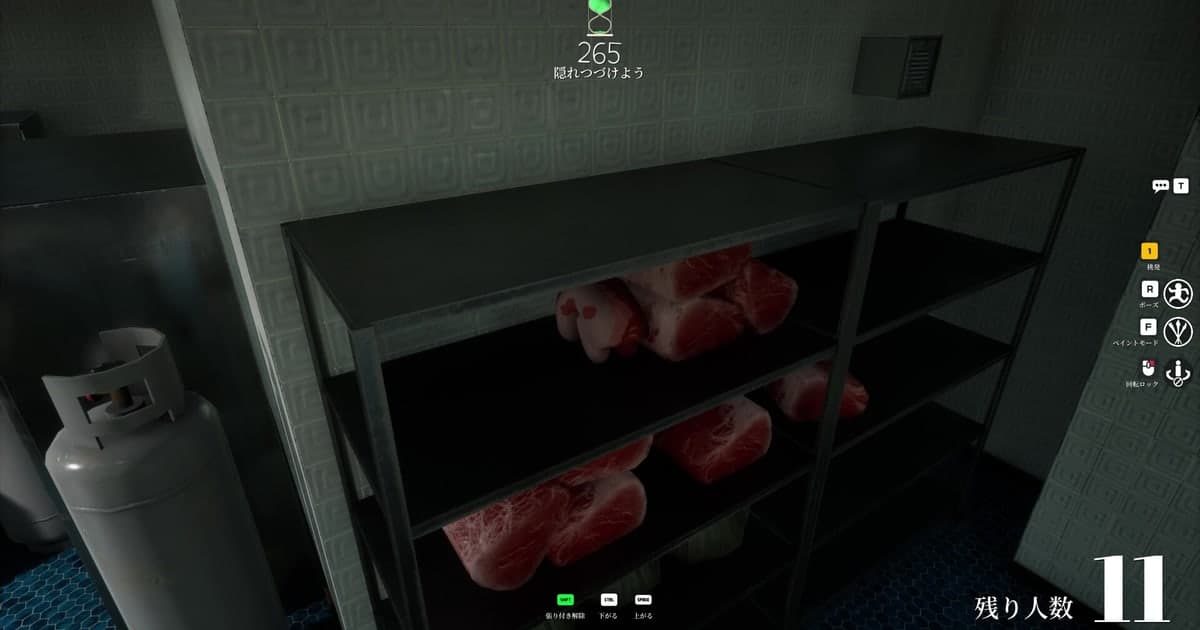
In MECCHA CHAMELEON, people paint their white body to blend into the stage, and a recurring complaint is that the game simply closes mid-brush, or the instant they pick a color with the 3D eyedropper. The same symptom shows up in English, Japanese, Korean and Vietnamese search suggestions, and those suggestions are oddly specific: crashing when painting, crashing when using the eyedropper. What is missing is anyone lining the symptom up against the official patch notes. This guide was rebuilt on October 16, 2026 from the Steam store data and the developer's own announcements, and it covers three things: the official fix history for the 3D eyedropper and for performance, how to confirm you are on the newest build, and how to keep the footage of the moment the game crashed so you can report it. One thing up front: there is no official statement of a cause, and this page does not promise that the crashing will stop. If you want to check whether other players see the same thing, treat community servers carefully and use the invite-link and moderation checks in how to find a game Discord server. The recording steps below assume a Windows PC.
Bottom line: no cause has been published, so update, use only the official performance options, and secure the footage first
There are three useful moves. First, update the game. The eyedropper and performance fixes are clustered between late June and late August 2026, so if you were playing an older build, updating alone can change what you see. The August 28 BIG UPDATE 4.1.0 note also fixed an issue that may have caused crashes for some users during gameplay, so you can at least confirm you are on a build newer than that date. Second, touch only the settings that appear in the official notes: Performance Mode, added in the July 30 announcement, and the Medium shadow quality option, added on July 25 along with a general GPU performance improvement. The July 30 note also fixed graphics settings not being saved, so if you remember changing settings that never stuck, check them again now. Editing configuration files or using outside tools is not something this guide recommends. Third, if the crashing continues, capture the moment on video and send it in. The store lists the same single name as developer and publisher, with only a couple of public channels, so one clip of the crash lands far better than a paragraph trying to describe the conditions. There is a practical reason to think about recording in advance: the crash survives inside footage that was already running, so a recording started before you play is what secures that moment. If instead the crashing is frequent enough that the game is unplayable for you, check the refund rules before anything else, because they are time limited. The playtime and purchase-window conditions and the request steps are in how to get a Steam refund.
How to pin down the crash and keep the footage of it
- 1Update the game and check the date of the newest noteOpen your Steam library and make sure no update is pending for MECCHA CHAMELEON. As verified on October 16, 2026, the most recent patch note from the developer is Update 4.1.1 on September 16, and the single newer post after it is an awards nomination from September 25, so there is still no announcement naming a crash cause. Because the eyedropper and performance work landed between late June and late August, an old build is the first thing to rule out. The August 28 BIG UPDATE 4.1.0 note includes a fix for an issue that may have caused crashes for some users during gameplay, so confirming your build is newer than that date comes first. You can read the version numbers and dates yourself in the News tab of the game's Steam store page.
- 2Change only the options that appear in the official notesTwo performance options are documented. Performance Mode was added in the July 30 announcement, and a Medium step for shadow quality was added on July 25, in the same note as a general GPU performance improvement. Try those two first. Because the July 30 note also fixed graphics settings not being saved, verify that whatever you change actually persists after a restart. Editing game files or running outside tools is not part of this guide.
- 3Finish your DOR recording setup before you launchDOR keeps recording for as long as the game is running. Set the resolution, frame rate, clip length and hotkeys before you start MECCHA CHAMELEON. Defaults are 1080p at 30fps, a 30-second clip length (15, 30, 45 or 60 seconds) and F8 as the clip hotkey, which is enough for capturing a crash. If you also want your friends' reactions, leave Record All Sounds on in the audio settings; everything from your PC, including a voice call, is then mixed into the single audio track.
- 4Free up recording space first (this is not a crash cause)This step has nothing to do with why the game closes. It is the condition DOR needs to record at all. Below 30GB of free space on the recording drive you get a warning, and below 20GB a recording will not start, while one already running stops automatically. Check free space before you play so you do not discover afterwards that nothing was being captured while you were trying to document a bug.
- 5Do not relaunch the game right after it crashesWhen the game process ends, the session recording closes at that point, so the crash is at the end of the full video of the session that just finished. Open My Clips in DOR, bookmark that video, or use the trim tool to cut the last 20 to 30 seconds before the crash. With automatic file management on, the full gameplay bucket has a 5GB share by default, so once that share is full the oldest session folders can be cleared, including F8 clips stored inside them. The newest session and anything bookmarked are protected, but this session is then the first candidate for cleanup.
- 6Write down the conditions alongside the videoFootage alone may not show the trigger. Note whether you were painting your body or sampling a color with the 3D eyedropper, which map you were on, how many players were in the room and which round it was. The August 8 note says performance drops caused by high player counts were significantly reduced, and the August 5 note warns about brief freezing right after launch, so player count and timing are genuinely useful details. Record how often it happens too, for example once in every three rounds.
- 7Send the video and notes through the official channelsThe developer's contact details are published in the support information on the Steam store page, and as of October 16, 2026 that is an X account and a support email address, with no official website. The game also has a report feature, added in the June 22, 2026 announcement, but the note never says what it covers, so there is no confirmation that it takes bug reports; send crash footage through the channels on the store page. For email, export the clip from My Clips in DOR using the Original preset so the file is copied as it is. It is also worth checking the Steam community discussions for the same symptom. If other people's voices or nicknames ended up in the video, review it once before you send it.
Official 3D eyedropper, performance and crash fixes (verified October 16, 2026)
| Announcement date and version | What the official patch note says | What to check now |
|---|---|---|
| June 27, 2026 - update2.1.0 | Adjusted the 3D eyedropper to make picking up colors easier; player count can now be checked in the lobby. | If the eyedropper behaves differently from an older video you watched, that may simply be a build difference. |
| July 4, 2026 - update2.5.0 | Improved the stability of the 3D color picker and the resolution of the paint brush. | If you hit a freeze or a close while picking a color, confirm you are not on a build older than this fix. |
| July 25, 2026 - update3.1.0 | Fixed an issue where the sampling position of the 3D eyedropper was off, improved GPU performance and added a Medium setting for shadow quality. | Lowering shadow quality to Medium is the in-game option this note makes available. |
| July 26, 2026 - update3.2.0 | Removed the eyedropper button from the color palette. | A missing eyedropper button in the palette is an official change, not a fault on your machine. |
| July 29, 2026 - fix3.3.2 and July 30, 2026 - update3.3.0 | Improved performance of the 3D eyedropper (July 29). Fixed an issue where the 3D eyedropper was not working, added Performance Mode and fixed graphics settings not being saved (July 30). | Settings that refused to stick were addressed here. Turn on Performance Mode and confirm your changes are saved. |
| August 5, 2026 - update3.5.3, August 8 - fix3.6.1, August 25 - Update 4.0.2 | Fixed performance dropping on low-spec environments because maps were added in updates, noting this may cause minor freezing when starting the game (August 5). Significantly reduced performance drops caused by high player counts (August 8). Reduced network usage by approximately 50% (August 25). | A short freeze right at launch is documented behaviour. If large rooms feel worse, confirm your build is current first. |
| August 28, 2026 - BIG UPDATE 4.1.0 | Fixed an issue that may have caused crashes for some users during gameplay. Also reduced network data usage during painting by 40% and mitigated performance drops when expanding the options menu. | Only two notes mention crashes at all, this one and June 13 (fix 1.2.0, a rare crash when changing maps), and neither names a cause. Confirm your build is at least newer than August 28. |
Before you build the report video
- Steam shows no pending update, and you checked the date of the newest patch note in the News tab (Update 4.1.1, September 16, as of October 16, 2026).
- You tried Performance Mode and the Medium shadow quality setting, and confirmed the changes persist.
- DOR resolution, frame rate, clip length and hotkey were set before launching the game (1080p 30fps, 30 seconds, F8 by default).
- The recording drive has at least 30GB free; below 20GB recording will not start or will stop.
- After the crash you bookmarked the session video or trimmed the part you need, before relaunching.
- You noted whether you were painting or using the eyedropper, plus the map, the player count and the round.
- You reviewed other players' voices and nicknames in the footage and decided which channel to use (the developer's X account, the support email or the Steam community discussions).
Keeping the crash on video with DOR: full session recording and the tail end
DOR is a free Windows PC app. When you launch MECCHA CHAMELEON it detects the game and records from the moment it opens until it closes, as a single video. On a personal PC this full gameplay recording is on by default, and you can turn it off or on for this one game under Settings and Game; in PC cafes it is off by default. While it records, pressing F8 saves the previous 30 seconds as its own clip, and the length can be set to 15, 30, 45 or 60 seconds. Scenes you want are saved by pressing F8 yourself, or trimmed out of the full video afterwards. For a crash, the full video is the one that matters. The process ends, the session recording closes at that point, and the footage is there at the end of the full video of the session that just ended. Before you relaunch, open My Clips in DOR and bookmark that video, or trim the part you need with the clip editor (16:9, 9:16 or 1:1 output; finishing a trim requires signing in). When you need a file to attach, export with the Original preset and the file is copied as it is. If the game closed on you several times and you want to show the pattern in one piece, DOR Studio can join clips together and put text on them. Keep the storage conditions in mind as a separate matter: below 30GB free you get a warning, below 20GB recording stops or will not start, and the full gameplay bucket has a 5GB share by default, so once that share is full the oldest session folders can be cleaned up along with F8 clips inside them, while the newest session and bookmarked videos stay. If space is tight, work through the cleanup order in the low disk space guide for game recording first.