
Short answer: Low Latency Mode is worth setting to Ultra only when your GPU utilization is pinned and the game is GPU bound, and if the game itself has an NVIDIA Reflex option, leave the driver alone and turn Reflex on in the game instead.
Only games without Reflex, League of Legends being the obvious one, are where the NVIDIA App or Control Panel setting actually does the work. NVIDIA's Control Panel help defines the option as reducing latency by limiting the number of frames the CPU can prepare before the GPU processes them.
In other words it touches exactly one link in the chain between moving your mouse and seeing the result, the render queue, and has nothing to do with ping or monitor response time.
The full chain is covered step by step in how to reduce input lag in games; this article narrows in on when this one setting should be Off, On or Ultra. Every NVIDIA quote and menu path below was checked against official documentation on September 14, 2026, and driver or NVIDIA App updates can move things around.
Low Latency Mode decision table by situation (verified September 14, 2026)
| Your situation | Recommended value | Why, and what to check |
|---|---|---|
| GPU utilization near 100% and 60-100 FPS | Ultra | The exact condition NVIDIA names for the most impact. Check GPU utilization on the NVIDIA App overlay (Alt+R) |
| The game options include NVIDIA Reflex (Valorant, Apex, CS2, Overwatch 2, Fortnite and more) | In-game Reflex On; the driver value is irrelevant | Reflex also removes CPU back pressure on the game engine side, and with both enabled Reflex overrides Ultra |
| DX9 or DX11 game with no Reflex option (League of Legends, TFT and similar) | Ultra | NVIDIA's guide names driver Ultra as the next best option when Reflex is unavailable |
| DX12 or Vulkan game | Any value behaves the same | The game decides when to queue frames, so the driver setting is not applied |
| Low GPU utilization, CPU is the bottleneck | Off or On; get more FPS first | There is no render queue to trim, so the effect is small. In Reflex games, On + Boost targets CPU-bound play |
| You cap frames with Max Frame Rate | Cap slightly below average FPS + Ultra | NVIDIA's support article gives this combination as the maximum latency reduction when GPU bound |
| G-SYNC monitor | Control Panel Vertical Sync On + Ultra (or Reflex), in-game V-SYNC Off | Frame rate is automatically capped below the refresh rate, no tearing, latency stays low |
| Stutter appeared after switching to Ultra | Go back to Off (default) and compare | NVIDIA describes Off as throughput-first. Record the same section and compare the two values |
So which value should you pick
The cleanest way to understand the three options is NVIDIA's own wording. Off, the default, prioritizes render throughput by letting the game queue frames. On prioritizes latency by limiting queued frames to one, which NVIDIA says is the same setting as the old Max Pre-rendered Frames = 1.
Ultra prioritizes latency by fully minimizing queued frames, submitting each frame just in time for the GPU to pick it up. NVIDIA also states the condition where it matters most: when the game is GPU bound and frame rates sit between 60 and 100 FPS.
If GPU utilization is low and the CPU is the bottleneck, there is no render queue to trim, so the priority is more frames rather than this toggle. If Valorant is showing the Low Client FPS icon, finish the graphics tuning in how to boost FPS in Valorant before coming back here. The per-game priority is clear.
Games that ship in-game NVIDIA Reflex, including Valorant, Apex Legends, Counter-Strike 2, Overwatch 2 and Fortnite, should turn Reflex on in the game options per NVIDIA's guide, and if Reflex and Ultra are both enabled, Reflex overrides the Ultra functionality.
League of Legends, as verified on September 14, 2026, is absent from NVIDIA's Reflex-supported list and has required DirectX 11 since patch 25.21, which puts it squarely in the DX9 and DX11 range where the driver's Low Latency Mode applies.
DX12 and Vulkan games are the opposite case: the game decides when to queue frames, so the driver setting cannot intervene.
How to set it in the NVIDIA App and the Control Panel
- 1Confirm you are actually GPU boundIn the NVIDIA App go to Settings > Features and enable the In-Game Overlay, then press Alt+R in game for the statistics overlay. It shows GPU and CPU utilization and PC latency, and if GPU utilization stays pinned high you are GPU bound. The official support note lists GeForce RTX and GTX 600 Series and newer as supported GPUs.
- 2Look for a Reflex option in the game firstCheck the video settings for an NVIDIA Reflex Low Latency entry. Valorant offers off, on and on + boost, Counter-Strike 2 keeps it under Settings > Video > Advanced Video, and EA's official guidance for Apex Legends is Nvidia Reflex set to Enabled under Advanced Video. If the entry exists you are done, and the driver-side Low Latency Mode does not need touching.
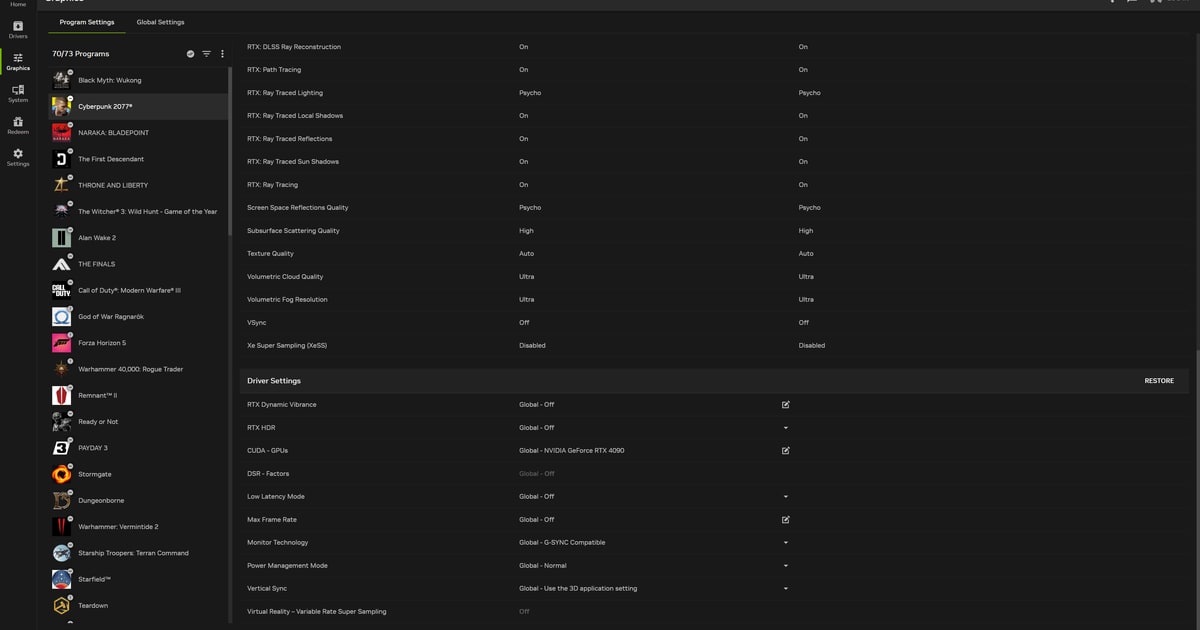
- 3Set Low Latency Mode per game in the NVIDIA AppOpen Graphics > Program Settings, pick the game, and scroll the list on the right until you reach Driver Settings. Choose Low Latency Mode there, and if it is missing click Show Legacy Settings to reveal older entries. Use Global Settings if you want it applied everywhere. The exact position can change between app versions.
- 4Use Manage 3D Settings if you prefer the Control PanelGo to NVIDIA Control Panel > Manage 3D Settings > Program Settings tab, select the game, and set Low Latency Mode to Off (default), On or Ultra. NVIDIA's official FAQ confirms there are no compatibility issues with the NVIDIA App and the Control Panel installed on the same system.
- 5Pair it with a frame cap and power managementSet Max Frame Rate (20-1000 fps, introduced in R440 drivers) slightly below your average FPS and set Power Management Mode to Prefer maximum performance. On a G-SYNC monitor, NVIDIA's guidance is Vertical Sync On in the Control Panel with V-SYNC off inside the game.
- 6Record the same section before and afterChange one setting only, then play one match on the same map before and after and keep the footage. Alongside the PC latency number on the overlay, that lets you judge a difference you cannot feel by hand with numbers and video.
When the option is greyed out or missing
- Check that the driver is R435 or newer. Low Latency Mode arrived with the Game Ready 436.02 WHQL driver on August 20, 2019, and older drivers simply do not have the entry
- If the game runs on DX12 or Vulkan, no reaction to the value is normal; NVIDIA states the game decides when to queue frames
- In a game with in-game Reflex enabled, the driver value is overridden, so seeing no effect is expected; only confirm Reflex is on inside the game
- In the NVIDIA App, scroll the Driver Settings list to the bottom and, if it is still missing, click Show Legacy Settings to expand the older entries
- In the Program Settings tab, make sure the game's executable is actually selected and that a per-game value is not silently overriding the global one
- If stutter got worse on Ultra, return to Off (default), measure the same section again and decide which one is better
Compare before and after with clips of the same section
You cannot feel a few milliseconds, so the reliable way is to play one match on the same map before and after the change and keep both on video. DOR is a free Windows app that detects supported games like Valorant the moment you launch them and records the full match automatically.
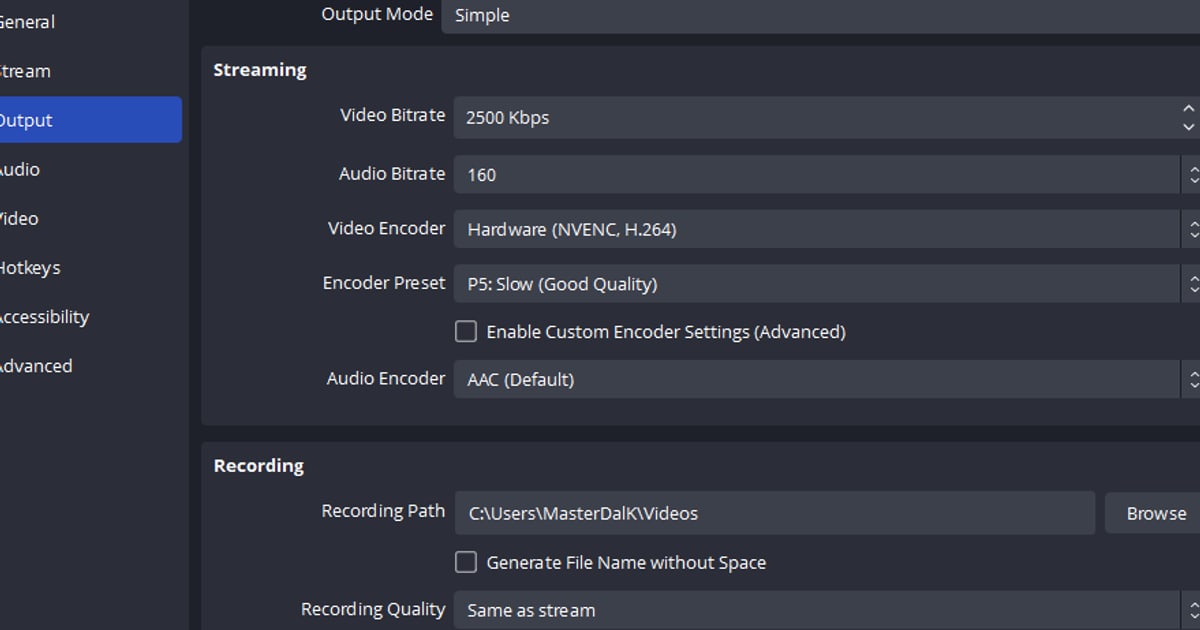
There is no record button to press, so both matches land in the in-app library on their own, and on supported NVIDIA cards such as the RTX series, encoding runs on NVENC hardware, so CPU load does not muddy the GPU-bound check this article relies on.
Open both matches from the library, cut the same firefight in the browser clip editor that needs no install, and keep a dor.gg link of each, and you have evidence of which value suits your PC. How highlights get clipped automatically is explained in DOR automatic highlight clips.