If your OBS Studio 32.x recording hotkey does nothing, start in File > Settings > Hotkeys and confirm that Start Recording and Stop Recording actually have a key assigned and no conflict warning beside them, then look at the Hotkey Focus Behavior setting on the Advanced tab. If you simply need to record right now, the Start Recording button in the Controls dock works without any hotkey. This page reflects what could be confirmed on October 8, 2026, and because the OBS knowledge base has no dedicated hotkey troubleshooting article, it does not name a 'most common cause'; it only walks through items found in the official docs and in the official 32.2.2 interface strings. For a wider diagnosis that also covers other recording apps, see this general recording hotkey checklist. Everything here assumes Windows.
Which symptom points to which setting
| Symptom | Where to look (OBS 32.x English names) | Basis |
|---|---|---|
| Pressing the key never starts a recording | File > Settings > Hotkeys: make sure the Start Recording and Stop Recording rows are not empty | OBS overview guide: start and stop keys are set in the Hotkeys tab |
| A warning appears next to the key field | Click the warning to see which other action uses the same key (OBS-internal duplicates only) | Official conflict warning string |
| It fails only while another window is in front | Advanced tab: read which of the three Hotkey Focus Behavior options is selected | Official interface strings (read the wording literally) |
| Only the replay save key is dead | Check that Save Replay has its own key in the Hotkeys tab | OBS overview guide: the buffer save key is set under Hotkeys |
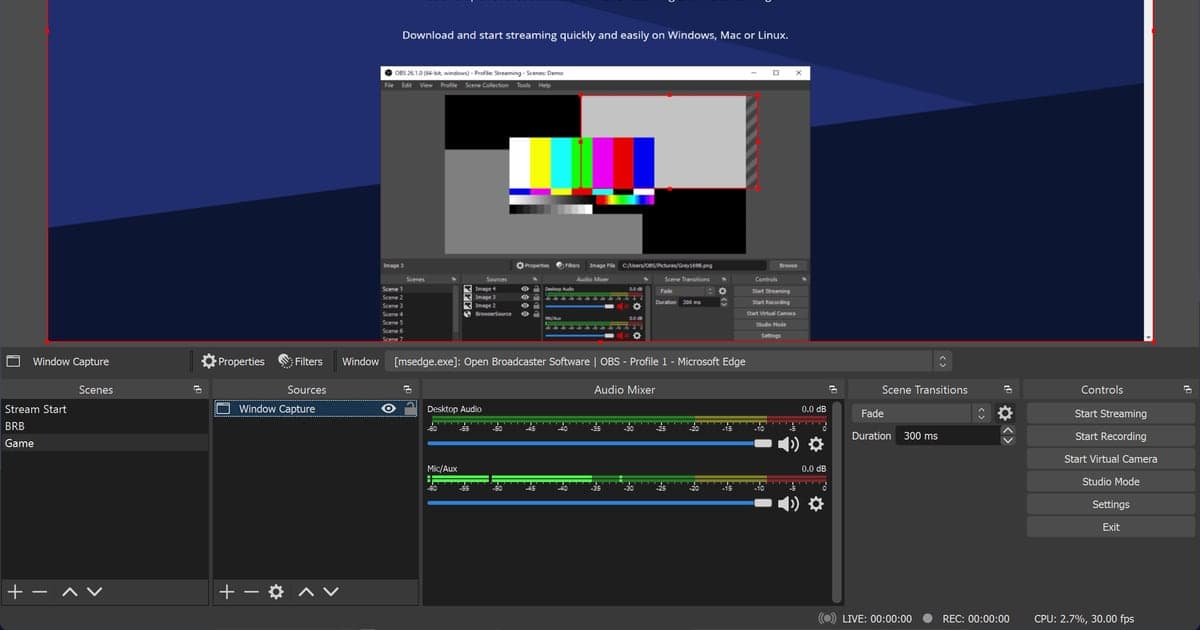
| You want to record immediately, no key | Click Start Recording in the Controls dock | OBS Quick Start Guide |
The short answer
The core of it is to look at the key assignment and the conflict warning first, and the Advanced tab value after that. Claims that an overlay, a full-screen game or another program swallows the key are not covered by the official OBS documentation, so they are left out of the checklist instead of being presented as causes. The official overview guide says the key for saving the replay buffer has to be set in the Hotkeys section as its own entry, so if only that one key is dead, read the OBS replay buffer troubleshooting article as well for the buffer side of the problem.
The five checks, in order
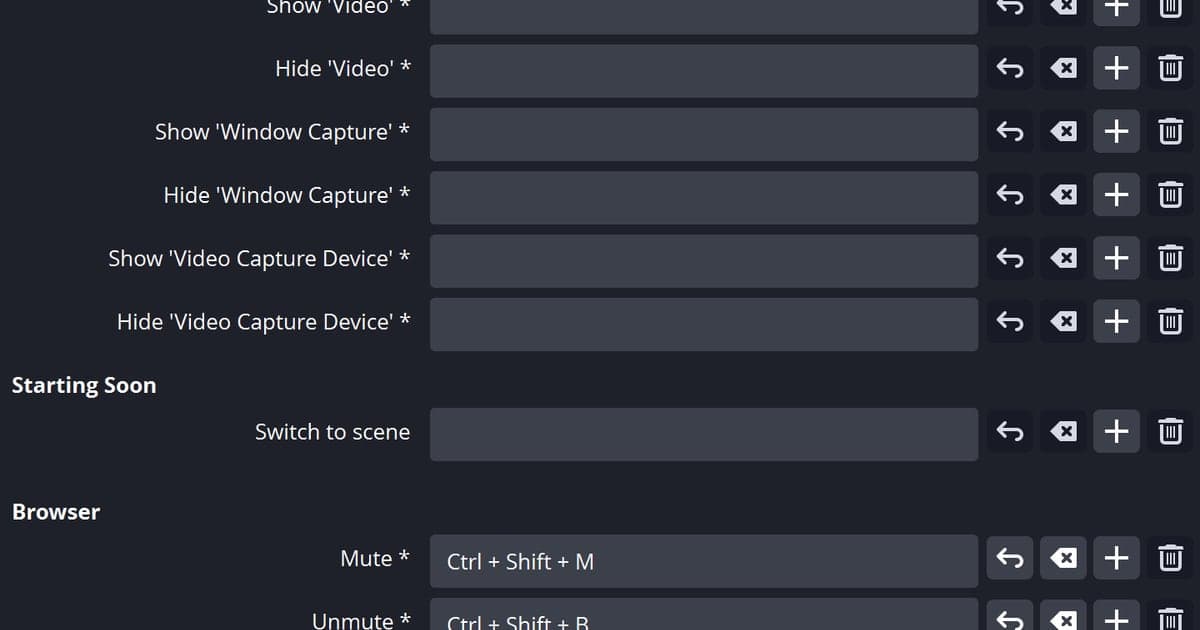
- 1Open the Hotkeys tabFrom the OBS main window choose File > Settings and select the Hotkeys tab in the left list. Names follow the 32.2.2 English interface. The official overview guide says this is where keys are set for actions such as starting and stopping a stream or recording, switching scenes and controlling the replay buffer.
- 2Confirm the recording rows have a keyScroll to Start Recording and Stop Recording, plus Pause Recording and Unpause Recording if you use them. Filter fields, including Filter by Hotkey, are also available to narrow the list. If the field for the action you want is empty, assign the key or combination you prefer. The mechanics here are a general description, not a step-by-step procedure written by the OBS documentation.
- 3Click any conflict warningA message reading 'This hotkey is shared by one or more other actions, click to show conflicts' means the same key is attached to several actions. Click it, look at the list, and leave the recording key on only one of them. The warning describes duplicates inside OBS; nothing confirmed says it detects clashes with other programs.
- 4Read Hotkey Focus BehaviorOn the Advanced tab there is a Hotkey Focus Behavior drop-down with three choices: Never disable hotkeys, Disable hotkeys when main window is in focus, and Disable hotkeys when main window is not in focus. Write down the current value first. If it needs changing, judge it by what the wording literally says about window focus. The official overview guide advises against casually changing the Advanced tab, so record the current value before changing anything and deal with this one item only.
- 5Try recording without a keyPress Start Recording in the Controls dock on the main window. The official Quick Start Guide itself describes starting a recording by clicking that button. If the button works while the key does not, you can treat the recording feature and the key input as two separate problems.
Six things to confirm before you stop
- Start Recording and Stop Recording both have a key in the Hotkeys tab
- No conflict warning beside the key, or you clicked it and reviewed the overlap
- You noted the current Hotkey Focus Behavior value
- If you changed it, you applied the change in Settings and tested again
- If you use Save Replay, it has its own key separate from start and stop
- Even if the key stays dead, the Controls dock button starts a recording
Starting a recording without a keypress
If missing the moment you press a start key is what worries you, here is how DOR works, stated plainly. DOR is a free Windows app, and you begin without building OBS-style scenes, sources or output settings first. When it detects a supported game such as VALORANT, it records the full match to mp4 automatically and keeps kill and round highlights as automatic clips. With an NVIDIA graphics card, encoding goes to the NVENC hardware encoder by default, and a match that was recorded automatically has the game sound and whatever you said into the mic in it, so you can replay it with audio even if you never touched a key. Afterwards you can trim in the app library by setting a start and end, export as 16:9, 9:16 or 1:1, share by link, or keep editing in the browser at dor.gg/studio with nothing to install. DOR's own hotkey settings are covered separately in the DOR recording hotkey setup guide. This is not a claim that DOR fixes OBS hotkeys; it only describes a different way to begin recording.