
The best OBS setting for recording League of Legends is not a bitrate number, it is splitting your setup into two scenes. Use Window Capture for the lobby (LeagueClientUx.exe), Game Capture for the match (League of Legends.exe), and let the Automatic Scene Switcher move between them.
The client and the game are different executables, which is why one Game Capture source cannot cover both, and why a black Game Capture in the lobby is expected behavior: OBS's compatibility list marks the League launcher as not capturable by Game Capture.
This guide follows OBS 32.2.2 and the official OBS League of Legends capture guide (checked on September 16, 2026) and walks through source setup, matching the window mode and resolution, and output settings. If you want to compare OBS with other ways to record League first, start with how to record League of Legends.
Bottom line: two scenes, the Automatic Scene Switcher, and a matched canvas
Follow this order. First, create a 'Lobby' scene and a 'Game' scene in the Scenes panel. Second, add a Window Capture pointed at LeagueClientUx.exe to the Lobby scene, then start a match and add a Game Capture set to 'Capture specific window' with League of Legends.exe to the Game scene.
A black Game Capture in the lobby is normal, so the lobby must use Window Capture. Third, open Tools → Automatic Scene Switcher and let the two scenes swap automatically based on the active window. Fourth, match League's resolution to OBS's Base (Canvas) Resolution.
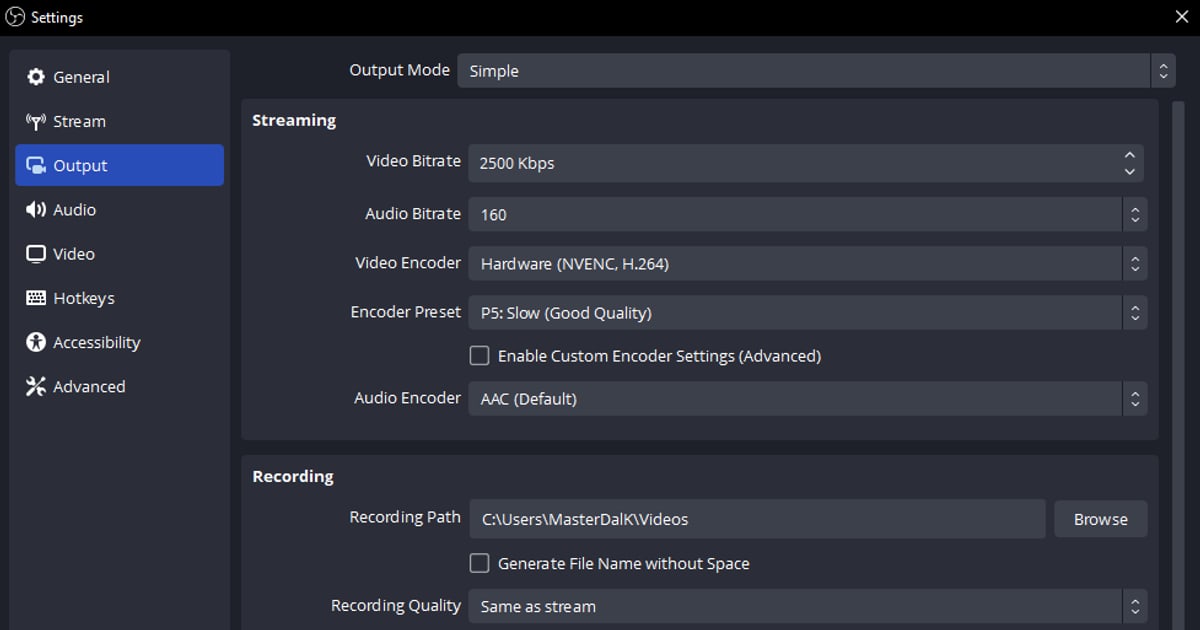
Fifth, in Settings → Output keep Output Mode on Simple, set Video Encoder to Hardware (NVENC, H.264), and change Recording Quality from the default 'Same as stream' to 'High Quality, Medium File Size'.
Encoder details and the general black-screen fixes live in our OBS game recording settings guide, so this article stays on the League-specific source setup.
If your only goals are saving the full match, clipping kills and sharing, there is a road that skips all of this: DOR detects League automatically and records without any source or scene work, though compositing overlays or several sources into one frame is still OBS territory.
OBS setup for League of Legends, step by step
- 1Create two scenes: Lobby and GameClick + in the Scenes panel and create a 'Lobby' scene and a 'Game' scene. The official OBS League guide starts from one fact: the client window (LeagueClientUx.exe) and the game window (League of Legends.exe) are separate programs, so a single source cannot capture both. OBS also recommends keeping only one Game Capture source per scene.
- 2Add a Window Capture to the Lobby sceneWith the Lobby scene selected, click + in Sources → Window Capture and choose the LeagueClientUx.exe entry from the Window dropdown. Leave Capture Method on 'Automatic' and Window Match Priority at its default. If you try Game Capture here instead, OBS shows the warning 'League of Legends Launcher cannot be captured using Game Capture. Use Window Capture or Display Capture instead.' and a black frame, because the OBS 32.2.2 compatibility list registers the League launcher as blocked for Game Capture.
- 3Start a match, then add Game Capture to the Game sceneLaunch an actual game first; Practice Tool works. In the Game scene click + → Game Capture, set Mode to 'Capture specific window' and pick League of Legends.exe under Window. The entry only appears while the game is running, and the OBS guide states you must be in an active game session the first time you set it. Leave the remaining options such as 'Use anti-cheat compatibility hook' and 'Capture Cursor' at their defaults.
- 4Let the Automatic Scene Switcher handle lobby and gameOpen Tools → Automatic Scene Switcher. Add a rule that switches to the Game scene when the game window is active and to the Lobby scene when the client window is active, set 'When no window matches:' to what you prefer, and make sure 'Scene Switcher is:' shows it as active. If you would rather switch by hand, assign scene hotkeys under Settings → Hotkeys.
- 5Match League's resolution to the OBS canvasIn the game press ESC, open VIDEO and set Resolution to your desktop resolution, the value Riot's low-FPS troubleshooting page lists as its starting point ('Resolution: Match desktop resolution'), then set Base (Canvas) Resolution and Output (Scaled) Resolution under Settings → Video to the same value. If League runs fullscreen and you alt-tab out, rendering stops and OBS loses the picture, so a borderless window is safer if you switch windows often. FPS defaults to 30; choosing 60 under Common FPS Values is optional and depends on your GPU headroom.
- 6Output: Simple mode, NVENC, Hybrid MP4Under Settings → Output keep Output Mode on Simple. Set Video Encoder to Hardware (NVENC, H.264) and change Recording Quality from the default 'Same as stream' (which also disables pausing) to 'High Quality, Medium File Size'. Leave Recording Format on the default Hybrid MP4 (.mp4) so you get editor compatibility and resilience if the recording is interrupted, and check that Recording Path has free space. If you go to Advanced, OBS's official reference values are Rate Control Constant QP, Constant QP 16-23, Keyframe interval 2, Preset P5, Tuning High Quality, Multipass Mode Two Passes (Quarter Resolution), Profile High, Look-ahead off, Adaptive Quantization on, B-Frames 2.
- 7Do a test recording in Practice ToolPress Start Recording, move lobby → game → lobby for a minute and confirm the scenes swap on their own and that the Desktop Audio and Mic/Aux meters in the Audio Mixer move. Open the saved mp4; if the captured picture is the wrong size, open the source's Transform menu and use Reset Transform or Fit to screen.
League source setup compared: Game Capture (specific window) / any fullscreen / Window Capture
| Source setup | When to use it | Watch out for |
|---|---|---|
| Game Capture · Capture specific window | The default for the match itself (League of Legends.exe); this is what the official OBS League guide recommends | The game must be running for it to appear in the Window list. It will not capture the lobby |
| Game Capture · Capture any fullscreen application | When League runs fullscreen on your primary monitor and you want automatic detection | On a single monitor, alt-tabbing out stops the game from rendering, so the preview goes blank |
| Window Capture | Lobby and champion select only (LeagueClientUx.exe) | Only the selected window is captured even if other windows sit on top. Leave Capture Method on 'Automatic' |
Pre-recording checklist
- Scenes panel has a Lobby scene and a Game scene, with one capture source each
- League of Legends.exe appears in the Game Capture Window list (check while a game is running)
- Automatic Scene Switcher shows 'Scene Switcher is:' active
- League resolution = Base (Canvas) Resolution = Output (Scaled) Resolution
- Video Encoder is Hardware (NVENC, H.264) and Recording Quality is not 'Same as stream'
- Recording Format is Hybrid MP4 (.mp4) and Recording Path has free space
The road that skips all of this: DOR
Half of the steps above exist because OBS does not know that League is two windows; the rest exist because resolution and encoder have to be matched by hand.
If all you want is the full match saved, kill moments clipped and a link to share, the DOR League of Legends page shows the shorter path: League is one of the games DOR detects automatically, so you leave it running and skip source selection, scene switching and window-mode matching.
When a match starts, the full game is saved as an mp4 and highlights such as kills are cut into their own clips, and DOR picks the encoder itself (NVIDIA NVENC hardware encoding on supported cards such as the RTX series), so there is no encoder table to memorize.
Game audio and your mic are recorded together, the library's trim tool cuts a range at 16:9, 9:16 or 1:1 and shares it as a dor.gg link, and the browser-based DOR Studio can join several clips and add text and background music. For the pentakill-only workflow see how to save a LoL pentakill clip.
The limits are just as clear: DOR only records supported games, compositing a webcam, chat window or overlays into one frame or building a stream layout stays with OBS, and auto-captions, precise color work or keyframes need a dedicated editor.