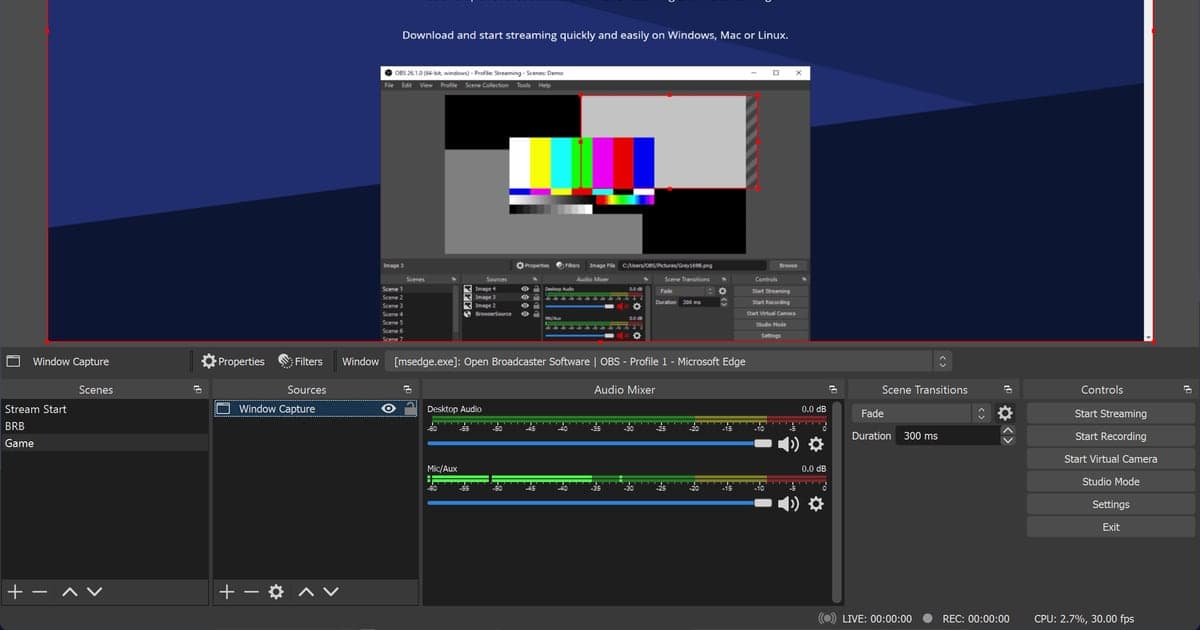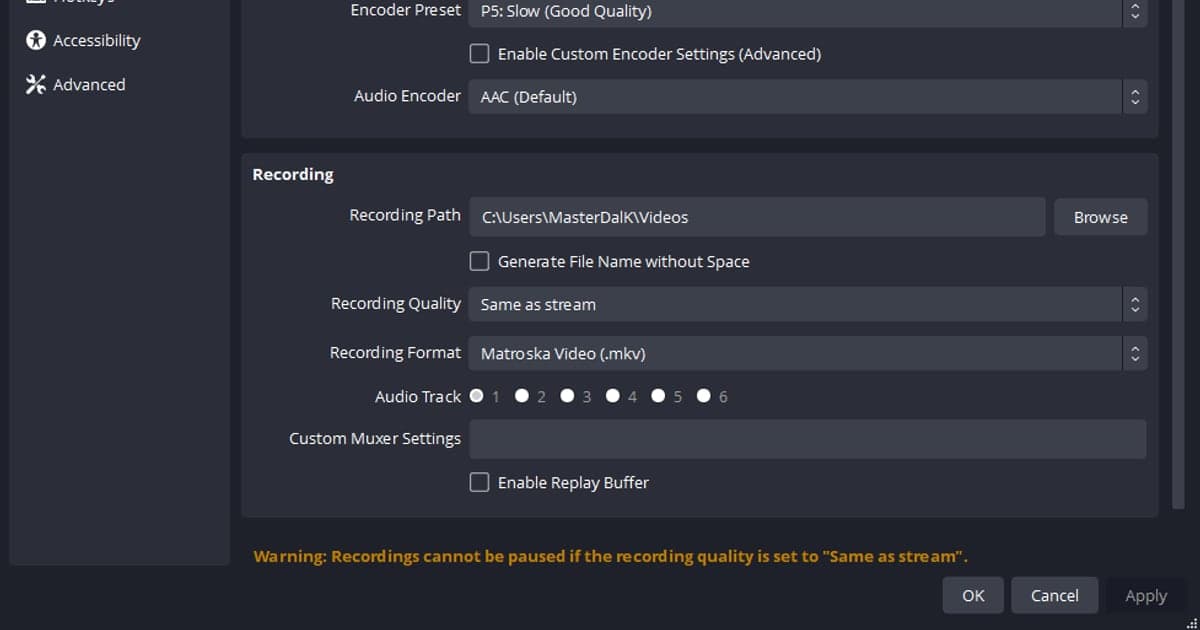
If an OBS recording will not play, check the Recording Format under File > Settings > Output and the codec shown in the file's Properties first, then try File > Remux Recordings to convert it to mp4. The official documentation does not say which cause is the most common, so this guide does not guess and only lays out the order of checks. It covers OBS Studio 32.x on a Windows PC; for general player-side symptoms, see this checklist for recording files that will not open.
Symptom-by-symptom check table
| Situation | What the official documentation says | What to try |
|---|---|---|
| You recorded to plain MP4/MOV and the PC lost power or hit a blue screen | The OBS warning says a recording saved to MP4/MOV cannot be recovered if the file could not be finalized, and the knowledge base advises against recording to MP4/MOV directly. | The documentation offers no official way to revive this file. From the next recording on, switch to Hybrid MP4 or MKV. |
| An MKV file will not open in a player or editor | MKV can be played and recovered even if recording was cut short, but editing software support is weaker, so a remux may be needed. | Use File > Remux Recordings to make an mp4, then open that file. |
| You recorded as Fragmented MP4 (or MOV) | The OBS tooltip says it may not be compatible with all players and editors and suggests Remux Recordings if necessary. | Convert it to a more compatible format with File > Remux Recordings. |
| You used Hybrid MP4 and the recording ended abnormally | It writes in fragments and finishes like a normal MP4, and stays recoverable if writing is aborted. Chapter markers are only written at finalization, so a crash leaves them unrecovered. | An unfinalized file remains a valid fragmented MP4 that can be remuxed. How well ordinary players open it is not documented. |
| The video uses an HEVC or AV1 codec | Formats outside the ones built into Windows may need an extra codec, and the Microsoft Store offers HEVC and AV1 extensions. OBS notes AV1 is not yet well supported in editing software. | Check the codec under Properties > Details and see whether the matching extension is installed. |
| The picture plays but only some of the sound is heard | A standard video player can output just one audio track at any moment. | Send every source to Track 1 and check which tracks are enabled for recording. |
Two questions to settle before changing anything
As of October 6, 2026, the latest stable OBS Studio release is 32.2.2, published on August 14, 2026. In the source code, a fresh Windows setup defaults to Hybrid MP4, but a configuration carried over from an older version can keep its saved value, so open the setting and look instead of assuming. The official knowledge base is also not consistent: some pages still describe MKV as recommended or as the default. That is why the decision comes down to two questions. Was the file finalized when the recording ended, and can the program playing it read the file's codec? If you want the broader story on switching to mp4, continue with saving an OBS recording as mp4.
Order of checks
- 1Look up the current Recording FormatIn OBS, open File > Settings and read the Recording Format on the Output tab. The list contains entries such as Hybrid MP4 (.mp4), Matroska Video (.mkv), MPEG-4 (.mp4), QuickTime (.mov) and Fragmented MP4 (.mp4). Where the entry sits can vary with the Output Mode (Simple or Advanced), so look inside the Output tab. Which one you used is the starting point for everything else.
- 2Read the codec in file PropertiesRight-click the file that will not play, choose Properties, and open the Details tab to see the format and codec. Microsoft's Windows Media Player troubleshooting page lists MPEG-4 (H.264), H.263, VC-1, WMV, DV, VP8 and Motion JPEG among the video formats built into Windows, and says other formats might need an additional codec.
- 3Check the Windows codec extensionsIf the codec is HEVC or AV1, see whether the HEVC Video Extension or AV1 Video Extension from the Microsoft Store is installed. Microsoft groups error codes starting with 0xC00D11 under codec-related playback errors. This guide does not tell you to install any bundled codec pack.
- 4Run File > Remux RecordingsIf you recorded to something other than mp4, open File > Remux Recordings, pick the video in the OBS Recording column and press the Remux button. OBS shows a notice when it finishes. If the completion message says the file may be incomplete, treat the result with care, since the original may not have been written to the end.
- 5Check audio tracks when sound is partialLook at the Tracks column in Edit > Advanced Audio Properties for each source, and at Settings > Output for which audio tracks are recorded. Because a standard player outputs a single track at any moment, send all sources to Track 1 if you want to hear everything at once in a player.
- 6Tidy up the settings for next timeGoing forward, keep a format built to survive interruptions such as Hybrid MP4, or if you use plain MP4, turn on Automatically remux to mp4 (record as mkv) on the Advanced tab. With it on, OBS remuxes as soon as you stop recording. Choosing plain MP4 also brings up a warning in the settings window that the file may be unrecoverable.
Quick checklist
- Write down which Recording Format was set under Settings > Output
- If it was plain MP4/MOV, recall whether the recording ended abnormally
- Read the codec on the Details tab of the file's Properties
- For HEVC or AV1, check whether the Microsoft Store extension is installed
- For MKV or Fragmented files, remux with File > Remux Recordings and reopen
- If only part of the sound plays, check the audio track assignment
Recording without building OBS settings first
DOR is a free Windows desktop app that detects supported games automatically and saves the full match as an mp4 file. You start without first building OBS-style scenes, sources and output settings, and DOR does not repair playback problems in files you already recorded with OBS. If you would rather have recordings land as mp4 files from the start, you could begin with a supported game such as Valorant, and afterwards shorten the result with the trim feature.