The minimum OBS setup for recording Valorant is five steps: run OBS as administrator, add a Game Capture source, choose Simple output with NVENC and Hybrid MP4 in the Output tab, confirm your two audio devices, then make a test recording.
The OBS knowledge base explicitly lists Valorant among the games that require OBS Studio to run as administrator to be captured properly, so skipping that one step breaks everything else no matter how carefully you set the rest.
This guide uses the exact English UI labels of OBS Studio 32.2.2 (released August 14, 2026, verified September 16, 2026) and only quotes numbers and procedures that appear in OBS or Riot official documentation.
If you already added a source and the preview stays black, the cause-by-cause diagnosis lives in the OBS black screen fix guide; this article stays focused on the source, video, output and audio settings for Valorant.
Conclusion: the minimum Valorant-only setup
Follow the order. 1) Right-click the OBS icon and run it as administrator.
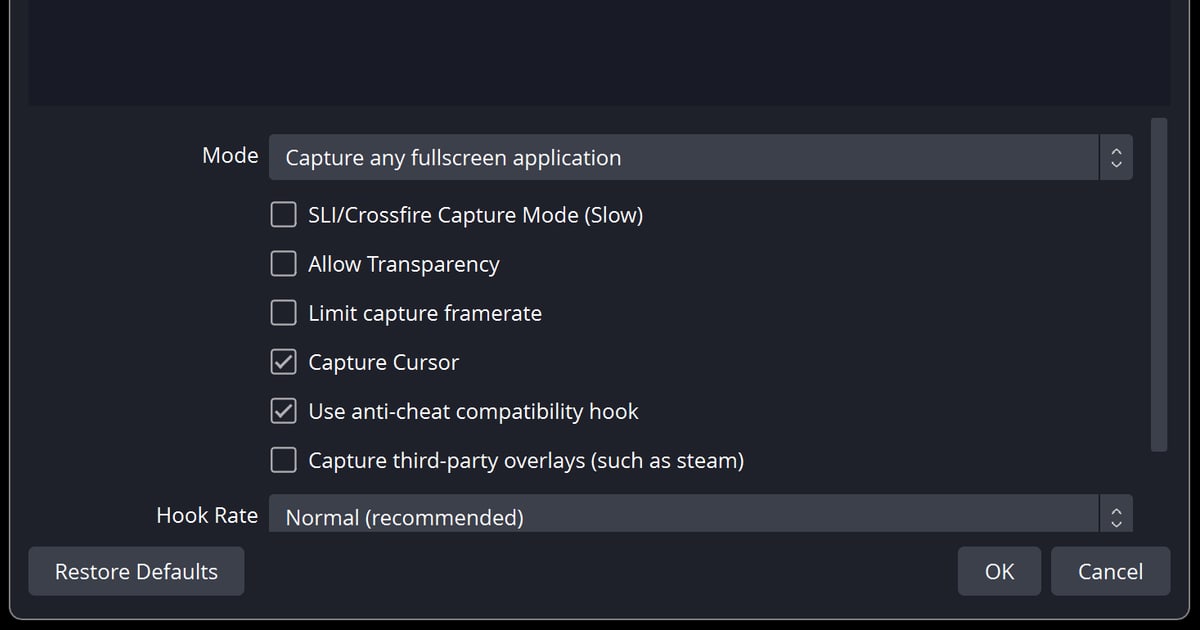
2) In Sources click + and add 'Game Capture'; set Mode to 'Capture any fullscreen application' (single monitor, fullscreen-style play) or 'Capture specific window' (pick Valorant in the Window dropdown), and leave every other property at its default (anti-cheat hook On, third-party overlays Off).
3) In Settings > Video match Base (Canvas) Resolution and Output (Scaled) Resolution to your game resolution (1920x1080) and set Common FPS Values to 60.
4) In Settings > Output choose Output Mode 'Simple', Recording Quality 'High Quality, Medium File Size', Video Encoder 'Hardware (NVENC, H.264)' and Recording Format 'Hybrid MP4 (.mp4)'.
5) In Settings > Audio assign Desktop Audio and Mic/Auxiliary Audio, bind Start Recording and Stop Recording under Hotkeys, then record a short test. Detailed Advanced-mode values such as CQP level and keyframe interval are covered in the OBS game recording settings guide when you want to push quality further.
If your only goal is to keep full matches and automatic kill and round clips, DOR makes all five steps unnecessary — but it only works for supported games, and scene compositing or streaming still belongs to OBS.
Setup steps: source, video, output, audio, test
- 1Run OBS as administratorThe OBS game capture troubleshooting page states that select games require OBS Studio to run as administrator in order to be properly captured, and it names Call of Duty and Valorant as examples. The same page adds that running as administrator can also help with performance in some cases. Right-click the OBS icon, run it as administrator, then launch Valorant. Riot describes Vanguard as a client that runs while its games are active along with a kernel mode driver; neither Riot nor OBS documentation says Vanguard blocks or allows OBS capture, so the only documented fix is the administrator launch.
- 2Add a Game Capture source and pick the ModeClick + under Sources and choose 'Game Capture'. In the properties, Mode has two practical options. 'Capture any fullscreen application' automatically detects any game running fullscreen on your primary monitor, so pick it if you play in a fullscreen-style mode. 'Capture specific window' requires the game to be running so you can select Valorant in the 'Window' dropdown. Leave the other properties at their defaults as the official guide advises — 'Use anti-cheat compatibility hook' On, 'Capture third-party overlays (such as steam)' Off, 'Limit capture framerate' Off, 'Hook Rate' at 'Normal (recommended)'. The setup guide warns that SLI/Crossfire capture often breaks game capture unless you have that specific hardware, so keep it Off.
- 3Decide the Valorant display mode and monitor layoutRiot's patch 4.02 notes say latency in Windowed Fullscreen was improved to match closer to Fullscreen Exclusive, and that having another program's window on top of the game negates those benefits. The OBS KB adds that a game in full-screen mode stops rendering when you alt+tab out, so you will not see it in OBS while it is minimized; it recommends either making a test recording or moving OBS to a second monitor. On a single monitor, Windowed Fullscreen plus 'Capture any fullscreen application' is the easiest combination to verify; with two monitors, either mode works as long as OBS sits on the second screen. The exact in-game menu path is not confirmed in Riot documentation, so this guide does not invent one.
- 4Match resolution and FPS in the Video tabIn Settings > Video set 'Base (Canvas) Resolution' and 'Output (Scaled) Resolution' to the same value as your game resolution. Riot's supported resolutions page (updated May 2026) lists 16:9 as the recommended ratio and includes 1920x1080 (FHD); it also notes that 16:10, 21:9 and 5:4 may run into issues in full-screen mode and suggests windowed mode for those. Start 'Common FPS Values' at 60 and, as the OBS encoding performance page says, drop to 30 if 60 is not working. 'Downscale Filter' only applies when the output resolution is smaller than the canvas, so with both resolutions matched as above you can leave it alone.
- 5Choose Simple output, NVENC and Hybrid MP4 in the Output tabIn Settings > Output keep 'Output Mode' on 'Simple'. Set 'Recording Path' to a drive with free space. Start 'Recording Quality' at 'High Quality, Medium File Size' (officially: high quality video with a medium file size) and move up to 'Indistinguishable Quality, Large File Size' if you need more, accepting larger files and a possible performance hit on older hardware. For 'Video Encoder' pick 'Hardware (NVENC, H.264)' if you have an NVIDIA GPU — OBS recommends hardware encoders to take the workload off the CPU, requires a GeForce 750 Ti or 900-series or newer for NVENC, and says a GTX 1650 rev 2 or newer (6th-gen NVENC) gives the best results. For 'Recording Format' choose 'Hybrid MP4 (.mp4)', introduced in OBS 30.2, which stays recoverable after a crash or power loss while keeping wide MP4 compatibility. Switching to 'Advanced' and setting 'Rate Control' to 'Constant QP' reveals a numeric field that is also labeled 'Constant QP', with 'Preset', 'Tuning' and 'Adaptive Quantization' as separate fields; just remember that a lower value raises both quality and file size, and take exact values from the guide linked in the conclusion.
- 6Set audio devices and recording hotkeysIn Settings > Audio assign the output device that plays your game sound to 'Desktop Audio' and your microphone to 'Mic/Auxiliary Audio'. When both are picked up, two meters move in the 'Audio Mixer' on the main window. In Settings > Hotkeys bind keys to 'Start Recording' and 'Stop Recording' yourself — OBS documentation defines no default recording hotkeys, so pick keys Valorant does not use. Splitting game sound and mic onto separate tracks requires the 'Audio Track' options (Track 1, Track 2) in Advanced mode, which is beyond this minimum setup, so leave both devices on one track here.
- 7Make a test recording and play the file backLaunch Valorant, record about 30 seconds in the Range, then open the file and confirm the video, game sound and mic are all present. On a single monitor in fullscreen you cannot watch the OBS preview while recording, which makes this playback check mandatory. If the game appears smaller or larger than the canvas in the preview, right-click the source, open 'Transform' and use 'Reset Transform' (Ctrl+R) or 'Fit to screen' (Ctrl+F). Once the test passes, keep those settings and record a real match.
Capture method comparison: Game Capture vs Window Capture vs Display Capture
| Source | What gets captured and load (OBS official wording) | Anti-cheat and overlays |
|---|---|---|
| Game Capture | Captures only the DirectX/OpenGL game itself. OBS calls it 'the most efficient way' and says it 'should always be tried first' | Valorant requires OBS to run as administrator (stated in the OBS KB). 'Use anti-cheat compatibility hook' defaults to On, 'Capture third-party overlays (such as steam)' defaults to Off |
| Window Capture | Records only the selected window; other windows in front of it do not appear. Capture Method defaults to 'Automatic' | No anti-cheat or overlay options. Second choice when Game Capture cannot hook (the KB's windowed-plus-Window-Capture advice targets Destiny 2 and CS2; Valorant is not on that list) |
| Display Capture | Records the entire monitor, including other windows and notifications | No Game Capture-specific options. Any overlay or notification visible on screen is recorded, so it is the last resort for Valorant |
Pre-recording checklist (documented items only)
- OBS is running as administrator — the OBS KB lists Valorant as a game that requires it
- Overlays and FPS counters such as MSI Afterburner, RivaTuner, Medal, Overwolf and the Discord overlay are off (official known-conflicts list)
- No other recording or capture program is running at the same time — OBS names conflicting hooks as a cause of trouble
- On a laptop, both OBS and Valorant are set to use the high-performance GPU
- Windows Settings > Gaming > Captures has 'Record in the background while I'm playing a game' turned Off — OBS says it can conflict with NVENC
- The game's framerate is capped to the monitor refresh rate or V-Sync is on, to avoid encoder overload (official performance troubleshooting)
- A short test recording has been played back to confirm video, game sound and mic
- If the source size is wrong, Ctrl+R (Reset Transform) or Ctrl+F (Fit to screen) fixed it
The path that skips all of this: DOR automatic recording
Everything above is you choosing a capture method, a display mode, an encoder and format, audio devices, and then testing. If your goal is simply to keep whole Valorant matches and pull kill and round moments as clips, DOR does not require that procedure.
DOR is a free Windows app that automatically detects supported games including Valorant, records each match to mp4, and in Valorant automatically cuts highlights such as kills and rounds into clips that land in the in-app library.
Recording captures game audio and your mic together, and on supported NVIDIA graphics cards such as the RTX series it uses NVENC hardware encoding.
From the library, trim a start and end point, pick a 16:9, 9:16 or 1:1 output, and share a dor.gg link, or open DOR Studio in the browser to trim, merge, add text and background music, and download an mp4. Which moments are worth keeping is covered in how to clip Valorant.
The boundary is clear: DOR only works with supported games, and scene compositing (facecam, overlays, multiple sources on one canvas), live streaming and fine-tuning encoder values still need OBS.