The short answer: keep the care features on and switch the monitor off with its own power button
Preventing OLED burn in is less complicated than forum threads make it look. For most people, leaving the built in protection features at their defaults and turning the monitor off with its power button at the end of a session covers the basics.
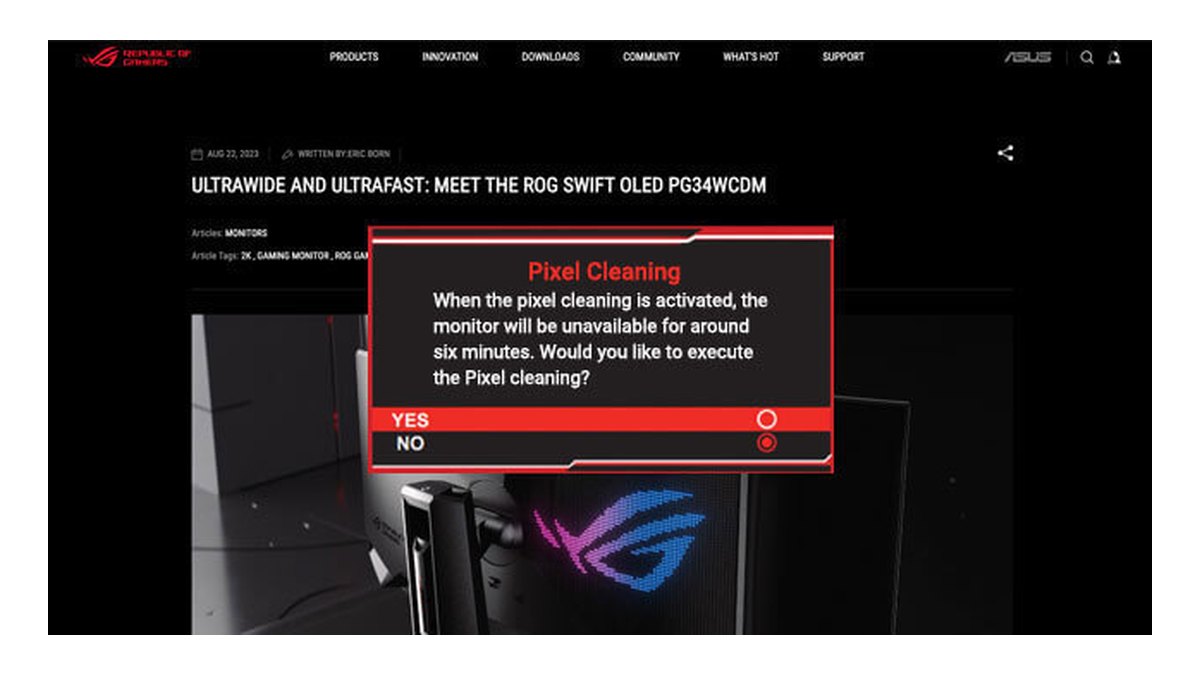
That is because pixel refresh (ASUS calls it Pixel Cleaning, LG calls it OLED Image Cleaning, Samsung calls it pixel refresh) kicks in automatically on ASUS and LG models after a few hours of use when the monitor shuts down or drops into standby.
Add Windows taskbar auto hide and a short screen timeout and you have dealt with the two things that sit still longest on a PC. No setting can promise zero burn in, and the manufacturers themselves only say these features reduce the risk. So here are the recommended settings, ordered by how much they help.
- Monitor care features: keep pixel refresh, pixel shift (Screen Move), logo and taskbar detection and the screen saver on. If brightness pumping bothers you, adjust only the dimming features.
- Shutting down: press the monitor power button and do not flip the power strip right away. Automatic pixel refresh runs at that moment.
- Stepping away: on ASUS, turn on the proximity sensor. On other models, keep the monitor screen saver on and set a short Windows screen timeout.
- Windows: auto hide the taskbar, switch to dark mode and clean up desktop icons.
- Games: lower HUD size or opacity if the game offers it, and do not leave a menu or pause screen up while you walk away for a long time.
- Warranty: check whether the official warranty text in your country uses the words burn in.
Why burn in happens: the same bright spot, lit for a long time
Every OLED pixel makes its own light. Show a bright image in the same spot for long enough and those pixels wear faster than their neighbors, which can leave a faint outline even after the picture changes.
Samsung describes burn in as a permanent afterimage that can appear when a fixed image is displayed for a long time. The LG 27GX790B manual says normal use does not cause image retention, but viewing the same screen for a long time can.
Both companies list similar examples: desktop icons, fixed windows and menus, the toolbar at the top of a web browser and the static menus of game consoles.
For a PC gamer that translates to the taskbar, a chat window you never close and the minimap and health bar that sit in the same corner every match.
People often call marks that fade after a cleaning cycle image retention and marks that stay burn in, but manuals use the terms loosely. What matters is that both come from the same recipe: bright, long and in the same place. Heat plays a part too.
The LG manual warns about high temperature and humidity alongside static, high brightness use, and ASUS, Samsung and Sony all promote heatsinks or heat pipes as part of their burn in defense. If you are still weighing burn in warranties before buying, our gaming monitor buying guide covers that. This article is about setting up and caring for the monitor you already own.
Burn in protection features by brand: different names, same jobs
| Feature | ASUS ROG (OLED Care Pro) | LG UltraGear (27GX790B) | Samsung Odyssey (G60SF) | Sony INZONE (M10S II) |
|---|---|---|---|---|
| Pixel refresh | Pixel Cleaning | OLED Image Cleaning | Pixel refresh | Pixel Refresh, Panel Refresh |
| Pixel shift | Screen Move | OLED Screen Move on some models | Dynamic pixel shift (OLED Safeguard+) | Pixel Shift |
| Static element dimming | Adjust Logo Brightness, Taskbar Detection | OLED Screen Saver lowers brightness on still images | Logo brightness control (logo and taskbar detection excluded in PC mode) | No separate item on the official feature page |
| Away from desk | Neo Proximity Sensor, dims after 2 minutes | OLED Screen Saver (turns off after a while) | Screen saver after 10 minutes (cannot be disabled) | Screen Saver |
| Heat management | Custom heatsink and internal airflow | Manual warns against heat and humidity | Dynamic Cooling (pulsating heat pipe) and thermal control | Custom thermal system |
The table shows that only the labels change. All four brands ship the same set of ideas: periodic pixel compensation, small pixel shifts, dimming of static elements and darkening the screen when you leave. That is why the defaults are the right starting point no matter which brand you own.
ASUS says outright that turning these features off may affect warranty coverage and recommends keeping them on. If you are still shopping, our best gaming monitor picks include OLED models with these protections built in.
Step by step: monitor first, then Windows, then your games
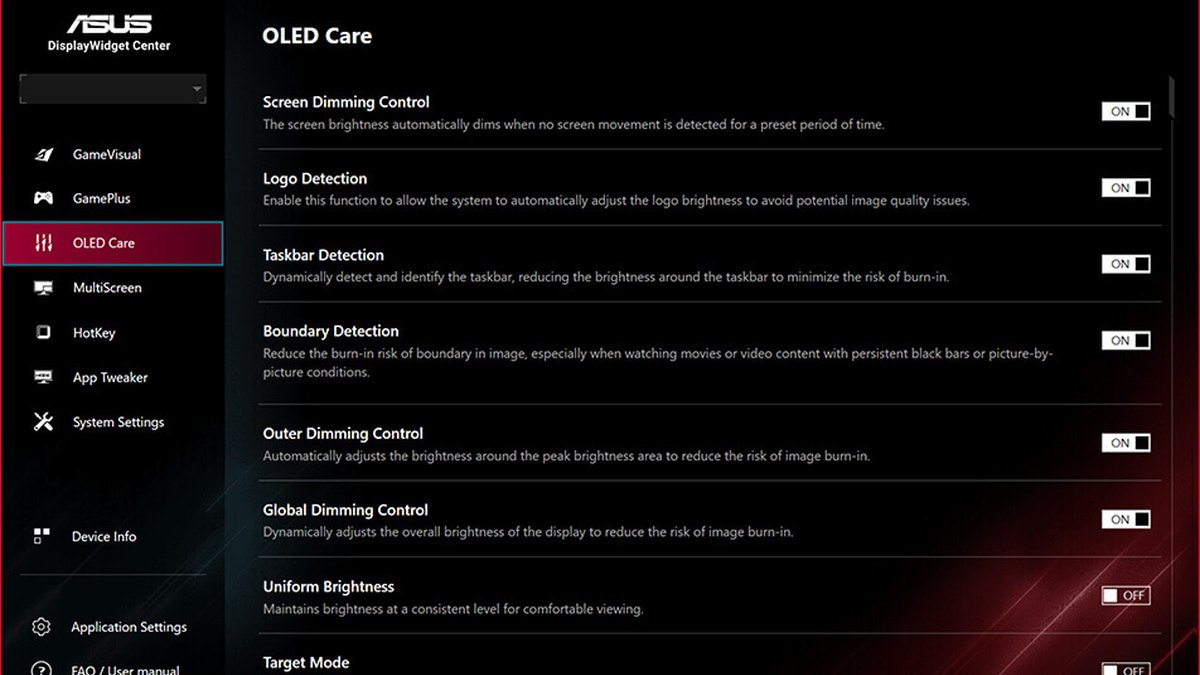
- 1Return the monitor care features to defaultOpen the OLED care section in the monitor OSD (on ASUS you can also use the free ASUS DisplayWidget Center app) and look for anything switched off. If you disabled features one by one in the past, resetting and checking again is faster. On a brand new monitor, or one that sat in storage, run a manual cleaning once first, as the LG manual recommends.
- 2Give pixel refresh time to runASUS starts Pixel Cleaning when the monitor is turned off or enters standby. The LG 27GX790B starts OLED Image Cleaning when it is turned off or goes to power saving after more than four hours of use since the last cleaning, and LG says it takes about 10 minutes. When you are done gaming, press the monitor power button and leave the power strip alone. Do not unplug the cable or wipe the screen while it runs.
- 3Turn on away detectionWith the ASUS Neo Proximity Sensor enabled, the screen goes black when you leave and comes back instantly when you return. Keep the sensor window clean and angled at you. On other monitors, keep the screen saver on and shorten the Windows screen timeout under Settings, System, Power. Our rule of thumb is 5 to 10 minutes.
- 4Auto hide the Windows taskbarRight click an empty spot on the taskbar, choose Taskbar settings, open Taskbar behaviors and tick Automatically hide the taskbar. Move the mouse to the bottom edge to bring it back. This matters most on the Samsung G60SF, because Samsung notes that its logo and taskbar detection is not available in PC mode.
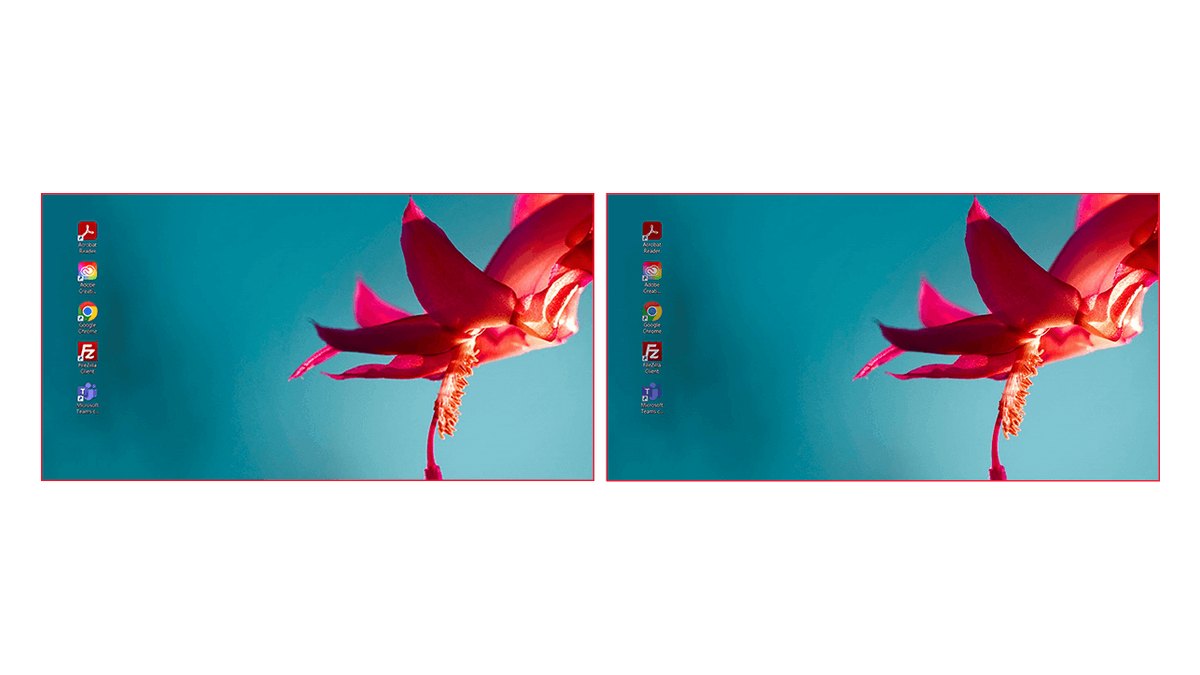
- 5Switch to dark mode and tidy the desktopGo to Settings, Personalization, Colors and set Choose your mode to Dark. Microsoft says dark mode cuts screen power use on OLED displays, and it also shortens the time big white windows stay on screen. Keep only the desktop icons you need, or hide them.
- 6Tame the game HUD and brightnessIf a game has options such as HUD scale, HUD opacity or minimap size, lower them as far as you can while staying readable. Set monitor brightness to suit your room rather than maxing it out. Do not leave the game parked on a lobby or pause screen while you step away for a long time.
ASUS ROG: a detailed toolkit with presets and a proximity sensor
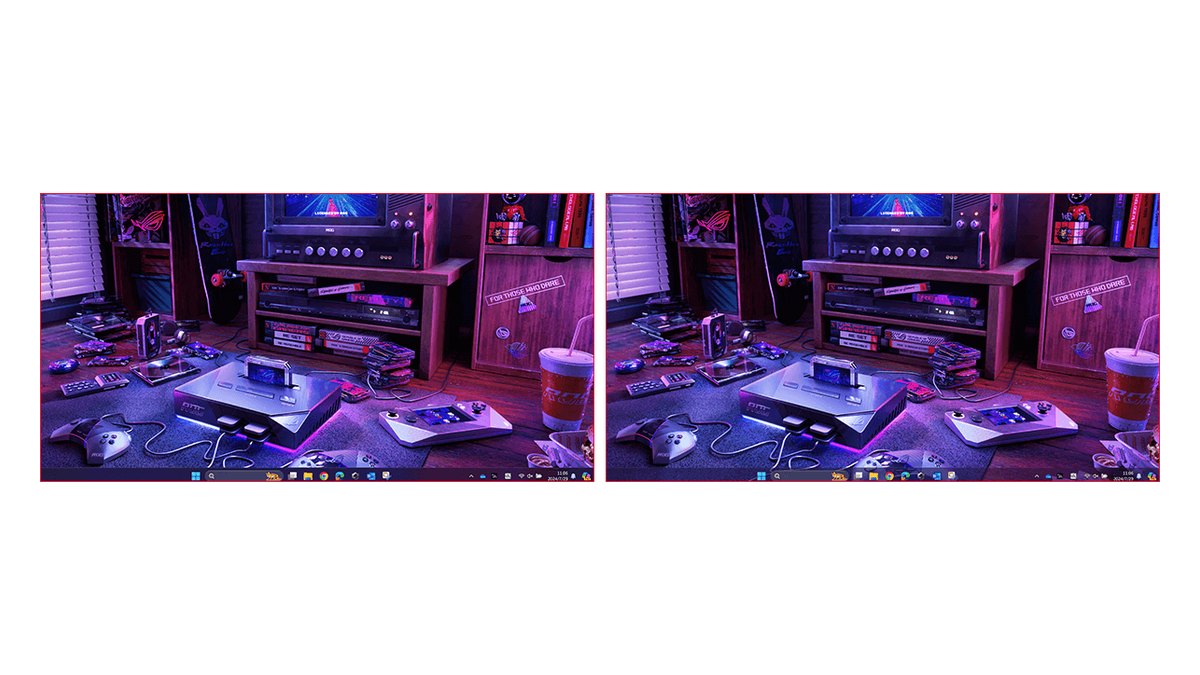
OLED Care Pro on ASUS ROG OLED monitors splits protection into many separate items: Pixel Cleaning, Screen Move, Boundary Detection that dims the edge of black bars, a screen saver that dims the picture after 2 minutes without motion, Adjust Logo Brightness, Taskbar Detection, Outer Dimming Control for the brightest area and Target Mode, which keeps only the top window bright.
The PG259QWS Ace product page adds three presets, Default, Balance and Light, plus an Advanced mode for picking items one by one, five motion sensitivity levels for the proximity sensor and an Auto-Away Timer from 1 to 15 minutes.
Our take: if the dimming feels distracting, switch to the Light preset rather than disabling features individually. ASUS also says the four layer tandem OLED in the PG27AQWP-W lasts up to 60% longer than its previous generation WOLED, but that is no reason to switch protection off.
LG UltraGear: check two items, Screen Saver and Image Cleaning
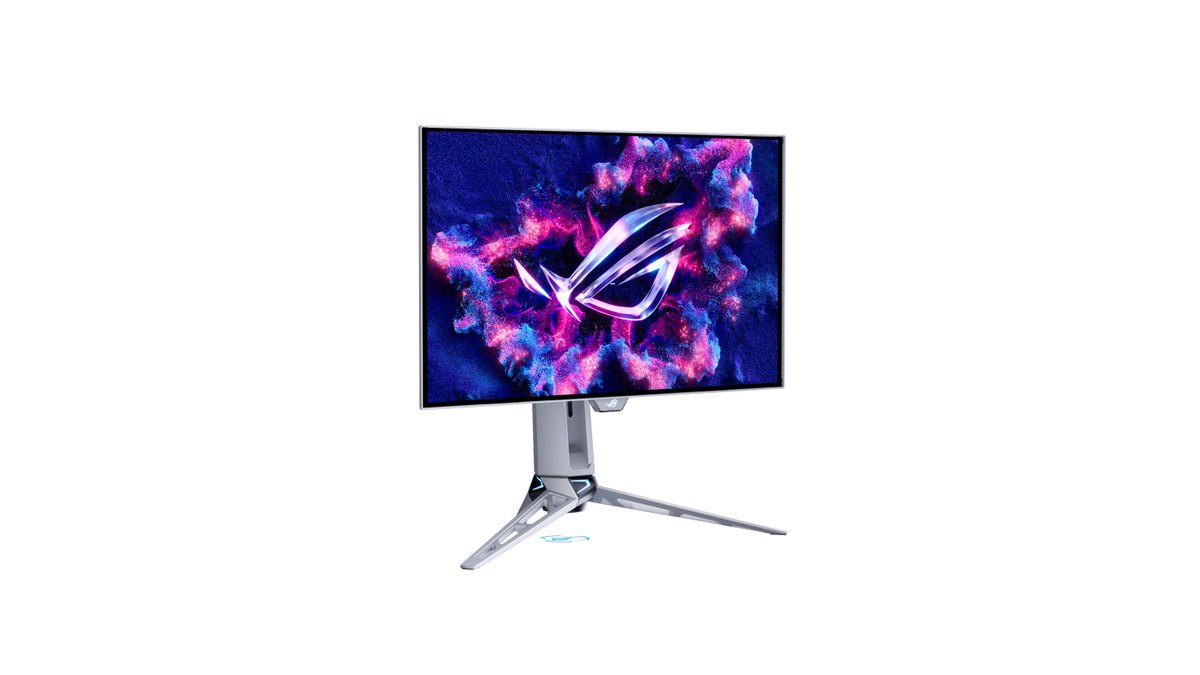
The LG 27GX790B manual lists two OLED items under Settings, General, opened with the joystick: OLED Screen Saver and OLED Image Cleaning. Screen Saver lowers overall brightness when the picture stays still, turns the screen off after a while and restores normal brightness when the image changes.
If brightness suddenly drops mid session, that is this feature, not a fault. OLED Image Cleaning can also be run by hand and assigned to a custom key. The manual notes that wiping or touching the screen during cleaning can stop it from finishing because of static electricity.
Some LG models also offer OLED Screen Move, which nudges the image at intervals, so turn it on if your menu has it. LG US backs the panel with a two year warranty that covers the OLED panel for defects in materials and workmanship.
Samsung Odyssey: the screen saver stays on, and Windows settings do the rest in PC mode
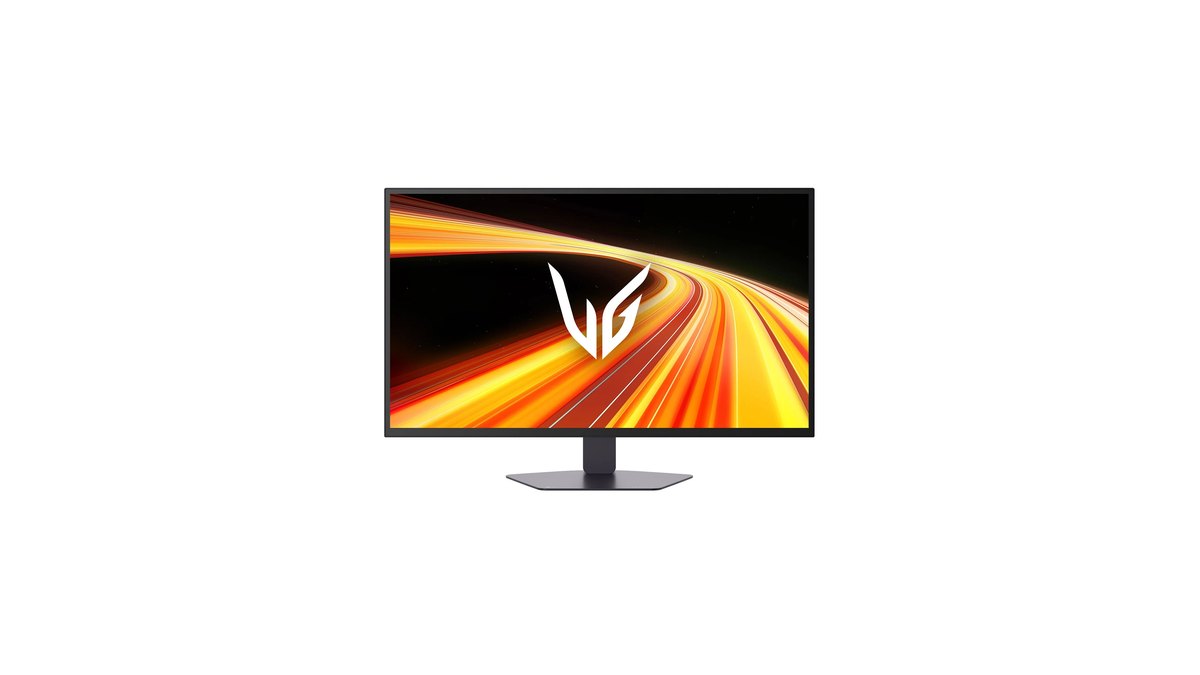
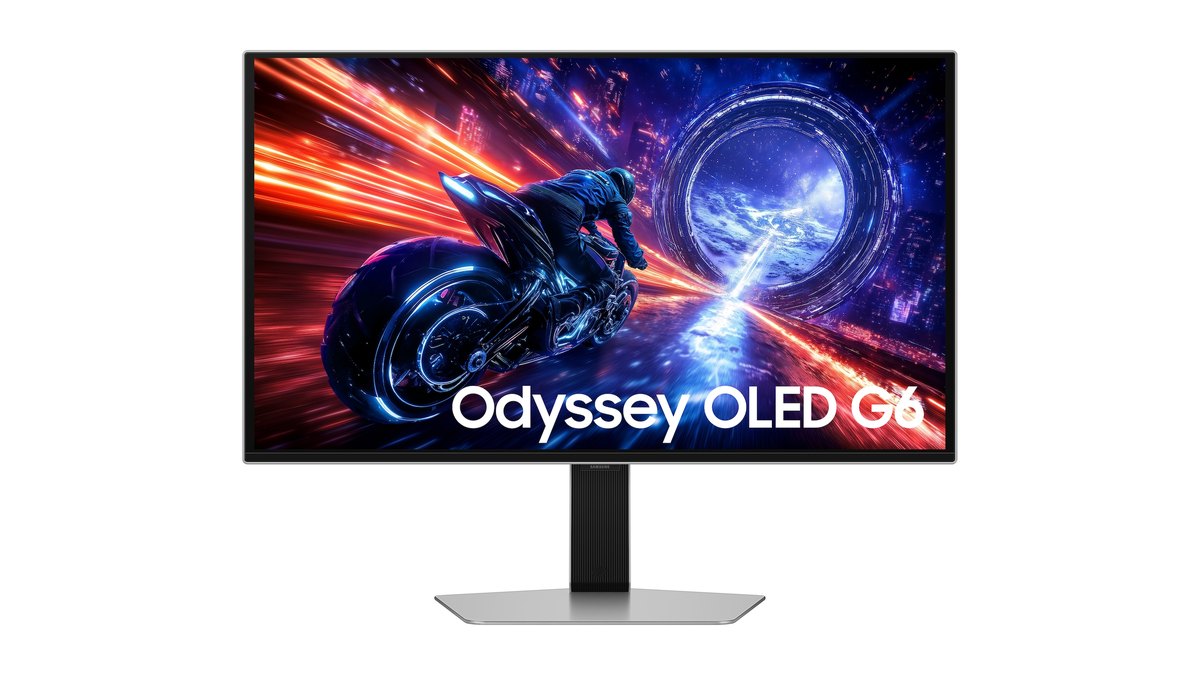
Samsung bundles its protection for the Odyssey OLED G6 (G60SF) under OLED Safeguard+: Dynamic Cooling with a pulsating heat pipe, a thermal control algorithm that adjusts brightness to prevent overheating, logo and taskbar detection, and a screen saver that dims the picture after 10 minutes without input.
According to the manual, the screen saver starts automatically when the same still image stays up for 10 minutes and cannot be turned off, to protect the pixels. The Panel Care menu holds logo brightness control and pixel refresh.
Set logo brightness control to High and thermal control runs all the time; at Off or Low it only works in preset picture modes. Samsung footnotes that logo and taskbar detection is not available in PC mode, so turn on Windows taskbar auto hide as well.
Sony INZONE: separate features for preventing and for repairing
The Sony INZONE M10S II has a screen saver and pixel shift to hold burn in back during normal use, plus Pixel Refresh and Panel Refresh to improve symptoms once marks appear.
Sony is candid on its Japanese product page, noting that pixel shift does not always prevent burn in and panel refresh does not always fix it. Think of it this way: keep the first two on every day and reach for the refresh options when you see a mark.
The monitor also uses a custom thermal system with a heatsink that moves heat from the panel controller and image processor away from the panel.
Recommended settings by game element: think HUD type, not game title
| Static element | Where you see it | Recommended setting |
|---|---|---|
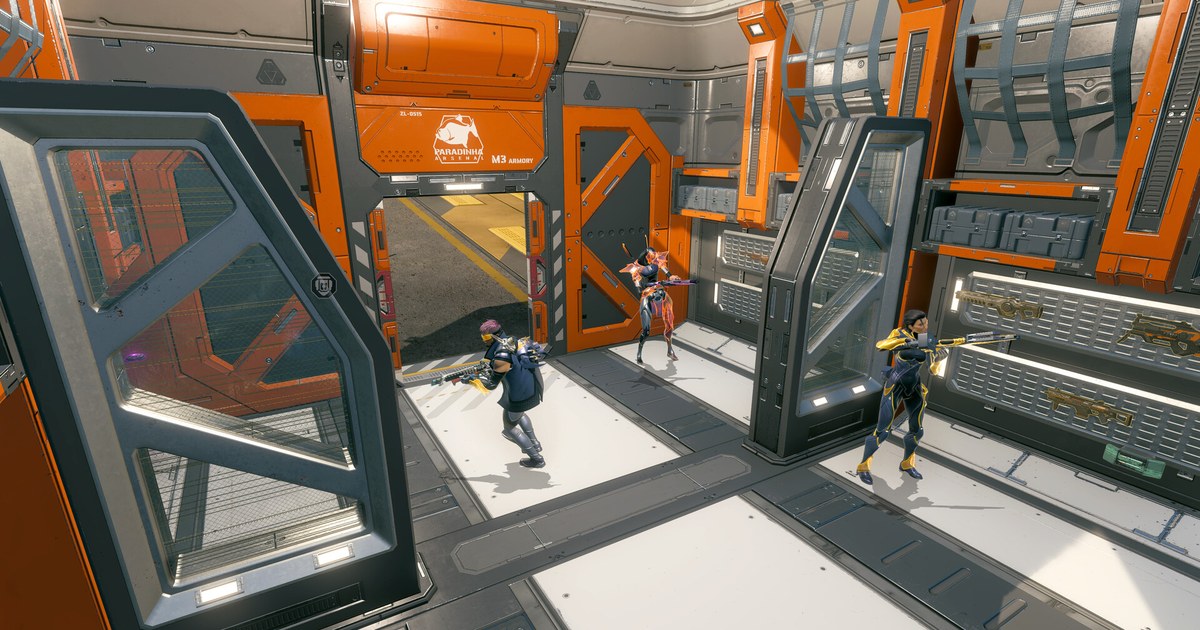
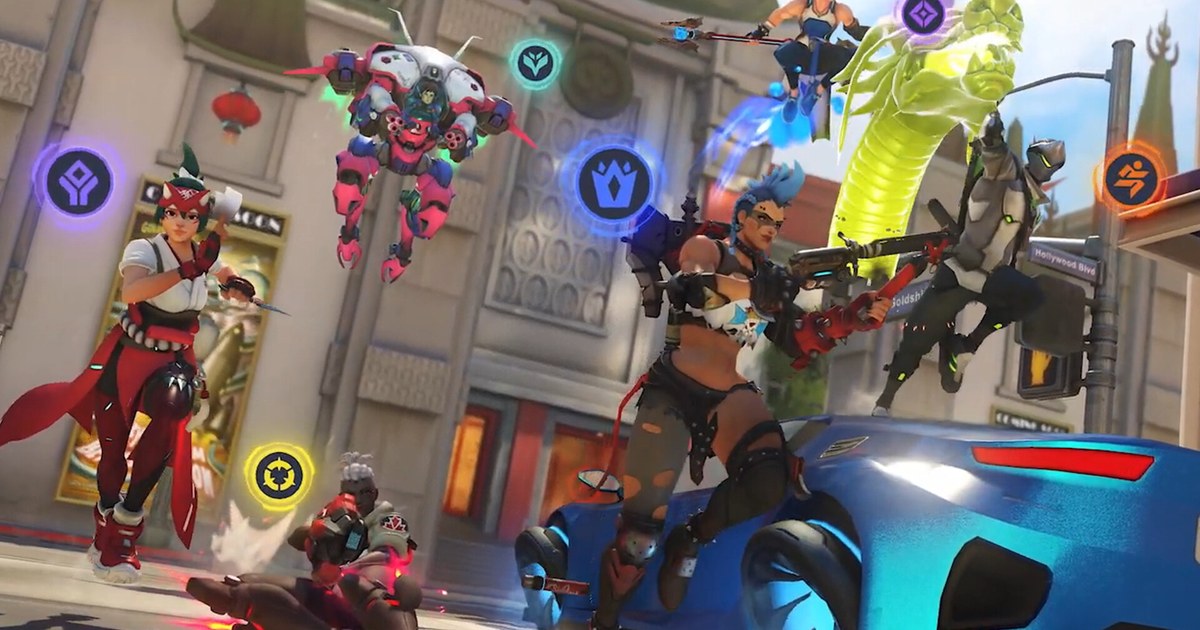
| Minimap, health bar, ability icons | League of Legends, VALORANT, PUBG: BATTLEGROUNDS and other games with a fixed HUD | Lower HUD scale or opacity if offered; keep monitor logo dimming and pixel shift on |
| Kill feed, scoreboard, timer | Top of the screen in shooters and MOBAs | Shrink them where the game allows; after long sessions switch the monitor off so cleaning can run |
| Lobby, menu, pause screen | Between matches and when you step away | Use the proximity sensor or screen saver and a short Windows screen timeout |
| FPS counter, chat, stream overlays | Performance monitors and voice chat overlays | Turn them on only when needed, and keep them small and dim |
| Black bars (letterboxing) | Games and videos with a different aspect ratio | Keep edge detection such as ASUS Boundary Detection on and match the aspect ratio when you can |
The more hours you put into one game, the longer its HUD sits in the same spot. That makes small habits matter: change what is on screen between matches and power the monitor off with its button at the end of the day so cleaning can run. If you are deciding between OLED and a fast TN panel for competitive play, see our OLED 720Hz vs TN 600Hz comparison.
Common mistakes: cutting power mid cleaning and switching everything off
- Killing the power strip during cleaning: both ASUS and LG say not to unplug the monitor while it runs. The monitor returns to standby by itself when it is done.
- Turning off every protection because one annoys you: adjust the dimming and leave cleaning and pixel shift alone.
- Assuming Samsung taskbar detection works in PC mode: the official footnote says it does not, so use Windows auto hide instead.
- Thinking dark mode alone solves it: dark mode reduces white windows, but the taskbar and icons still need their own fix.
- Postponing cleaning prompts forever: when a manual cleaning prompt appears, run it during a break.
Check the burn in warranty wording: it changes by country
| Brand | Official warranty wording we found | What to check |
|---|---|---|
| ASUS ROG | Global OLED page: 3 year warranty that includes burn in | Whether your regional product page repeats the burn in wording |
| LG 27GX790B | US: 2 years, OLED panel included for materials and workmanship; Hong Kong: 3 years | Whether burn in is named, not just the panel |
| Samsung G60SF | US OLED page: 3 year warranty including burn in, select models only | Whether your exact model is on the covered list |
| Sony M10S II | Japan: 3 year burn in coverage when bought from Sony Store; Taiwan: 3 year OLED warranty | US terms: confirm with the seller |
The key is not the number of years but whether the words burn in appear. A three year warranty that covers materials and workmanship reads very differently from one that names burn in.
The US market is where the comparison is clearest: ASUS (on its global page) and Samsung (for select models) spell out burn in coverage, while the LG US card covers the OLED panel without using the term.
If the page you are buying from only lists a duration, ask the seller or support line before you pay. And since ASUS says disabling protection may affect coverage, keeping the defaults matters even more if you plan to rely on the warranty.
Prices (as of November 10, 2026)
| Product | Launch price (MSRP) | Street price range |
|---|---|---|
| ASUS ROG Swift OLED PG27AQWP-W | $1,099 | About $1,099 |
| LG UltraGear OLED 27GX790B | $999.99 | About $680 to $800 |
| Samsung Odyssey OLED G6 (G60SF) | About $1,300 | About $650 to $1,000 |
| Sony INZONE M10S II | $1,099.99 | Check the retailer |
US prices are in US dollars. The LG and Samsung models have sold well below launch price at times, so the street price is often the better reference. Monitor prices move with sales and stock, so check the retailer listing and the warranty terms before you buy.
How to check for image retention
One method that shows up in owner reports is a full screen solid gray image at medium brightness, then a close look at where the taskbar and minimap usually sit. If you see a mark, run a manual pixel refresh from the monitor menu once and look again. Temporary retention may fade during that process. If the mark is still there, move on to a warranty claim rather than running refresh over and over.
What owners say: agreement on care features and taskbar hiding, disagreement on how much to worry
The advice that comes up most among OLED monitor owners is to turn every protection feature on, drop brightness a little and auto hide the taskbar. Some also move desktop icons around now and then. Where opinions split is how worried to be.
One side argues that burn in is built into how OLED works and only the degree varies. The other side says that if the warranty covers it you should just enjoy the panel, pointing to owners who see nothing after close to two years.
There are reports of marks under desktop icons despite every feature being on, and reports of long use with no trace at all, so our advice is to lower the risk with settings and cover yourself with the warranty wording.
Record before and after you change HUD and brightness settings
Lowering HUD opacity or in game brightness can make you wonder whether the minimap or enemies got harder to read. The easiest way to decide is to record the same map and situation before and after the change and watch them side by side.
DOR is a free Windows app that detects supported games when you launch them and records the whole match, with recordings collected in My Clips. Because the recording holds the frames the game rendered, it is a good way to compare in game HUD and brightness settings under the same conditions. For a full before and after workflow when you change gear, see record before and after a gear upgrade.