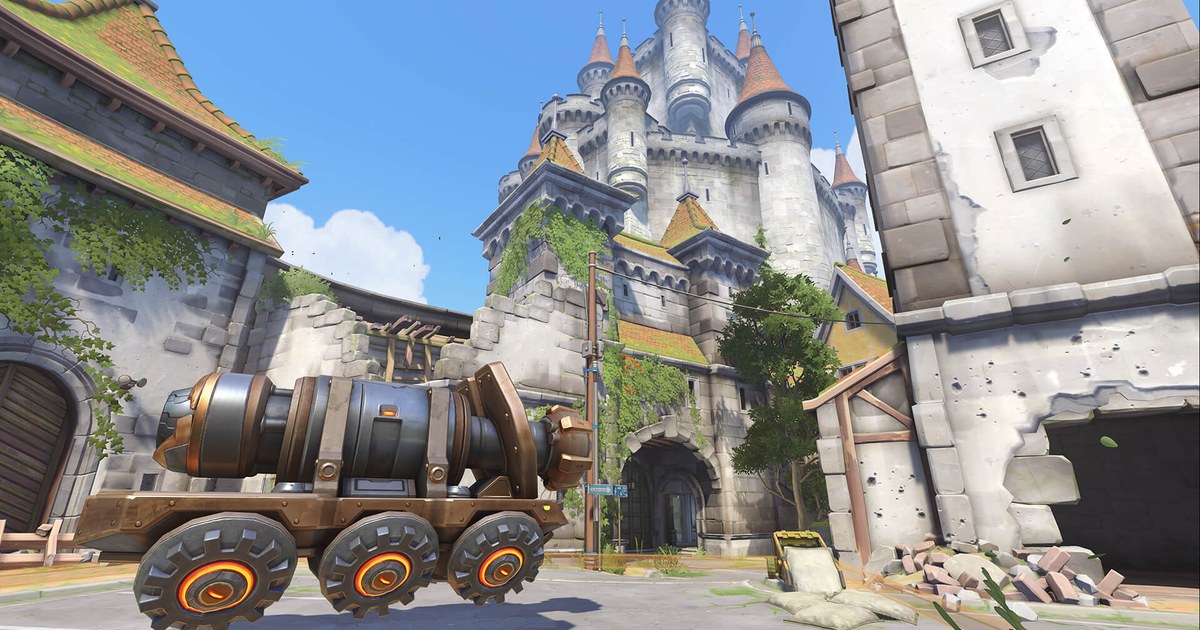
An Overwatch scrim review starts with one question: when the ult combo call or the focus call went out, did the team actually move that way?
Role queue Overwatch is 5v5 with one tank, two damage and two support players, so a single call can swing a whole team fight, which means a scrim review needs two kinds of material, the video and the comms.
DOR, a free Windows app, records the whole match automatically when you launch Overwatch, and with Match Notes on (released November 23, 2026 and shown on the site as AI Voice Notes), your own voice and your Discord team voice are saved as timestamped text.
Reviewing your own ranked games alone is covered in how to VOD review yourself in Overwatch; this article is about the review meeting a team holds together after scrims.
The Bottom Line: Match Each Call to What Happened, One Fight at a Time
A scrim block runs across several maps and rounds, so rewatching it from start to finish turns the review meeting into a viewing session. Instead, pick only the fights that decided a round and line up who called what in the 10 to 20 seconds before the fight with what the video shows.
If an ult combo was called but the ultimates went in one by one, it is a timing problem. If two players called two different focus targets at once, it is a shotcaller problem. If the fight started with no call at all, it is an information problem.
Sorting causes into just these three keeps the meeting short and leaves one clear thing to fix in the next scrim. To check calls without relying on memory, you need a timestamped record and a way to jump from that record to the same moment in the video. That is exactly what DOR Match Notes does.
How to Run the Scrim Review Meeting
- 1Turn on recording and Match Notes before the scrimOnce DOR is installed it detects Overwatch when you launch it and records the whole match, so nobody has to remember a record button. Match Notes is off by default, so turn on Match Notes under Settings > Lab, or switch it on directly from the Notes tab in the match drawer. The first time, you agree once and download the transcription model once (roughly 900MB), and the download pauses while you are in a game and resumes afterward. Your voice, Discord team voice and game audio can each be turned on or off, and Discord and game audio need Windows 10 version 2004 or later.
- 2Check that a note appears after each matchDOR records audio match by match automatically while it is recording the game, and after the match it transcribes on your PC while you are not playing. Nothing is sent to a server during transcription, and if the next match starts it pauses and picks up again later. Matches longer than one minute get a note, and the match card on the home screen shows a badge with the number of note lines, so you can see at a glance which matches had the most comms. If you played scrims back to back, processing continues during breaks between blocks.
- 3Pick the fights that decided each roundBefore the meeting, one person picks two or three fights per round that decided the outcome. In Overwatch, kills and deaths are collected in My Clips as DOR automatic highlight clips, so opening the clip of the first death is a quick way to find where a fight started. Write each pick down by map, round and rough time so it is ready to pull up in the meeting.
- 4Pull ult combo and focus calls with note searchType the call words your team uses, such as "ult", "focus" or an enemy hero's name, into the note text search and only the lines containing that word remain. Filter by speaker, Me, Discord or In game, to see who made the call. Click a line to jump to that moment, in the clip if it is part of one and in the full video otherwise. Put the call next to what happened on screen and write one line on where it broke down: timing, shotcaller or information.
- 5Trim only the moments to fix and share themTrim the moments the team agreed on in the app and keep them at 16:9, then use DOR Studio (dor.gg/studio) to merge several into one video or add text such as "ult combo late". Export an mp4 or share a dor.gg link to paste straight into Discord, with no watermark on the result. The full steps for sending a link are in how to share Overwatch clips with friends.
What to Review in an Overwatch Scrim and How to Find It
| Moment to review | Question to ask | How to find it in notes and video |
|---|---|---|
| Ult combo fight | Did the ultimates land together after the combo call? | Search the notes for "ult" or the ultimate's name and click the line to jump there |
| Focus call | Was one target named, and did both damage players hit the same one? | Search "focus" or the target hero's name and check aim at the same time in the video |
| First death | Was there a warning call right before the death? | Open the DOR automatic death clip and read the note lines around that time |
| Tank engage timing | Did the engage call and the supports following up line up? | Filter by speaker to keep only Discord lines and find the engage call |
| Reset or retreat | Did everyone fall back together after the retreat call? | Search words like "back" or "reset" and check positions in the full video |
| Last attack or defense of a round | Who made the final call when time was running out? | Skim the note lines near the end of the round and trim that part into a clip |
Before the Scrim Review Meeting
- Does everyone on the team have DOR auto recording and Match Notes turned on?
- Have you decided which audio Match Notes captures (your voice, Discord, game audio)?
- Have you narrowed each round down to two or three deciding fights?
- Has the team agreed on one word for ult combo and focus calls?
- Before the meeting ends, have you picked one behavior to fix in the next scrim?
Keep Scrim Footage and Team Comms in One Place With DOR
DOR is a free Windows app that detects Overwatch when you launch it, records the whole match, and collects kills and deaths separately as automatic highlight clips.
The default quality is 1080p at 30fps, and on supported NVIDIA graphics cards such as the RTX series it records with NVENC hardware encoding.
Turn on Match Notes and each match gets a note where every line shows who spoke (Me, Discord or In game) and when, and the recorded audio is deleted once the note is finished so only the text remains.
Transcription runs on your PC using a graphics card that supports Vulkan, and Match Notes is free to use. For other ways to look back at what you said mid-game, see rewatch what you said mid-game.