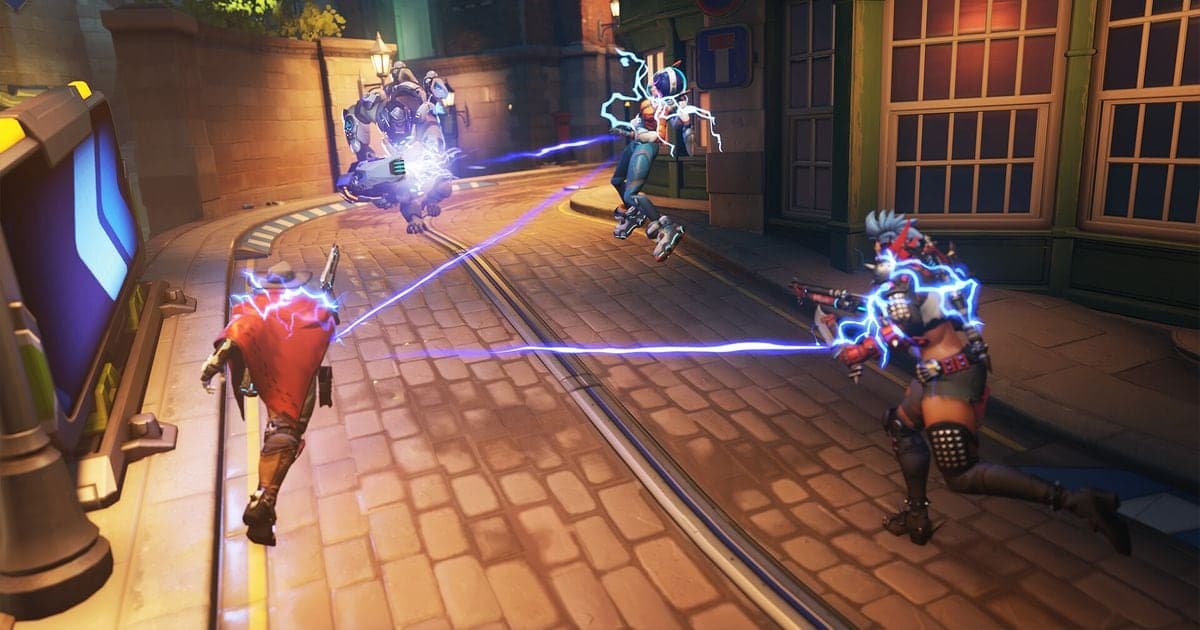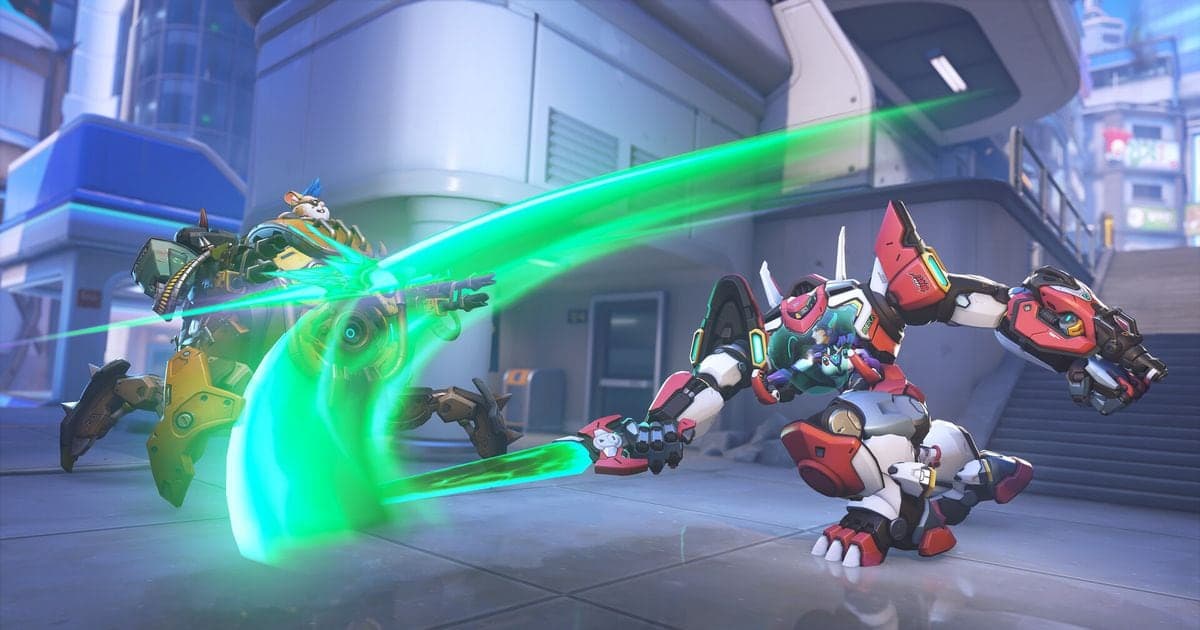
The short answer to how to VOD review yourself in Overwatch is that your match has to still exist as video. According to Blizzard's introduction post, in-game Replays load only your 10 most recent matches and reset when a new patch launches (as checked on October 2, 2026), so any match you want to study for longer should be recorded by you. How to open and control Replays is covered in the Overwatch replay guide; this article focuses on the review workflow itself: choose, watch and keep. Everything here is for PC.
The Bottom Line: Fewer Matches, Same Questions Every Time
If you rely only on what the game stores, the match you wanted to study can disappear with the next patch. Blizzard's announcement says Replays and Highlights are reset when a new patch launches, and the official patch notes for September 22, 2026 state that replay codes were wiped. You can read about saving Play of the Game moments in how to save POTG in Overwatch, but for review it is better to keep the full match as a separate video. Keep each session small: one or two losses, and within them only the fights that decided the round. Asking the same few questions every time is easier to sustain than watching a lot.
Four Steps to Review an Overwatch Match
- 1Set up recording before you queue — In-game Replays are tied to your last 10 matches and the patch cycle, so turn recording on before a match you care about. A review happens after the match is over, and without a recording there is nothing to reopen. If you want to hear callouts again later, check beforehand that game sound and your microphone are both captured, and that the drive you save to has free space.
- 2Choose which match to review — Prefer a loss, especially one where momentum swung to the other team, over a match that went smoothly. Pick one or two instead of binge-watching a whole evening, and make sure you can tell which match each file is by its name or date. If you plan to use in-game Replays, first check that the match is within your latest 10 and that the patch has not changed.
- 3Watch with fixed questions — Do not just let the video play. Split each fight into before, during and after, and ask the same questions every time: why was I standing here, when did I use my ultimate and key abilities, and was there a way out before I died. Slow down the confusing parts and watch them again. In-game Replays offer speed control and viewpoint switching, and with your own video you can loop a section in your player.
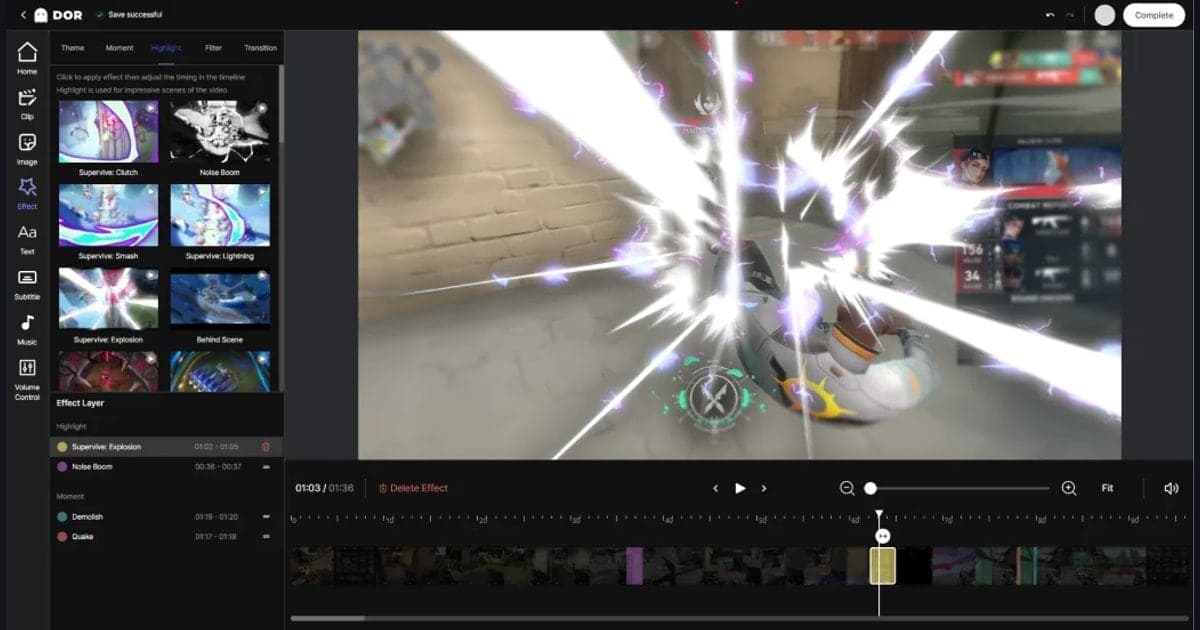
- 4Trim and keep the key moments — When you finish, keep only the few scenes you want to fix. In the DOR app library, Trim lets you set a start and end point and pick 16:9, 9:16 or 1:1 as the output ratio. Use the short clips as a quick refresher before your next queue. The full match can stay in the library until you no longer need it.
Review Methods Compared
| Method | What it gives you | Limits |
|---|---|---|
| In-game Replays | Load your 10 most recent matches from the Replays tab in your Player Profile and watch them from several viewpoints at adjustable speed (per the announcement). | Tutorial and Practice Range are excluded, and everything resets with a new patch. The announcement does not mention exporting a video file. |
| A video you recorded yourself | The match stays as a file you can reopen after any patch to play, pause or share. | Recording has to be on before the match, and settings and storage space are yours to manage. |
| DOR full-match recording | Detects Overwatch, saves the whole match automatically as mp4 and also makes automatic highlight clips for kills. Trim in the app library cuts the part you need. | Windows PC only. Highlight clips focus on standout moments such as kills, so a bad rotation or position has to be found in the full match yourself. |
Review Checklist
- Is this match still within your latest 10 and the current patch, or did you save it as video separately?
- Where was your position and line of sight before the fight started?
- Did the timing of your ultimate and key abilities match your team's situation?
- At the moment you died, was there an option to pull back one step earlier?
- If you heard a callout, how did you react, and if you did not react, why?
- Have you written down one behavior to change next match, in a single sentence?
Keeping Full Overwatch Matches with DOR
Overwatch is one of the games where DOR records the whole match automatically as an mp4 and also creates automatic clips for highlights such as kills. For review, though, what matters is your position and decisions around a kill rather than the kill itself, so the full-match video is the main material, not the highlight clip. On an NVIDIA graphics card, NVENC hardware encoding is the default. Game sound and your microphone are recorded together, which lets you hear again which callouts came in and what you said yourself. After the match, open the video in the app library, trim only the scenes you want to fix, and share a dor.gg link if you need to, which also plays in a mobile browser. The cutting steps are written up in how to trim game clips. The review itself is still your own work; DOR's part is keeping the match as video and trimming the sections you need.
Official Sources Checked (as of October 2, 2026)
Everything below reflects what was checked on October 2, 2026. The Replays tab, the 10 most recent matches and the reset on a new patch come from Blizzard's Overwatch Replays announcement. That page shows no publication date and still contains a sentence about PC-only availability, so check the Replays tab in your Player Profile for the current platforms and the number of stored matches. The wiped replay codes on September 22 are from the September 2026 patch notes, and pinned replays and the per-replay note field are from the March 2020 patch notes. The documents checked say nothing about exporting replays as video files and give no conversion of the patch cycle into days or weeks, so this article states neither.