Short answer: fix the order of your settings before you buy anything
If you keep misjudging where footsteps are coming from in PUBG, run through the five steps below before you spend money on a new headset or a sound card. The core idea is a clean stereo baseline.
According to its 2018 developer note, PUBG does its own headphone 3D processing inside the game, so you start with Windows spatial sound and headset virtual 7.1 switched off, and only turn one of them on later to compare.
After that you set a volume ceiling, and you leave Loudness Equalization and EQ for last, changing them in small steps.
- Connection and fit: use a wired or 2.4GHz wireless connection rather than Bluetooth, and make sure the ear pads seal properly before anything else.
- One output path: switch off Windows spatial sound and any headset virtual 7.1, THX or DTS processing so you are listening in plain stereo.
- Game volume: set the master volume ceiling against the loudest sound in the game, then keep music, UI and emote volume low.
- Loudness Equalization: it lifts distant footsteps but flattens the gap to gunfire, so A/B it on the same fight.
- EQ: start from the FPS or Game preset in your headset app and make one small bass cut at a time.
Why stereo first: PUBG already handles 3D audio for headphones
In a 2018 developer note, the PUBG team explained that movement, explosions and shell casings already ran through HRTF (head related transfer function) processing, and that it was being extended to enemy gunfire.
The developer described it as a way to mimic full 3D sound on ordinary two channel stereo headphones.
Microsoft documentation makes a related point about spatial sound in Windows: Windows Sonic and similar options virtualize a speaker layout for headphones, while spatial cues such as distance attenuation, occlusion and reverb come from the game engine.
Stack a second layer of virtual surround on top of audio the game has already spatialized and it becomes very hard to tell what improved, what got worse, and why. So you listen in stereo first and change only one thing at a time.
Footsteps themselves have been reworked several times. According to the developer note for Update 8.1 in July 2020, the old system turned down both volume and the high frequency band with distance, which made mid and long range footsteps sound muffled.
The team then rebuilt them in two or three distance tiers per surface and movement type. In other words, the high end carried distance information, which is why the sensible EQ starting point is trimming a little bass so the mids and highs are not buried, rather than boosting the low end.
Telling up from down on stairs and in multi floor buildings is something the developer itself has treated as hard.
In 2020, telling ground level from underground near Karakin bunkers was listed as a known issue, and Update 22.1 in 2023 adjusted it so surface and underground sounds separate more clearly.
No headset or setting fully solves vertical audio, so combine what you hear with positional clues like where footsteps stop or a door opening.
Step by step setup
- 1Get the connection and fit rightConnect over a cable (3.5mm or USB) or a 2.4GHz wireless dongle. Players commonly recommend these over Bluetooth for gaming. Measurement reviews show bass on the same headset can vary a lot depending on glasses or head shape, so check that the ear pads seal fully before you touch any EQ.
- 2Turn off Windows spatial soundIn Windows 11, go to Start > Settings > System > Sound, pick your headset as the output device and set Spatial sound to Off. If Windows Sonic for Headphones, Dolby Atmos for Headphones or DTS Headphone:X is active, this is where you switch it off. While you are there, confirm the output device is your headset and not your monitor speakers.
- 3Turn off headset virtual 7.1, THX and DTSTurn off the 7.1 button on a USB control box, or the THX Spatial Audio or DTS option in apps such as Synapse or G HUB. Once you have a stereo baseline, pick only one of the Windows or headset options to try.
- 4Set the volume ceiling firstNext to master volume in the PUBG audio settings there is a play button that previews the loudest sounds in the game, such as a close explosion (per the Update 4.2 patch notes from 2019). Set the ceiling where that sound is comfortable, keep gameplay volume high and keep music, UI and emote volume low. The settings screen was redesigned in Update 42.3 in August 2026, so items may sit in different places than older guides show.
- 5A/B Loudness EqualizationOpen the playback device properties from the Sound control panel and check the Enhancements tab. Some PCs show a Loudness Equalization option there. Listen to the same fight with it on and off, then choose based on whether distant footsteps or gunfire contrast matters more to you.
- 6Leave EQ for last, one notch at a timeChoose an FPS, Game or Esports preset in your headset app and start with a small bass cut. Change one band at a time and check against the same scene. EQ curves shared by other players were made for different ears and headsets, so use them only as a starting point.
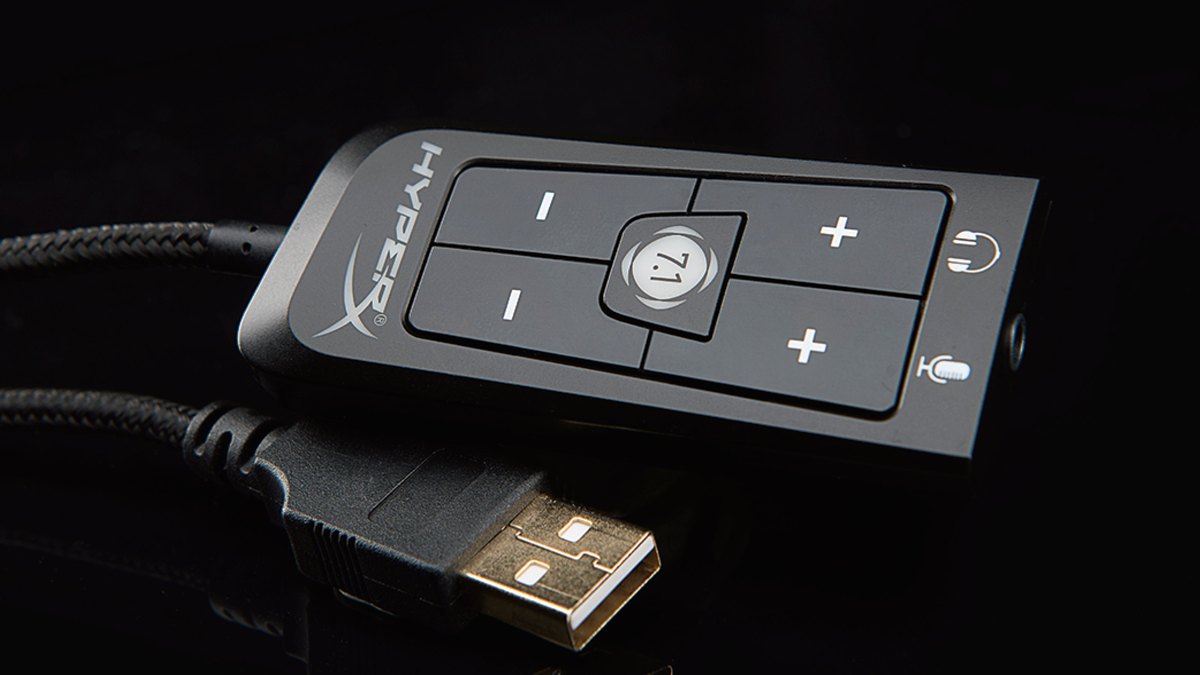
On the HyperX Cloud II, virtual 7.1 is switched on with the 7.1 button in the middle of this USB control box. A footnote on the product page says the virtual 7.1 surround effect is output as a two channel stereo signal for stereo headphones.
What reaches your ears is still two channels, and virtual 7.1 is processing that adds a sense of space to them. Turn the 7.1 button off while you build your baseline, and when you try it, leave Windows spatial sound off so only one layer is active.
Loudness Equalization in PUBG: on or off
Microsoft driver documentation describes the loudness equalizer as an effect that pulls loud and quiet sounds toward an average level to reduce perceived volume differences.
Applied to PUBG, quiet sounds such as distant footsteps come up, and loud sounds such as nearby gunshots and explosions get pushed down. You gain easier access to quiet sounds but lose some of the cue that loud means close.
The same documentation says the PC or audio device maker decides which effects are available, so your PC may not have this option at all. USB headsets and external DACs may also show different tabs depending on the device.
EQ: start from your headset app preset and move in small steps
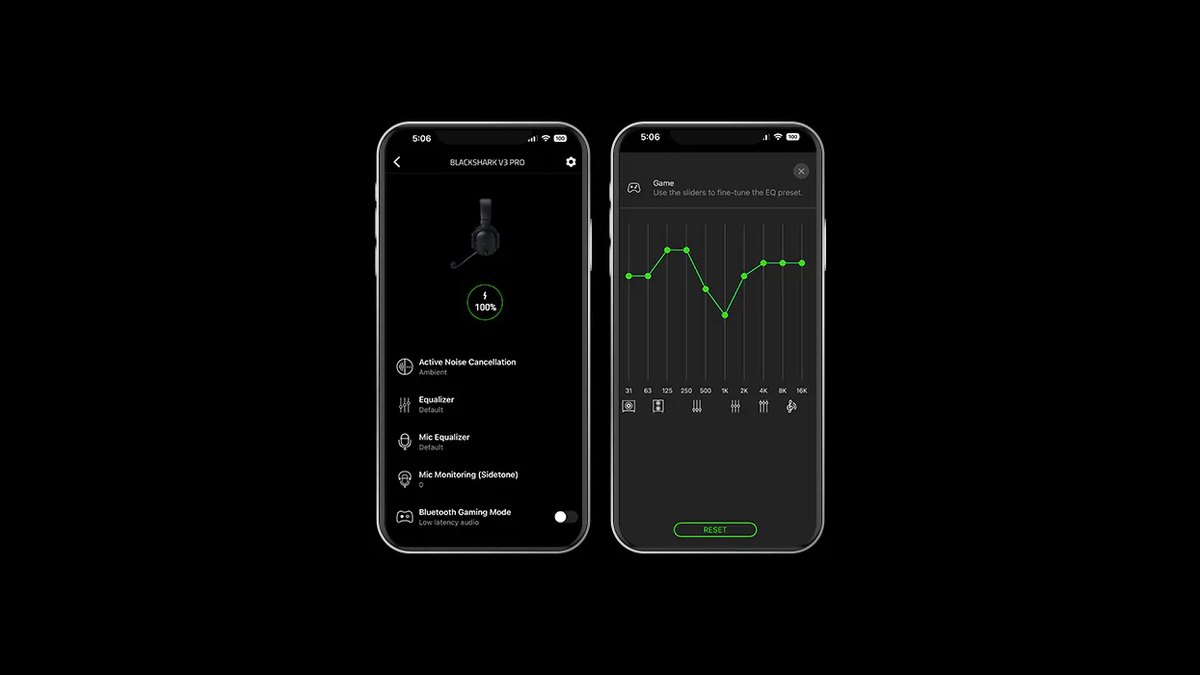
The Razer BlackShark V3 Pro offers Game, Movie, Music and Esports presets plus an FPS profile Razer says was tuned with pro players, and can store up to nine custom EQ profiles on the headset.
Razer also says the Footsteps Booster roller on the ear cup adjusts footstep levels on the fly whatever EQ profile you are using.
THX Spatial Audio 7.1 needs Windows 11 23H2 or later plus Synapse, so if you turned spatial sound off in the earlier step, keep THX off as well while you set your baseline.
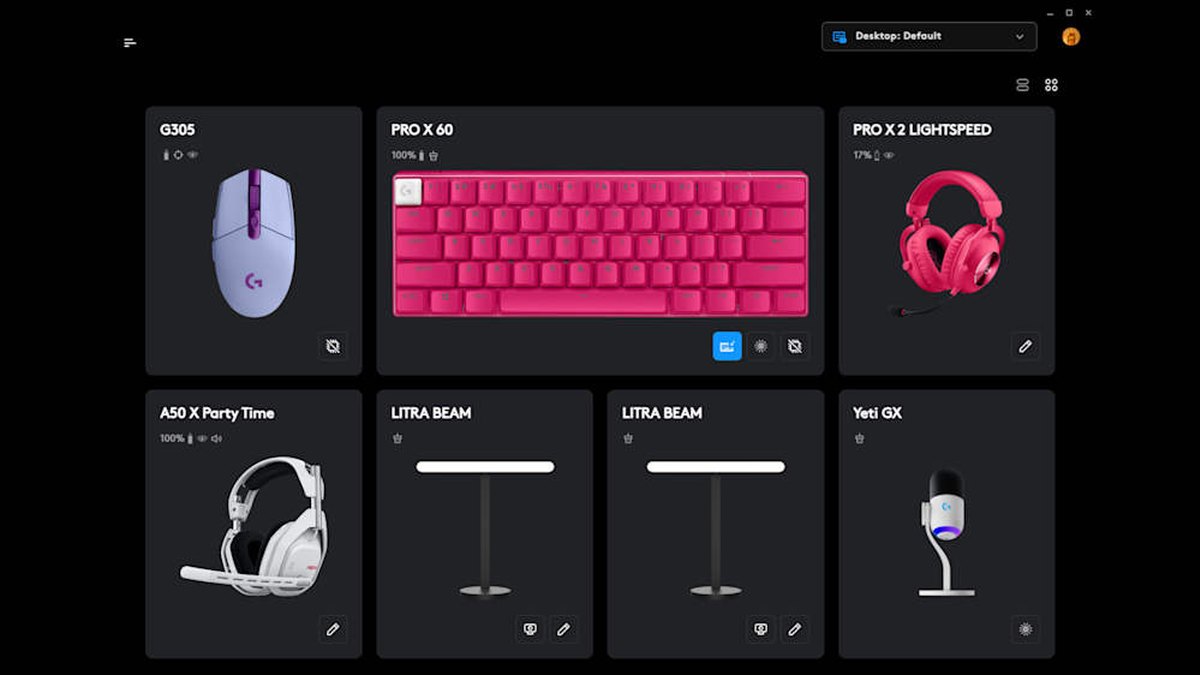
The Logitech G PRO X3 LIGHTSPEED uses a 10 band parametric EQ in G HUB, ships with tournament tuned EQ presets and can import pro player profiles. DTS Headphone:X is an extra feature that needs an internet connection on compatible platforms.
Neither headset is PUBG specific gear; they are simply good examples of well equipped EQ apps, and we compare them in BlackShark V3 Pro vs PRO X3 LIGHTSPEED. No official source tells you to set a specific frequency to a specific dB value, so move a preset one notch at a time and check with the same scene.
Recommended settings by situation
| Situation | Windows spatial sound | Headset virtual 7.1, THX, DTS | Loudness Equalization | EQ |
|---|---|---|---|---|
| First setup (baseline) | Off | Off | Off | Flat or the maker FPS preset |
| Distant footsteps are hard to hear | Off | Off | Try it on and compare | Small bass cut |
| Gunfire hurts your ears | Off | Off | Try it on, and reset the master volume ceiling | Undo any treble boost |
| Front and back get confused | Try one of the two only | Try one of the two only | Off | Leave as is |
| Stairs and floors are confusing | Start from off | Try one only | Off | Leave as is, use positional clues |
| Using earbuds | Start from off | Not applicable | Start from off | Small tweak if the earbuds have an app |
| Game audio drops during voice chat | Check the Communications tab in Sound | Leave as is | Leave as is | Leave as is |
What headset do you actually need
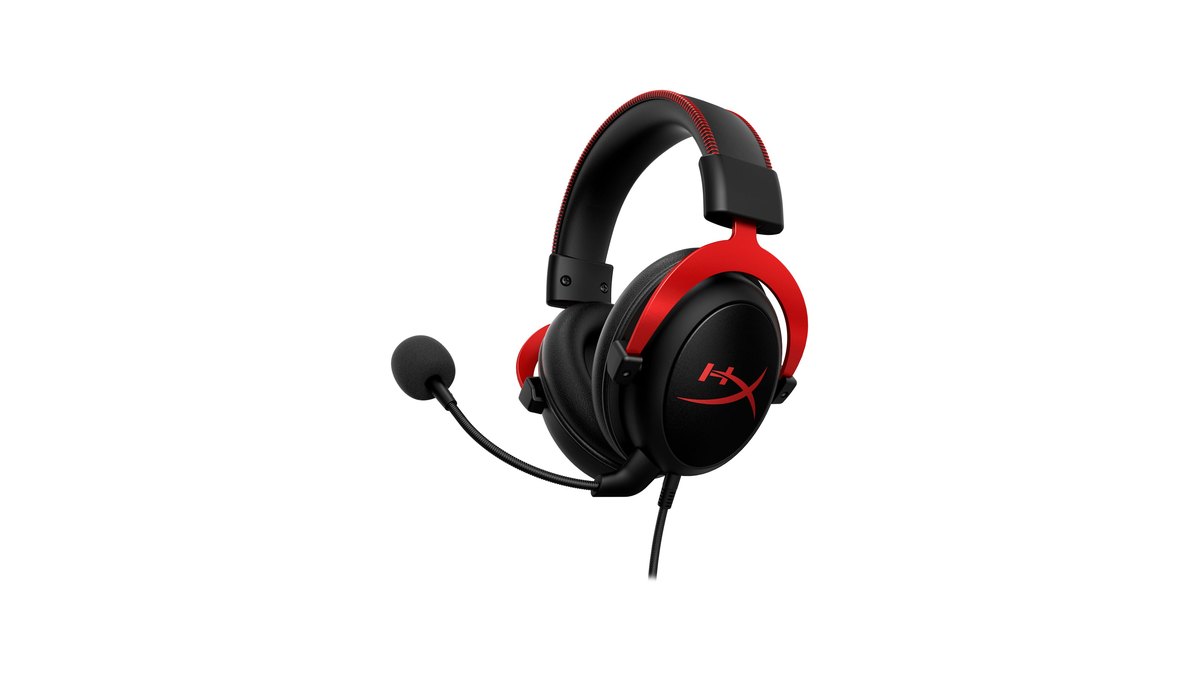
In a public tally of PUBG pro player gear (as of November 10, 2026), 32 of 64 players list a headset, and the most common model among them is the HyperX Cloud II, used by 9.
It is a closed back wired headset with 53mm drivers that you can plug in over 3.5mm or run through its USB control box, which makes the steps above easy to follow. A few players list earbuds instead.
For the full pro gear picture including mice and sensitivity, see PUBG pro gear and mouse settings, and for how the Cloud II compares with its successor, see HyperX Cloud II vs Cloud III.
If you are buying new, keep the bar simple. For gaming, start from the assumption that a wired or 2.4GHz wireless stereo headset is enough. Comfort, isolation and a decent EQ app will help you follow this setup order more than pricey virtual surround.
In the Korean PUBG community, opinion splits between players who say earbuds make footsteps easier to place and those who prefer headsets for distance cues and comfort. Earbuds follow the same order. For how to choose, read the gaming headset buying guide, and for specific picks, see best gaming headsets.
Prices as of November 10, 2026
| Product | List price | Street price range |
|---|---|---|
| HyperX Cloud II | US$99.99 | About US$50 to US$80 |
| Razer BlackShark V3 Pro | US$259.99 | About US$210 to US$260 |
| Logitech G PRO X3 LIGHTSPEED | US$249.99 | About US$249.99 |
These are US prices for the three headsets used as examples above. Every step in the setup order is free, so look at new gear only if the free steps still leave you short. Prices move with retailer sales and stock, so check the seller before you buy.
Common mistakes
- Cranking the overall volume to hear footsteps. The PUBG sound team itself noted that this makes loud sounds like gunfire painful. Set the ceiling against the loudest sound, and treat the WHO guidance of staying at or below 60% of a device maximum volume as one baseline.
- Running Windows spatial sound and headset virtual 7.1 at the same time. You cannot tell which one is doing what, so use one at most.
- Boosting bass hard. The developer explained that its old system turned down highs with distance and made far footsteps sound muffled, so keep the mids and highs clear by cutting bass, not adding it.
- Ignoring a big drop in game audio when voice chat starts. In the Communications tab of the Sound control panel you can set Windows to do nothing when it detects communications activity.
- Thinking your gun got quieter because something broke. Since Update 35.1 in April 2025, your own gunfire and the vehicle you are in sound slightly quieter to you only, while other players still hear them at full volume.
How to check that a change worked
The most reliable test is hearing the same sound twice. In PUBG training mode, ask a friend to walk upstairs, downstairs, in front of you and behind you, and repeat the same route every time you change a setting. Also confirm in Windows sound settings that the output device is your headset and spatial sound is off.
If the game suddenly gets too loud, the Instant Volume Reducer in PUBG lowers game volume by a set ratio while leaving voice chat untouched. Look up its key in the Audio tab under Key Bindings, and adjust how much it lowers volume in the gameplay settings.
Compare before and after with DOR
DOR records your whole PUBG match automatically as soon as you launch the game, and saves kills, knocks and deaths as automatic clips in My Clips.
Keep one match with a firefight in it before you change anything, then play that scene back while you switch spatial sound, Loudness Equalization or EQ one at a time to compare the same sounds.
Recordings capture game audio and your mic on a single track, so talking less during your comparison match makes footsteps easier to hear on playback. See how to record PUBG gameplay for the setup.