
The short answer: Stereo with HRTF on, and every other surround effect off
Before you touch volume sliders, check how many 3D audio effects are stacked on top of each other. If you play on headphones or a headset, leave Valorant's Speaker Configuration on Stereo and turn on Enable HRTF.
Then turn off Windows spatial sound (Windows Sonic for Headphones, Dolby Atmos for Headphones, DTS Sound Unbound) and any surround mode in your headset software, whether that is virtual 7.1, THX Spatial Audio or DTS Headphone:X.
When Riot introduced HRTF it told players to disable other 3D audio processing, and it later explained that running HRTF together with another virtualizer means the sound gets processed twice.
If you are already used to a vendor's spatial audio, the alternative is to set Speaker Configuration to Auto Detect and run only that effect; Valorant switches HRTF off automatically in that mode.
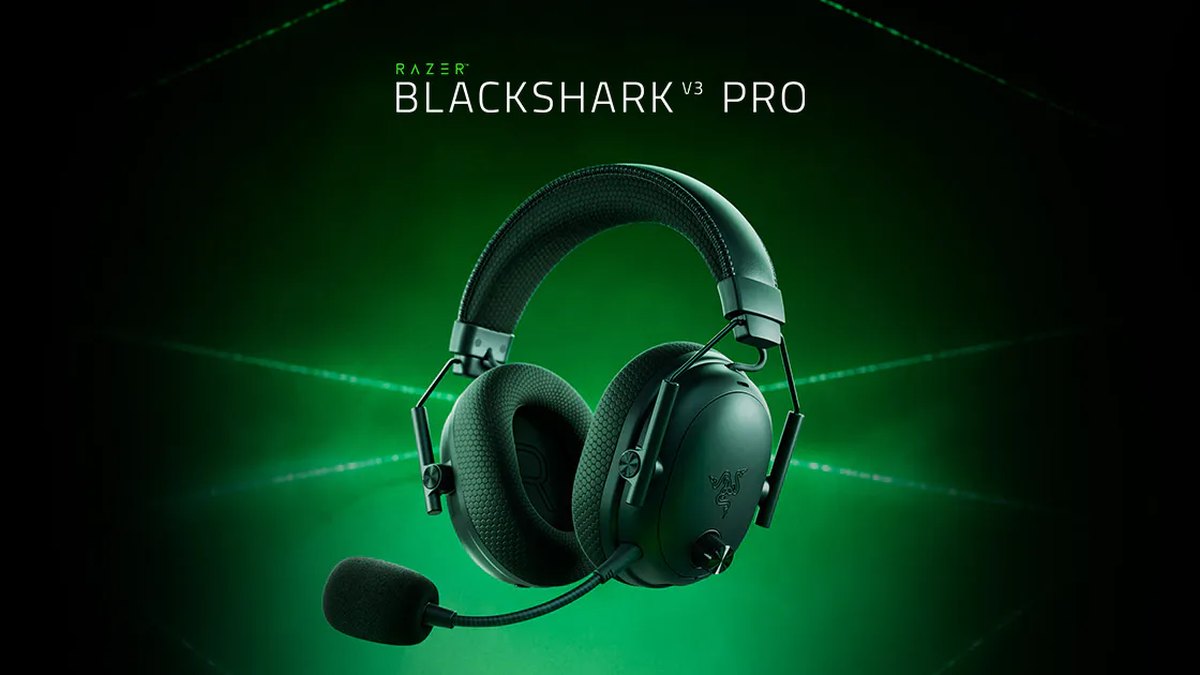
And if you are shopping, the Razer BlackShark V3 Pro is the headset we would point most Valorant players to first.
- Headphones or headset: Speaker Configuration Stereo plus HRTF on
- Windows spatial sound (Windows Sonic, Dolby Atmos for Headphones, DTS): off
- Headset software surround (THX, DTS Headphone:X, a 7.1 button on the dongle): off
- If you insist on external spatial audio: Auto Detect plus one spatial mode only
- Speakers: HRTF and spatial sound both off
Why this works: stacked HRTF and surround blur direction
HRTF stands for head related transfer function. It models how the shape of your head and ears changes the sound reaching each ear, so a plain stereo headset can convey front, back, above and below.
Valorant added it as an on and off toggle in patch 2.06 in March 2021, and Riot described it as a feature for headphone users. According to the notes at launch, the sounds getting 3D treatment were footsteps, reloads and Deathmatch respawns.
Because the profile is built from a single set of head and ear measurements, Riot warned it can feel odd at first and suggested getting used to it in custom games or the Range.
The trouble starts when another virtualizer sits on top. In patch 7.07 in October 2023, Riot stated that Valorant only supports stereo and mono output, fixed a bug that let surround output slip through, and recommended HRTF for anyone who wants a surround feel on headphones.
The same notes say that combining game HRTF with surround virtualization software causes double processing and is not recommended. Patch 8.0 in January 2024 added support for external spatial audio software on headphones, but the default Stereo speaker configuration is not compatible with it.
To use external spatial audio you switch to Auto Detect, and the game then turns HRTF off and lets spatial audio take over. So there are really two paths: game HRTF, or one external spatial mode. Never both.
How to set up your headset for Valorant footsteps
- 1Turn off surround in your headset softwareDisable THX Spatial Audio in Razer Synapse or the Razer Audio app, DTS Headphone:X in Logitech G HUB, DTS in HyperX NGENUITY, and any 7.1 button on a USB dongle. Some vendor software enables spatial audio without it showing in the Windows sound control panel, so check inside the app itself.
- 2Turn off Windows spatial soundGo to Settings > System > Sound, pick your headset as the output device, open its properties and set Spatial sound to Off. The Spatial sound tab under the classic Sound control panel playback properties does the same thing.
- 3Confirm Speaker Configuration is StereoIn Valorant's Audio settings, check that Speaker Configuration reads Stereo. It is the default, so if you never changed it you are already there.
- 4Turn on Enable HRTFFlip the HRTF toggle on in the same tab. It is a headphone only feature, so switch it back off on days you play through speakers.
- 5Train your ears in a custom gameAsk a friend to walk a fixed route and listen to footsteps in front, behind, left, right and on different heights for several rounds. Do not judge it after a single match.
- 6If it still feels wrong, change one thing at a timeTry HRTF off on plain Stereo, or try Auto Detect with one external spatial mode. Never change both at once, or you will not know which one helped.
In game volume sliders (overall, sound effects, voice over, music) and voice chat settings are covered in our Valorant audio settings guide. This article sticks to cleaning up overlapping processing on the headset and Windows side.
A common starting point is sound effects high with music and agent voice lines low, but exact numbers depend on your ears and your headset, so adjust in small steps.
Recommended settings by headset type
| What you listen on | Valorant Speaker Configuration | HRTF | Windows and headset surround |
|---|---|---|---|
| Regular headset (3.5mm or 2.4GHz wireless) | Stereo | On | Off |
| You want external spatial audio | Auto Detect | Turned off by the game | One mode only |
| USB virtual 7.1 headset | Stereo or Auto Detect | On if Stereo | Windows spatial sound on with Auto Detect, off with Stereo |
| Bluetooth headset | Stereo | On | Off |
| Speakers | Stereo | Off | Off |
| Listening with one ear | Mono (accessibility) | Not applicable | Not applicable |
USB virtual 7.1 headsets have been supported since patch 8.0. Install the manufacturer's audio software and drivers, then pick one route: stay on Stereo, or combine Auto Detect with Windows spatial sound.
Riot notes that if you only switch to Auto Detect on a USB headset without enabling Windows spatial sound, some sounds such as your own agent's voice lines may go missing.
If a Bluetooth headset crackles, disable the Hands Free Telephony service in the device properties; that also disables the headset's built in mic. Mono is an accessibility option that bypasses both HRTF and spatial audio, and you may need to restart the game after changing it.
Six common mistakes when footsteps sound wrong
- Running HRTF together with Windows Sonic, THX or DTS: Riot calls this double processing.
- Leaving Speaker Configuration on Stereo while Windows spatial sound is on: the 8.0 notes list this as incompatible.
- Choosing Auto Detect on a USB headset but leaving Windows spatial sound off: some sounds may drop out.
- Keeping HRTF on while playing through speakers: HRTF is designed for headphones.
- Judging HRTF after one match: Riot says it takes time to adapt.
- Boosting bass to hear footsteps: heavier bass can mask the mids and make direction harder to read.
Best headset for Valorant: what actually matters
Valorant outputs stereo and leaves positioning to its own HRTF, so built in surround is not a buying criterion.
Four things matter: left and right drivers that match well so stereo imaging is accurate, bass that is not overwhelming or that you can pull down with EQ, low latency through a cable or a 2.4GHz dongle, and a weight you can wear for a long session. By those rules, start with the BlackShark V3 Pro.
In the November 2026 public count it is used by 170 of 705 tracked Valorant pros, the most of any headset, and it connects over 2.4GHz, Bluetooth, USB cable and 3.5mm. If you do not need wireless, the wired HyperX Cloud II is third among pros. For a wider shortlist see our best gaming headset picks, and for how the V3 Pro stacks up against the new PRO X3 read BlackShark V3 Pro vs PRO X3.
| Headset | Valorant pro usage (Nov 2026 public count) | Connection | Weight (official) | Sound software |
|---|---|---|---|---|
| Razer BlackShark V3 Pro | 170 pros, #1 | 2.4GHz, Bluetooth, USB cable, 3.5mm | 367g | THX Spatial Audio, Synapse and Razer Audio app EQ, Esports preset |
| Razer BlackShark V2 Pro (2023) | 126 pros, #2 | 2.4GHz and Bluetooth 5.2, wireless only | 320g | THX Spatial Audio, Synapse EQ |
| HyperX Cloud II | 77 pros, #3 | Wired | Check the maker's page | No dedicated software support per measurement review |
| HyperX Cloud III | 28 pros, #5 | Wired (USB dongle, 3.5mm) | Check the maker's page | NGENUITY EQ and DTS:X Spatial Sound over USB |
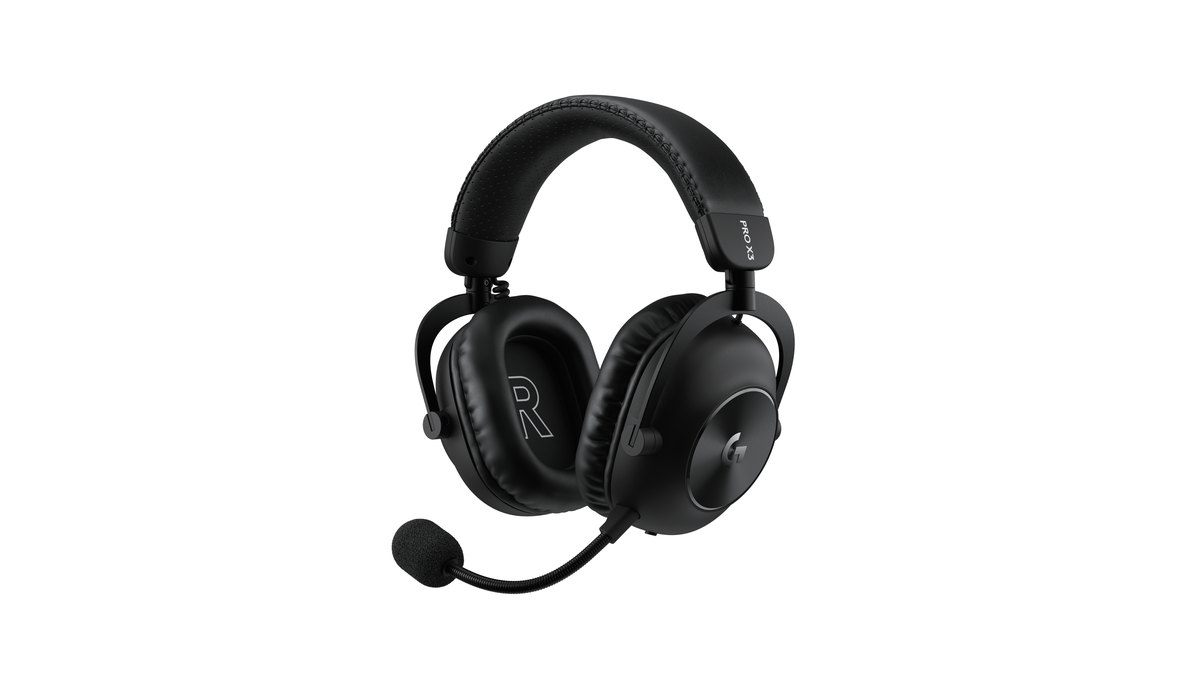
| Logitech G PRO X3 LIGHTSPEED | Too new to be counted | LIGHTSPEED 2.4GHz, Bluetooth 5.3, 3.5mm | 356g | G HUB 10 band EQ, DTS Headphone:X |
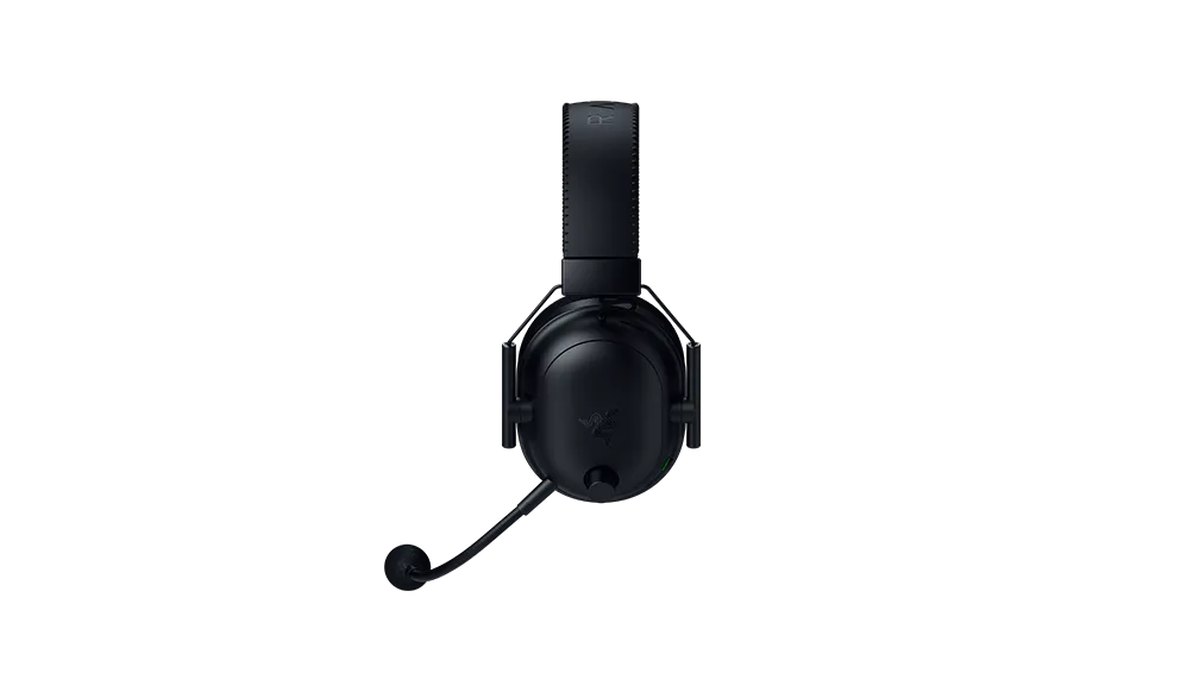
Model by model: measurement reviews rate the V3 Pro's 2.4GHz latency as low and its wired latency as very low, and they found the left and right drivers well matched in phase and level, which means accurate stereo placement.
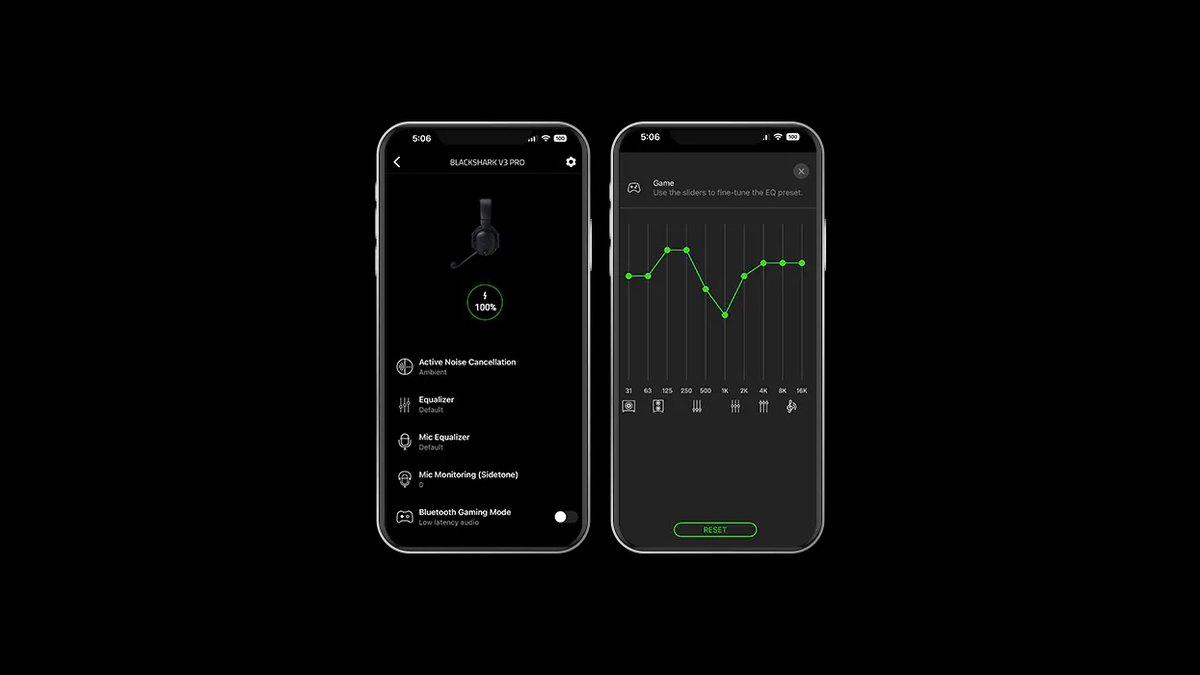
The stock tuning is V shaped, so bass can cloud the mids, but the app EQ can adjust it and you can assign a footstep boost to the configurable roller on the headset. At 367g it is not light. The V2 Pro (2023) is lighter at 320g, but it is wireless only and has now been succeeded by the V3 Pro.
The Cloud II is a wired model that measurement reviews credit with fairly balanced sound and low latency. The PRO X3 LIGHTSPEED launched in Japan on October 15, 2026 with a 10 band G HUB EQ and tournament tuned EQ presets, but it has not yet built up pro usage or measurement data.
Prices (as of November 10, 2026)
| Headset | Launch price (MSRP) | Typical street price |
|---|---|---|
| Razer BlackShark V3 Pro | $249.99 | About $210 to $270 (by edition and sale) |
| Razer BlackShark V2 Pro (2023) | $199.99 | About $130 to $200 |
| HyperX Cloud II | Check the store | Check the store |
| HyperX Cloud III | $99.99 | About $58 to $70 |
| Logitech G PRO X3 LIGHTSPEED | $249.99 | About $250 |
These are US prices. The V3 Pro and the PRO X3 list at the same price, so the V3 Pro's extra features (ANC, simultaneous Bluetooth) come at no premium, while the older V2 Pro (2023) is often on sale well under its list price. The wired Cloud III costs a fraction of either wireless pick. Sales come and go often, so check the current price and warranty at the store before you buy.
Headset EQ for footsteps: start by lowering the bass
Measurement reviews describe the V3 Pro's default sound as V shaped and note that the bass can muddy the mids. So the safer starting move is to trim the bass slightly.
Advice to add a specific number of decibels at a specific frequency varies from source to source, so treat any preset as a starting point: use your headset app's Esports or FPS preset, change one band at a time, and replay the same practice scenario.
Headset EQ and surround are processed inside the headset app or dongle, so compare changes there. For a full breakdown of what to look for, see our gaming headset buying guide, and for two popular wired options compare HyperX Cloud II vs Cloud III.
In player feedback, whether to run virtual surround is a debate that keeps coming up, with people on both sides. Riot's position is simply to use one or the other, so give each path a few days and keep the one that sounds natural to you.
There are also individual players who say bass heavy headsets make footstep direction harder to read, which lines up with what measurement reviews report.
How to check the change actually helped: record and compare
After changing settings, a fair comparison beats a gut feeling. Start with a Valorant custom game practice routine: same map, same spot, same walking route, alternating rounds with HRTF on and off.
For real matches, DOR is a free Windows app that detects Valorant when you launch it and records the whole match automatically, collecting the recordings in My Clips. Kills are also cut into automatic highlights with Ace and Clutch tags.
Because DOR captures game audio and your mic on one track, you can replay similar fights from before and after the change and compare when enemy footsteps became audible with when you turned to face them. For a step by step comparison routine read recording before and after a gear upgrade, and for capture setup see how to record Valorant gameplay.