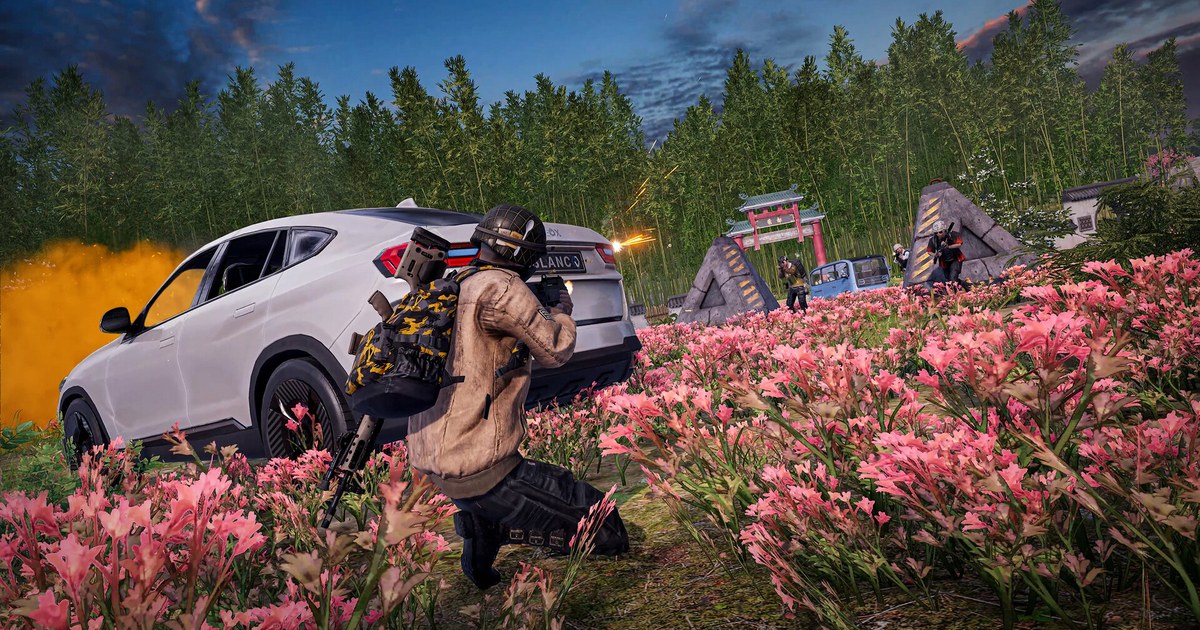
You peek a compound, fire first, and still end up on the knock screen. Enemies skip across the field, your car snaps back a few meters, and the kill feed shows something your screen never did. That is what players mean by PUBG lag or rubber banding, and it rarely has a single cause.
It can be your Wi-Fi, a download running in the background, a match on a region far from you, or not the network at all but your frame rate. This guide sorts PUBG lag by symptom, tells you where to look for each one, and walks through the order to lower your ping on PC.
The matchmaking rules, region list and checks below were confirmed against PUBG's own support guidance and the Update 44.1 notices on November 10, 2026. Menu names and region lists can change with updates, so double check them in your client.
We do not cover paid ping reducers; PUBG's own connection guidance actually asks you to switch off VPNs and other third party networking tools while you test.
PUBG lag by symptom: where to look and what to do first (as of November 10, 2026)
| Symptom | Likely cause | What to do first |
|---|---|---|
| Ping stays high the whole match | A long route to the server, often through a VPN or other network tool | Close VPNs and network tools, relaunch, and compare your ping |
| Fine solo, high when you party with friends abroad | The party is matched to the region that suits the whole group | Check where your squadmates connect from and group up with people in your region |
| Spikes mid fight, but only on Wi-Fi | Wireless interference and packet loss | Plug in an Ethernet cable and restart your PC and router |
| Lag only when someone else is streaming or downloading | Apps or devices eating your bandwidth | Pause Steam and Windows updates, cloud sync and streams on other devices |
| Lag at the same time every evening | ISP congestion or an outage | Check your ISP's outage page and compare with a phone hotspot at the same hour |
| The whole screen hitches and FPS drops | PC load: graphics settings, heat or drivers | Lower graphics settings, clean out dust, update your GPU driver |
| Everyone lags at once or you cannot connect | Server status, maintenance or an update | Check the PUBG_Support account on X for server notices and wait it out |
High ping, ping spikes and FPS drops are three different problems
Before you fix anything, work out which of these you have. If your ping is high from the first second to the last, distance to the server is the usual reason, so check who is in your party and whether a VPN or network tool is rerouting you.
If ping is fine most of the time but jumps during fights, something on your side is unstable: Wi-Fi interference, another device streaming or downloading, or evening congestion on your ISP's network.
Spikes usually come with packet loss, which is why enemies stutter across the screen and your shots seem to land late. If the whole screen hitches and your FPS number falls with it, the network is not the problem.
Your PC is struggling, and the fixes are graphics settings, heat and drivers; a new router will not help. The easiest way to tell them apart is to play one match with an FPS counter on screen. Our guide on how to show FPS in games covers Steam's built in counter and the GPU apps.
If ping and FPS both look normal but your aim still feels sluggish, that is input latency rather than network latency, and the NVIDIA Low Latency Mode guide is a better place to start.
How to lower your PUBG ping, step by step (PC)
- 1Check your FPS at the moment of lagTurn on an FPS counter and play a normal match. If your FPS dropped hard when the lag hit, look at your PC. If FPS held steady but enemies jumped around or your shots registered late, look at your network. Write down roughly when and where it happened so you can compare after each change you make.
- 2Check your region and your partyPUBG sets your server region from your location and network environment and matches players with similar ping. You can still party with friends who live in other regions, but the party is then matched on the region server that suits the whole group, so your ping can differ from what you get solo. The Update 44.1 map service notice of November 3, 2026 lists the PC regions as AS, SEA, KAKAO, NA, SA, EU and RU, with KAKAO being the Kakao platform's own pool. Because the region is picked for you, a ping that stays high even when you play solo is worth retesting with VPNs and other network tools closed.
- 3Go wired and restart everythingWireless connections pick up interference more easily, which raises ping and causes packet loss, and they are harder to troubleshoot. Plug your PC straight into the router with an Ethernet cable if you can, then power cycle both the PC and the router. To see whether the problem is inside your home, open Command Prompt, run ipconfig to find your Default Gateway, then run ping -t followed by that address. If the replies from your own router jump around or include timeouts, the issue is your Wi-Fi or router, not the wider internet. Press Ctrl+C to stop.
- 4Close bandwidth hogs and turn off your VPNWhen other programs use a lot of bandwidth, the game connection suffers. In Task Manager, click the Network column on the Processes tab to sort by usage, then pause anything you do not need during a match: Steam updates, Windows Update, cloud sync, torrents. Someone else on the same router streaming in 4K or downloading a large game counts too. Test again with your VPN and any network tools switched off. If you suspect your firewall or antivirus, disable it briefly to check, then turn it back on and add PUBG as an exception rather than playing unprotected.
- 5Flush DNS and update drivers and firmwareOpen Command Prompt as administrator and run ipconfig /release, ipconfig /renew and ipconfig /flushdns in that order, then relaunch the game and test. Update your network adapter driver and your router firmware, and try switching UPnP on or off in the router to see if anything changes. If lag shows up at the same time every evening, check your ISP for outages and compare with a phone hotspot at that hour. Our guide on telling whether your ISP is causing game lag walks through that check.
- 6Collect the details and contact PUBG supportIf nothing changes, open a ticket with PUBG support. They ask for the date the problem started, a full description, the exact text of any error message, the country you play from, the region you normally connect to, the Server ID or Match ID of the affected match, and your ISP. For lag or FPS problems they also ask for the Match ID and the replay of that match, and their connection page also asks for a video or screenshot with the ticket.
Still lagging? Run through this list
- Did your FPS drop at the same moment the lag hit?
- Did you compare your ping solo and in a party, and is anyone in your party connecting from another region?
- Are you on a wired connection, and did you restart both your PC and router?
- Did you retest with Steam and Windows updates, cloud sync, other devices' streams and your VPN all paused?
- If lag only happens in the evening, did you compare with a different connection at the same hour?
- Before contacting support, do you have the date, country, region, Match ID, ISP and a clip of the laggy match?
Rewatch the laggy fight instead of guessing
Lag is hard to describe once it is over, and much easier to diagnose when the match is on video. DOR is a free Windows game recorder. Leave it running, start PUBG, and it detects the game and records the whole match automatically.
When the match ends, its automatic highlight analysis picks out your kills, knocks and deaths and saves them as separate clips, so the fight you lost to lag is right there in your death clips.
Watch it back: if the whole picture froze, it was a frame problem; if your view stayed smooth while the enemy skipped, it was the network. You also get the exact timestamp. Trim the part you need in the app and send it to your squad as a dor.gg link, or attach it to a support ticket as video.
Recordings and clips all land in My Clips. The free plan records at 720p or 1080p and 30 or 60fps, so you can match quality to your PC, and on supported NVIDIA cards such as the RTX series it records with NVENC hardware encoding. See our PUBG recording guide for setup, and how to get better at PUBG for turning those recordings into a review habit.