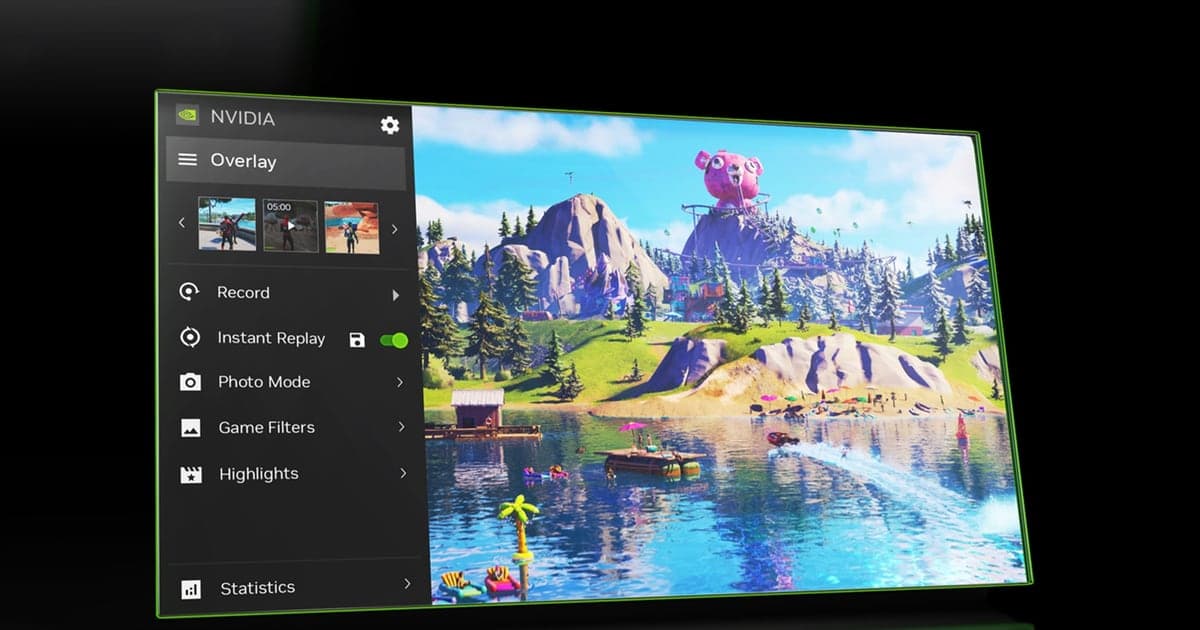
Most "my PUBG highlights aren't capturing" complaints are not a broken feature — they are a missed switch. NVIDIA Highlights works as a handshake: PUBG sends event signals for kills and knocks, and the NVIDIA overlay trims those moments into clips. That means two separate settings, one on the NVIDIA App side and one inside the game, must both be on. Enable only one and nothing happens at all. This guide walks the setup in order first, then covers exactly where to look when it still fails. If you want a broader view of recording options for the game, start at the PUBG game hub.
Highlights or Instant Replay — which one fits your goal?
Highlights is hands-off: the game decides what counts as a moment, so kills and knocks get trimmed automatically, but anything the game does not flag will never be captured. Instant Replay is the opposite — press a hotkey and the last few minutes are saved regardless of what the game thinks happened, which makes it the right tool for vehicle stunts, close-range mind games, and other unflagged plays. If your goal is a kill-clip collection, run Highlights; if you keep losing moments the game never flags, run Instant Replay alongside it. If Instant Replay itself refuses to start, work through the Instant Replay troubleshooting guide first. And when you want to re-watch a match from other perspectives rather than record your screen, the PUBG replay feature guide is the right tool for that job.
Enable and save Highlights in PUBG, step by step
- 1Install or update the NVIDIA App — Replace the old GeForce Experience with the current NVIDIA App and update to the latest Game Ready driver. Highlights only runs on GeForce GPUs.
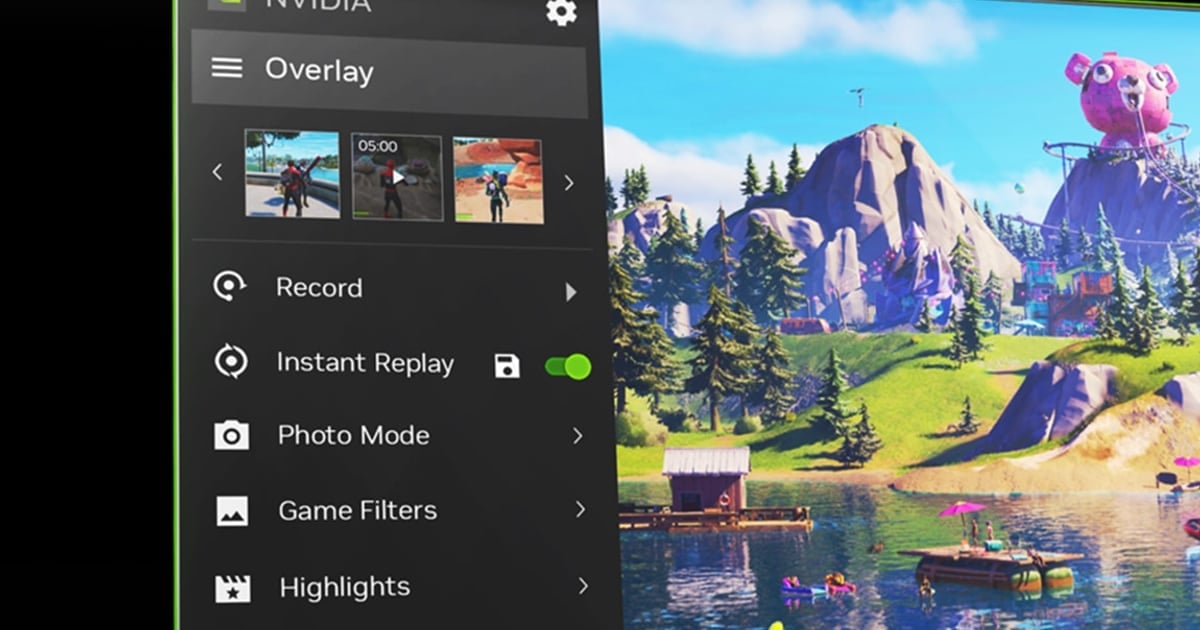
- 2Turn on the overlay and Highlights — In NVIDIA App settings, enable the in-game overlay, confirm the Highlights option inside it is on, and check that enough temporary storage is allocated.
- 3Grant capture permission in PUBG — Accept the Highlights request that appears when the game launches, or enable the highlight capture option directly in PUBG's settings if you missed the popup.
- 4Play one real match, then check the gallery — After a full match, open the overlay gallery and confirm kills and knocks were trimmed into individual clips. The training ground fires no events, so it is useless for testing.
- 5Save the keepers and verify the folder — Pick the clips worth keeping, hit save, and confirm MP4 files actually landed in the save folder. Unsaved temporary clips can be cleaned up.
Symptom checklist when Highlights won't work
| Symptom | Likely cause | Fix |
|---|---|---|
| No Highlights permission popup appears in game | NVIDIA App in-game overlay is disabled | Enable the overlay in NVIDIA App settings, then restart PUBG |
| Overlay opens but shows no Highlights section | PUBG's own highlight capture setting is off | Allow NVIDIA Highlights in the game settings and restart |
| Kill notifications appeared but no files exist | Temporary clips were never saved from the gallery | Save the clips you want from the post-match gallery |
| Your old Highlights settings vanished | GeForce Experience was replaced by the NVIDIA App | Re-enable Highlights in the NVIDIA App and update the driver |
| Specific moments like the win never get trimmed | Only game-flagged events are ever recorded | Use the Instant Replay hotkey to save those manually |
Still broken? Check in this order
- Confirm you are on a GeForce GPU with the latest Game Ready driver
- Confirm the NVIDIA App in-game overlay is enabled
- Confirm PUBG's settings allow highlight capture
- Confirm temporary highlight storage and free disk space
- Confirm you actually pressed save in the post-match gallery
Auto-saving kills and wins without any of this setup
Highlights is convenient once configured, but its limits are structural: it needs a GeForce GPU, it only works in games that send event signals, and it only records what the game decides to flag. DOR, a free game clip recorder, takes a different approach. It detects the game you are playing automatically — no manual source setup — saves kills and highlight moments as individual clips on its own, and keeps a full-match recording alongside them. NVENC hardware encoding is the default, so the performance cost stays low, and you can trim clips in the browser editor and review or share them on the dor.gg web app. It ships as a single Windows installer.
Official sources
The official reference for overlay and Highlights behavior is the NVIDIA support documentation, and for in-game settings or account issues use the official PUBG support center.