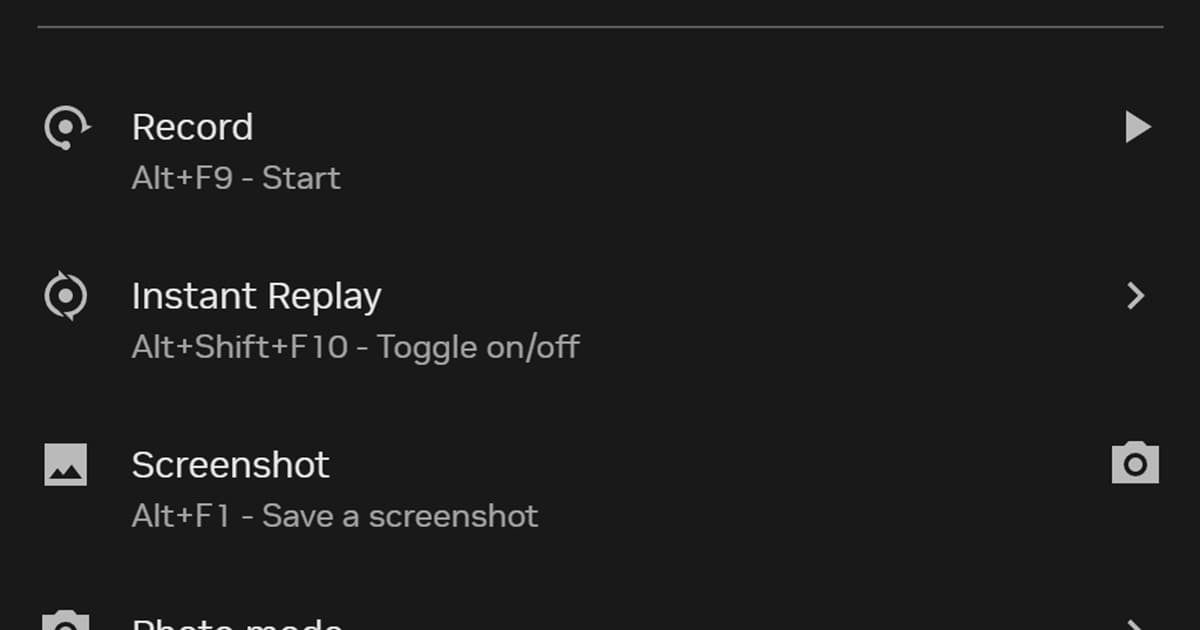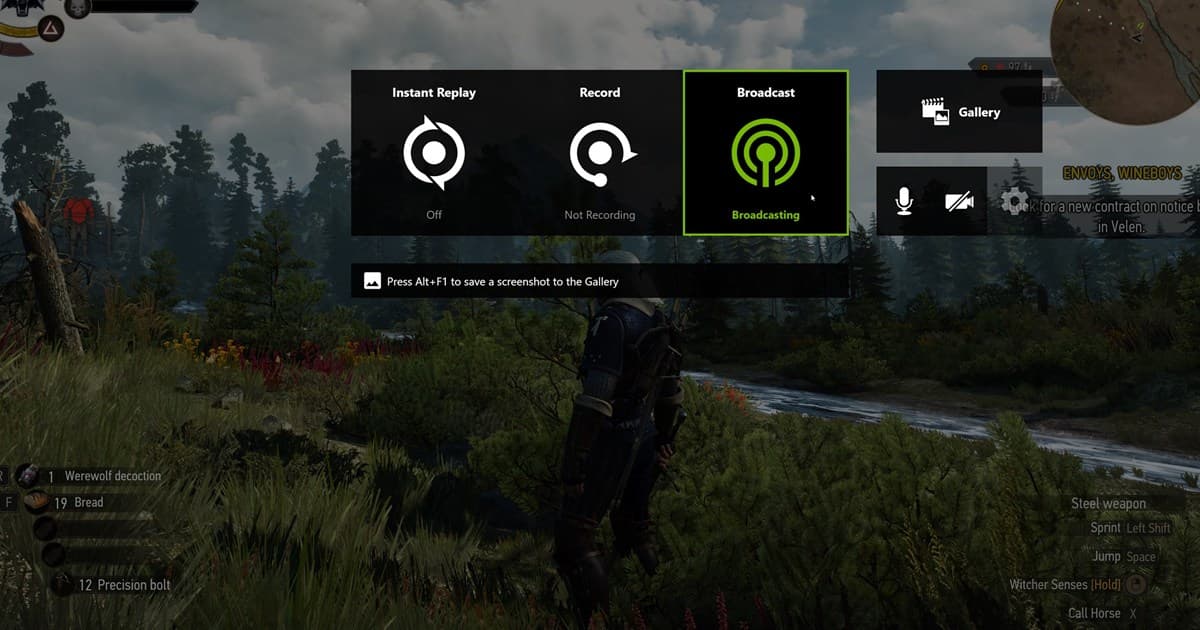
The current NVIDIA App Gallery and settings are more reliable than a single default path copied from an old forum post. Updates, Windows user folders, manual recording, and ShadowPlay Instant Replay configuration can affect where a file appears, so work backward from a fresh clip in the Alt+Z overlay.
The short answer: there is no single default folder — confirm it once, change it, and stop hunting
Finding it takes three steps. Open the overlay with Alt+Z, pick the most recent clip in the gallery and confirm the real folder through open-file-location or the storage settings; if the menu differs, search Windows by file name and creation time; then point the NVIDIA App's recording and storage setting at an SSD folder with free space. Manual recording and Instant Replay save differently, so run a five-second test of each to confirm files land in the new folder. Follow this article's procedure as written, but if you want to stop digging for files every time, changing the approach works better. DOR detects supported games such as VALORANT, League of Legends and PUBG, records the whole match and collects kill clips in the in-app library, so instead of memorising a folder path or digging through Explorer you go straight from the library to playback, trimming and a dor.gg share link. Below is the order for checking and changing the path in the NVIDIA App.
Verify the newest file instead of memorizing a default
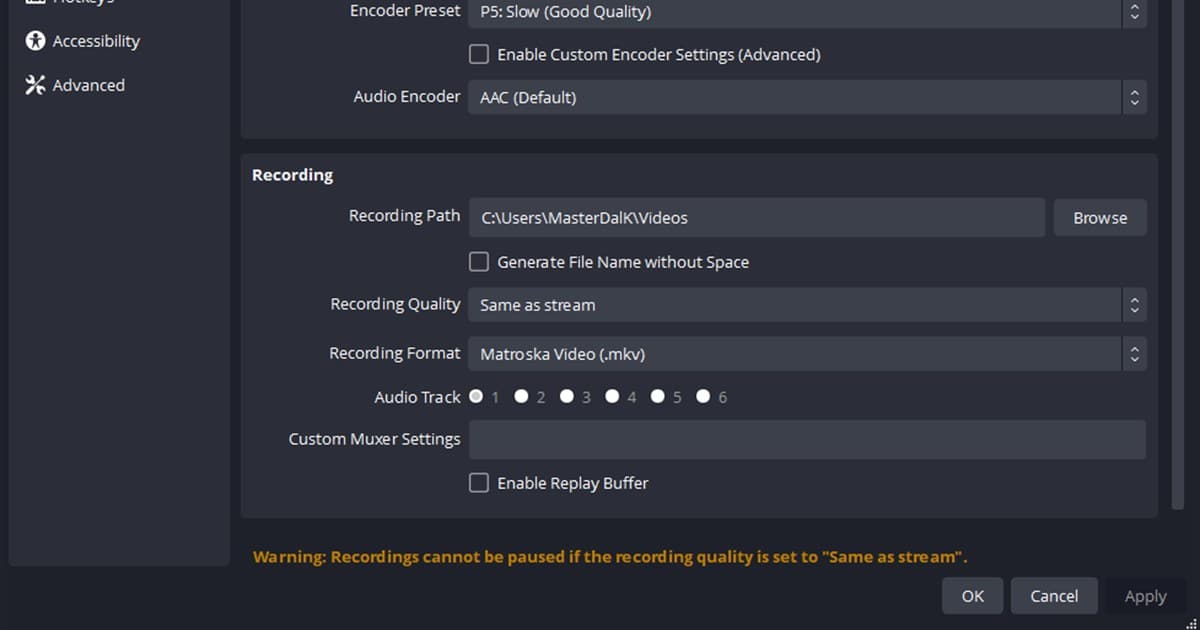
Open Alt+Z, find the newest item in Gallery, and use Open File Location or the current storage controls if available. When labels differ, note the exact filename and creation time and find it through Windows. Then choose a new destination in the current NVIDIA App or overlay video-capture/storage settings.
Where to look when the file is missing
| Situation | Check first | Proof of a fix |
|---|---|---|
| Not in the usual folder | Newest Alt+Z Gallery item | Open the real file location |
| Gallery and Explorer differ | Filename and modified-time search | Matching duration and size |
| Manual capture appears only | Save an Instant Replay separately | Both workflows located |
| New folder fails | Permission, space, and drive connection | A playable five-second file |
Find and change the location safely
- 1Open the newest Gallery item — Use Alt+Z > Gallery after making a fresh clip and use its file-location action to jump to the file.
- 2Search Windows backward — Search by exact filename or creation time across Videos and connected recording drives.
- 3Read the current storage control — In the current NVIDIA App or overlay, inspect the video-capture or storage section rather than an old screenshot.
- 4Choose a safe local folder — Use a writable SSD destination with adequate free space and a reliable drive connection.
- 5Run two five-second tests — Save one manual recording and one Instant Replay, then play both files from the new location.
Location-change checklist
- The newest Gallery item matches the real file
- The current app shows the destination reviewed
- The folder is writable and has enough space
- Manual recording saves to the new location
- Instant Replay also appears in the verified location
File management when considering DOR
DOR does not change NVIDIA App storage or move existing captures. It is an alternative workflow for organizing future recordings from supported games. Compare change recording location, NVIDIA recording settings, Instant Replay troubleshooting, and DOR automatic recording. For a real game use case, continue to the VALORANT game hub. Playing battle royale? Also see automatic PUBG highlights.
Official NVIDIA App recording guidance
The official NVIDIA App page documents ShadowPlay-powered Instant Replay, manual recording, and overlay capture. It does not promise one fixed folder for every PC, so verify the path through the current Gallery and storage controls plus a fresh test file.