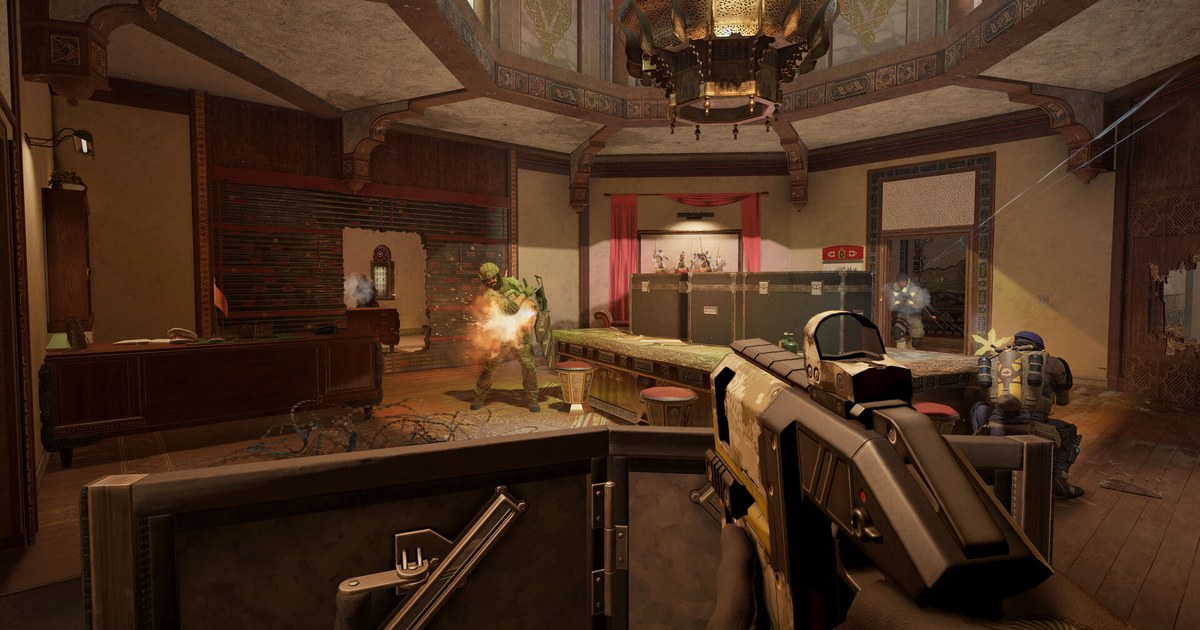
If you searched for r6 stretched res, you probably want the look many Siege pros use: a 4:3 image filling a 16:9 monitor, so operators appear wider on screen. Stretching a 4:3 image to the full width of a widescreen monitor makes everything about 1.33 times wider.
Leave the 4:3 image unstretched and you get black bars on both sides instead, which some players call black bars or 4:3 native. Siege is a little different from most shooters because its Display menu has an Aspect Ratio setting that is separate from Resolution. That gives you two routes.
You can keep your native resolution and switch only the Aspect Ratio to 4:3, or you can drop the resolution itself to a 4:3 value such as 1440x1080 and let your graphics driver stretch it.
Which route fills the screen depends on your monitor and driver settings, so this guide tries the in game route first and moves to driver scaling only if black bars remain. No config file edits or third party tools are involved. For the rest of the graphics menu, see our Rainbow Six Siege best settings guide. Menu names reflect the PC version as of November 10, 2026 and may shift slightly after updates.
Should you play Siege on 4:3? Bigger models, narrower view
4:3 is a common pick among Siege pros. Pro gear roundups show most players on 1920x1080, and because Siege lets you set aspect ratio separately, a 1080p resolution paired with a 4:3 aspect ratio is a frequent combination. The case for 4:3 comes down to two things.
First, operator models look wider, which makes enemies behind murder holes and door gaps easier to pick up. Only the picture gets wider; hitboxes stay exactly the same. Second, 1440x1080 renders 75% of the pixels of 1920x1080 and 1280x960 about 59%, which can free up frames on a GPU limited PC.
The cost is peripheral vision. Siege's FOV slider sets the vertical field of view, so the vertical angle stays fixed and the horizontal angle follows your aspect ratio. Run the numbers and FOV 90 gives roughly 121 degrees of horizontal view on 16:9 versus about 106 on 4:3.
At the default of 60, it is about 91 versus 75, an even bigger gap. That is why 4:3 players tend to push FOV up, and pro settings roundups show the max of 90 as the most common value, with 84 next. Expect side to side flicks to feel faster too, since the image is stretched.
The right answer is whatever fits your play. Record a few 16:9 matches and a few 4:3 matches on the same map, then watch the fights side by side. You will see whether you spotted the off angle late, or caught the enemy through a gap first.
How to play Rainbow Six Siege 4:3 stretched
- 1Start with the in game Display settingsLaunch Siege and open Options > Display. Set Display Mode to Fullscreen and leave Resolution at your native value (1920x1080 on a 1080p monitor). Change Aspect Ratio to 4:3 and turn Widescreen Letterbox off. Apply, then load into the shooting range or a custom game and check whether the image fills your monitor. If it does, skip ahead to the last step.
- 2If black bars remain, pick a 4:3 resolutionIf you still see bars on the sides, switch the resolution itself to 4:3 and let the driver stretch it. On a 1080p monitor, 1440x1080 keeps all 1080 vertical lines and looks sharpest; 1280x960 is the next option if you need more frames. On a 1440p monitor, use 1920x1440 or 1440x1080. Only create a custom resolution in the next step if your pick is missing from the Siege or Windows resolution list.
- 3NVIDIA: custom resolution and full screen scalingIn NVIDIA Control Panel, go to Display > Change resolution, click Customize > Create Custom Resolution, add 1440x1080 and keep your usual refresh rate such as 144Hz or 240Hz. Then open Adjust desktop size and position, set the scaling mode to Full-screen, set Perform scaling on to GPU, and tick Override the scaling mode set by games and programs if you see it. If your refresh rate dropped to 60Hz, follow our refresh rate guide for Windows 11 to set it back.
- 4AMD: turn on GPU Scaling and choose Full panelIn AMD Software: Adrenalin Edition, open Settings > Display, turn on GPU Scaling and set Scaling Mode to Full panel. Preserve aspect ratio keeps black bars on the sides, and Center leaves the image unstretched in the middle. If your resolution is not listed, add a new profile under Custom Resolution on the same screen. The screen may go black for a moment while it applies; that is normal.
- 5Apply the 4:3 resolution in SiegeAfter changing driver settings, close Siege completely and relaunch it. In Options > Display, confirm Display Mode is still Fullscreen and pick 1440x1080 as the resolution. Keep Aspect Ratio on 4:3 and Letterbox off. Borderless windowed often follows your desktop resolution, which stops the driver from stretching, so start with Fullscreen.
- 6Check FOV and how your sensitivity feelsBecause 4:3 narrows your side view, revisit Field of View. Going higher than your 16:9 value, or simply starting at the max of 90, is a safe baseline. Your sensitivity number can stay the same, since the same mouse distance still turns you the same angle, but stretched visuals can make turns feel faster. Give it a few days before changing anything, then recheck with our Siege sensitivity test.
Rainbow Six Siege best resolution and aspect ratio (1080p monitor, checked November 10, 2026)
| Setting (ratio) | Pixels rendered and stretch | Notes |
|---|---|---|
| 1920x1080 + Aspect Ratio 4:3 | Native resolution, only the aspect ratio changes | Try this first. Turn Letterbox off and check whether the image fills the screen. |
| 1440x1080 (4:3) | 75% of 1920x1080, about 1.33x wider | Keeps the full 1080 vertical lines, so it is the sharpest 4:3 resolution. Needs driver scaling. |
| 1280x960 (4:3) | About 59%, about 1.33x wider | A middle ground between clarity and frames. Distant enemies look a bit softer than at 1440x1080. |
| 1024x768 (4:3) | About 38%, about 1.33x wider | Good for frames, but text and long range targets get noticeably blurry. |
| 1280x1024 (5:4) | About 63%, about 1.42x wider | Stretches more than 4:3 and narrows side view further. Only a few players use it. |
| 1920x1080 (16:9) | 100%, no stretch | Sharpest image and widest side view. A good baseline for comparison. |
| 1920x1440 (4:3, 1440p monitor) | 75% of 2560x1440, about 1.33x wider | The 4:3 option that keeps 1440 vertical lines, so it stays fairly sharp when stretched. |
Black bars will not go away in Siege? Check these
- Widescreen Letterbox is off and Aspect Ratio is set to 4:3 in Siege's Display settings.
- Display Mode is Fullscreen, not Borderless, and you fully restarted the game after changing driver settings.
- On NVIDIA, the scaling mode is Full-screen rather than Aspect ratio or No scaling, and scaling is performed on the GPU.
- On AMD, GPU Scaling is on and Scaling Mode is Full panel rather than Preserve aspect ratio or Center.
- If your monitor's own menu (OSD) has an aspect or picture size option, it is set to a full or fill mode rather than original ratio or 1:1.
Record your 4:3 matches with DOR and compare
DOR is a free Windows game recorder. When you launch Siege, it detects the game and records the whole match, and the recordings collect in My Clips in the app.
After switching to 4:3, play back your first match in My Clips to confirm the footage looks right, then trim the same kind of fight from a 16:9 match and a 4:3 match and compare them side by side.
For clips you want to post, trim a section in the app and save it as 16:9, 9:16 or 1:1; our guide to recording vertical game shorts walks through the vertical workflow. In DOR Studio (dor.gg/studio) you can merge clips, add text, music and effect templates like punch zoom, then export an mp4 or share a dor.gg link. To send a clutch round to friends, see how to share Rainbow Six Siege clips.