
Apex Legends has no built-in replay or match-review mode: as of September 14, 2026, neither EA's official FAQ nor the game-modes guide lists any way to watch a past match. If you want to rewatch that squad wipe, the only route is to have been recording when it happened.
This guide compares the four PC options — Xbox Game Bar, the NVIDIA app, Steam Game Recording, and DOR — on the two questions that matter: does every match get saved without you pressing anything, and can you cut a clip out afterwards. Already have footage and just need the highlight? How to clip Apex Legends is the shorter read.
The verdict: no replay means automatic recording
The short answer: because recording is the only way to see an Apex match again, anything that depends on you remembering a hotkey will eventually miss the round you cared about.
Game Bar needs Win+Alt+R every match and its overlay may not even show in full-screen mode; the NVIDIA app's Instant Replay saves only the last stretch, not the whole game.
Steam's Record in background is closer, but it is a temporary buffer that overwrites old footage once your chosen disk allotment fills, and it does nothing if you launch through the EA app (see Steam's built-in recording vs a dedicated recorder for the full breakdown).
To keep every full match you need a tool that detects the game and starts and stops on its own — on Windows, DOR does that for free. One honest caveat: for Apex, DOR records full matches only. It does not auto-clip kills, so fights are cut from the recording by hand.
Auto-record every Apex match with DOR, then cut the fight
- 1Install DOR and launch ApexInstall DOR on Windows, leave it running, and start Apex the way you normally do. It detects supported games automatically, so there is no hotkey to remember and no overlay to summon in the middle of a fight.
- 2Check the recording settings onceDOR picks the encoder itself and records with NVENC hardware encoding on supported NVIDIA graphics cards such as the RTX series, so there is nothing to change. If you want your Discord reactions in the footage, enable microphone capture — game audio and mic are recorded together.
- 3Find the match in the libraryWhen the match ends, the full recording is already in DOR's in-app library. Unlike Steam's background buffer, each match is stored as its own file, which makes a ranked split easy to review game by game.
- 4Cut the fight in the browser clip editorOpen the match from the library and the browser clip editor loads with nothing to install. Set the in and out points around the fight on the timeline. Apex is not on DOR's auto-highlight list, so this step is yours to do.
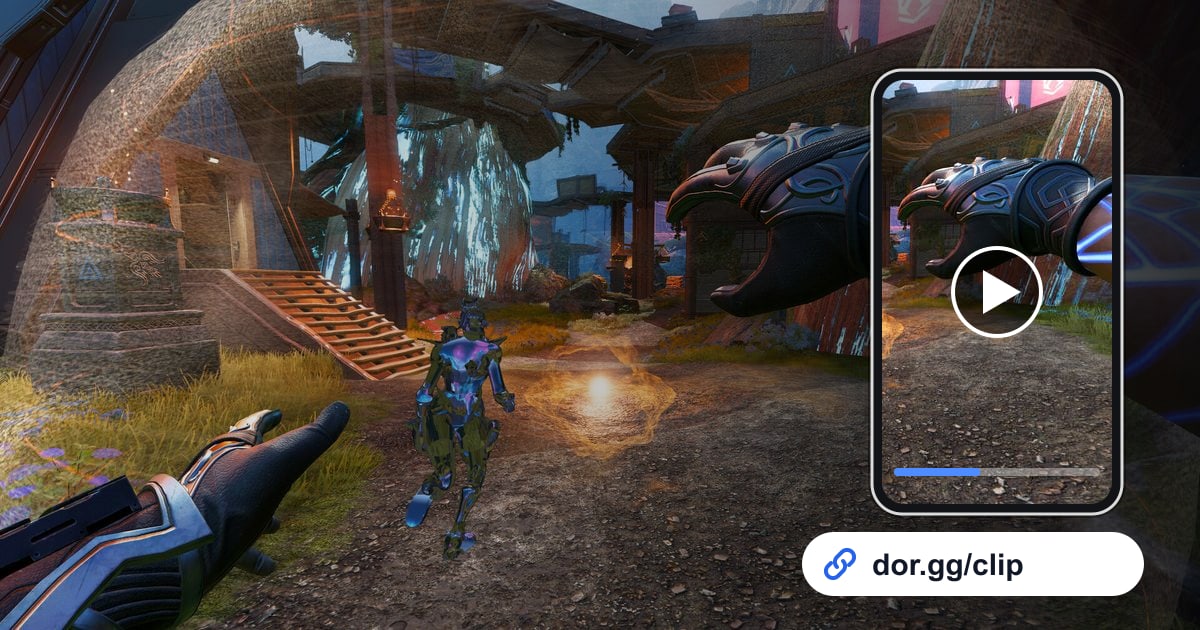
- 5Share a dor.gg linkShare the clip as a dor.gg link and your squad watches it in a mobile browser right away — no mp4 export, no upload to a chat app.
Four ways to record Apex on PC (official docs checked September 14, 2026)
| Method | How recording starts | Full match kept? Clip editing? |
|---|---|---|
| Xbox Game Bar | Manual: Win+Alt+R starts and stops each match; Win+Alt+G saves the last stretch only if background recording is on (off by default) | Background recording stops itself after 30 minutes. No editor — clips just sit in the Gallery |
| NVIDIA app | Manual: Alt+F9 records until you press it again; Instant Replay is enabled with Alt+Shift+F10 and saved with Alt+F10 by default (hotkeys can be changed in settings) | Instant Replay is for moments, not full matches. Trimming needs a separate editor |
| Steam Game Recording | Only for games launched via Steam: Record in background or Record on demand | Background mode overwrites once the disk allotment fills. Clips are made in the overlay and exported to mp4 |
| DOR | Automatic: detects a supported game, records the full match, stops on its own, NVENC on supported NVIDIA cards such as the RTX series | Every match lands in the in-app library. Cut clips in the browser editor and share a dor.gg link |
Apex not recording? Check these
- Game Bar: confirm Settings > Gaming > Game bar is on, press Win+G and watch for the screen to flicker twice (the game was recognized), then return to full screen.
- If the Game Bar overlay never appears in full screen, switch Apex's Display Mode to Borderless Window — the workaround Xbox Support recommends.
- If Win+Alt+G (save the last stretch) does nothing, open Settings > Gaming > Captures and turn on background recording; it is off by default.
- No Steam recordings? Check that you did not launch through the EA app. Steam Game Recording only captures games started from the Steam client.
- A 'Low disk space' warning in Steam means free up space or move the recording folder; 'No Recording Available' can mean the game was not ready, the resolution was changing, or that stretch was already overwritten.
- NVIDIA app Instant Replay must be enabled first with its default hotkey Alt+Shift+F10 before Alt+F10 will save anything. If you have remapped the hotkeys, check the current values in its settings — the save location is changed there too.
- Game Bar supports one monitor at a time. On a dual-monitor setup try the screen the game is on, and update your graphics driver if it still fails.
- DOR only auto-detects while it is running, so make sure the app is open before you launch the game.
Why DOR is the set-and-forget option for Apex
DOR is a free Windows desktop app that detects supported games and records the full match automatically, using NVENC hardware encoding on supported NVIDIA graphics cards such as the RTX series.
The Apex Legends hub shows exactly what is covered: for Apex that means full-match auto-recording, not automatic kill clips.
What you gain is that no match is ever lost to a forgotten hotkey — every game waits in the library, and the fight you want is cut in the browser clip editor without installing anything, then sent as a dor.gg link.
Whether it is a ranked split you want to review or a wipe you want in the squad chat, the app does the recording and you only do the choosing.