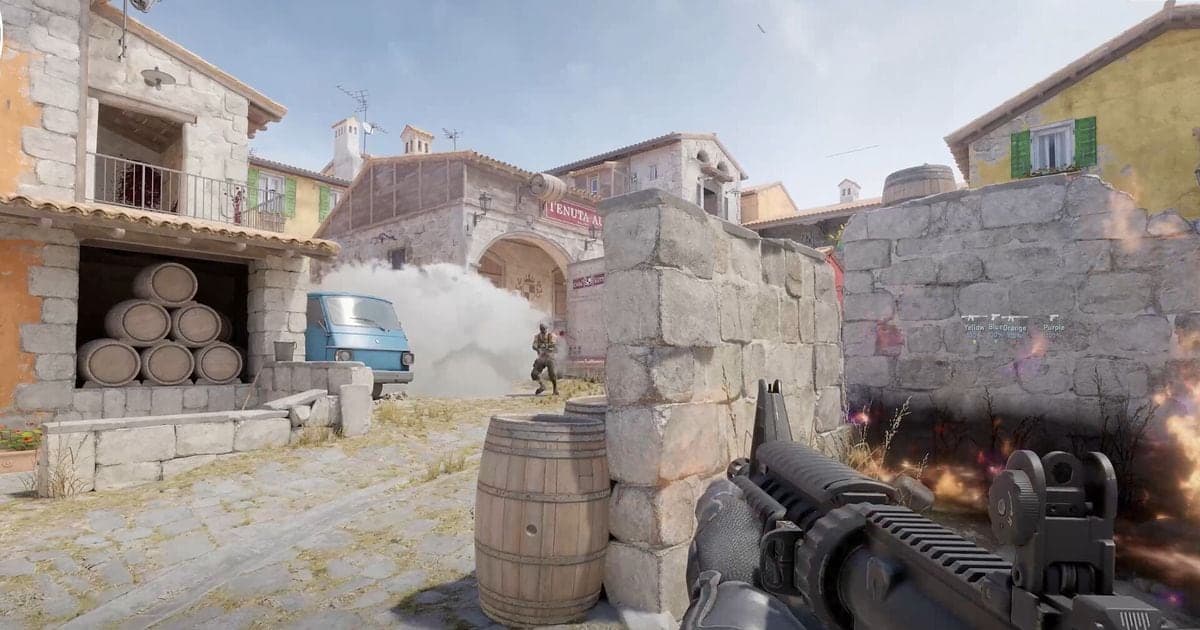
One place to start when recording Counter-Strike 2 (CS2) gameplay is Steam Game Recording, which is built into Steam; if you need something else, the usual choices are Xbox Game Bar, the NVIDIA app, AMD Software: Adrenalin Edition, or OBS. CS2 runs Trusted mode by default, which blocks third-party files from interacting with the game, so read Valve's rules before you pick a tool. No official source compares quality or performance load between these tools, so this guide never calls one lighter or better, and everything below is as checked on September 30, 2026. It covers CS2 on Windows PC only and is about saving a video file; for downloading and watching demo files, see the CS2 demo guide.
Bottom line: what to try first
If you do not want to spend time on setup, record one short match with Steam Game Recording first. It is a Valve feature, so there is no extra program to install, but that does not make it safer or lighter, and there is no official comparison that would back such a claim. If you want a separate microphone track or full control over what goes on screen, a tool with more settings such as OBS is the better fit. Either way, make a short test recording before a real match and check that both picture and sound were captured. If your next question is which tool to use once the footage exists, the CS2 clipping software comparison goes through the options.
How to record with each tool
- 1Separate demos from video — In Valve's release notes, CS2 demo playback is a feature of the game client: the timeline shows kill and death indicators and a highlight mode can show only the active player's kills and deaths, but it is not a video file. Valve's November 4, 2025 TrueView post explains that playback used to show the server's view of the world and now re-runs the observed player's client-side prediction. Valve adds that TrueView is off by default when the game version does not match the one that recorded the demo, and that slow-motion and damage effects can still differ from what the player saw. So if you need a file to post or send, you have to capture the screen with a recording tool.
- 2Read Valve's Trusted mode rules — Valve's FAQ says Trusted mode blocks third-party files from interacting with CS2 and is on by default for every player. Applications that inject into the game process are rejected, and there is no whitelist of software that can be injected safely. Running in normal mode does not get you banned for injecting, but your Trust Factor may be negatively affected, and unsigned DLL injections make CS2 start in insecure mode, which prevents playing on VAC-secure servers. For software that is blocked, the FAQ names the launch option -allow_third_party_software, set in Steam Library by right-clicking the game and opening Properties > General > Launch Options. It also warns that starting incompatible software after launching in Trusted mode can disconnect you from a match and that competitive cooldowns received this way cannot be removed. This guide does not recommend turning Trusted mode off and does not call any recorder safe or unsafe.
- 3Turn on Steam Game Recording — Open Steam > Settings > Game Recording and choose Record in Background or Record on Demand. Background recording captures all gameplay and is overwritten once the reserved disk space is full, while on-demand recording captures only when you switch it on. The same screen sets the save location, which audio is captured, and shortcut keys, and you can also reach it from the Game Recording tab in the in-game overlay. Press Ctrl+F12 in game to drop a marker. After the match, open Steam > View > Recordings & Screenshots, use Clip to set the start and end, then choose Export Video File to get an mp4. A share link expires after 2 days according to the FAQ, and Steam captures only the game, not the desktop or other programs.
- 4Record with Xbox Game Bar — Press Windows key+I, search for xbox, and enable Xbox Game Bar. Go to the game and press Windows key+G to show the bar. To include system audio, set the audio option under Settings > Capturing to All. Press Windows key+Alt+R to start recording and press it again to stop, and use Windows key+Alt+M to toggle the microphone while recording. The file is saved as an MP4 in Videos > Captures with the game name and the date and time in the file name. Microsoft does not say how this behaves with CS2 Trusted mode, so test before a real match.
- 5Use the NVIDIA or AMD tool — In the NVIDIA app, Alt+Z opens the overlay, Record (Alt+F9) starts and stops a recording, and Instant Replay (Alt+Shift+F10) saves the rolling recording. The settings cog changes sound sources, a separate microphone track, and the save location. Those hotkeys come from a November 12, 2024 NVIDIA article, so confirm the current ones in the overlay. In AMD Software: Adrenalin Edition, search for Record and open Record & Stream Settings to set the encoding type, microphone, and save location; hotkeys are under Hotkey Settings > Media Hotkeys. NVIDIA has a support page saying Trusted mode can cause issues with NVIDIA gaming solutions, but it is written for CS:GO, so it cannot be assumed to apply to CS2.
- 6Record with OBS Window Capture — OBS's documentation says CS2 does not allow Game Capture to hook in, and it recommends running the game in windowed or borderless fullscreen and capturing it with Window Capture. Add a Window Capture source with the + in the Sources dock and pick the CS2 window; on a first run, the Auto-Configuration Wizard sets a starting configuration. The Window Capture method defaults to Automatic. OBS captures desktop audio and the microphone by default, but check the Audio Mixer meters and Settings > Audio. Review Settings > Output, then click Start Recording and run a few minutes of test footage.
Recording methods compared (official facts only)
| Method | What the official docs say | What to check in CS2 |
|---|---|---|
| Steam Game Recording | Works with Steam games and offers Record in Background or Record on Demand. The recording is stored in a raw format, so you clip it and export to get an mp4. | Valve's June 26, 2024 beta post says CS2 timelines are auto-filled with game-defined markers such as kills and deaths. |
| Xbox Game Bar | Opens with Windows key+G, starts and stops recording with Windows key+Alt+R, and saves MP4 files to Videos > Captures. | There is no official statement about how it behaves under CS2 Trusted mode, so run a short test recording. |
| NVIDIA app | The Alt+Z overlay offers Record, Instant Replay, and Highlights, and it uses the NVENC encoder in NVIDIA GeForce GPUs. | This guide could not confirm in official sources that Highlights supports CS2, so it makes no claim, and there is no CS2-specific statement on Trusted mode. |
| AMD Software: Adrenalin Edition | The Record section offers Instant Replay (up to the last 20 minutes), video encoding types (AV1, HEVC, AVC), and a separate microphone track. Options vary by GPU and version. | There is no CS2-specific statement on Trusted mode, so confirm with a test recording. |
| OBS | You add Game Capture, Window Capture, and other sources, and the Auto-Configuration Wizard sets a starting configuration. | OBS's knowledge base says CS2 does not allow Game Capture hooking and recommends windowed or borderless fullscreen with Window Capture. |
| DOR | A free Windows desktop app that detects supported games and saves the full match as an mp4 in its in-app library. | CS2 is a game where DOR also makes automatic highlight clips such as kills. For Trusted mode and anti-cheat, check Valve's official rules below. |
Checklist before your first match
- I decided whether I need a shareable video file or whether demo playback is enough.
- I read Valve's Trusted mode rules and understand the conditions of the tool I chose.
- A short test recording showed the game picture, not a black screen.
- I played the test back and heard both game sound and microphone.
- With Steam Game Recording, I exported a clip and confirmed an mp4 was created.
- I checked the save location and the disk space limit.
When you want it to start on its own
If choosing a capture source and matching the display mode feels like too much work, DOR is one more option. It is a free Windows desktop app, and CS2 is a game where it does both full-match automatic recording and automatic highlight clips such as kills, so it detects the match, saves it as an mp4, and cuts the kill moments into clips. On an NVIDIA graphics card it uses NVENC hardware encoding by default and records game sound and microphone together, so your own voice, such as a call you make mid-round, is saved in the same file as the game audio and you can listen back after the match. In the in-app library you can trim a recording and share it through a dor.gg link. Its relationship to Trusted mode or VAC cannot be settled in this article, so read Valve's official rules in the sources below yourself. Find game details on the Counter-Strike hub and the clip workflow in DOR automatic highlight clips.
Official sources and check date
Checked on September 30, 2026. Trusted mode rules, Steam Game Recording options, the OBS guidance, NVIDIA hotkeys (from a November 12, 2024 article), the AMD steps (based on a document written for Adrenalin 23.9.1), and Xbox Game Bar shortcuts can change with updates, so treat the settings screen in each program as final. You can verify the latest details in Steam Support: Game Recording, Steam Support: Counter-Strike 2 Trusted mode, and OBS Knowledge Base: Game Capture Troubleshooting.