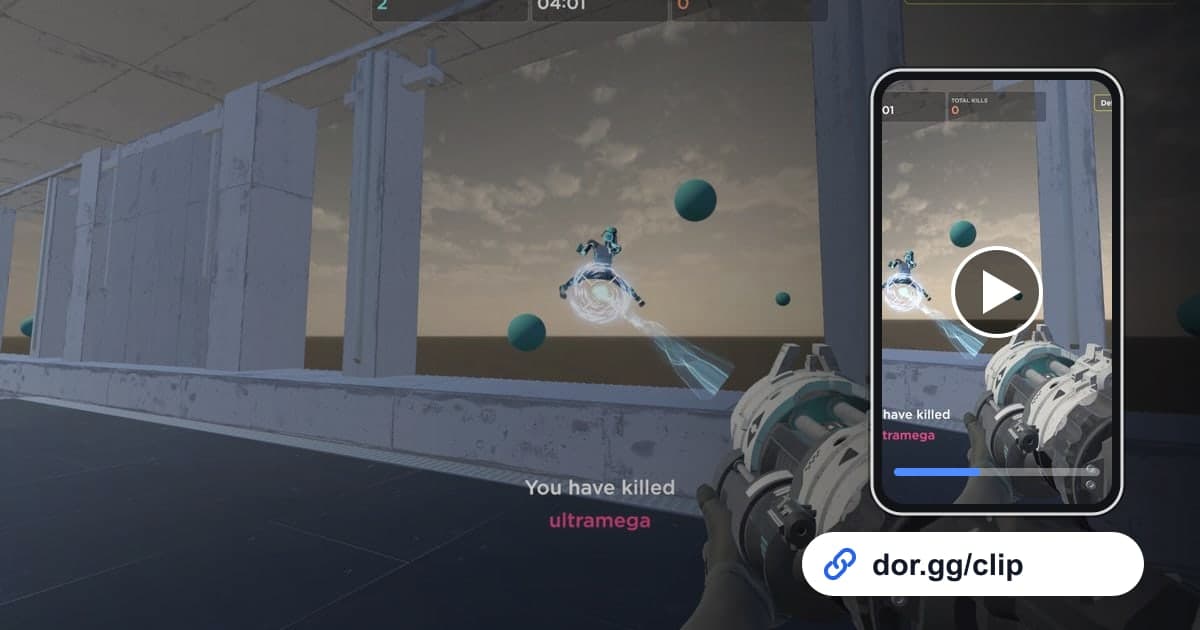
When you finally break a score you have been stuck on in Aimlabs, showing the whole run is far more convincing than a single number. The same goes for showing your FPS duo why your aim has improved lately. This guide covers one method: record Aimlabs with DOR, trim just the record run or a before-and-after comparison, and send it as a dor.gg link. Aimlabs practice means repeating short scenarios over and over, so a single session's recording is packed with runs that look almost identical. That makes knowing exactly which run set the record more important than any recording setting.
The bottom line
Launch Aimlabs on a PC with DOR installed, and every scenario you run that day goes into one mp4. When you set a record, just note the scenario name and the real-world time. After practice, open the recording in the library near that time and trim from the start of the scenario to the results screen. For placing the end point so the results screen does not get cut off, see how to trim game clips.
Sending an Aimlabs score proof
- 1Install DOR and launch AimlabsInstall the free DOR app on your Windows PC and launch Aimlabs. Aimlabs became a supported game in the October 2026 app update, and DOR detects it automatically and records everything from launch to exit as one video. The recording does not split each time a scenario ends.
- 2Note the scenario name and time when you set a recordIf you run the same scenario more than ten times in one session, the runs in the recording look almost the same. As soon as you beat your record or have an unusually clean run, jot down the scenario name, score, and real-world time in one line. Later you can jump straight to that run without checking every results screen.
- 3Keep proof runs whole, from start to resultsSending only the results screen is no different from a screenshot. Keeping everything from the moment the scenario starts until the score appears on the results screen, without cuts, is what shows on video that you actually set that score. Trim so no other scenario slips in before or after it.
- 4Trim the section in the libraryOpen the recording near your noted time and set a start and end point in the trim tool. Many scenarios spawn targets near the edges of the screen, so keeping 16:9 is the safe choice; if you pick a vertical ratio, keep in mind edge targets may fall outside the frame.
- 5Join before-and-after runs in StudioTrim runs of the same scenario from before and after a sensitivity change, or from last week and this week, and merge them in DOR Studio, which opens in your browser. Adding the date and score as text lets viewers compare the numbers and the movement at a glance.
- 6Send the link to your duo or a friend who coaches youSend the dor.gg link to your FPS duo or a friend who reviews your aim. If you briefly said on your mic what you were focusing on during the run, it is much easier for them to give feedback after watching.
What to capture for each type of Aimlabs practice
| Practice type | Where to look in the recording | What the video should show |
|---|---|---|
| Flick scenario | The stretch where the scenario starts and targets pop up one by one | Fast target-to-target snaps and the final score |
| Tracking scenario | The stretch where you follow a moving target | Your aim staying locked on without breaking |
| Target switching | The stretch where several targets appear at once | The order you move between targets |
| New high score | The moment the results screen shows a new record | The whole run from the start of the scenario to the results |
| Before and after a sensitivity change | Two runs of the same scenario with only sensitivity changed | The difference in movement and score between the runs |
| 1v1 duel | The multiplayer stretch where you face an opponent | The last few seconds that decided it |
Check before you send a proof video
- At least 20GB of free disk space (below that, recording stops automatically)
- The trimmed run matches the scenario name and score you noted
- Both the scenario start and the results screen are included
- No runs from other scenarios slipped in before or after
- For a before-and-after video, both runs are the same scenario
- Anything said on your mic is fine to share
What DOR does in Aimlabs
DOR is a free Windows desktop app. When you launch Aimlabs, it detects the program automatically and records it with full-session recording: everything from launch to exit is one mp4, with no splitting by scenario and no automatic clips that pick out new records, so you trim the run to show yourself. Game audio and your mic are recorded together, and with an NVIDIA graphics card, NVENC hardware encoding is the default. Long practice fills the disk quickly, and as the app settings note, recording stops automatically when free space drops below 20GB. On days you only warm up and do not need recording, you can turn off just this game in the full-session recording group in settings, and a confirmation dialog appears when you do. For joining two runs, see how to merge game clips, and for the Studio screen where you add text, see the DOR browser clip editor.