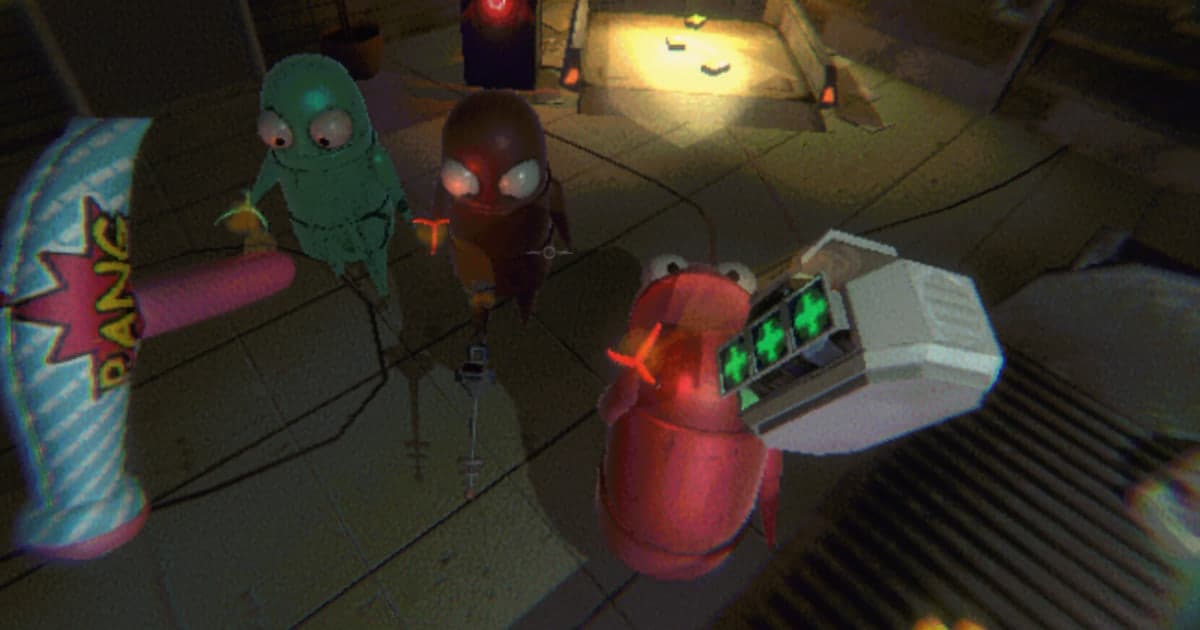
R.E.P.O. is an online co-op horror game for up to six players, and its store page lists proximity voice chat among the core ingredients alongside physics and monsters. Because voices fade with distance, the screaming and laughing that happen when a piano slips out of someone's grip is the content. Then you watch the recording back and half of it is missing: only your own voice is there, or the entire Discord conversation is absent, or an echo makes the whole clip unintelligible. This guide covers which sounds are captured, and under which conditions, when you record R.E.P.O. on a Windows PC. It starts with a source-by-source verdict, then walks through the microphone and Record All Sounds settings in DOR, and what has to be decided before the game launches. If the voices are already missing inside the game, no recording setting will bring them back, so the in-game checks are listed separately. Worth knowing: since the Monster Update on 30 October 2025, you can see and join your friends' games straight from Discord. Finding people to run with in the first place is covered in finding a game Discord server and finding friends and a party.
The verdict: proximity chat is captured either way, and Record All Sounds decides whether Discord makes it in
DOR mixes audio down to a single track, which means the choice of what gets captured is made before the recording starts rather than after. The rule is short. R.E.P.O. proximity voice chat is sound coming out of the game window, so it is captured even with Record All Sounds switched off. Anything that happens outside the game, a Discord call being the obvious case, needs that toggle on. It ships on by default, so if you have never touched it, your Discord conversations are already being recorded alongside the game. If you would rather not have music, a video in another window or notification chimes in the file, switch it off and keep only game sound plus your microphone. Your own voice is handled by the Mic Recording toggle, also on by default. With more than one input plugged in, pick the one you actually talk into under Microphone Input Device, then hit Mic Test and say something to confirm the signal is arriving. One more thing to plan for: R.E.P.O. sessions tend to run long, because people keep queueing another run instead of closing the game. The whole session becomes one video, and recording stops if the drive it is saved to fills up. If you see space warnings often, follow the cleanup order in the guide to Steam game recording running out of disk space.
How to keep R.E.P.O. voices in the recording
- 1Open DOR Settings > Audio before you launch the gameDownload DOR from dor.gg, install it and open Settings > Audio. Mic Recording and Record All Sounds are both on out of the box. If you have just plugged in a new headset, or a webcam and a capture device are also connected, Microphone Input Device may be pointing at the wrong input, so select the microphone you actually talk into and press Mic Test. A moving signal bar means the input is arriving. Use Input Volume if your voice sits too low or too hot, and Output Volume if game audio buries the talking.
- 2Set Record All Sounds to match where the voices come fromIf your group only talks through in-game proximity chat, you can leave the toggle off. Proximity voice chat is game window audio, so it is captured anyway, and nothing else from the desktop sneaks into the file. If the party also sits in a Discord call, turn it on and leave it on. With it on, the in-game voices and the Discord conversation land on the same track. Mixed setups are common, so decide which channel carries the conversation before you start playing rather than after.
- 3Decide resolution, frame rate and clip length before launching tooResolution, frame rate, hotkeys and clip length belong in the pre-launch pass. Under Settings > Video, Video Resolution and Video Frame default to 1080p and 30 frames per second, with 720p and 1080p plus 30 and 60 frames available on a free account; anything above 1080p or 60 frames is a Pro setting. Under Settings > Highlights you pick the clip key, F8 by default, and the length: 15, 30, 45 or 60 seconds, starting at 30. Hauling disasters need some run-up, so 45 to 60 seconds is often easier to work with.
- 4Launch R.E.P.O. and test the audio once in the lobbyWith DOR running, start the Steam copy of R.E.P.O. and DOR detects the game process and begins recording. Detection for R.E.P.O. arrived in app version 1.7.0, so update first if yours has been sitting unpatched. In the truck or lobby, say something to a friend and have them answer, confirming both directions. If nobody can hear anybody at this point, the problem is in the game or the device chain rather than in the recorder. R.E.P.O. currently ships in English only, so the audio and device options in the in-game settings are labelled in English.
- 5Press F8 right after the moment you want to keepWhen a monster catches someone mid-haul, when the cargo shatters, or when the last member goes down just short of extraction, press F8 once. The previous 30 seconds, or whatever length you set, is saved as a separate clip while the full session recording continues uninterrupted. Press it too late and the start of the moment falls outside the window, so make it a reflex for the second things settle. Moments worth keeping are saved by hand like this. Forgot to press it? The moment is still sitting in the full session video.
- 6After the session, listen back and favourite what you want to keepClosing the game files that session as one group in My Clips, containing the full session video plus any F8 clips. Play it back and confirm that proximity chat, your microphone and the Discord conversation all landed the way you intended; fix the settings before the next session if something is missing. Mark the videos you want to keep as favourites. With automatic file management on, full session videos are cleared oldest first within their allowance, five gigabytes by default, but favourited videos are never deleted.
Which sounds reach the recording (checked 16 October 2026)
| Where the sound comes from | When it reaches the recording | Where to check it |
|---|---|---|
| A friend speaking through in-game proximity chat | Always, because it is game window audio. Record All Sounds makes no difference here. A voice too far away to hear in game is also absent from the recording, which is how proximity chat is meant to work. | The audio section of the in-game settings (English labels) and Output Volume in DOR Settings > Audio |
| Your own microphone | Whenever Mic Recording is on in DOR Settings > Audio. It is on by default, and only the selected device is captured if several are connected. | Mic Recording, Microphone Input Device, Mic Test and Input Volume in DOR Settings > Audio |
| Friends talking over a Discord call | Only while Record All Sounds is on. With it off, just the game window audio is recorded and the call is missing from the file. | Record All Sounds in DOR Settings > Audio, on by default |
| Monsters, footsteps and other game audio | Always, because it is game window audio. Per-sound levels are set inside the game itself. | The volume options in the in-game settings; the store page carries the Custom Volume Controls accessibility tag |
| Anything you say after dying | Your microphone is still recorded whenever Mic Recording is on. Reaching living players is a separate matter: that needs the death head introduced in the Monster Update on 30 October 2025. | The death head battery on the in-game spectator screen |
| Music, videos in other windows and notification chimes | Captured while Record All Sounds is on. Switch it off before you play, or close those apps, if you do not want them in the file. | Record All Sounds in DOR Settings > Audio |
Proximity chat or mic missing from the video? Check these
- DOR is on version 1.7.0 or newer. Older builds do not detect R.E.P.O. and show a notice in Settings > Game asking you to update the app.
- Full gameplay recording is enabled for R.E.P.O. under Settings > Game. It is on by default on a personal PC and off by default in a PC cafe.
- Mic Recording is on, Microphone Input Device points at the microphone you actually talk into, and Mic Test shows a signal.
- If only the Discord conversation is missing, check whether Record All Sounds was switched off. With it off, only game window audio is recorded.
- Think back to whether anyone could hear it in game. If not, this is a game or device matter rather than a recording one: check the audio and device options in the in-game settings, check the input device and the microphone permission in Windows sound settings, then look for the same symptom through the support link on the store page, which points to the official Discord. While nobody can hear anybody, the in-game chat is a workable fallback: the 30 October 2025 patch notes include a fix for the enter key while chat is open, which confirms the feature exists, though no official document states the key that opens it, so check the controls list in the in-game settings.
- If you hear an echo, move everyone to headsets. A voice coming out of speakers goes back into that person's microphone, and the doubled sound lands in the recording as well.
Recording R.E.P.O. with DOR: the whole session automatically, plus the last 30 seconds on F8
DOR is a free recording app for Windows PCs. It detects the executable of the Steam version of R.E.P.O., starts recording, and saves the session as a single video when you close the game. On a personal PC it is on by default, so there is no record button to remember, and Full gameplay recording can be turned off per game under Settings > Game. Audio is mixed into one track. Mic Recording adds your own voice; Record All Sounds decides whether everything playing on the PC, Discord included, is captured or just the game window audio. Proximity voice chat is game window audio, so it survives either choice. Press F8 during play and the previous 30 seconds is saved as its own clip, with the length picked from 15, 30, 45 or 60 seconds. Recording defaults to 1080p at 30 frames per second, with 720p and 1080p and 30 or 60 frames available free of charge. Recordings play back in My Clips, and the trim tool, which requires a login, exports 16:9, 9:16 or 1:1 cuts. The moments you want are saved with F8. Everything lands on one audio track, so balance your voice against the game with Input Volume and Output Volume under Settings > Audio before you record. Resolution, frame rate and clip length are set before launch, and in a PC cafe you switch Full gameplay recording on under Settings > Game first.