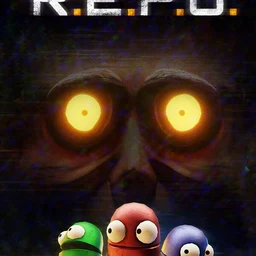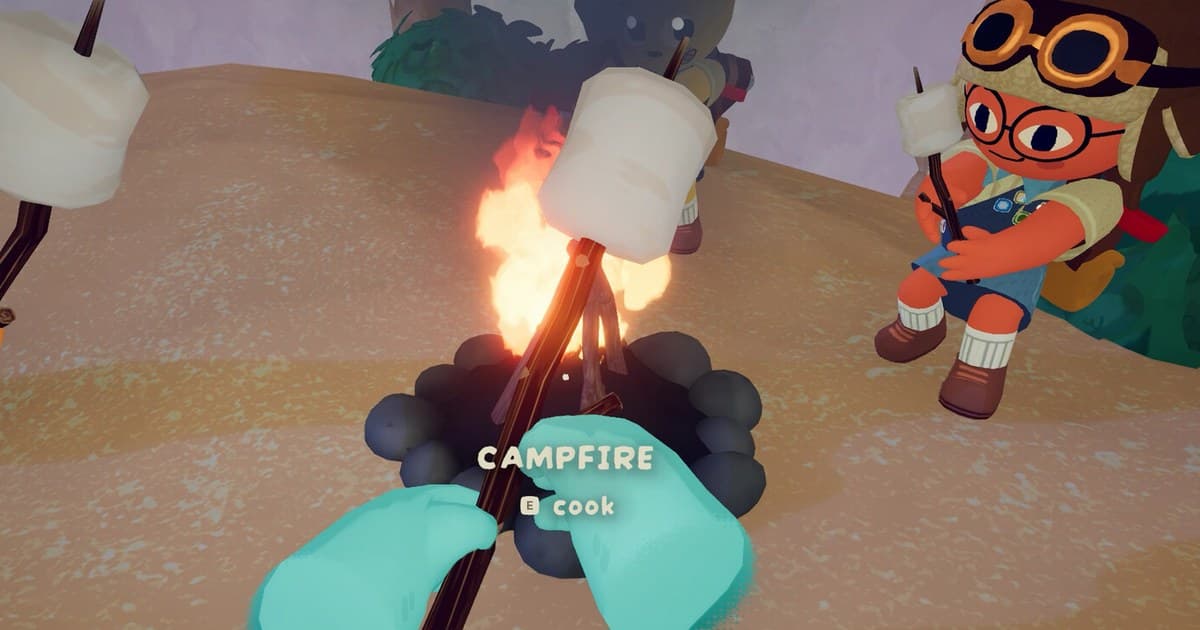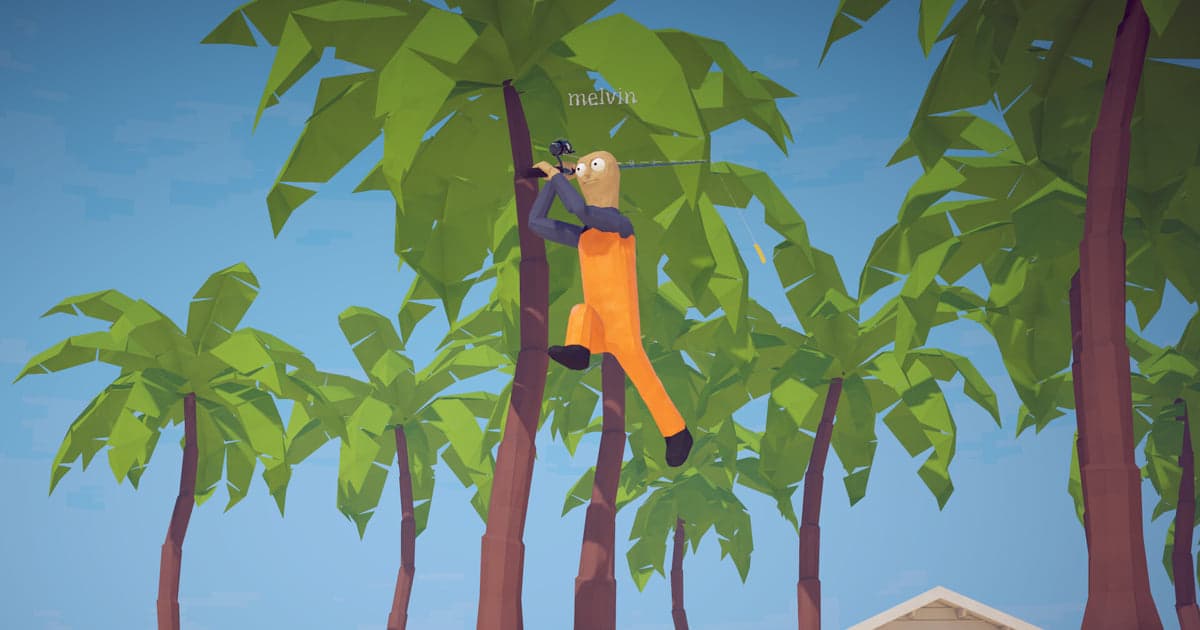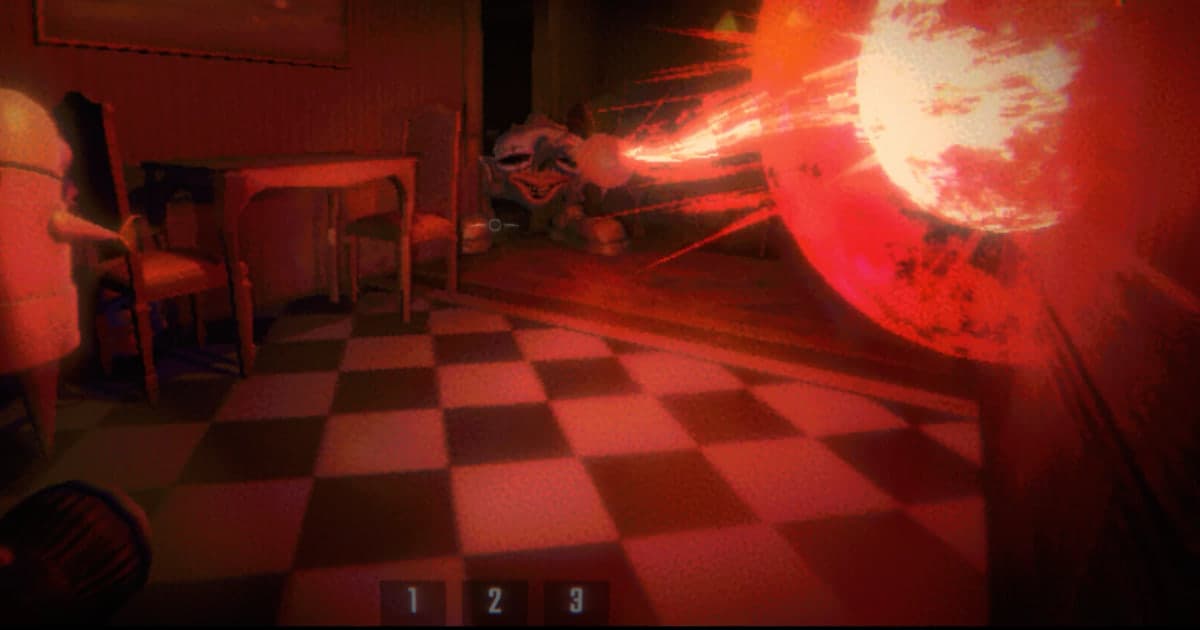
R.E.P.O. has been in Early Access since 26 February 2025, and the crash questions people type are specific: crashing mid game while hauling something valuable, crashing when joining a friend's lobby, crashing on launch or on the loading screen. This guide will not tell you what caused yours. No search result can diagnose your PC, and guessing wrong costs you an evening. What it does is make sure the crash is not lost. On Windows, if DOR was running, the run you just lost is already on video: recording starts when REPO.exe is detected and the file is closed a few seconds after the process is gone, so the moment the screen went away sits at the end of that session video. The catch is that you have to keep it deliberately, and you have to do it before you play again. Below, in order: secure the tail of the session video, write down the details that go with the video, record your reproduction attempt separately, tell a crash apart from a recording that stopped on its own, and hand the whole thing to the developers through the Discord invite registered on the store page. If you have never joined a server like that, picking a game Discord and checking an invite link safely covers that part.
What to do first after a crash: secure the end of the session video, not a new F8 clip
The place to look after a crash is the play-all video of the session that just ended. Clips are cut from the buffer of the recording that is currently running, so once the game process is gone that saved session video is the source. It is intact up to the moment the screen went away, which is why checking its tail comes before relaunching. There is also a clock on it: play-all footage is kept inside its own quota, 5GB by default, and once that quota is full the oldest session folder is cleaned up together with the F8 clips inside it, while liked videos and clips stay. So the order is trim and like first, relaunch second. If DOR warned you about disk space the same evening, the end of your video may be a stopped recording rather than a crash, so clear space first the way the low disk space guide for game recording describes. And if the game simply will not run on your PC after several evenings of attempts, refund eligibility is time-limited, so it is better to read Steam's refund conditions and how to apply early than after two weeks of troubleshooting.
How to keep the crash on video and report it
- 1Open the session video in My Clips before you relaunchDOR starts recording when it detects REPO.exe and closes the file a few seconds after the process is gone, so the crash is at the end of the session that just ended. Open My Clips, pick the newest R.E.P.O. folder and scrub to the tail. The reason to do this before starting the game again is simple: one more session can fill that quota, and the previous folder is then first in line for cleanup.
- 2Trim the last minute and like the videoUse the library's trim tool. Set the start a little before the first sign of trouble and the end after the screen is gone. For a report 16:9 reads best, and 9:16 and 1:1 are available too; finishing a trim needs a free DOR sign-in. If you also want the untouched original kept, like (favourite) the session video. Liked videos are excluded from the automatic cleanup.
- 3Write down the details that go with the videoWhich level you were on, whether you were inside a level or at the service station with the shops, how many of the six seats were filled, what you were carrying, whether you were host or client, the clock time, and whether the symptom started after a particular update. Check your build too. As of 16 October 2026 the newest version the developers have published is v0.4.4, released 25 May 2026, and two of its notes are worth repeating in a crash report: icon generation was reworked to reduce RAM usage and startup freezes, and memory usage was optimised. If you are still on an older build, give that number instead.
- 4Record the reproduction attempt with F7, not F8F7 starts screen recording of the whole monitor and F7 again ends it, which is how you capture what happens outside the game: the click in your Steam library, the loading screen, a file verification pass, an error window. Remember one rule. If a session recording is already running, pressing F7 saves and stops it, so use F7 while R.E.P.O. is closed and keep F8 for moments inside a running session. Screen recording takes the whole monitor, so clear notification pop-ups and chat windows first.
- 5Tell a crash apart from a recording that stoppedDOR shows 'Low disk space. Please free up storage.' when free space drops below 30GB and 'Recording stopped due to low disk space.' at 20GB or less. If the per-game toggle was off, you get 'This session wasn't recorded.' with 'Turn it on in App Settings > Game.' when the game closes. A video that ends before the crash, or no video at all, usually means one of these rather than a crash that erased something.
- 6Report it through the Discord invite on the store pageR.E.P.O. is in Early Access and the support link registered on its Steam store page is a Discord invite, which is where crash reports belong. The store lists just English under supported languages, so writing the report in English gets you read faster. Attach your trimmed clip as a dor.gg link or an exported mp4 and include the build number, lobby size, level and the exact text that was on screen. Steam Workshop support is 'not currently planned' according to the developers' Q&A of 6 March 2026, which means any mods are third-party; if you were running any, simply say so in the report.
What the recording holds, symptom by symptom (checked 16 October 2026)
| What happened | What the recording holds | Do this before you relaunch |
|---|---|---|
| Crash mid game while hauling | The session video that began when REPO.exe was detected is closed a few seconds after the process is gone, so the last thing in it is the screen disappearing. | Open My Clips, go to the newest R.E.P.O. folder, scrub to the end, trim the last minute and like the video. |
| Crash while joining a friend's lobby | If the game was already running, the lobby list, what you clicked and any error text on screen are all in the same session video. | Trim from the lobby screen through the crash, so the report shows what you were doing when it happened. |
| Crash on launch or on the loading screen | Recording starts only after the process is detected, so a crash in the first seconds leaves a very short video or none at all. | Capture the launch itself with F7 screen recording, starting from the click in your Steam library, so the report shows how far it got. |
| Only the game closes, the PC is fine, a connection or lobby error was on screen | The error text and the preceding seconds are in the video. Game sound and your microphone are recorded on the same track. | Trim that stretch, check whether other people's voices or names ended up in it, and attach it to the report. |
| DOR showed a toast saying recording stopped for low disk space | The video ends where recording stopped, not where the game crashed. Everything after that point was not recorded. | Free up space. DOR warns below 30GB and will not start, or will stop, recording at 20GB or less. |
| The whole PC freezes or restarts | A recording that was never closed properly can be missing its tail, but whatever was already written to disk stays in the session folder. | Check My Clips before playing again and like what is there so the cleanup skips it. |
Check these before you send the report
- The crash footage is trimmed or liked before the next session starts. Play-all footage has its own quota, 5GB by default, and the oldest session folder is cleaned up with the F8 clips inside it once that quota is full.
- Free space on the recording drive is above 20GB. DOR warns below 30GB and will not start, or stops, recording at 20GB or less.
- Settings > Game shows 'Full gameplay recording' switched on for R.E.P.O. It is on by default on a personal PC and off by default in a PC cafe.
- Resolution, frame rate, clip length and hotkeys were set before launch.
- You know whether you are on v0.4.4 of 25 May 2026 and whether the crashes began after a particular update.
- The report states what you were doing, what was on screen, your build, the lobby size and whether any third-party add-ons were in use.
What DOR leaves you: the whole session automatically, the moments by hand
DOR is a free recording app for Windows PCs. R.E.P.O. is a whole-session game for DOR: it detects REPO.exe and records from launch to exit as one video, so the moments you keep are the ones you choose. While the game runs, F8 by default saves the previous 30 seconds as a separate clip, with 15, 30, 45 and 60 seconds to choose from. Like a video to keep it out of the automatic cleanup, and use trim (sign-in required) to cut a 16:9, 9:16 or 1:1 clip you can share as a dor.gg link or export as mp4. Resolution, frame rate, clip length and hotkeys are set before you launch; the defaults are 1080p and 30fps, while 1440p and above and 120fps and above are Pro settings. Game sound and your microphone are recorded on one track, and with 'record all sound' on everything your PC plays, a Discord call included, goes in too, so check for other people's voices and names before a clip goes anywhere public. Per-game recording lives under Settings > Game and is on by default on a personal PC and off by default in a PC cafe. On a six-player night where several of you record, putting the different points of view from one match together explains how people use that footage afterwards.