Play ACE COMBAT 8: WINGS OF THEVE for a while and you collect scenes that are hard to describe in words. The moment you got on a bandit's tail after a hard turn and brought it down, shaking off a missile with nothing but maneuvering, breaking out of layer after layer of cloud into open sky: it is far quicker to just show them. This guide covers one method only: record ACE COMBAT 8: WINGS OF THEVE with DOR, find that scene in a recording full of mission flights, trim it, and send it as a dor.gg link. In a flight game made mostly of sky and clouds, it is hard to tell where a scene starts and ends, and kills are over in an instant, so the focus here is on how to find scenes and how long to cut them.
Record the whole sortie, pull out the maneuver
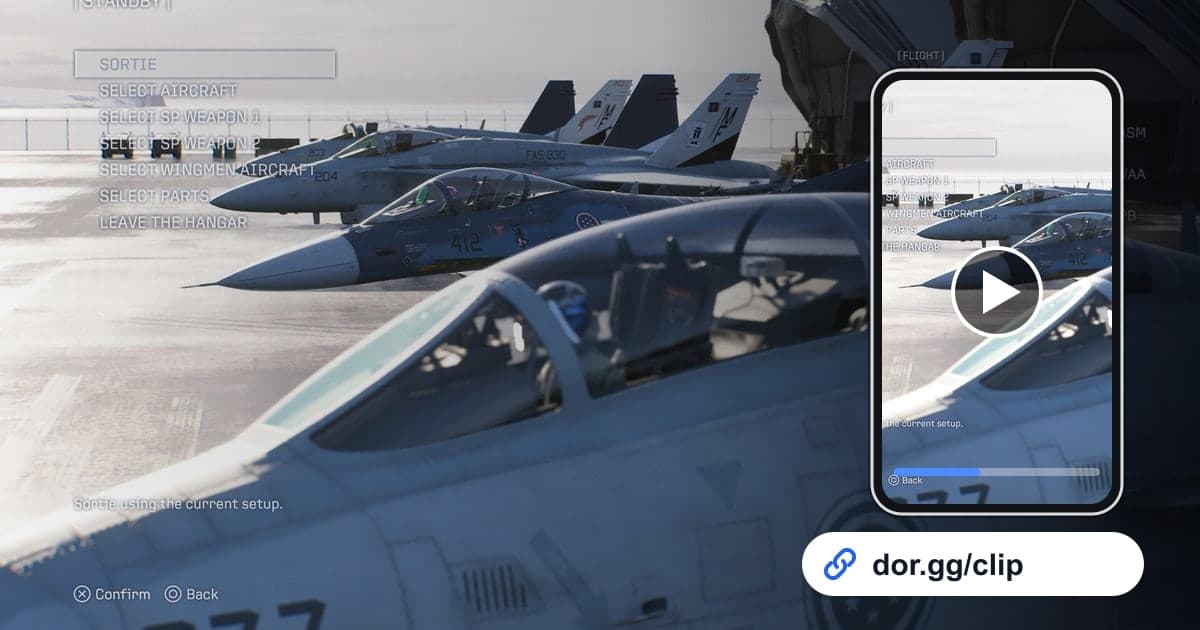
DOR saves Ace Combat 8 as a whole-session recording. From launch until you quit, everything goes into one video: picking an aircraft in the menus, the story scenes between missions, and the actual flying and fighting. DOR does not detect kills or dodges to make separate clips, so you find each scene in the recording and cut it out with trimming. Because a single engagement can be over in seconds, setting precise start and end points matters, and the basics are covered in how to trim game clips. Back-to-back missions make long recordings, and recording stops automatically when free space on the drive drops below 20GB.
From one moment in the sky to a friend's screen
- 1Launch the game with DOR runningDOR is a free Windows app that detects supported games when they launch and starts recording automatically. If you fly online missions while on a call with a friend, or want to add your own commentary in flight, plug in a mic. Engine sound and your voice are captured together in one video.
- 2Use the takeoff as the start of each missionWhen you scrub through the recording in the library, the menus and story scenes between missions are followed by your aircraft heading into the sky. That point marks the start of a mission, so if you remember which mission something happened in, you can count takeoffs and jump straight there.
- 3Remember the time of a killA single mission has many engagements, and sky footage alone makes them hard to tell apart. When you land a kill you like, glance at your phone's clock, or jot down the time briefly after the mission ends. Skipping a few seconds at a time near that point in the recording finds it fast.
- 4Keep it short, from the turn to just after the killThe core of a dogfight clip runs from the turn where you start chasing the bandit to the kill and one or two seconds after. Cut the long cruising stretch before it and keep the clip to 5 to 15 seconds so the tension never drops. For scenes where the mood matters, like a chase through the clouds, allow around 30 seconds.
- 5Pick a ratio in trimming and create the linkIn the library's trimming tool, set the start and end and choose an output ratio. Scenes that need wide sky and terrain in view suit 16:9, while dodge scenes where the aircraft and missile gather in the center suit 9:16. When it finishes, a dor.gg link is created.
- 6Add which mission and which aircraftFor a friend who plays, a note saying which mission it was and which aircraft you flew is enough. If you flew an online mission together, you each saw the same engagement from a different seat, so ask your friend to trim the same scene and compare them side by side.
Where to cut and which ratio fits each flight situation
| Flight situation | Where to cut | Best ratio |
|---|---|---|
| Takeoff | A few seconds from the mission start as your aircraft heads into the sky | 16:9 |
| Dogfight kill | From the turn where you start getting behind the bandit to just after the kill | 16:9 or 9:16 |
| Missile dodge | From noticing a missile on you to just after you shake it | 9:16 |
| Cloud flying | Entering a cloud layer and breaking back out | 16:9 |
| Low-altitude run | Skimming between terrain features | 16:9 |
| Online co-op mission | Taking out a target together with a friend in formation | 16:9, shared with that friend |
Checks before sending an Ace Combat 8 scene
- The kill clip starts at the beginning of the turn and ends one or two seconds after the kill.
- Long cruising stretches and menu screens are cut out.
- Dodge scenes use a ratio where the missile and aircraft are both visible.
- Online mission scenes went first to the friend who flew with you.
- Before back-to-back missions, you confirmed the drive has well over 20GB free.
- You opened the link once to make sure the engine and combat sounds come through.
How DOR keeps your Ace Combat 8 flights
DOR is a free Windows desktop app. Since the October 2026 app update, ACE COMBAT 8: WINGS OF THEVE is a supported game: when you launch it, DOR detects it automatically and records the whole session as one mp4 until you quit. You can turn whole-session recording on or off per game in settings, and on PCs with an NVIDIA graphics card, NVENC hardware encoding is used by default. Trim a section in the app library to make a dor.gg link, and the recipient plays it in a browser without receiving a file. Tips for shaping a dodge or a single kill into a vertical video are in making vertical game videos, and joining several kills with effect templates and background music can be done in the browser-based DOR Studio. If you also want to keep the call audio from online missions with friends, see how to record Discord voice with your game.