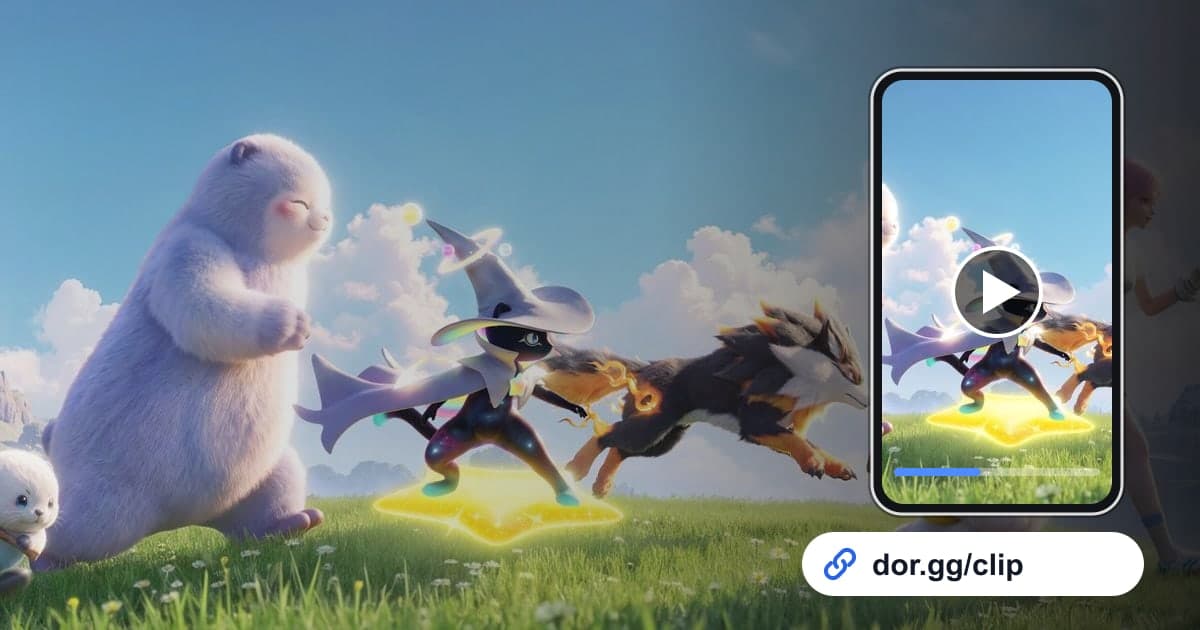
Aniimo is a free multiplayer open-world creature-catching RPG from Pawprint Studio, released on Steam in September 2026. You roam the continent of Idyll throwing Aniipods to catch Aniimo, and you can Twine with an Aniimo to become one with it and glide, dive underwater, or burrow through the ground. That is where the moments worth showing a friend come from: sneaking up from behind and catching one on the first try, finally landing a rare Aniimo after throw after throw, leaping off a cliff while Twined and gliding down, or defending a rare egg with your three-player team in Egg Heist. Aniimo became a DOR full-play recording game in the October 2026 app update. When you launch the game, DOR starts recording automatically and keeps everything as one video until you close it. Aniimo supports play across platforms, but DOR is a Windows desktop app, so only Aniimo running on a Windows PC is recorded. Below, you will find the cues for locating the scenes you want inside a long recording that mixes exploration, catching, and decorating your home, plus how long to cut each one depending on who will watch.
Send One Catch or the Whole Match You Played Together
The clips you send fall into two kinds. One is a short brag about something you did solo, like catching a rare Aniimo. The other is a longer video of a match you played with friends, like an Egg Heist run, meant for watching back together. A catch needs only about 20 seconds, from just before the throw until the result appears, and 9:16 vertical suits friends watching on a phone. For a team match, keep the whole thing in 16:9 so everyone can see who did what and when. If you also want the things you shouted during the match in the video, check how to balance game sound and mic volume in recording game sound and mic together.
Finding Scenes in an Aniimo Recording and Sending Them
- 1Check that Aniimo recording is on in settingsIn DOR settings, open the full-play recording group and make sure Aniimo is on. When it is, recording starts the moment you launch Aniimo on your Windows PC, and exploring, catching, and decorating your home continue in one video until you close the game.
- 2Jot a quick note before you throwWhen you spot a rare Aniimo, write down the time and situation before you throw, like 'about an hour in, rainy night, beach.' Since which Aniimo appear depends on the weather and time of day, that note helps both when you search the recording and when you explain the catch to a friend.
- 3Treat the first throw through the result as one rangeA catch clip starts the moment you throw your first Aniipod. If it took several throws, include them all so the tension comes across. Add a few seconds after the result appears and set the end there.
- 4Keep an Egg Heist match whole, from entry to finishAn Egg Heist match played as a team of three is one continuous story. Cut from the moment you enter with your teammates until the result appears, and you can rewatch together where the egg was stolen and where you got it back.
- 5Set a start and end point for Twine explorationMovement that flows from gliding to diving to burrowing tends to have fuzzy edges. Start at the moment you leap off a cliff or enter the water, end when you reach your destination, and fit it into 30 to 60 seconds.
- 6Trim in the library and send the linkOpen the recording in the app library, set the start and end with the trim tool, pick an aspect ratio, and you get a dor.gg link. Paste it into your chat, and your friend watches it right in a browser without installing the app.
What to Note While Recording Each Aniimo Scene, and Who to Send It To
| Scene | Note to Jot Down While Recording | Who Will Enjoy It |
|---|---|---|
| Sneak catch from behind | Which region and which attempt it was | A friend asking for catching tips |
| Rare Aniimo after repeated throws | Roughly when you threw the first Aniipod | A friend hunting the same Aniimo |
| Aniimo that appear with certain weather or times | The weather and in-game time of day | A friend filling out their collection |
| Showing off an evolved form | When you first brought it out in the field after evolving | A friend raising Aniimo with you |
| Twine gliding, diving, and burrowing | Where you started and where you ended up | A friend who hasn't tried Aniimo yet |
| One Egg Heist match | Your teammates and the start time | The friends who were on your team |
| Decorating your RV and home | When you finished decorating | A friend who wants a home tour |
Before You Send an Aniimo Clip
- The footage is Aniimo running on a Windows PC.
- Your catch clip starts the moment you threw your first Aniipod.
- You noted the region, weather, and time of day of your rare catch.
- Your Egg Heist clip runs from entry to the result.
- Short catches are 9:16, while exploration and team matches are 16:9.
- You have well over 20GB of free disk space.
How DOR Records Aniimo
DOR is a free Windows desktop app. When you launch Aniimo on a Windows PC, it detects the game and records one mp4 video until you close it, capturing game sound and your mic together. There are no automatic highlights that pick out catches or team matches, so you find scenes in the app library and cut them with the trim tool. Tips for setting precise start and end points are in how to trim game clips. To string several of the day's catches into one video with text and background music, use DOR Studio in your browser with no install, and see how to add music to game videos for choosing tracks and balancing volume. On days you don't want Aniimo recorded, you can turn off just this game in settings; a confirmation prompt appears once when you do.