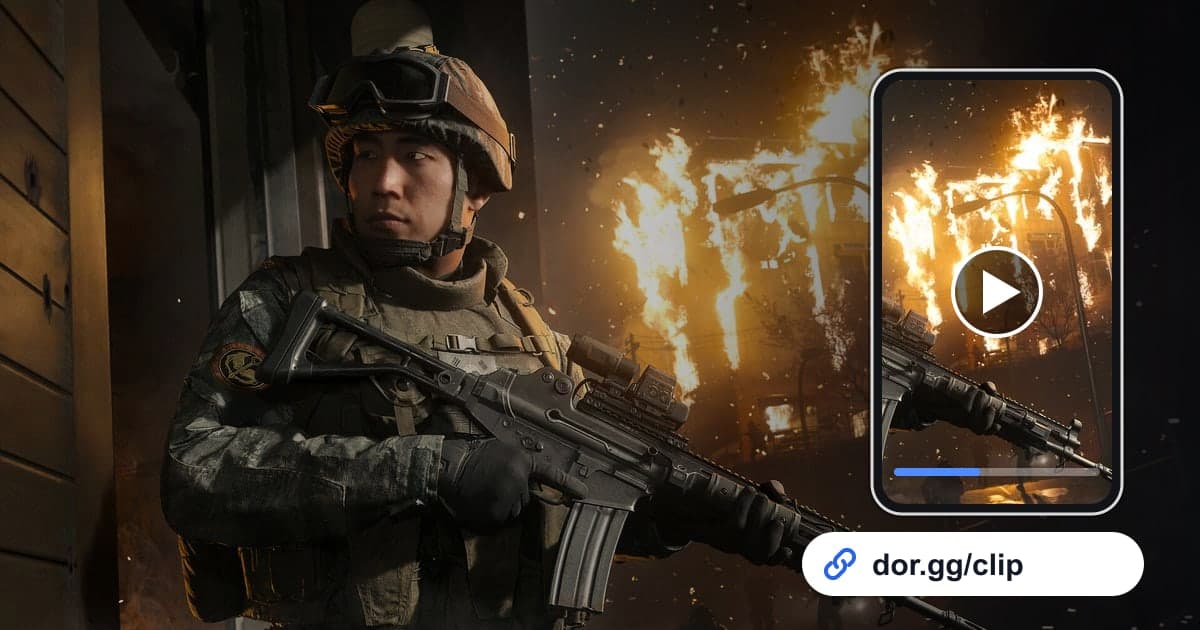
If you held the final Warzone circle as your squad's last player, or set a new Zombies record with friends, showing the video beats describing it. This guide covers one method: record Call of Duty with DOR, trim only the moment you want, and send it to friends as a dor.gg link. A Call of Duty session tends to run for hours as you bounce between the lobby and matches, so the recording gets just as long. That is why most of this guide is about the cues that help you find each mode's moments inside a long recording, plus what to check before you send it, rather than how to start recording.
The Short Answer
Launch the game and DOR starts recording on its own; the moment you close it, the whole session lands in your library as one mp4. Set the start and end of the Warzone final circle or killstreak inside that recording, trim it, and you get a dor.gg link to paste into Discord or any group chat. Tips on things like how many seconds of lead-in to keep are in How to Trim Game Clips.
Sending a Call of Duty Moment to Your Squad
- 1Install DOR and launch Call of DutyInstall the free DOR app on your Windows PC, then start Call of Duty as usual. Recording begins as soon as the game is detected and runs as one video, menus and lobby waits included, until you quit.
- 2Note which match had the highlightWhen one session mixes several Warzone matches with multiplayer, it is easy to lose track of which match it was. Jot down something like "third Warzone match, final circle," and later you can count the drop sequences in the recording to jump straight to that match.
- 3In Warzone, use the players-left count to find the endingA Warzone match has a long looting stretch up front, and the outcome is decided at the end. Within that match, skip to where the players-left number has dropped sharply, and you will reach the final circle fight quickly.
- 4Set the range in your library and pick a ratioAfter you close the game, open the session in your library and trim it by setting a start and end. Keep 16:9 if your squad watches on PC, or choose 9:16 or 1:1 if most friends will watch on phones. Vertical framing can cut off the minimap at the edge, so check in the preview that the area around your crosshair stays centered.
- 5Paste the dor.gg link into squad chatOnce the trim finishes, a dor.gg link is created. Squadmates who were in the match get a keepsake, and friends who missed it just need the link and a quick "watch this circle"; there is no big file to upload anywhere.
- 6Combine Zombies rounds in the StudioFor a high-round Zombies run with several close calls, trim each round, merge them in DOR Studio in your browser, and add the round number as text before each scene so the progression is easy to follow. Share the finished video as a link or download it as an mp4.
Call of Duty Moments by Mode, and How Long to Cut Them
| Mode and moment | Cue to find it in the recording | Suggested clip length |
|---|---|---|
| Warzone final circle win | The players-left count drops to single digits as the circle closes | 1 to 2 minutes, from 30 seconds before the last fight to the win screen |
| Warzone fight right after the drop | The first gunshots just after the match-start drop | About 40 seconds, from landing to the cleanup |
| Multiplayer multikill | Kill notifications popping in quick succession | 15 to 30 seconds, starting 5 seconds before the first kill |
| Match turned by a killstreak | The voice line and on-screen alert as you call in a streak | 30 to 60 seconds, from the call-in until the scoreboard shifts |
| High-round Zombies survival | The moment the round number in the corner changes | 1 to 3 minutes, from just before the round change to the escape |
| Squad voice chat moments | The point where everyone bursts out laughing | 20 to 40 seconds, keeping 10 seconds on each side |
Before You Send a Call of Duty Clip
- The clip does not linger on lobby screens showing squadmates' names or your friends list
- Swearing or other people's voices in voice chat are fine to share
- The end of the clip includes the win screen or scoreboard so the result is visible
- If you cut it vertically, enemies going down are not pushed out of frame
- You have at least 20GB of free disk space on days you play many matches back to back
- A Zombies clip shows the round number at least once
How DOR Records Call of Duty
Call of Duty became a DOR-supported game with the October 2026 app update, and it uses full-session recording. DOR, a free Windows app, detects when the game starts and saves everything from launch to exit as one mp4. It does not split the video by match or detect kills and wins to build highlights, so you find the moment yourself and cut it out with the trim tool. On NVIDIA graphics cards, NVENC hardware encoding is the default, and game sound like gunfire is captured in the same video as your mic while you make squad calls. For balancing mic volume, see How to Record Game Sound and Mic Together. Long sessions fill the disk quickly, and recording stops automatically when free space falls below 20GB, so if a recording comes up empty, start with How to Fix Recordings Not Saving. On days you do not want Call of Duty recorded, you can switch off just this game under the full-session recording group in settings; a confirmation dialog appears when you turn it off.